Convert Low-Resolution Graphics to High Resolution in Photoshop

Convert Low-Resolution Graphics to High Resolution in Photoshop

Low-resolution graphics often limit design projects, especially when you need to scale logos, icons, or simple illustrations for print or large-format displays. While vector formats offer infinite scalability, many graphics exist only as pixelated bitmap files that become unusable when enlarged.

This tutorial demonstrates two effective methods for converting low-resolution graphics into crisp, high-resolution versions using Photoshop's built-in tools. You'll learn techniques that work specifically for simple graphics with one to two colors, transforming pixelated images into clean, scalable designs suitable for professional use.

Watch the Tutorial

Video by Brendan Williams. Any links or downloads mentioned by the creator are available only on YouTube

Understanding Resolution Enhancement Limits

Resolution enhancement in Photoshop works by reconstructing edge information rather than creating new detail from nothing. The process relies on intelligent algorithms that analyze existing pixel data and make educated guesses about where sharp edges should fall. This fundamental limitation explains why results vary significantly based on the starting image quality.

Simple graphics with solid colors and clear boundaries respond best to these techniques because they contain predictable patterns that Photoshop can interpret accurately. Complex images with gradients, multiple colors, or photographic elements require different approaches—often involving vector tracing in Illustrator rather than pixel-based enhancement.

The Preserve Details 2.0 resampling algorithm represents a significant advancement in upscaling technology, using machine learning to identify and preserve edge characteristics during enlargement. This tool forms the foundation for both enhancement methods, creating a higher-resolution canvas that provides more pixel data for subsequent sharpening operations.

Practical Tips for Graphic Enhancement

  • Always start by upscaling to 300 PPI using the Preserve Details 2.0 resampling option before applying any sharpening techniques.
  • Use minimal Gaussian blur radius—just enough to smooth pixelated edges without losing fine details in your graphic.
  • Apply contrast adjustments gradually through curves, bringing the black and white points closer together until edges appear sharp but not blocky.
  • When using Select and Mask, balance the smooth, feather, and contrast sliders to achieve clean edges while preserving important details.
  • Clean up gray artifacts in layer masks using a soft brush set to overlay blending mode, which targets mid-tones without affecting pure black or white areas.

Explore more techniques for improving and transforming images in Photoshop.

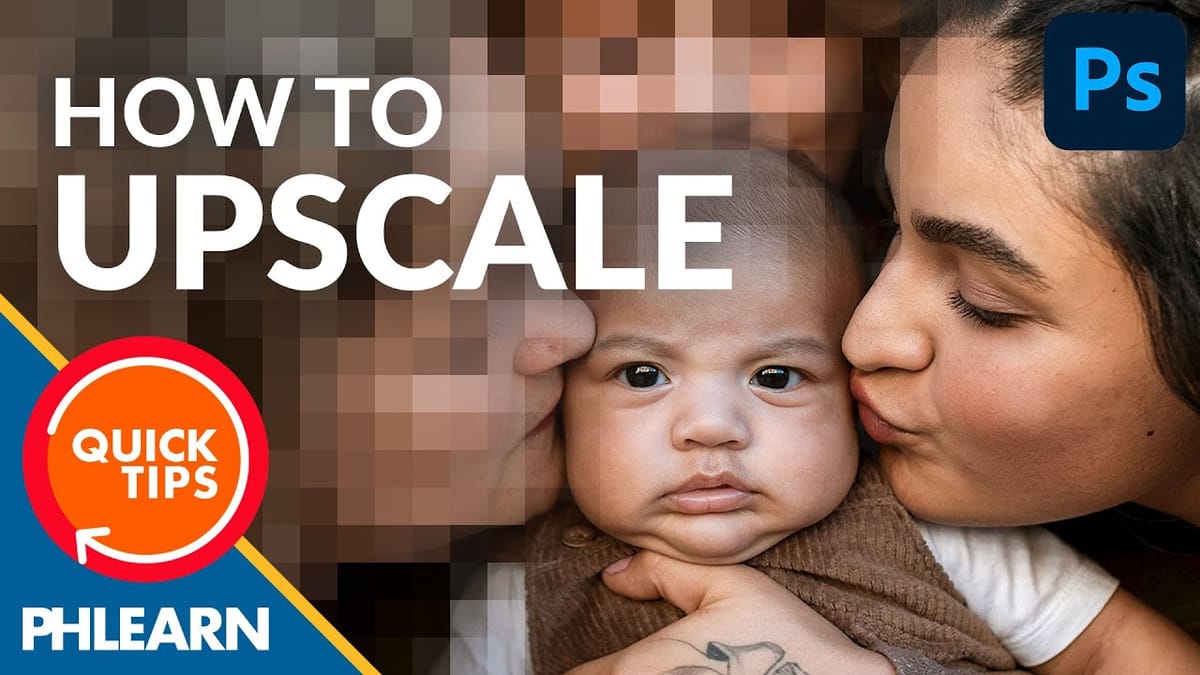
How to convert a low-resolution image to high-resolution in Photoshop
Learn how to use the Super Resolution feature in Adobe Camera RAW (version 13.2) and Photoshop to enhance the resolution of any image! Download the sample image here… (Requires free subscription). More
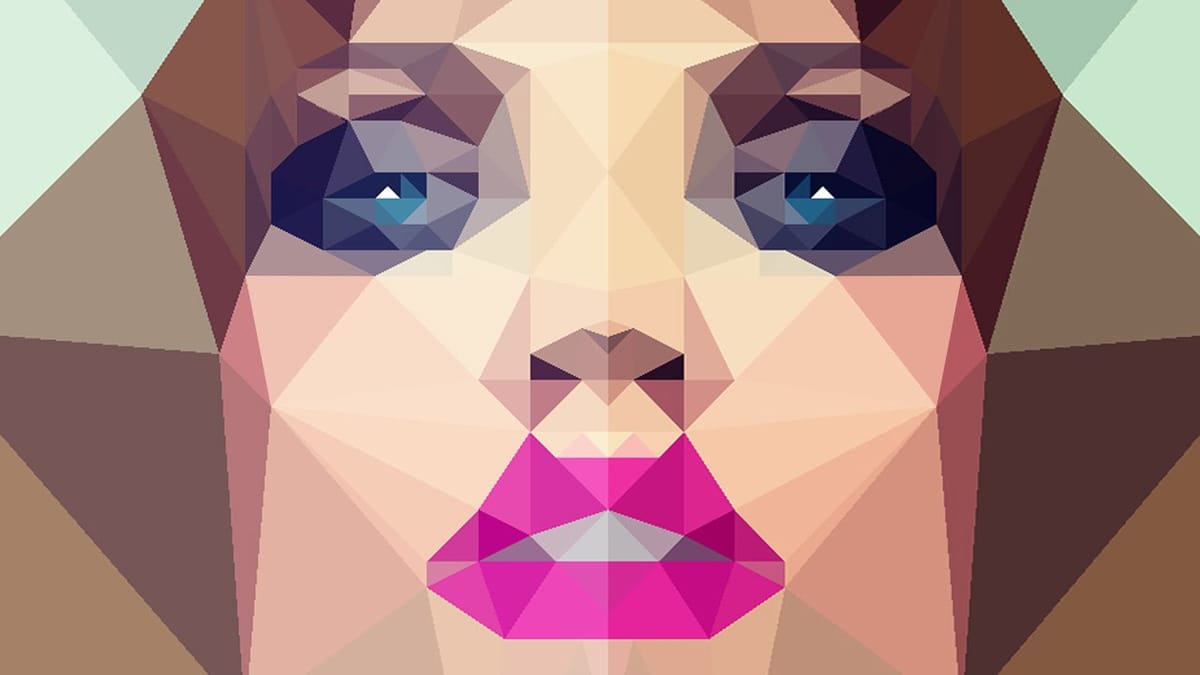
How to Create Low Polygon Images from Photos in Photoshop
Photoshop tutorial showing how to create low poly portraits from photos. The techniques shown can be applied to any image. More
How to Apply Graphics and Change Colors in Photoshop
Integrating graphics and adjusting colors are fundamental skills in Photoshop, enabling designers and artists to transform disparate elements into cohesive visual narratives. From compositing a logo onto a product image to blending text into a scene, mastering these techniques is crucial for achieving professional results. This video demonstrates practical methods
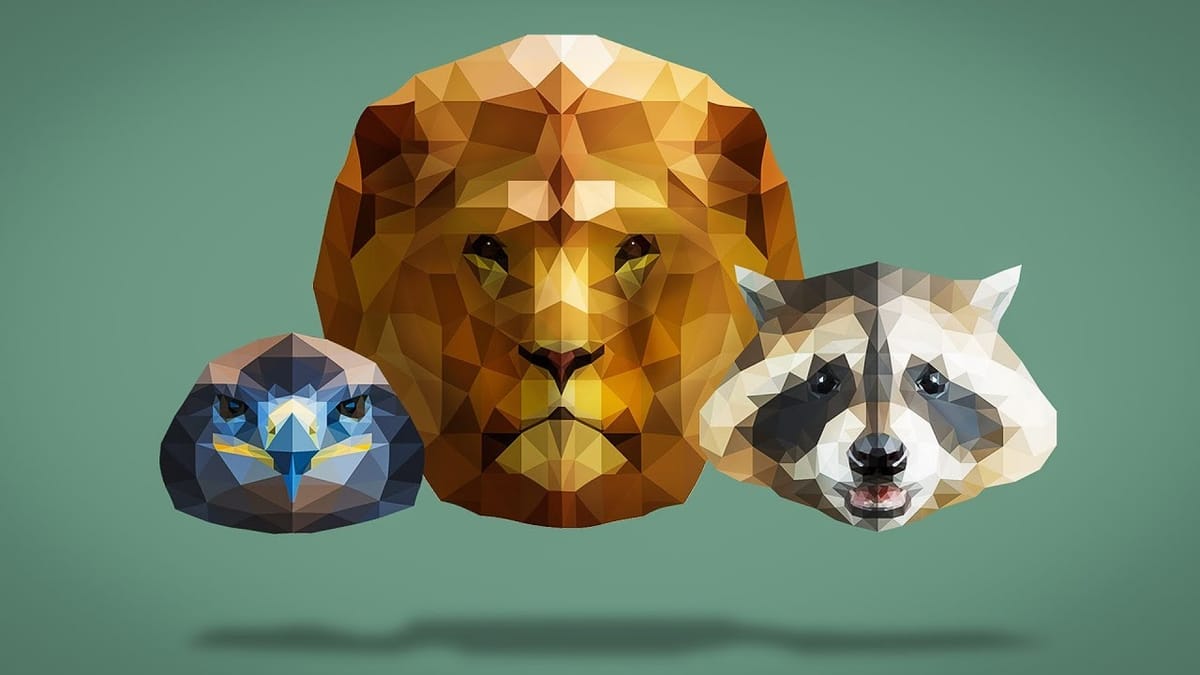
How to create low-poly portraits in Photoshop
In this tutorial by talented serbian artist Nemanja Sekulic, you will learn how to create a low poly portrait effect in Photoshop. Something like a paper mask effect, or origami effect. The basic thing is to cover your model with a bunch of triangles, not squares or any other polygon shapes, but triangles. More

Get tutorials & freebies delivered to you.

Subscribe to the Photoshop Roadmap newsletter, a weekly roundup of new tutorials, insights and quality downloads, trusted by 6500+ readers.

You might also like

How to Create Collage Text Effects in Photoshop

Collage text transforms simple typography into visually striking artwork by combining wrapped paper textures, strategic warping, and careful masking techniques. This creative approach gives letters dimension and character, perfect for artistic projects and unique design elements. The technique involves layering textured materials within letter shapes, then using Photoshop's...

How to Convert Low-Resolution Graphics to Vector Shapes in Photoshop

Pixelated logos and graphics lose their impact when scaled up for print or web projects. Photoshop's Creative Cloud Libraries feature offers a built-in solution for transforming low-resolution black and white images into crisp, scalable vector shapes. This technique works particularly well for simple graphics, logos, and icons that...

How to Use Photoshop's Select Subject Tool for One-Click Selections

Complex selections in Photoshop just became effortless. The Select Subject tool uses advanced AI to automatically identify and select main subjects in images, even those with intricate details like bicycle spokes or hair. This tutorial demonstrates how to achieve professional-quality selections with a single click, saving hours of manual masking...

Understanding Photoshop Blending Modes: A Complete Guide to Layer Blending

Blending modes transform how layers interact in Photoshop, letting you seamlessly combine images without complex masking. This technique reveals only light areas, dark areas, or specific colors from each layer. Master these essential blending groups to create professional composites and artistic effects with just a few clicks. Watch the Tutorial...

Photoshop 2026 New Features: AI Tools and Credit System Overview

Photoshop 2026 introduces powerful AI-driven features including advanced generative fill models, sophisticated upscaling tools, and seamless harmonization effects. These updates promise to streamline complex editing tasks while delivering professional-quality results. The software now operates on a credit-based system that divides features into standard and premium tiers, fundamentally changing how users...

How to Add Objects to Photos Using Photoshop's Generative Fill

Photoshop's Generative Fill transforms photo editing by letting you add realistic objects using simple text descriptions. This AI-powered feature creates seamless additions that match your image's lighting, perspective, and style. The process requires just a basic selection and a descriptive prompt to generate professional-looking results in...

You’ve successfully subscribed to Photoshop Roadmap
Welcome back! You’ve successfully signed in.
Great! You’ve successfully signed up.
Success! Your email is updated.
Your link has expired
Success! Check your email for magic link to sign-in.