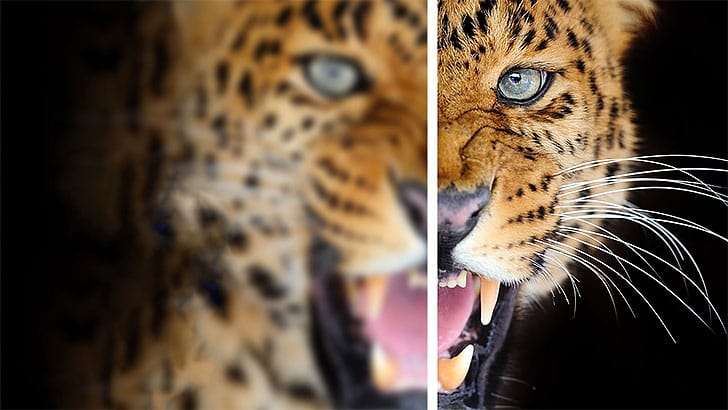
Low-resolution images often limit your creative projects, especially when you need sharp prints or high-quality displays. Photoshop's Generative Upscale feature transforms small, pixelated photos into crisp, detailed images using AI-powered enhancement.
This tool offers three distinct AI models, each designed for specific image types—from landscapes and portraits to digital artwork—allowing you to choose the best approach for your restoration needs.
Watch the Video
Video by Adobe Photoshop. Any links or downloads mentioned by the creator are available only on YouTube
Practical Tips
These key techniques will help you get the best results from Generative Upscale:
- Always view your upscaled images at 100% zoom to accurately judge detail quality and sharpness
- Use Firefly Upscaler for landscapes and natural scenes where it excels at texture enhancement
- Choose Topaz Gigapixel for portraits and real-world photographs, enabling Face Recovery for better facial detail restoration
- Apply Topaz Bloom to AI-generated artwork and illustrations, adjusting the Creativity slider to control how much new detail is added
- Save your upscaled document immediately since it creates a new file with both original and enhanced layers
Related Articles and Tutorials
Explore more techniques for enhancing and restoring images with AI-powered tools:
Photo Restoration: Combining AI with Photoshop for Optimal Results
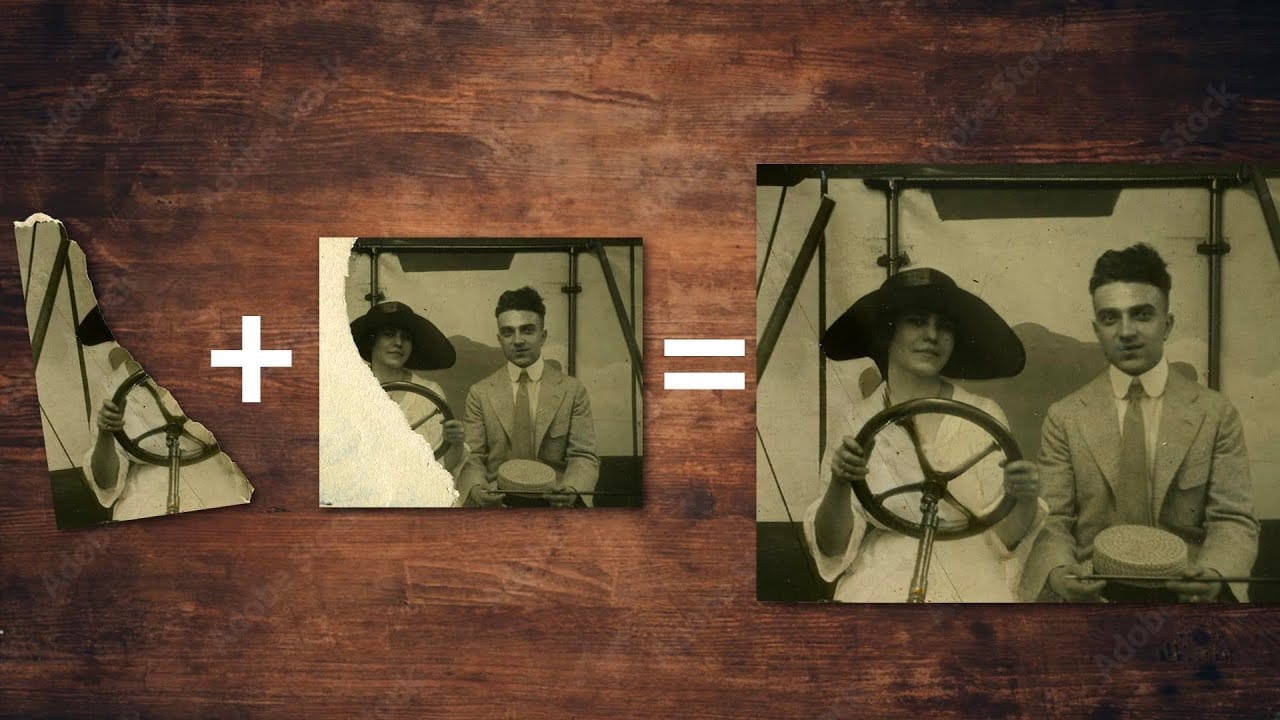
Restoring old, damaged photographs can be a challenging endeavor. While many AI-powered tools promise to breathe new life into vintage images, they often fall short, either over-sharpening details, neglecting certain areas, or, most critically, altering the original likeness of individuals. This often leads to frustrating and uncanny results that strip the photos of their authentic charm.
This tutorial unveils a comprehensive workflow that marries the efficiency of AI-driven enhancement with th
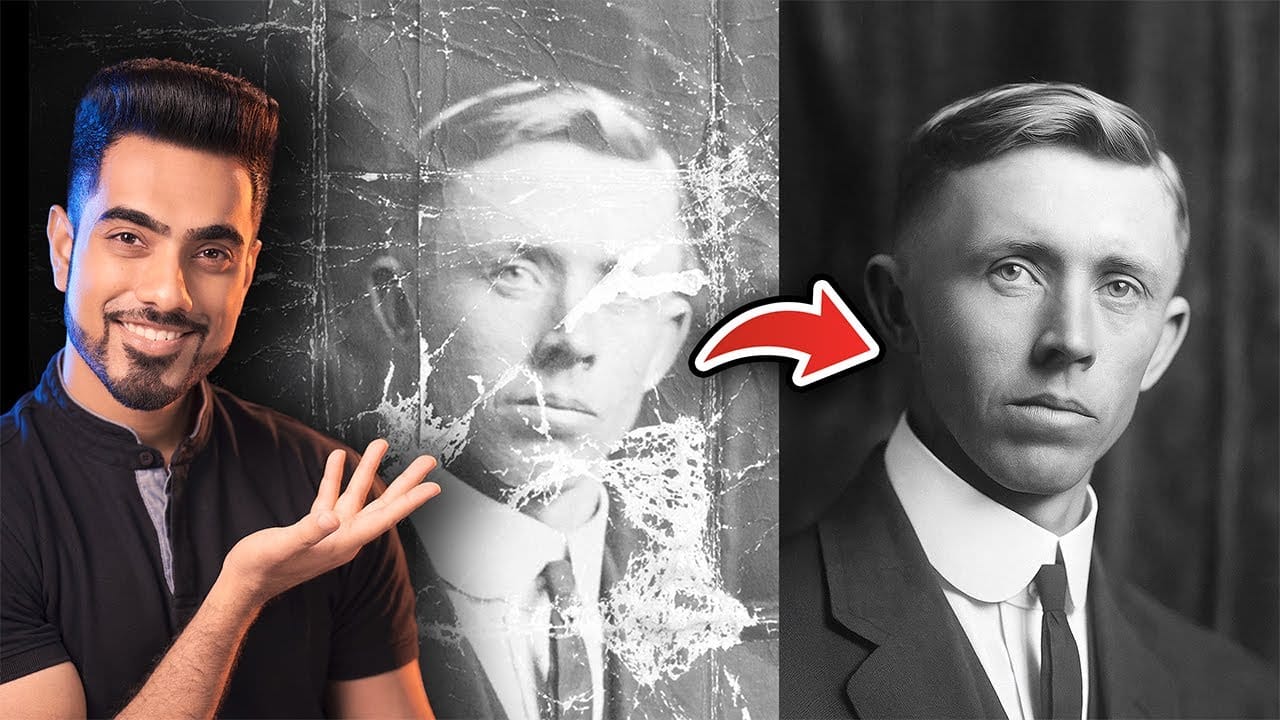
Using Photoshop's New Generative Upscale Tool
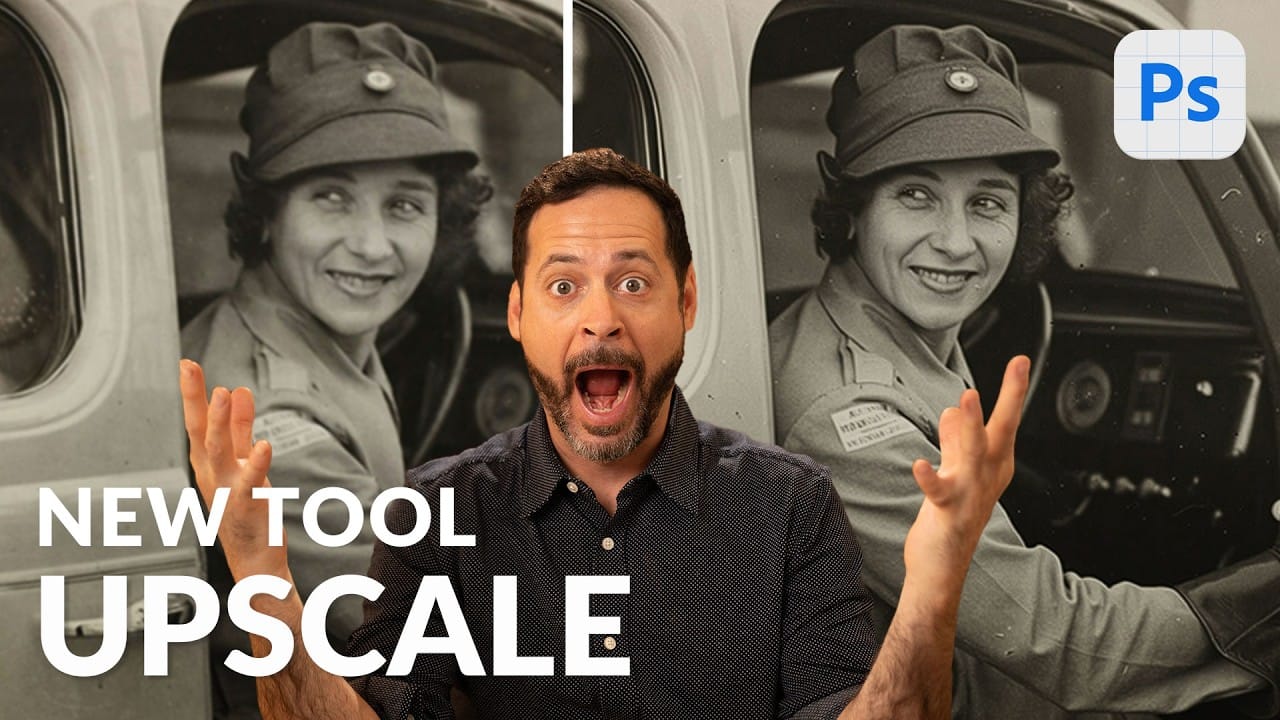
Old family photos often hold irreplaceable memories, but their small size and low resolution make them difficult to print or display properly. These cherished images deserve better than pixelated enlargements that lose all their detail and emotional impact.
Photoshop's new AI-powered Generative Upscale tool changes this completely. This beta feature can transform tiny, low-resolution images into crisp, printable photographs using artificial intelligence—all with a single click.
Watch the Tuto
How to Use Photoshop 2026's New AI Upscale, Sharpen, and Denoise Filters
Photoshop 2026 introduces three powerful AI filters that transform low-quality images into crisp, professional results. These tools tackle common photo problems: pixelated enlargements, soft details, and grain from low-light conditions.
Each filter uses advanced AI models to enhance different aspects of your images, with options ranging from standard to premium quality depending on your Creative Cloud plan.
Watch the Tutorial
Key Tips for AI Image Enhancement
* Choose Topaz Gigapixel for
Learn how to sharpen images properly in Photoshop
The article provides a step-by-step guide on how to properly sharpen images in Photoshop. It explains a non-destructive method that allows users to beautifully enhance their images with just a few simple steps.
The tutorial walks the reader through the process of sharpening an image in Photoshop. It outlines the key techniques and settings to use in order to achieve the desired level of sharpness without damaging the original file. The article emphasizes the importance of using a non-destructiv
How to convert a low-resolution image to high-resolution in Photoshop
In this tutorial, Aaron Nace demonstrates how to enhance low-resolution images using Photoshop's Super Resolution feature. This tool, available in Adobe Camera RAW, allows you to increase image resolution significantly by doubling the width and height of your photos, resulting in a fourfold increase in pixel count.
Aaron walks you through the process of applying Super Resolution, explaining how it uses advanced algorithms to improve image detail and clarity. The tutorial covers preparation tips
Comparing Photoshop's Three AI Upscaling Tools: Generative Upscale vs Neural Filters vs Preserve Details
Low-resolution images present a constant challenge for designers and photographers who need crisp, detailed prints or high-quality digital displays. Traditional upscaling methods often produce blurry, pixelated results that fail to meet professional standards.
Photoshop now offers three distinct AI-powered upscaling options, each with unique strengths and limitations. This comprehensive comparison reveals how each tool performs across different image types and helps you choose the right approac
Convert Low-Resolution Graphics to High Resolution in Photoshop
Low-resolution graphics often limit design projects, especially when you need to scale logos, icons, or simple illustrations for print or large-format displays. While vector formats offer infinite scalability, many graphics exist only as pixelated bitmap files that become unusable when enlarged.
This tutorial demonstrates two effective methods for converting low-resolution graphics into crisp, high-resolution versions using Photoshop's built-in tools. You'll learn techniques that work specifica
How Photoshop Photo Restoration Got Better Than Ever
This tutorial by Matt Kloskowski on Photoshop photo restoration reveals an impressive evolution in photo editing technology over the past few years. Many tasks that once required extensive time and complex processes can now be completed in just minutes. This is especially relevant after recent storms, which emphasized the need for restoring valuable family memories.
Photoshop's new tools and techniques make it easier than ever to tackle damaged images. Kloskowski emphasizes that achieving perfe
Hidden trick to perfectly sharpen photos in Photoshop
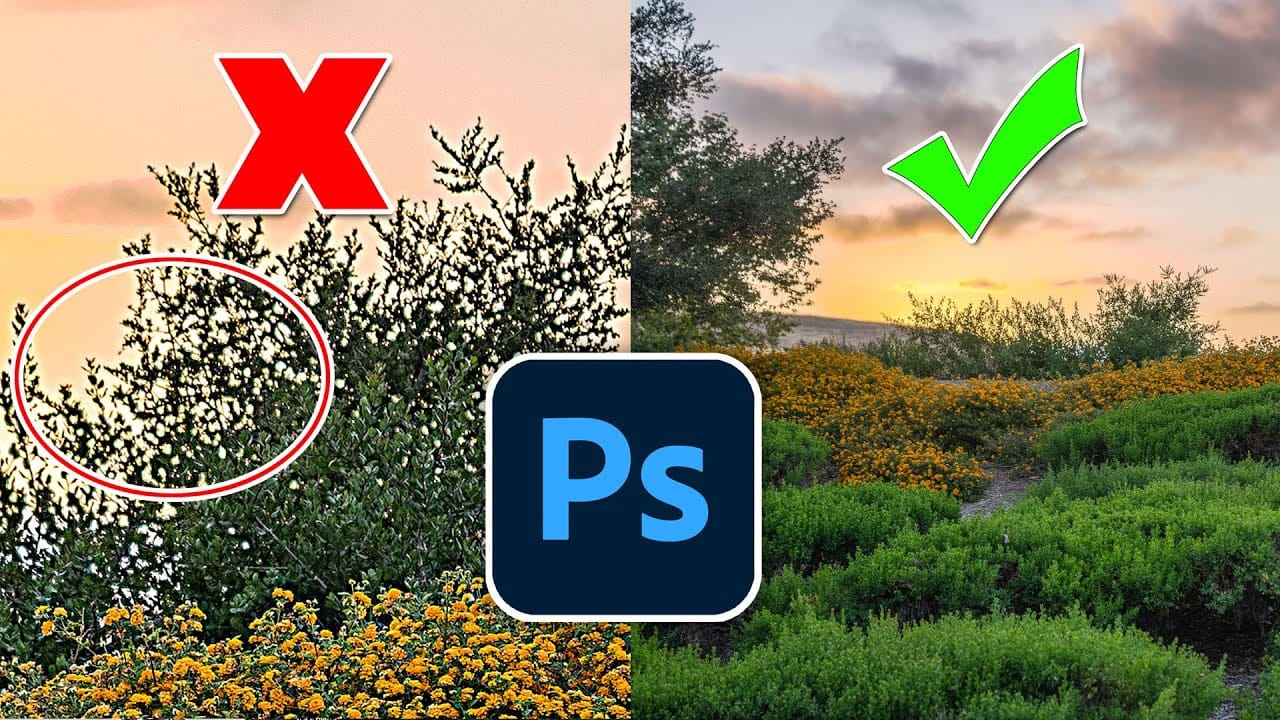
In this detailed tutorial, Colin Smith from Photoshop Cafe uncovers a sophisticated technique for achieving impeccable sharpening results in Photoshop. He dives deep into three essential sharpening methods: Smart Sharpen, High Pass, and Unsharp Mask, each of which offers distinct advantages depending on your editing needs.
Colin's approach goes beyond basic sharpening techniques, incorporating a clever twist that enhances the effectiveness of these tools. He demonstrates how to leverage Smart S
How to Sharpen Images in Photoshop
In this tutorial by kelvin Pimont from Kelvin Designs, you will learn a few ways to sharpen your images and photos in Photoshop. From Unsharp Mask, to High Pass filter, to sharpen tool and using Camera Raw. Many ways to sharpen images in Photoshop!
There's a bunch of different ways to sharpen an image using different tools and different filters. The biggest challenge is to know when and why should you use some over others or sometimes mix them.
In this tutorial, Kelvin goes over a few differen