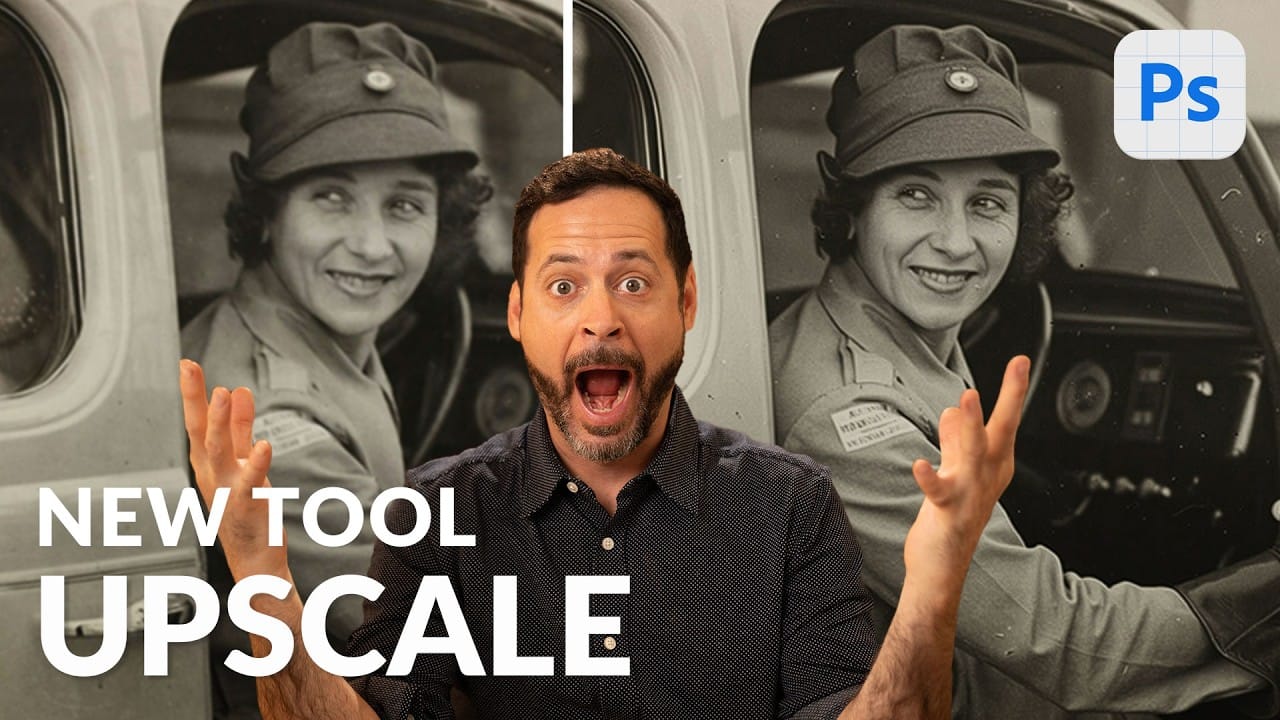
Photoshop 2026 introduces three powerful AI filters that transform low-quality images into crisp, professional results. These tools tackle common photo problems: pixelated enlargements, soft details, and grain from low-light conditions.
Each filter uses advanced AI models to enhance different aspects of your images, with options ranging from standard to premium quality depending on your Creative Cloud plan.
Watch the Tutorial
Video by Photoshop Arthouse. Any links or downloads mentioned by the creator are available only on YouTube
Key Tips for AI Image Enhancement
- Choose Topaz Gigapixel for realistic photos - This model preserves original details better than Firefly Upscaler, though it uses more generative credits
- Enable Face Recovery for portrait upscaling - This AI enhancement specifically improves facial features during the enlargement process
- Apply AI Sharpen after upscaling - Use this filter as a second step to further enhance detail and clarity in your enlarged images
- Use AI Denoise for low-light photos - This filter removes grain and noise while preserving important image details
- Access tools through Image menu or Filter menu - Generative Upscale appears under Image, while AI Sharpen and AI Denoise are found under Filter
Related Articles and Tutorials
Explore more about Photoshop's AI-powered enhancement tools and upscaling techniques.
Photoshop 2026 New Features: AI Tools and Credit System Overview
Photoshop 2026 introduces powerful AI-driven features including advanced generative fill models, sophisticated upscaling tools, and seamless harmonization effects. These updates promise to streamline complex editing tasks while delivering professional-quality results.
The software now operates on a credit-based system that divides features into standard and premium tiers, fundamentally changing how users access certain tools.
Watch the Video
Key Features and Practical Tips
* Access the co

Strategic Guide to Photoshop’s AI Tools: Which Tool, When, and Why
Over the past few years, Adobe has been strategically integrating AI-powered features that are redefining what’s possible in image editing, positioning Photoshop at the forefront of the generative AI revolution. Rather than simply adding standalone AI tools, Adobe is thoughtfully weaving intelligence into Photoshop’s core workflows, creating something far more
 Enrique Flouret
Comparing Photoshop's Three AI Upscaling Tools: Generative Upscale vs Neural Filters vs Preserve Details
Low-resolution images present a constant challenge for designers and photographers who need crisp, detailed prints or high-quality digital displays. Traditional upscaling methods often produce blurry, pixelated results that fail to meet professional standards.
Photoshop now offers three distinct AI-powered upscaling options, each with unique strengths and limitations. This comprehensive comparison reveals how each tool performs across different image types and helps you choose the right approac
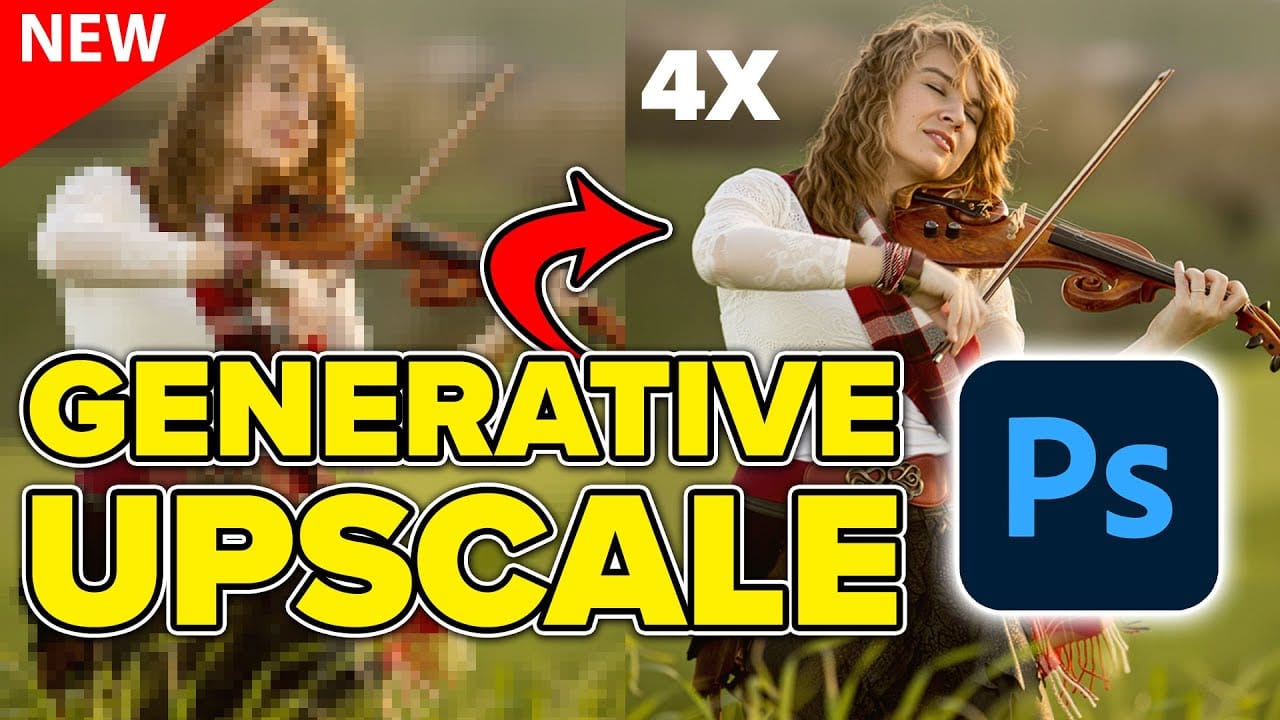
Using Photoshop's New Generative Upscale Tool
Old family photos often hold irreplaceable memories, but their small size and low resolution make them difficult to print or display properly. These cherished images deserve better than pixelated enlargements that lose all their detail and emotional impact.
Photoshop's new AI-powered Generative Upscale tool changes this completely. This beta feature can transform tiny, low-resolution images into crisp, printable photographs using artificial intelligence—all with a single click.
Watch the Tuto