Comparing Photoshop's Three AI Upscaling Tools: Generative Upscale vs Neural Filters vs Preserve Details

Comparing Photoshop's Three AI Upscaling Tools: Generative Upscale vs Neural Filters vs Preserve Details

Low-resolution images present a constant challenge for designers and photographers who need crisp, detailed prints or high-quality digital displays. Traditional upscaling methods often produce blurry, pixelated results that fail to meet professional standards.

Photoshop now offers three distinct AI-powered upscaling options, each with unique strengths and limitations. This comprehensive comparison reveals how each tool performs across different image types and helps you choose the right approach for your projects.

Watch the Video

Video by photoshopCAFE. Any links or downloads mentioned by the creator are available only on YouTube

Understanding Photoshop's Three AI Upscaling Methods

Photoshop includes three AI-driven approaches to image enlargement, each serving different purposes and producing distinct results. The new Generative Upscale feature represents Adobe's latest advancement in AI enhancement technology, currently available in beta with a maximum output of 4,000 pixels.

The established Preserve Details 2.0 algorithm focuses on maintaining original image characteristics while enlarging, making it ideal for preserving natural textures and authentic details. Meanwhile, the Super Zoom neural filter offers additional controls for JPEG artifact removal and face enhancement.

  • Generative Upscale excels at creating smoother, more polished results but may sacrifice some realism
  • Preserve Details 2.0 maintains the most authentic representation of original image qualities
  • Super Zoom provides the best results for typography and text elements
  • Each method shows different strengths depending on subject matter and intended use
  • Combining multiple approaches through layer masking can optimize results for specific image areas

Practical Tips for AI Upscaling

  • Use Super Zoom for images containing text or typography elements, as it produces the sharpest results for these details
  • Choose Generative Upscale for portraits where you want smoother skin and enhanced overall appearance, but be aware it may alter facial features
  • Apply Preserve Details 2.0 when maintaining authentic textures and realistic detail is crucial for your project
  • Combine multiple upscaling methods using layer masks to optimize different areas of the same image
  • Test all three methods on your specific image type to determine which produces the best results for your needs

Explore more ways to enhance and manipulate images using Photoshop's AI-powered tools.
Crop to Any Ratio and Expand with AI in Photoshop
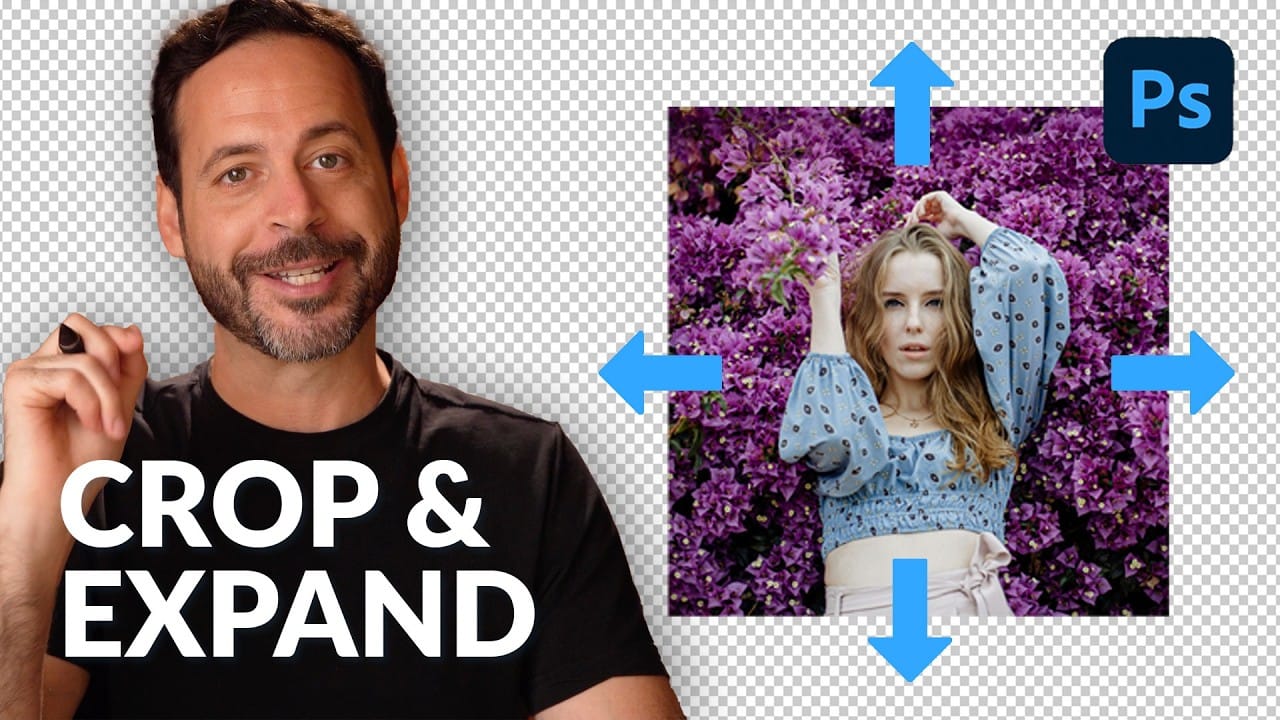
Digital images often require precise dimensions for various outputs, from print to social media. Achieving the perfect crop while maintaining visual integrity can be a challenge, especially when the desired ratio exceeds the original image boundaries. This tutorial explores how to effectively crop images to specific aspect ratios in Photoshop, demonstrating techniques to not only adjust dimensions but also intelligently expand image content using AI when necessary. Watch the Video The Evolu
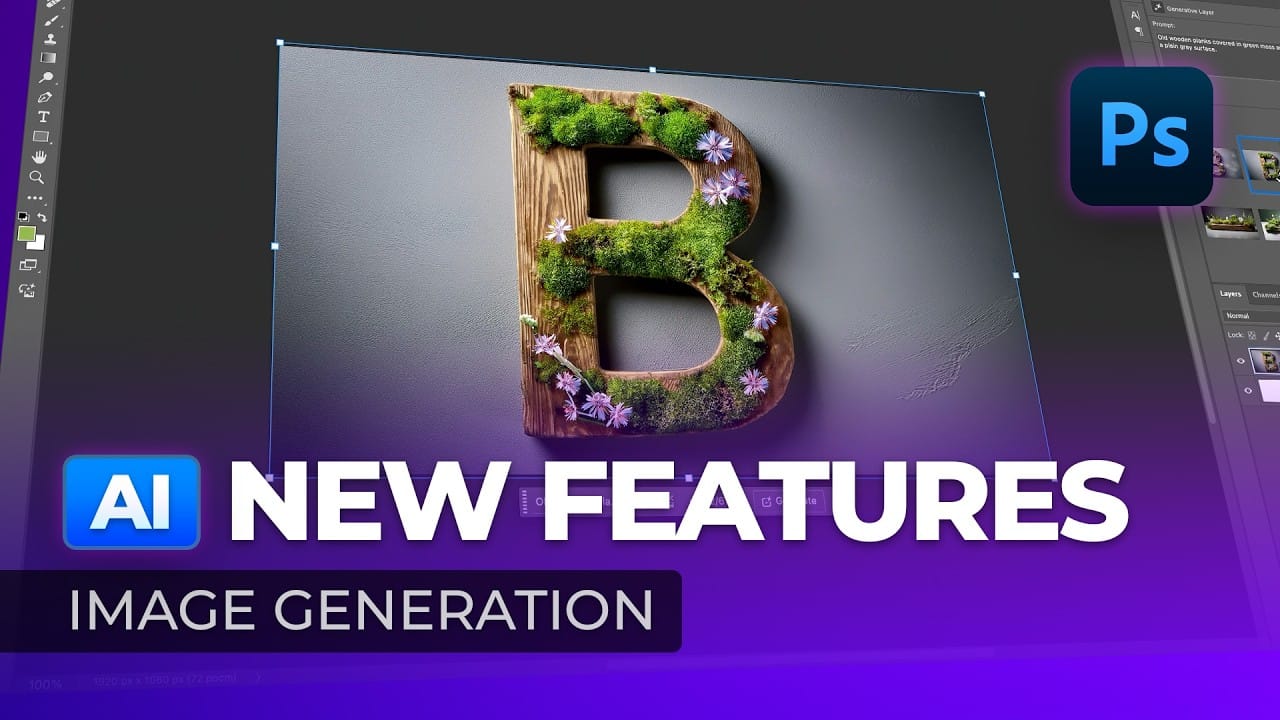
New Photoshop AI Features – Smarter, Faster, and More Efficient Tools!
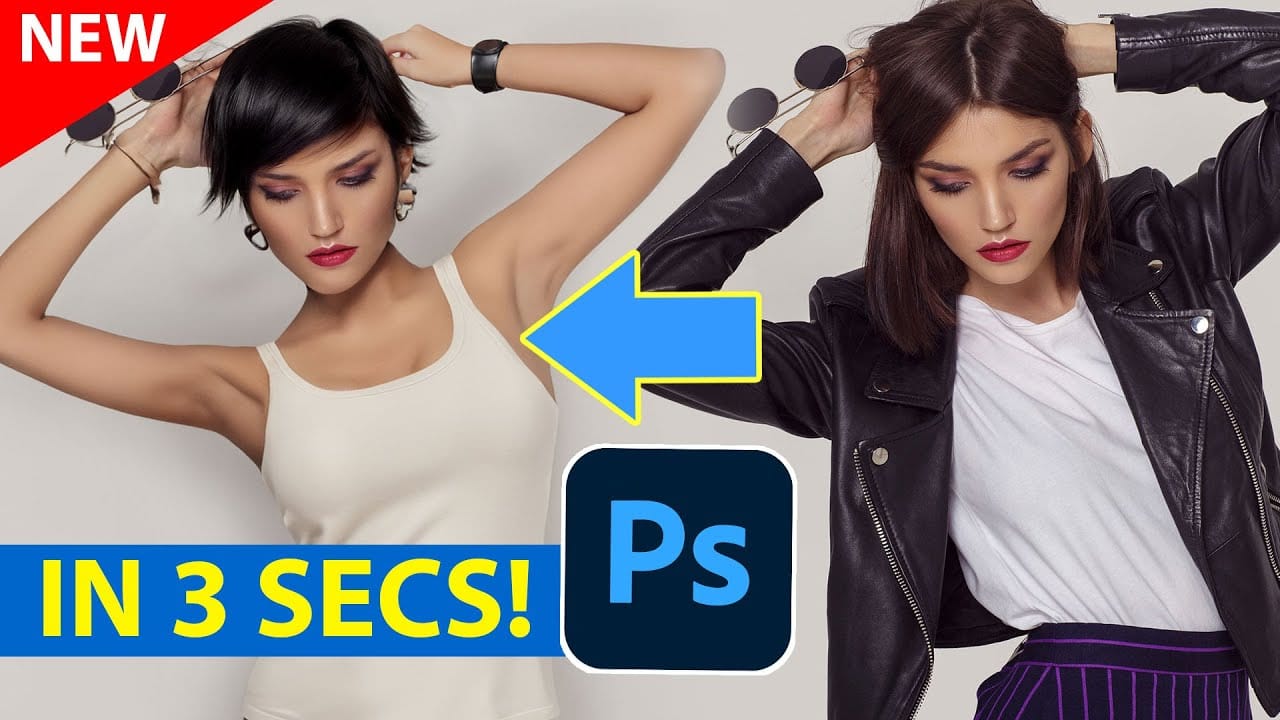
Editing detailed selections, adjusting colors, and removing backgrounds in Photoshop can be tedious, especially when working with complex edges like hair or challenging objects. Manual work often stalls creative flow and makes it tough to achieve clean, professional results on tight deadlines. This article introduces essential, time-saving features in the latest Photoshop update—including advanced AI-powered selection, color, and removal tools. Learn how these updates streamline everyday editin
Generative AI: A new era of Photoshop begins
Generative AI has made its way into the world of Photoshop, and in this fascinating video, Colin Smith from Photoshop Cafe explores its transformative capabilities. Generative AI is an incredible technology that's transforming the world of artificial intelligence. It's like having a creative companion that can generate all sorts of new content, from stunning images to captivating music and even imaginative stories. With its advanced algorithms and neural networks, generative AI brings a touch o
Using Photoshop's New Generative Upscale Tool
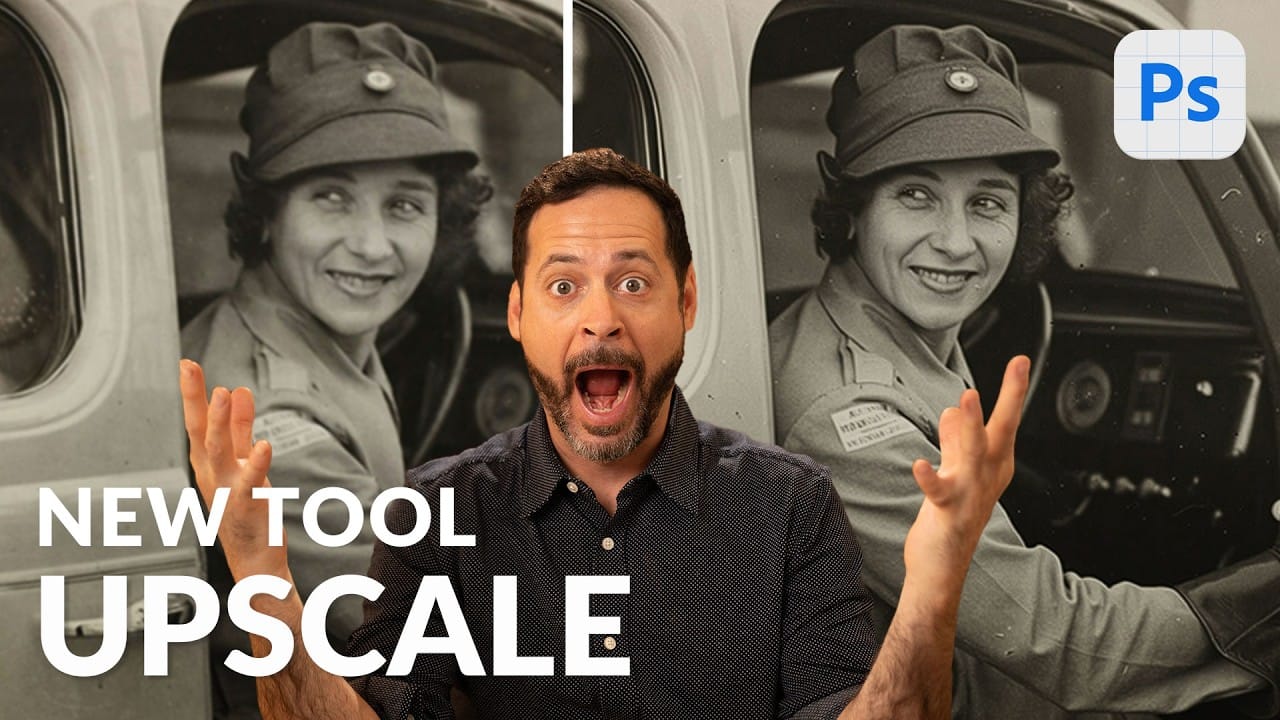
Old family photos often hold irreplaceable memories, but their small size and low resolution make them difficult to print or display properly. These cherished images deserve better than pixelated enlargements that lose all their detail and emotional impact. Photoshop's new AI-powered Generative Upscale tool changes this completely. This beta feature can transform tiny, low-resolution images into crisp, printable photographs using artificial intelligence—all with a single click. Watch the Tuto

Get tutorials & freebies delivered to you.

Subscribe to the Photoshop Roadmap newsletter, a weekly roundup of new tutorials, insights and quality downloads, trusted by 6500+ readers.

You might also like

Basic Photoshop techniques you really need to learn

Photoshop hasn’t changed as much as it looks. New features come and go, but the same core techniques keep showing up in real work. If you skip them, everything feels harder than it should. This post focuses on those basics, not as isolated tricks, but as skills you’ll...

How to Use Select Subject for Background Removal and Edge Refinement

Background removal becomes effortless when you know how to use the right tools. AI-powered selection can instantly isolate subjects from their backgrounds, but the real skill lies in refining those selections to create professional results. This guide covers the complete workflow from initial selection to edge refinement, plus creative techniques...

How to Wrap Text Around Any Shape in Photoshop

Creating text that flows naturally around irregular shapes transforms static layouts into dynamic, professional designs. This technique works particularly well for posters, magazine layouts, and editorial designs where text needs to integrate seamlessly with complex subjects rather than simply sitting in rigid rectangular boxes. The process combines selection tools, path...

How to Edit Text in Images Using Generative Fill

Changing text within existing images has traditionally required complex masking and reconstruction techniques. Modern AI-powered tools now make it possible to seamlessly replace words and phrases in photographs while maintaining realistic typography, lighting, and perspective that matches the original scene. This technique works particularly well for signs, storefronts, billboards, and...

How to Remove Dust and Sensor Spots Using Photoshop Tools

Dust spots and sensor particles are inevitable challenges in digital photography, appearing as dark specks that distract from otherwise clean images. Camera sensors collect dust over time, creating consistent spots that show up across multiple photos, particularly in bright sky areas or uniform backgrounds. Both Lightroom and Photoshop offer specialized...

Photoshop vs Affinity Photo: Feature Comparison and Professional Analysis

When choosing professional photo editing software, the decision often comes down to comparing features, performance, and value. This detailed comparison examines the core capabilities of both applications across noise reduction, smart selections, object removal, masking, and AI-powered tools. The analysis covers real-world scenarios that professionals encounter daily, from complex background...

You’ve successfully subscribed to Photoshop Roadmap
Welcome back! You’ve successfully signed in.
Great! You’ve successfully signed up.
Success! Your email is updated.
Your link has expired
Success! Check your email for magic link to sign-in.