Firefly Image Model 5 brings noticeably higher output quality and more natural language prompting to Photoshop's generative fill workflow. Combined with an updated Remove tool that automatically detects distractions and a Camera Raw finishing pass using Point Color, the complete editing pipeline is now faster and more controllable than previous model versions.
Watch the Video
Video by PHLEARN. Any links or downloads mentioned by the creator are available only on YouTube
Practical Tips
These strategies will help you get cleaner, more realistic results when using Firefly Image Model 5 in your editing workflow.
- After generating, use the Object Selection tool to isolate only the changed areas — such as clothing or accessories — and apply a layer mask so the generation is visible only where you intend it.
- Check the generative credits panel before generating: Firefly Image Model 5 uses 10 credits per generation, and the Enhance Detail option counts as a separate generation.
- Use the Remove tool's Find Distractions feature to automatically categorize and remove background elements, then hold Alt/Option to paint back any areas you want to keep before confirming.
- Add a small amount of film grain — either through the Camera Raw Effects tab or a Grain adjustment layer — to blend AI-generated areas seamlessly with the rest of the photograph.
- Use Point Color masking in Camera Raw to adjust hue, saturation, and variance independently for the background and subject, keeping color changes targeted without affecting the full image.
Related Articles and Tutorials
Explore more tutorials covering generative AI tools, creative effects, and advanced editing techniques.
Complete Guide to Adobe Firefly Interface and Creative Modules
Adobe Firefly brings generative AI directly to your creative workflow through a comprehensive web interface. The platform combines multiple AI-powered modules for image generation, video creation, and design tasks, all built on commercially safe, licensed content.
Understanding the interface and available tools helps you integrate these capabilities into existing projects or explore entirely new creative directions.
Watch the Video
Practical Tips
These strategies will help you make the mos

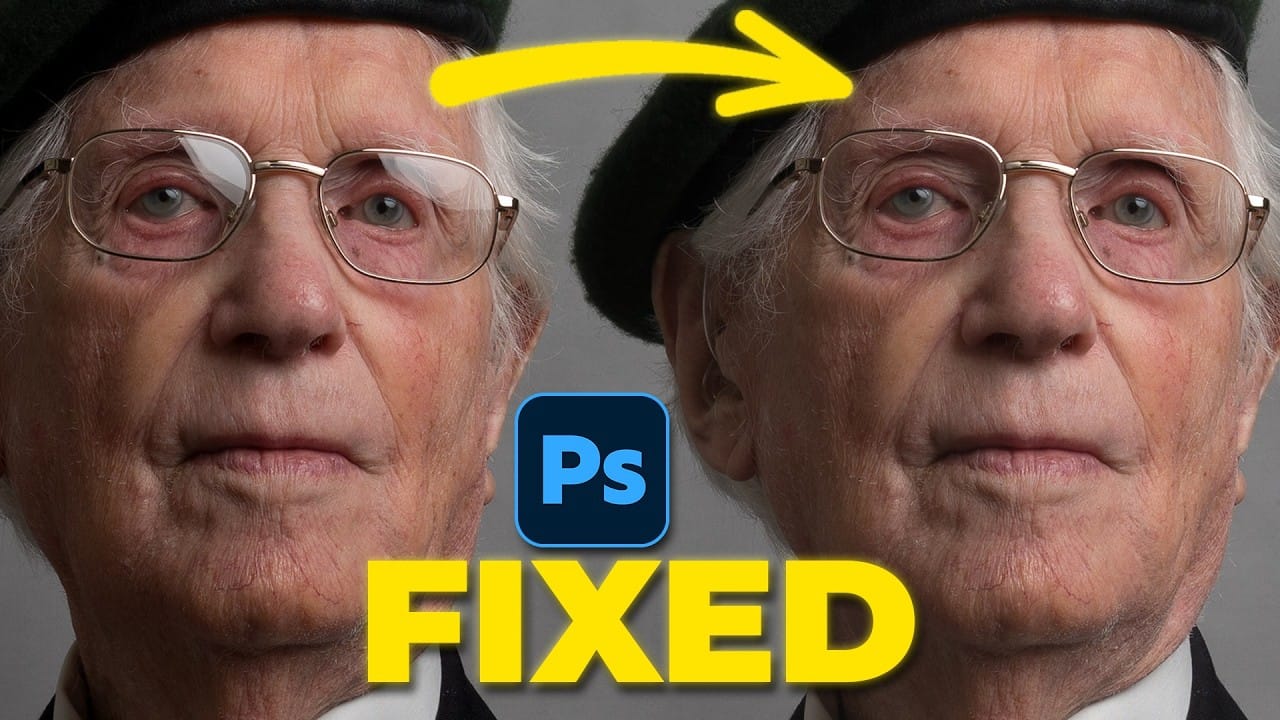
How to Remove Glasses Reflections with Firefly Image Model 5 in Photoshop
Glasses reflections can ruin otherwise perfect portraits, obscuring your subject's eyes and creating distracting bright spots. While traditional AI models can remove these reflections, they often alter facial features and frame details in the process.
Photoshop's new Firefly Image Model 5 changes this by preserving facial structure, eyebrow hairs, and glasses frames while seamlessly removing reflections. This advanced AI maintains image integrity while delivering superior results compared to ea
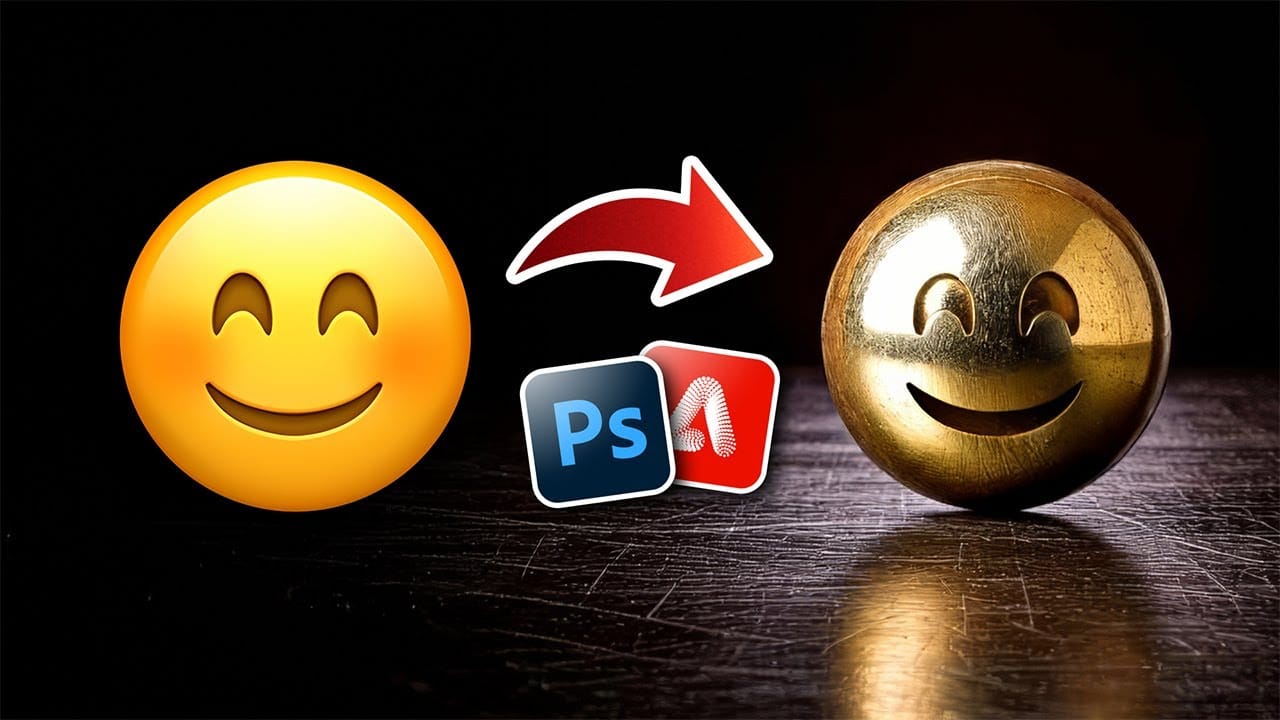
Turn Anything into Realistic 3D with Photoshop and Firefly
Achieving realistic 3D effects from simple 2D shapes can significantly enhance your designs. This process becomes remarkably accessible with the integration of generative AI tools like Adobe Firefly into Photoshop.
This tutorial demonstrates a streamlined workflow, enabling you to transform ordinary graphics into striking, dimensional visuals. You gain control over surface textures, reflections, and dramatic lighting, pushing creative boundaries with ease.
Watch the Video
Bridging 2D and 3D
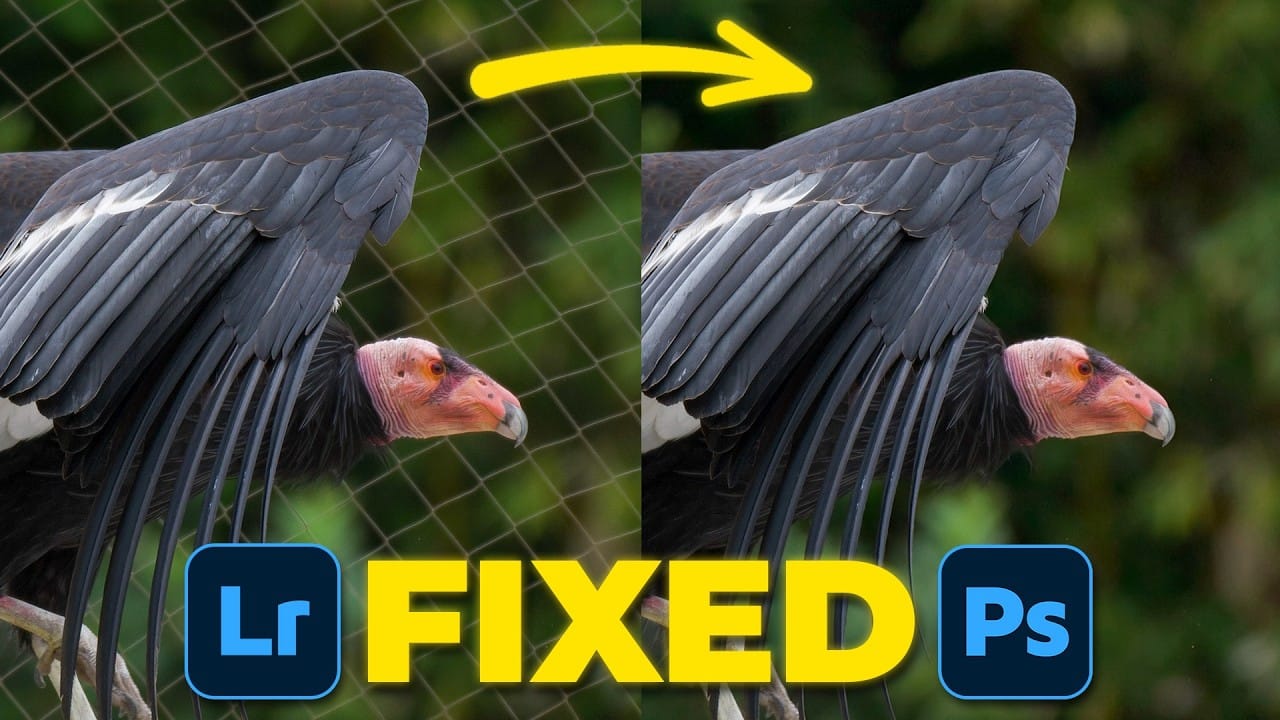
How to Remove Complex Background Elements Using AI in Photoshop
Removing complex background elements like fencing or wire mesh has traditionally been one of the most time-consuming tasks in photo editing. New AI-powered tools in Photoshop can now eliminate these distracting elements while preserving fine details in your subject.
This tutorial demonstrates two practical workflows: one using the latest Firefly Image 5 model in Photoshop Beta, and another using the Firefly web platform for those who prefer the standard version of Photoshop.
Watch the Video
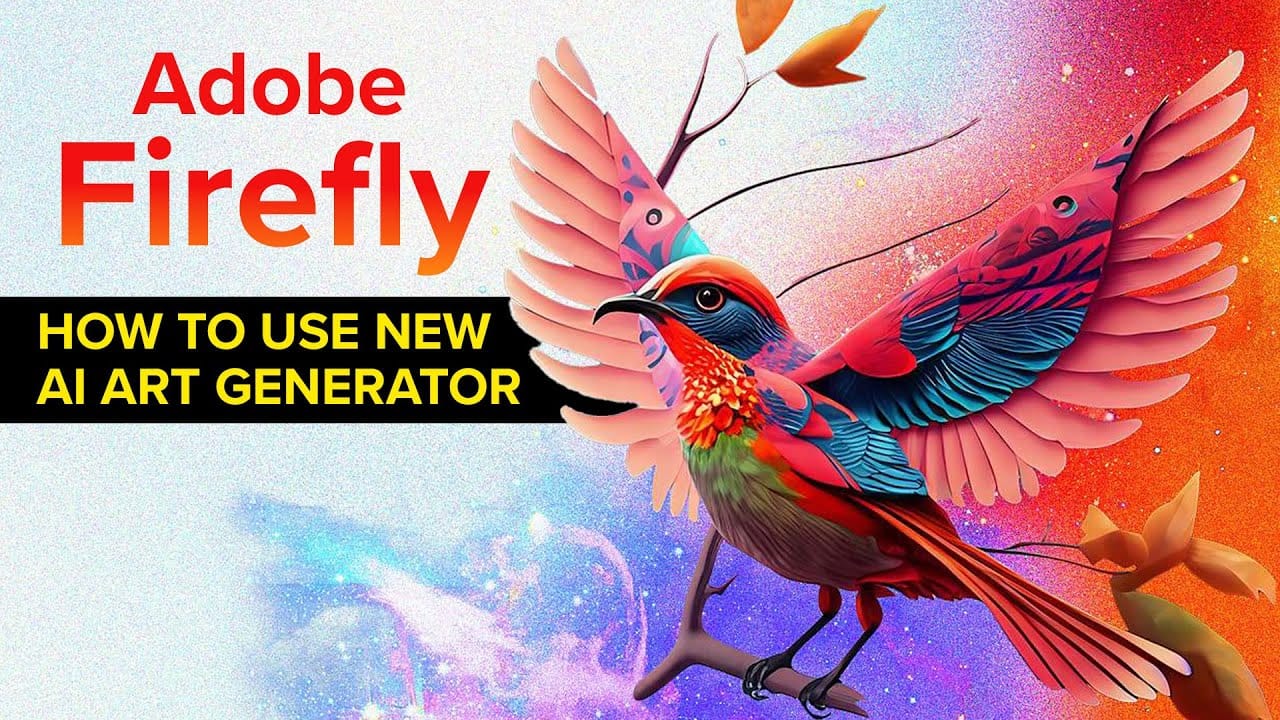
Firefly, Adobe's new AI art generator will change the way we create art forever.
Experience a groundbreaking transformation in the world of art with Adobe's latest AI art generator, Firefly. Using advanced algorithms, Firefly can create unique, lifelike images that were previously impossible to generate.
This innovative technology offers artists a world of possibilities for creative expression and fresh design concepts. In this post, we'll explore the power of Firefly and how it's set to change the game for artists worldwide. Join us as we delve into the world of AI art gen
Whipped, Glazed, and Imagined: Crafting Delicious Desserts with Adobe Firefly
Desserts are more than just a treat for the palate—they’re a feast for the eyes. The delicate swirls of frosting, the glossy sheen of chocolate, the colorful burst of fresh fruits; these details make confections as visually enticing as they are satisfying to eat. But what happens when
 Enrique Flouret
Blooming in Detail: Stunning Macro Flower Visuals Created with Adobe Firefly
In the quietest corners of nature, there exists a world so intricate, so exquisitely detailed, that it often escapes our notice. Flowers—those delicate wonders of the natural world—hold within them a beauty that, when viewed up close, can be nothing short of revelatory. The soft curves of a
 Enrique Flouret
Mineral Splendor: A Macro Journey Through Crystals, Stones, and Craftsmanship Created with Adobe Firefly
In visual art, the fusion of natural beauty and human craftsmanship has long been a profound source of inspiration. Whether it is the intricate designs of a finely cut gemstone or the raw allure of an unpolished mineral, the interplay of light, texture, and color evokes an undeniable fascination. In
 Enrique Flouret
The Mystery and Beauty of Owls: A Visual Journey with Adobe Firefly
Owls have long captivated the human imagination. Their silent flight, wide eyes, and mysterious presence have made them symbols of wisdom and intrigue across cultures. Whether perched quietly or soaring through the night, these creatures evoke a sense of wonder. For digital artists and designers, the owl is a fascinating
 Enrique Flouret