How to Remove People From Photos in Photoshop: Easy and Advanced Methods

How to Remove People From Photos in Photoshop: Easy and Advanced Methods

Removing unwanted elements from photographs, especially people, is a common task in digital image editing. Whether you're a professional photographer or an enthusiast, the ability to clean up a scene can transform an ordinary shot into a compelling visual, allowing the true subject or landscape to shine without distractions.

This video explores two distinct approaches to achieve this in Photoshop. Viewers will discover how to use the automated features for simpler scenarios involving crowds, and then delve into more intricate manual techniques combined with AI-powered tools for complex situations where primary subjects need to be seamlessly removed and the background rebuilt.

Watch the Full Tutorial

Video by Brendan Williams. Any links or downloads mentioned by the creator are available only on YouTube

Strategic Approaches to Subject Removal in Digital Imaging

The evolution of content-aware technologies has significantly transformed how digital artists approach image manipulation. Initially, techniques relied heavily on manual cloning and healing, requiring meticulous pixel-by-pixel work to blend removals convincingly. Modern Photoshop iterations, however, have introduced sophisticated AI-driven tools that can intelligently analyze surrounding pixels and generate new content to fill gaps, dramatically simplifying once-laborious tasks.

This leap in technology is evident in the distinction between tools designed for general distraction removal versus those for precise subject isolation and reconstruction. For instance, the recent Remove Tool, enhanced with AI capabilities, excels at identifying and eliminating small, repetitive elements like crowds in a wide shot. Its effectiveness stems from its ability to quickly process large areas while maintaining context.

Conversely, when a prominent figure must be removed from the foreground, especially when their absence leaves a complex void that requires rebuilding a significant portion of the background, more strategic and layered methods become essential. This often involves combining precise selections, the power of Generative Fill for intelligent content creation, and meticulous manual blending to ensure a seamless and believable final image. Understanding which tool or combination of tools is appropriate for a given scenario is key to achieving professional results.

Practical Tips for Removing People from Photos

  • Utilize the Photoshop Remove Tool's "Find Distraction > People" feature for automatic subject selection in busy crowd scenes.
  • Expand your selection by 15-20 pixels before applying Generative Fill to give the AI more surrounding context for better results.
  • For complex areas or inconsistencies, work in smaller selections with Generative Fill to improve the accuracy of the generated content.
  • Employ precise selection tools like the Pen Tool or Lasso Tool for isolating main subjects and then use layer masks to refine their placement.
  • Add natural shadows and blend edges manually using a soft brush on new layers set to 'Multiply' blend mode to enhance realism after removal.

Explore more techniques and insights into refining your images and mastering Photoshop's powerful editing capabilities.
How to remove people from a photo in a few clicks in Photoshop
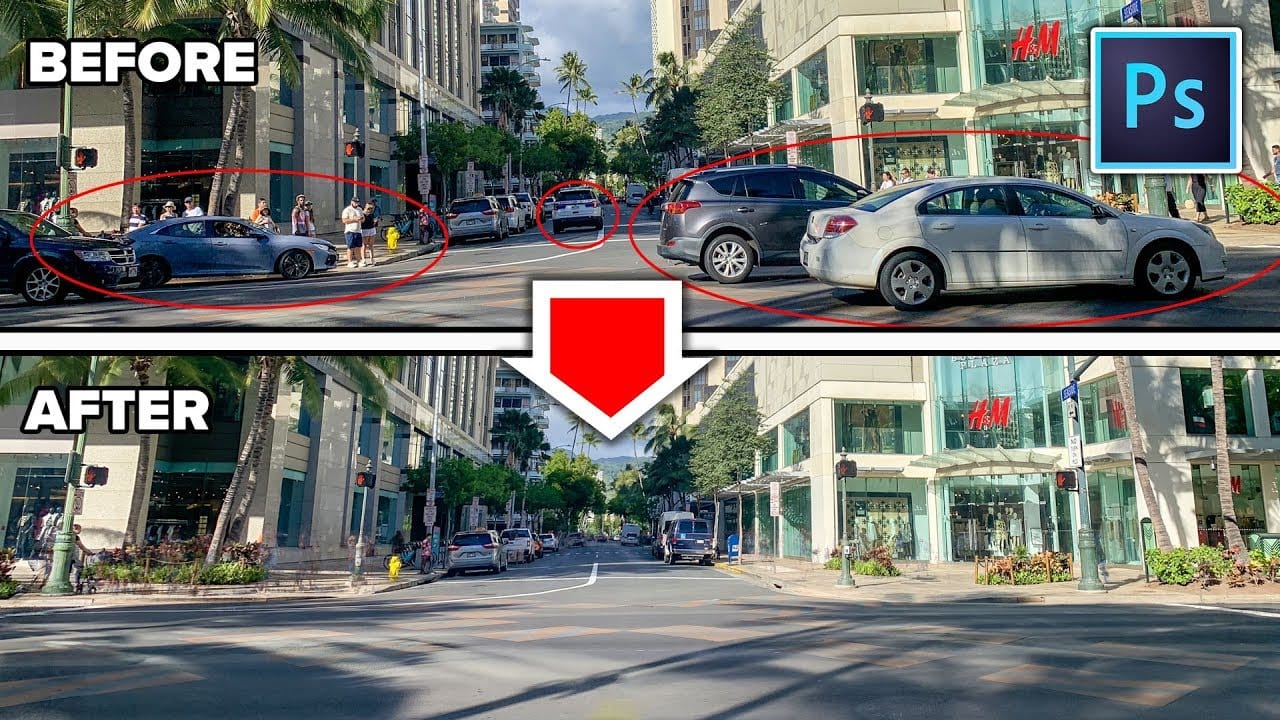
Colin Smith guides you through the process of removing people and other distractions from your photos with ease using Photoshop. In this tutorial, he shares two effective techniques that allow you to eliminate unwanted elements, such as tourists or vehicles, from your images in just a few clicks. Colin’s methods are designed to streamline the editing process, making it simpler to achieve a clean, distraction-free photo. By leveraging Photoshop’s powerful tools, you’ll learn how to seamlessly in
The easy background remover tool hidden in Photoshop!
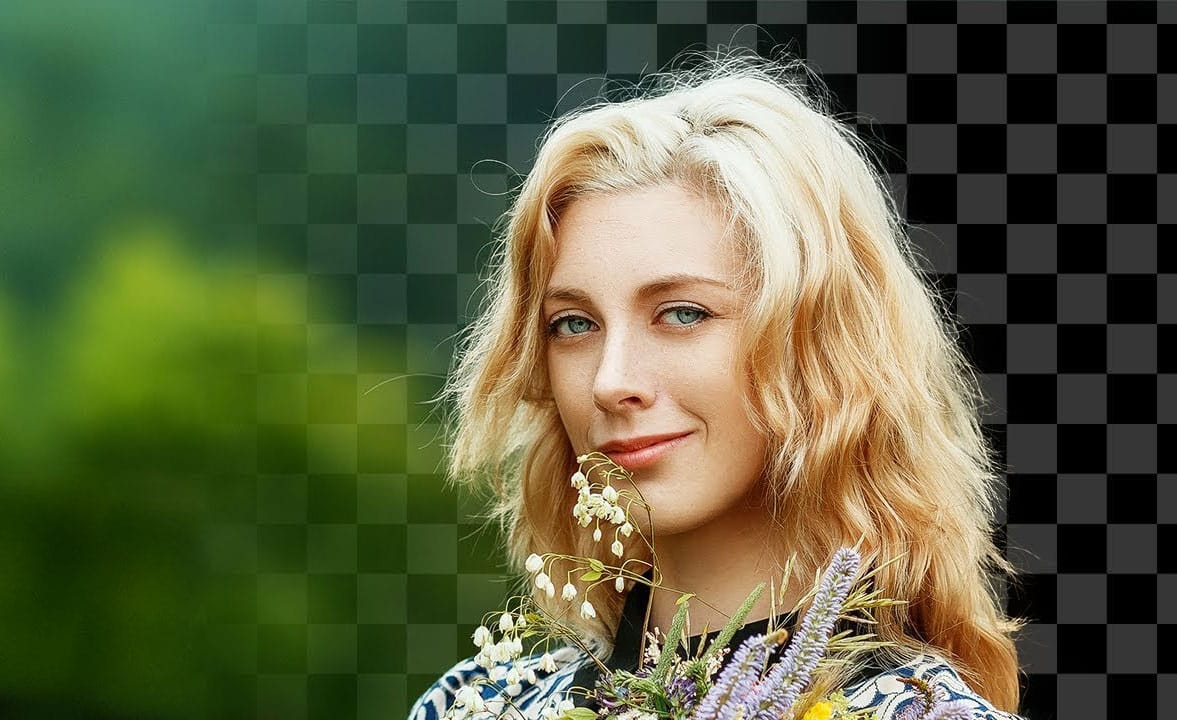
In this Photoshop tutorial, PiXimperfect shares their insights on the amazing power of the Background Eraser tool. Viewers will learn how to easily cut out hair or complex edges using this versatile tool, as well as the best settings for various situations. The tutorial also covers how to make the Background Eraser tool completely non-destructive. This allows users to change the background or make it transparent without permanently altering the original image. Whether you want to remove the bac
Select People, the most requested new photoshop feature
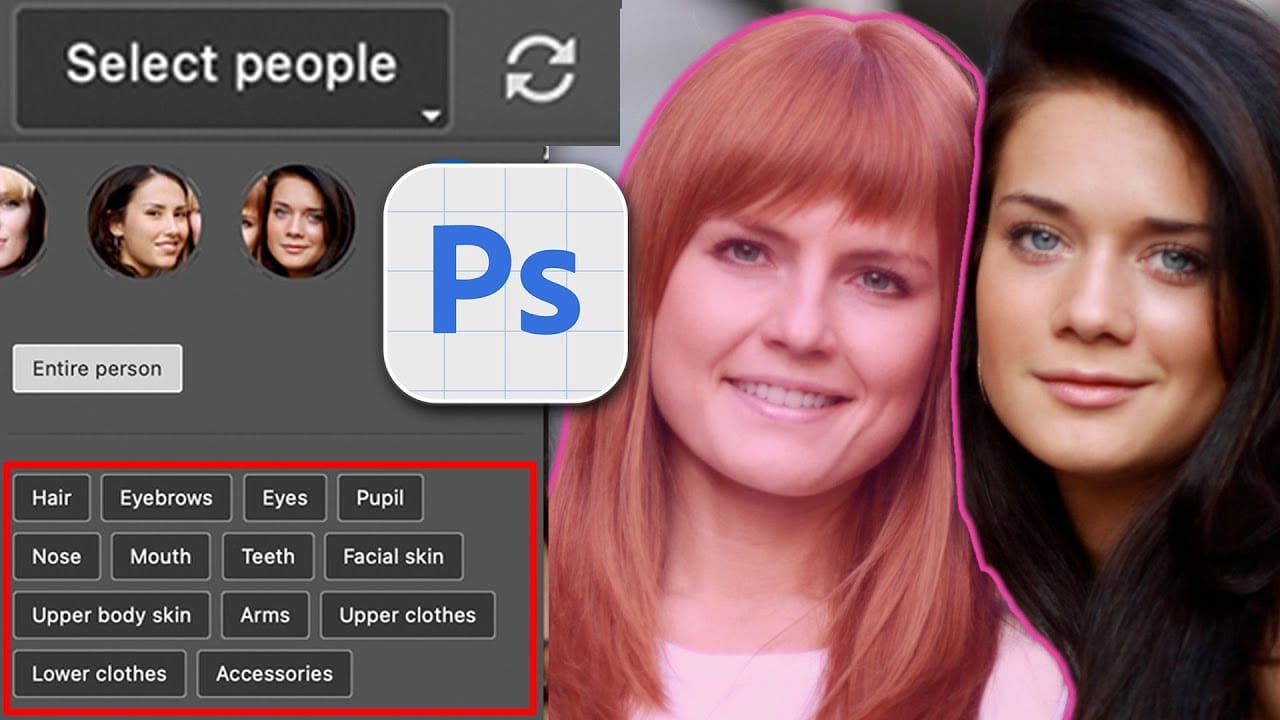
Introducing the exciting new "Select People" feature in Photoshop: a highly anticipated tool that has caught the attention of many users. This addition mimics the person selection masks available in Lightroom and Camera RAW, making it easier than ever to work with images that include people. In the introductory segment, you’ll get a brief overview of its capabilities. From whitening teeth to changing hair color, the feature offers several enhancements that allow for seamless edits. Tutorials de
How to easily remove acne and blemishes in Photoshop
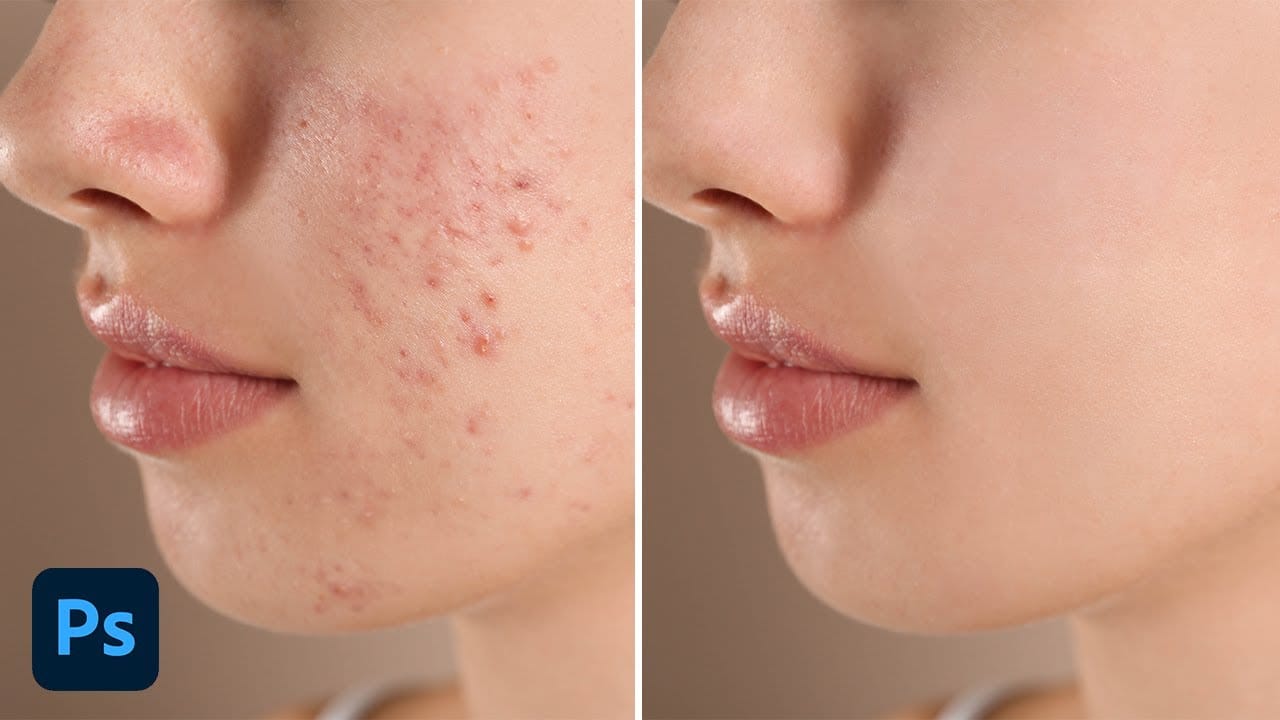
In this Photoshop tutorial, Brendan Williams shares his straightforward three-step process for retouching skin and removing acne and blemishes. This guide is designed to be beginner-friendly, avoiding complex methods while still achieving professional results. Brendan begins by introducing the healing brush tools. These tools are essential for removing acne and blemishes effectively. He explains how to use them properly to ensure a natural look, emphasizing the importance of maintaining skin te

Get tutorials & freebies delivered to you.

Subscribe to the Photoshop Roadmap newsletter, a weekly roundup of new tutorials, insights and quality downloads, trusted by 6500+ readers.

You might also like

How to Use AI Masking in Adobe Camera Raw for Professional Photo Editing

Adobe Camera Raw's AI masking tools automatically detect subjects, backgrounds, skies, and landscapes, letting you make precise adjustments to specific areas of your photos. These intelligent masks eliminate the need for manual selection work, while allowing you to combine and refine them for complete creative control. The technique...

How to Remove Objects from Photos Using AI Tools in Photoshop

Photoshop's AI-powered object removal tools can eliminate unwanted distractions from your photos with minimal effort. The Remove Tool and Generative Fill feature automated detection for common distractions like people and wires, plus manual painting options for custom removals. These tools work on separate layers, preserving your original image...

Speed Up Your Color Grading Workflow with Photoshop Actions

Color grading can transform your images, but manually adjusting curves and levels for every photo takes time. Photoshop actions offer a faster approach by applying professional color treatments with a single click. This workflow uses pre-built actions, tints, and LUTs to achieve various moods and styles instantly, letting you layer...

7 Essential Tips for Speed Painting in Digital Art

Speed painting isn't just about working faster—it's about eliminating friction from your creative process. These seven techniques help you get ideas onto canvas quickly without getting bogged down in unnecessary decisions or premature details. Whether you're exploring concepts for professional work or personal...

Professional Color Grading Techniques in Photoshop

Color grading transforms ordinary photos into compelling images with professional mood and atmosphere. These non-destructive techniques let you adjust tones, enhance specific colors, and create cinematic looks while preserving your original image data. Master these four essential color grading methods to develop a consistent editing workflow that elevates your photography....

How to Save Cut-Out Elements with Transparent Backgrounds in Photoshop

Creating seamless photo composites requires properly saving cut-out elements with transparent backgrounds. Whether you're extracting people, objects, or other elements for later use, the file format you choose determines how easily you can place these elements into new scenes. Two main approaches work best: saving as PSD files...

You’ve successfully subscribed to Photoshop Roadmap
Welcome back! You’ve successfully signed in.
Great! You’ve successfully signed up.
Success! Your email is updated.
Your link has expired
Success! Check your email for magic link to sign-in.