The updated Remove Tool now features AI-powered distraction detection that automatically identifies and categorizes unwanted elements in your photos. This new "Find Distractions" feature can locate cars, poles, fixtures, and visual clutter, then remove everything with a single click.
The tutorial also demonstrates how to combine this automated removal with Generative Expand for improved composition and Camera Raw finishing techniques for professional results.
Watch the Video
Video by PHLEARN. Any links or downloads mentioned by the creator are available only on YouTube
Practical Tips
Key settings and workflow steps for effective distraction removal:
- Enable "Sample All Layers" and "Create a New Layer" before using the Remove Tool to maintain non-destructive editing
- Use the General Distractions option in Find Distractions for comprehensive automatic detection beyond just people and cables
- Review each categorized element group (vehicles, fixtures, poles) individually before selecting all to ensure accuracy
- Apply grain and subtle vignetting in Camera Raw when using Generative Expand to make added pixels look more realistic
- Use Apply Image to flatten all layers into one before applying Camera Raw Filter for final adjustments
Related Articles and Tutorials
Explore more techniques for object removal and the latest editing features:
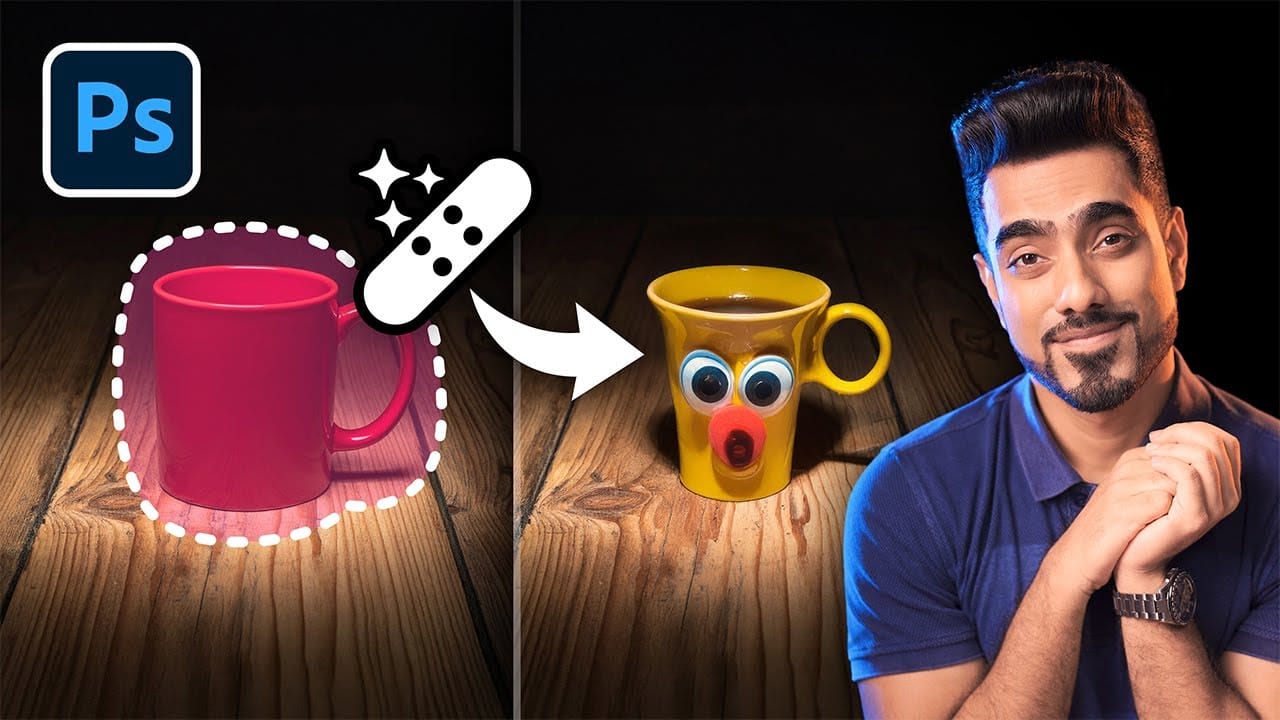
Photoshop's Remove Tool is Broken—What Now?
Object removal is a fundamental task in photo editing, but AI-powered tools can sometimes produce unpredictable results. It can be frustrating when a tool designed to remove an object instead replaces it with another unwanted element, disrupting your workflow and requiring extra steps to correct.
This tutorial demonstrates how recent updates to the Remove Tool in Photoshop Beta solve these common issues. You will learn how to access the improved tool, use a new selection-based workflow for more
TOP New Features in Photoshop – May 2025 Update
Many Photoshop users frequently encounter common challenges such as time-consuming manual selections for complex objects, difficulties in achieving precise color adjustments across an image, or struggling with inconsistent results when removing unwanted elements like reflections. These hurdles often slow down the creative process, making it frustrating to achieve a desired professional look efficiently.
This guide explains how Photoshop's latest updates introduce powerful new functionalities, i

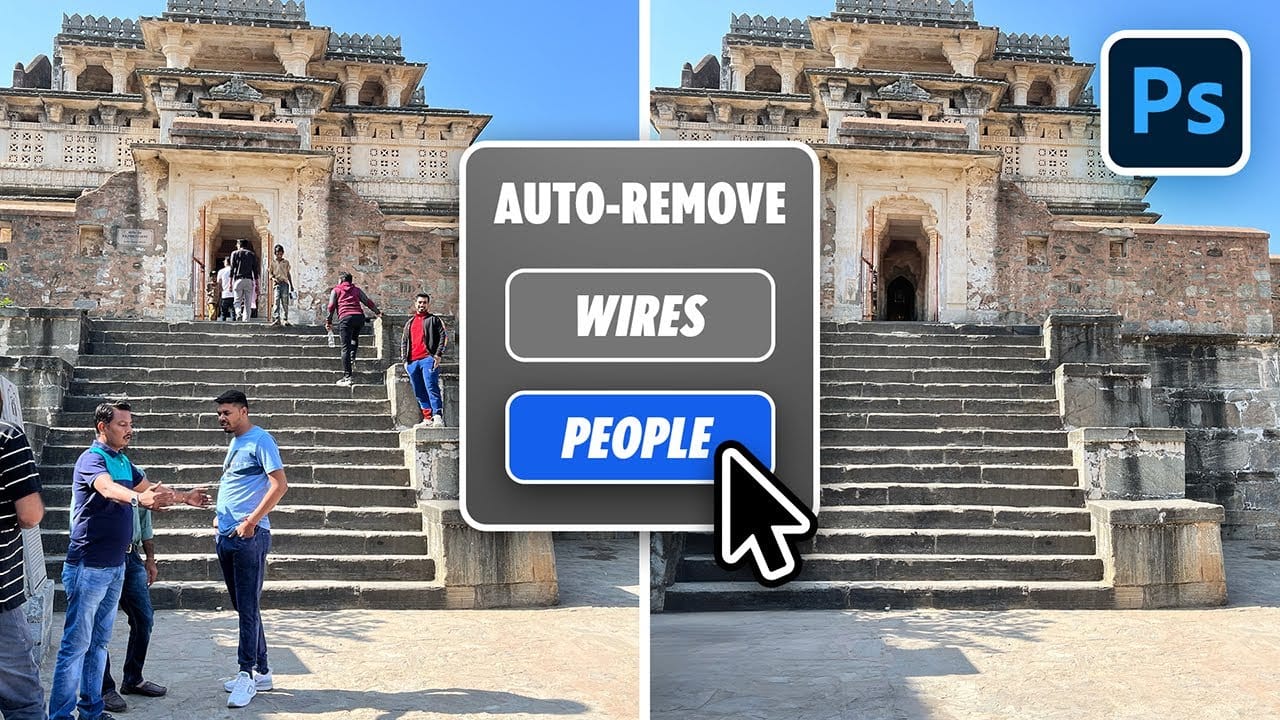
Testing Photoshop 2025's One-Click Remove Tool
Photoshop 2025 introduces a revolutionary "Find Distractions" feature that automatically identifies and removes unwanted elements from your photos with a single click. This new capability can detect wires, cables, and people, then use generative AI to seamlessly eliminate them without manual selection.
The feature works within the existing Remove Tool, combining automatic detection with the flexibility to manually paint over additional elements you want to remove.
Watch the Video
Practical

Exploring the Latest Features in Photoshop 2025
Photoshop 2025 introduces powerful new tools designed to make creative work easier, faster, and more flexible. From fine-tuning selections to moving objects and speeding up your workflow, these features feel built for the way creators actually work.
In this video, we'll show you what's new and how these updates can help you work smarter — saving time on routine tasks, giving you more control over details, and opening up new ways to bring your ideas to life.
Watch the video
Breaking It Down

Remove All Distractions From a Photo in One Click using Adobe Photoshop
This tutorial by PiXimperfect introduces an impressive new feature in Adobe Photoshop Beta that simplifies photo editing. By utilizing the updated Remove Tool, users can effortlessly eliminate distractions from their images with just one click.
The tutorial highlights how this feature can efficiently remove unwanted elements such as people, power lines, and various other distractions that can detract from the overall quality of a photograph. Ideal for photographers and graphic designers alike,
Photoshop August 2025 Update: 6 New Features Including Enhanced Remove Tool and Harmonize
Adobe continues to transform Photoshop with powerful AI-driven features that streamline complex editing tasks. The August 2025 update introduces six significant enhancements, from an improved Remove Tool that creates cleaner selections to the revolutionary Harmonize feature that automatically matches lighting and shadows across composite elements.
These updates address common workflow challenges while introducing new capabilities for collaborative projects and intelligent image processing.
Wa

Photoshop 2025: A Quantum Leap in Creative Power
Adobe has once again rolled out its yearly update for Photoshop, and this year, it's all about streamlining workflows and making generative AI even more accessible. Photoshop 2025 offers a variety of features that seek to enhance the creative process and save time. Let's explore some of the most noteworthy additions.
Simplifying Complex Tasks: Key Features of the 2025 Update
Distraction Removal: Say goodbye to tedious hours spent manually removing unwanted elements from your images. With the

Exploring the latest features in Adobe Photoshop 2023
Adobe Photoshop continues to lead the way with its innovative tools and features. The year 2023 brings a fresh wave of updates, and in this video, Colin Smith from Photoshop Cafe will delve into the exciting features introduced recently. Renowned Photoshop expert, Colin takes us on a tour of these new additions and shows us how to make the most of them.
* Adjustment Presets: Streamlining the Editing Workflow
* Creating Custom Adjustment Presets: Tailoring Tools to Your Style
* Revolutionizin

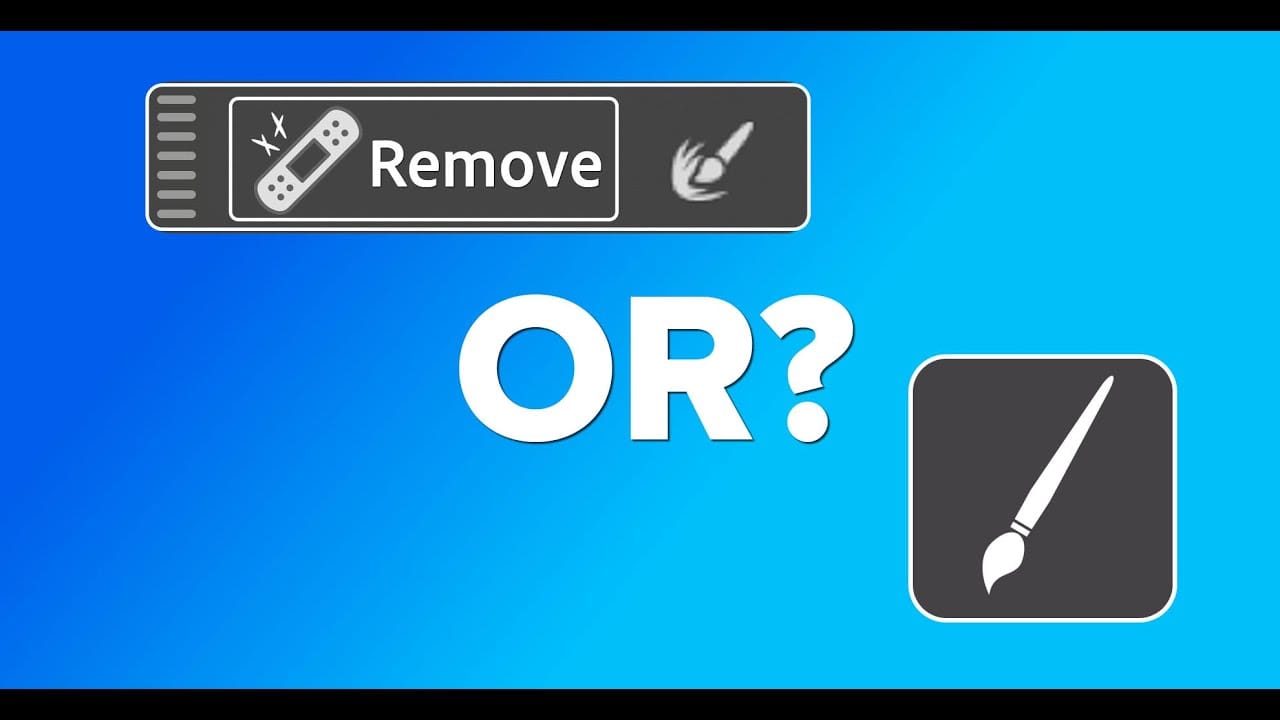
Photoshop Object Removal: Remove Tool vs Contextual Remove Button Compared
Photoshop offers two main approaches for removing unwanted objects: the Remove Tool brush and the contextual Remove button that appears after making selections. Each method has distinct advantages depending on your image and workflow needs.
This comparison explores both techniques across multiple real-world examples to help you choose the most effective approach for different removal scenarios.
Watch the Tutorial
Key Techniques for Object Removal
* Use the Remove Tool for faster selection
Photoshop 2025 Top 7 New Features and Updates Explained
Photoshop 2025 brings significant improvements to everyday editing tasks with smarter AI tools, enhanced 3D capabilities, and more intuitive workflows. From automatic distraction removal to advanced generative features, these updates focus on making complex tasks faster and more accessible.
The standout addition is the Substance 3D viewer, which reintroduces 3D object compositing with sophisticated lighting and material controls that weren't available in previous versions.
Watch the Complete