How to Use Photoshop's Auto Distraction Removal Tool

How to Use Photoshop's Auto Distraction Removal Tool

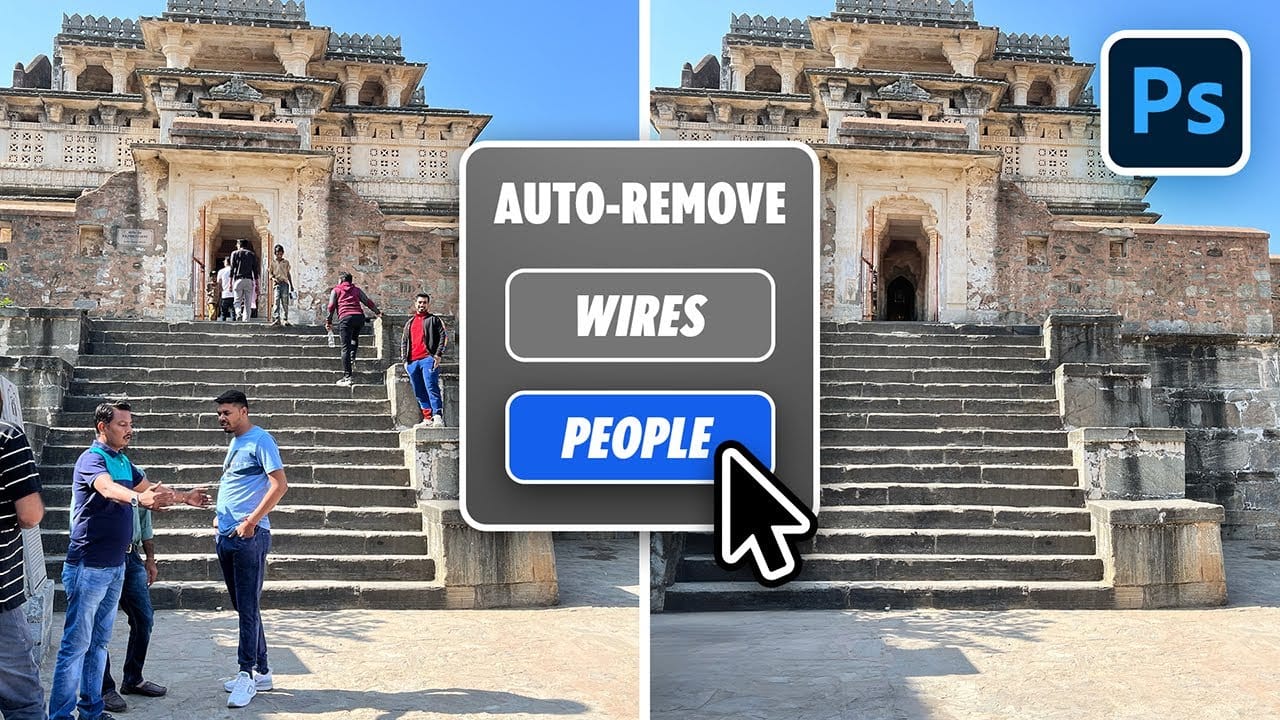
Removing unwanted elements from photos used to require hours of careful work with clone stamps and healing brushes. The new General Distractions feature in Photoshop's Remove Tool changes this completely by automatically detecting and eliminating distractions across 26 different categories with a single click.

This AI-powered upgrade can identify everything from people and vehicles to wires, vegetation, and urban clutter, then seamlessly remove them while preserving your original image on separate layers.

Watch the Video

Video by Glyn Dewis. Any links or downloads mentioned by the creator are available only on YouTube

Practical Tips

These key techniques will help you get the best results from the auto distraction removal feature:

  • Enable "Create New Layer" before removing distractions to preserve your original image and maintain editing flexibility
  • Turn off "Select All" to review each category individually and choose exactly which elements to remove or keep
  • Use the plus and minus brush tools to manually add or exclude specific objects from the automatic selection
  • Enable GPU acceleration in Photoshop's performance settings for faster processing of large images
  • Customize the color coding for each distraction category to better visualize what will be removed

Explore more advanced removal techniques and AI-powered editing workflows:

Testing Photoshop 2025's One-Click Remove Tool
Photoshop 2025 introduces a revolutionary "Find Distractions" feature that automatically identifies and removes unwanted elements from your photos with a single click. This new capability can detect wires, cables, and people, then use generative AI to seamlessly eliminate them without manual selection. The feature works within the existing Remove Tool, combining automatic detection with the flexibility to manually paint over additional elements you want to remove. Watch the Video Practical
Remove All Distractions From a Photo in One Click using Adobe Photoshop
This tutorial by PiXimperfect introduces an impressive new feature in Adobe Photoshop Beta that simplifies photo editing. By utilizing the updated Remove Tool, users can effortlessly eliminate distractions from their images with just one click. The tutorial highlights how this feature can efficiently remove unwanted elements such as people, power lines, and various other distractions that can detract from the overall quality of a photograph. Ideal for photographers and graphic designers alike,
Photoshop auto masks, new feature no one is talking about
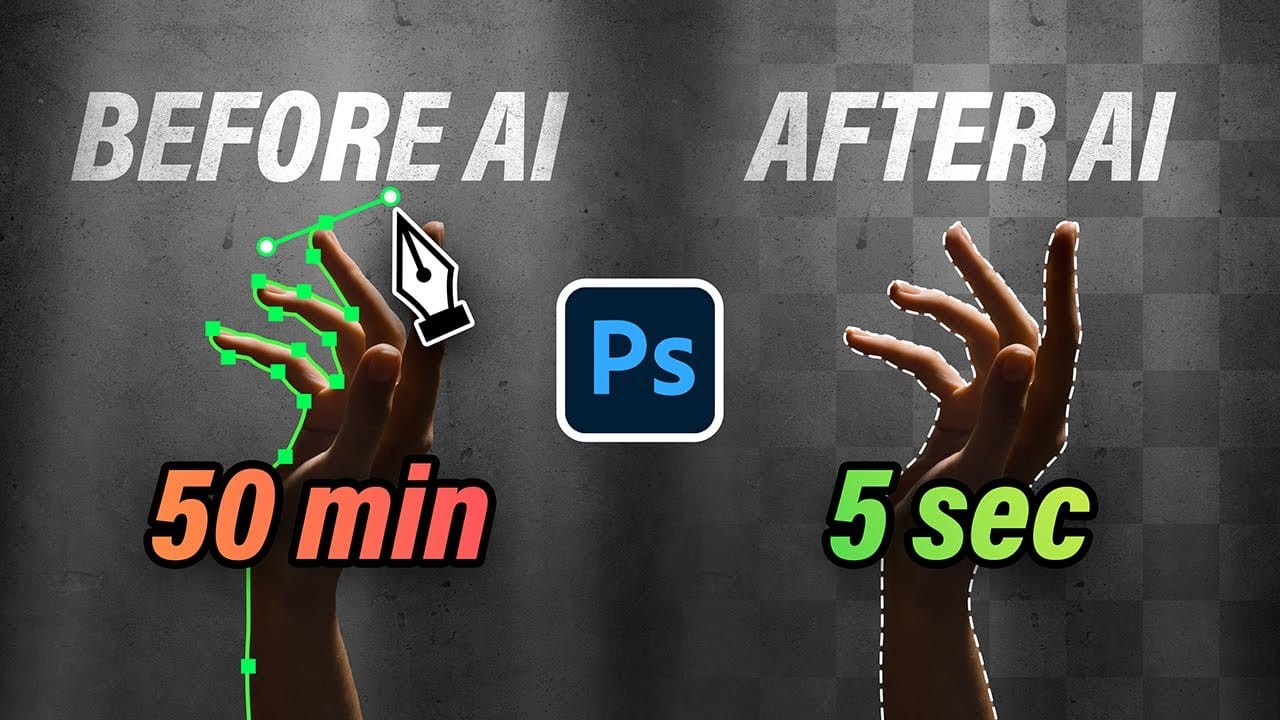
Making precise selections in Photoshop has historically been one of the most time-consuming and challenging aspects of image editing. From intricate hair strands to complex tree foliage, achieving a clean mask often required significant manual effort and advanced techniques. However, recent advancements in artificial intelligence are rapidly transforming this fundamental process. The video demonstrates the groundbreaking improvements in Photoshop's auto-masking capabilities, specifically within
How to Remove Objects from Photos Using AI Tools in Photoshop
Photoshop's AI-powered object removal tools can eliminate unwanted distractions from your photos with minimal effort. The Remove Tool and Generative Fill feature automated detection for common distractions like people and wires, plus manual painting options for custom removals. These tools work on separate layers, preserving your original image while giving you complete control over what gets removed and how the final result looks. Watch the Video Practical Tips These key techniques will h
Photoshop 2025: A Quantum Leap in Creative Power
Adobe has once again rolled out its yearly update for Photoshop, and this year, it's all about streamlining workflows and making generative AI even more accessible. Photoshop 2025 offers a variety of features that seek to enhance the creative process and save time. Let's explore some of the most noteworthy additions. Simplifying Complex Tasks: Key Features of the 2025 Update Distraction Removal: Say goodbye to tedious hours spent manually removing unwanted elements from your images. With the
How to remove people from a photo in a few clicks in Photoshop
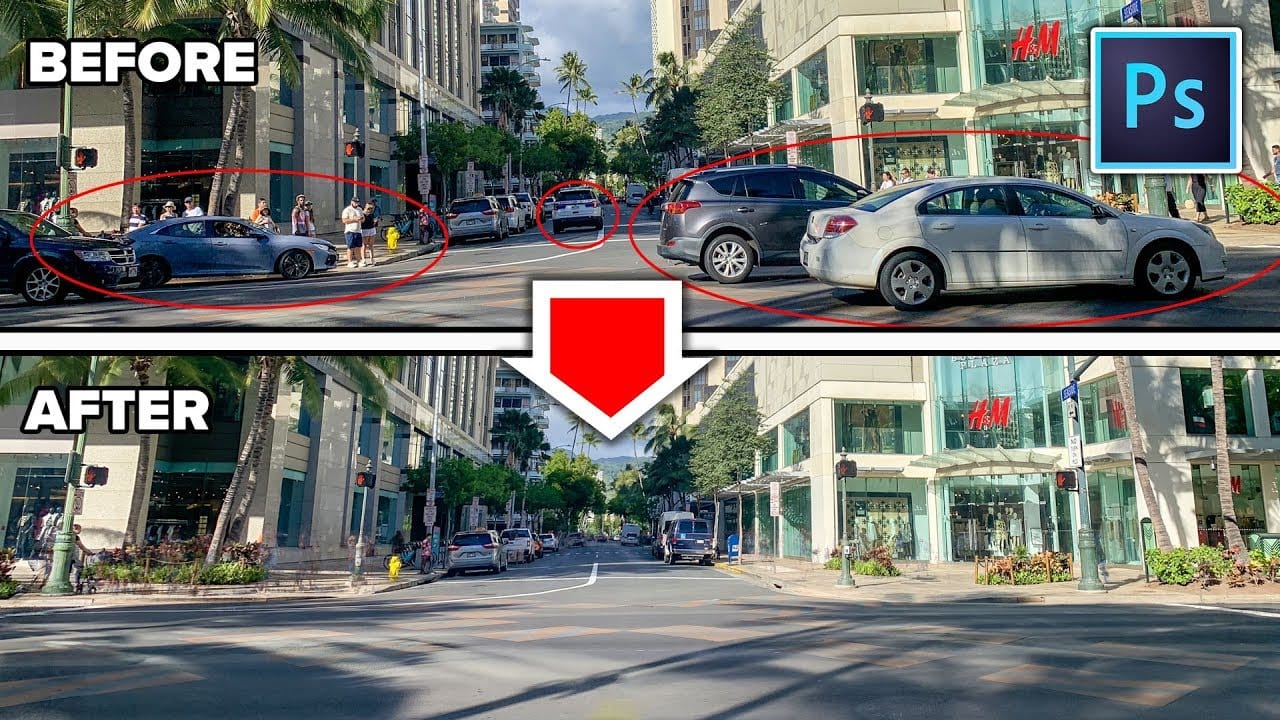
Colin Smith guides you through the process of removing people and other distractions from your photos with ease using Photoshop. In this tutorial, he shares two effective techniques that allow you to eliminate unwanted elements, such as tourists or vehicles, from your images in just a few clicks. Colin's methods are designed to streamline the editing process, making it simpler to achieve a clean, distraction-free photo. By leveraging Photoshop's powerful tools, you'll learn how to seamlessly in
New Reflection Removal Tool in Photoshop
Capturing the perfect shot often means battling environmental challenges, and few are as persistent as unwanted reflections in windows or glass. These glare points can obscure subjects, distort details, and fundamentally compromise an image's impact. Fortunately, Photoshop has introduced a new AI-powered feature designed to tackle this common photographic issue. This video demonstrates how to activate and effectively use this tool, showcasing its capabilities and outlining crucial workflow cons
Magical things you can do in just 1 click in Photoshop
Colin Smith's latest tutorial dives into the incredible power of Photoshop's one-click tools and features. This session reveals how you can harness Photoshop 2020's capabilities to achieve impressive results with minimal effort. Colin demonstrates various techniques that allow you to enhance your images or apply complex effects with just a single click, making advanced editing accessible and efficient. In this video, you'll learn about features that simplify tasks like color enhancement, applyi
10 Ways AI Completely Transformed My Photoshop Techniques
Repetitive tasks like making complex selections, removing unwanted objects, and cleaning up blemishes can consume hours of an editor's time. While traditional Photoshop methods offer precise control, they are often slow and require significant technical skill for what should be simple fixes. This guide demonstrates how to integrate modern AI features into your daily workflow. You will learn practical techniques for everything from one-click selections and generative fills to automated retouchin
Photoshop 2025 Top 7 New Features and Updates Explained
Photoshop 2025 brings significant improvements to everyday editing tasks with smarter AI tools, enhanced 3D capabilities, and more intuitive workflows. From automatic distraction removal to advanced generative features, these updates focus on making complex tasks faster and more accessible. The standout addition is the Substance 3D viewer, which reintroduces 3D object compositing with sophisticated lighting and material controls that weren't available in previous versions. Watch the Complete

Get tutorials & freebies delivered to you.

Subscribe to the Photoshop Roadmap newsletter, a weekly roundup of new tutorials, insights and quality downloads, trusted by 6500+ readers.

You might also like

How to Use Color Average for Color Toning in Photoshop

Color average creates a unified color tone by analyzing all the colors in your image and calculating their mathematical average. This technique adds depth and cohesion to photos, composites, and AI-generated images by applying a subtle color wash that ties all elements together. The method works particularly well for composites...

How to Remove Complex Background Elements Using AI in Photoshop

Removing complex background elements like fencing or wire mesh has traditionally been one of the most time-consuming tasks in photo editing. New AI-powered tools in Photoshop can now eliminate these distracting elements while preserving fine details in your subject. This tutorial demonstrates two practical workflows: one using the latest Firefly...

How to Use Photoshop's Auto Layer Rename Feature

Messy layer names like "Layer 52 copy 4" and "Untitled 5" clutter your workspace and slow down complex projects. Photoshop's new auto-rename feature uses AI to automatically identify and name layers based on their content, from "Woman in yellow shirt" to "...

New Generative Fill Features in Photoshop Beta: Reference Images and Credit Tracking

Photoshop Beta introduces significant improvements to Generative Fill that address the most requested features from users. The updated interface now displays your generative credit balance and usage, while the new reference image capability lets you add up to eight specific images to guide AI generation with precise visual examples. These...

Essential Photoshop Tools for Beginners: Brush, Crop, and Move Tool Tutorial

Learning Photoshop tools feels overwhelming when you don't know where to start. This tutorial focuses on three essential tools that form the foundation of most Photoshop work: the brush tool for painting and retouching, the crop tool for resizing and straightening images, and the move tool for positioning...

How to Add Custom Textures to Photos in Photoshop

Adding textures to photographs can transform ordinary images into compelling artistic compositions. This technique uses multiple texture layers combined with strategic blending modes and color adjustments to create depth and visual interest. The process involves layering different texture types—color overlays, surface patterns, and lighting effects—then using masking techniques...

You’ve successfully subscribed to Photoshop Roadmap
Welcome back! You’ve successfully signed in.
Great! You’ve successfully signed up.
Success! Your email is updated.
Your link has expired
Success! Check your email for magic link to sign-in.