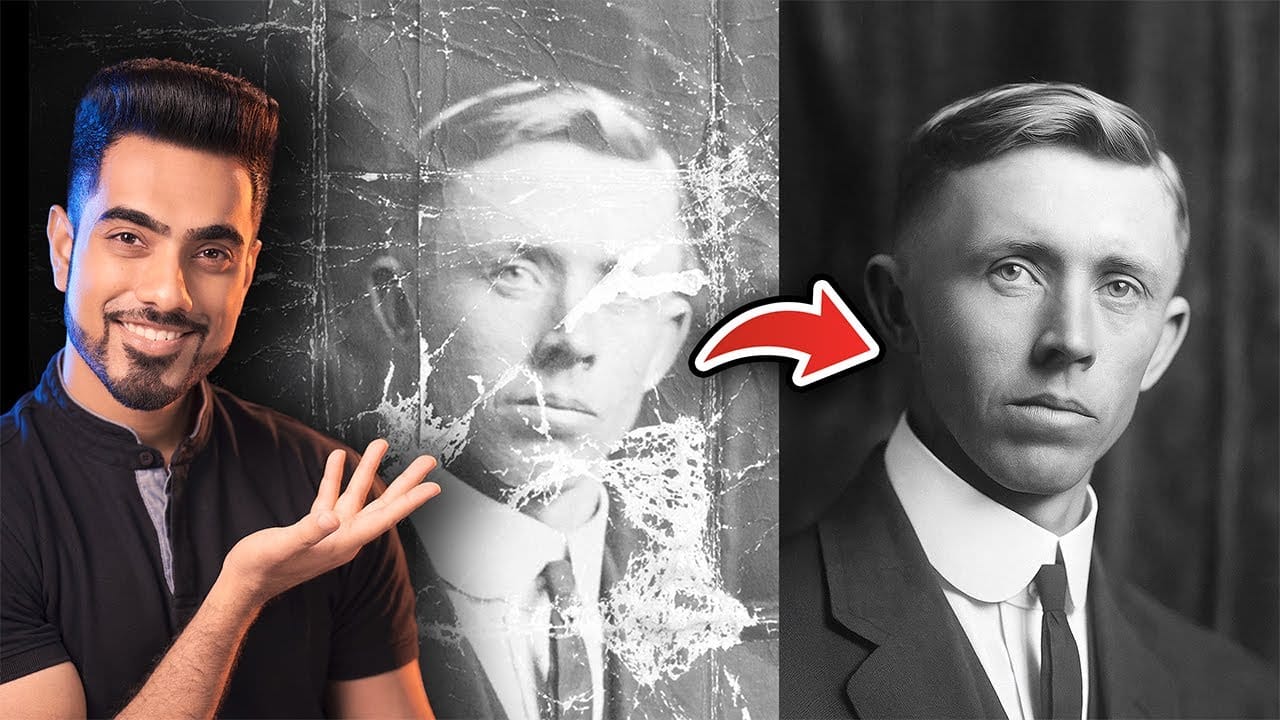
Traditional AI photo restoration tools often change facial features, alter poses, or distort important details when enhancing old photographs. This hybrid workflow combines AI enhancement with precise manual alignment techniques to restore vintage images while keeping every original detail intact.
The method uses strategic cropping, AI processing with specific prompts, and Photoshop's alignment tools to maintain the authentic character of historic photographs.
Watch the Video
Video by PiXimperfect. Any links or downloads mentioned by the creator are available only on YouTube
Practical Tips
These essential techniques ensure successful photo restoration without losing original details:
- Crop your original image to standard aspect ratios (2:3, 4:5, 1:1) before AI processing to prevent unwanted shifts in composition
- Use the prompt "restore this photo to look as if it were taken today with high resolution modern digital camera" for best results
- Change the restored layer's blend mode to "Difference" to visualize alignment issues as white lines that need correction
- Align critical features like eyes first using arrow keys, then check other facial elements for proper positioning
- Generate multiple AI variations and test different prompts to find the version that maintains the most authentic details
Related Articles and Tutorials
Explore more photo restoration and enhancement techniques:
Photo Restoration: Combining AI with Photoshop for Optimal Results
Restoring old, damaged photographs can be a challenging endeavor. While many AI-powered tools promise to breathe new life into vintage images, they often fall short, either over-sharpening details, neglecting certain areas, or, most critically, altering the original likeness of individuals. This often leads to frustrating and uncanny results that strip the photos of their authentic charm.
This tutorial unveils a comprehensive workflow that marries the efficiency of AI-driven enhancement with th
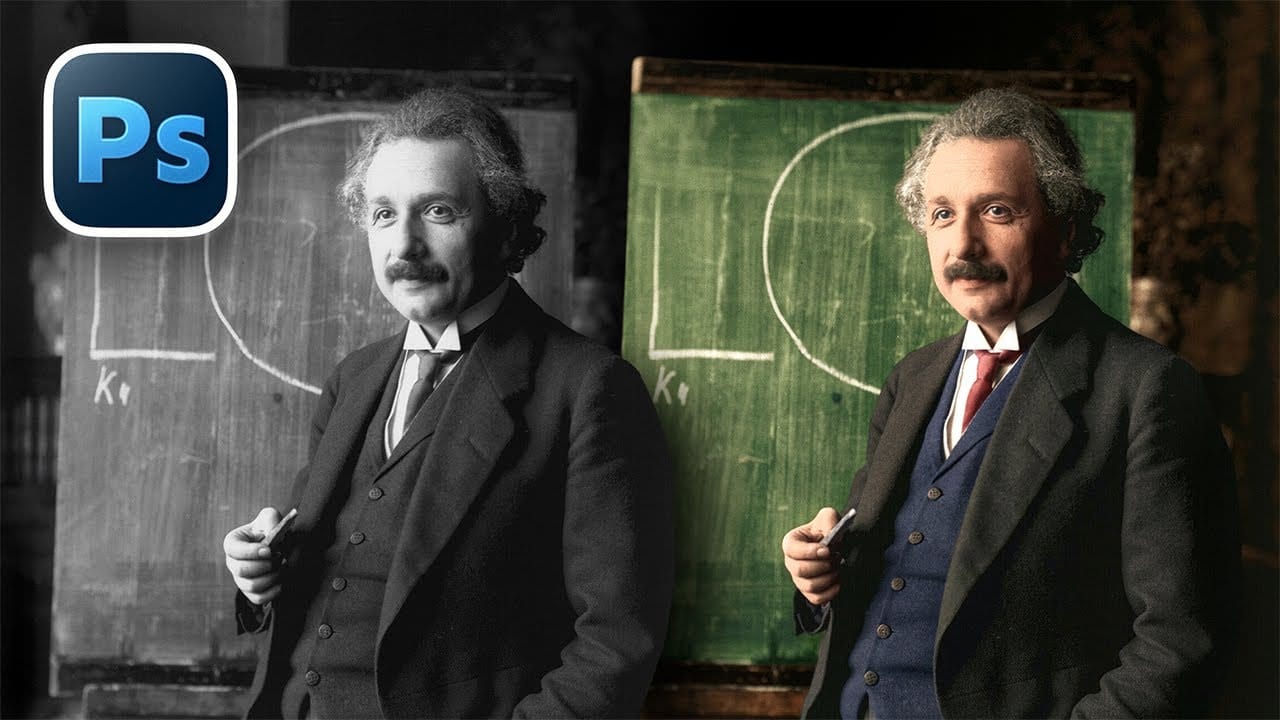
How to Colorize Black and White Photos in Photoshop Without AI
Transforming black and white photographs into vibrant color images requires precision and technique to achieve natural-looking results. This manual colorization method preserves image quality while giving you complete control over every color choice, avoiding the unpredictable results that AI tools often produce.
The non-destructive workflow shown here maintains the original photograph's integrity while building up realistic colors layer by layer.
Watch the Video
Practical Tips
These key t
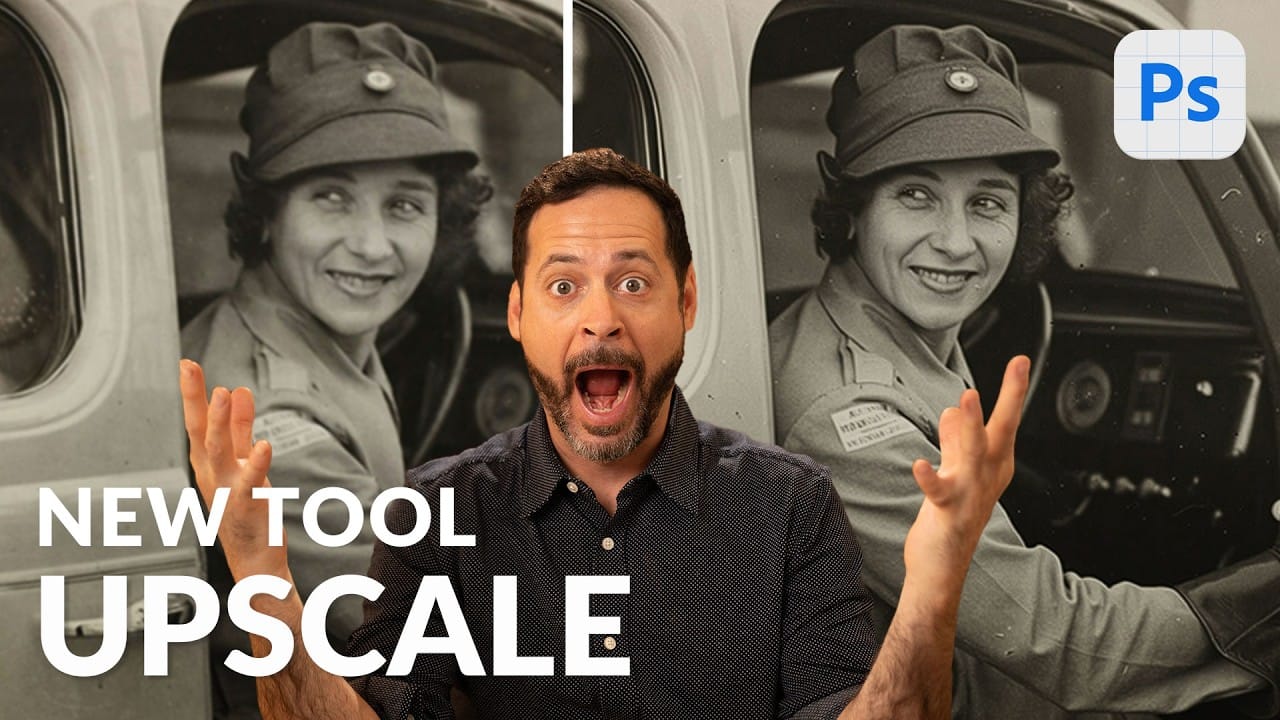
Using Photoshop's New Generative Upscale Tool
Old family photos often hold irreplaceable memories, but their small size and low resolution make them difficult to print or display properly. These cherished images deserve better than pixelated enlargements that lose all their detail and emotional impact.
Photoshop's new AI-powered Generative Upscale tool changes this completely. This beta feature can transform tiny, low-resolution images into crisp, printable photographs using artificial intelligence—all with a single click.
Watch the Tuto
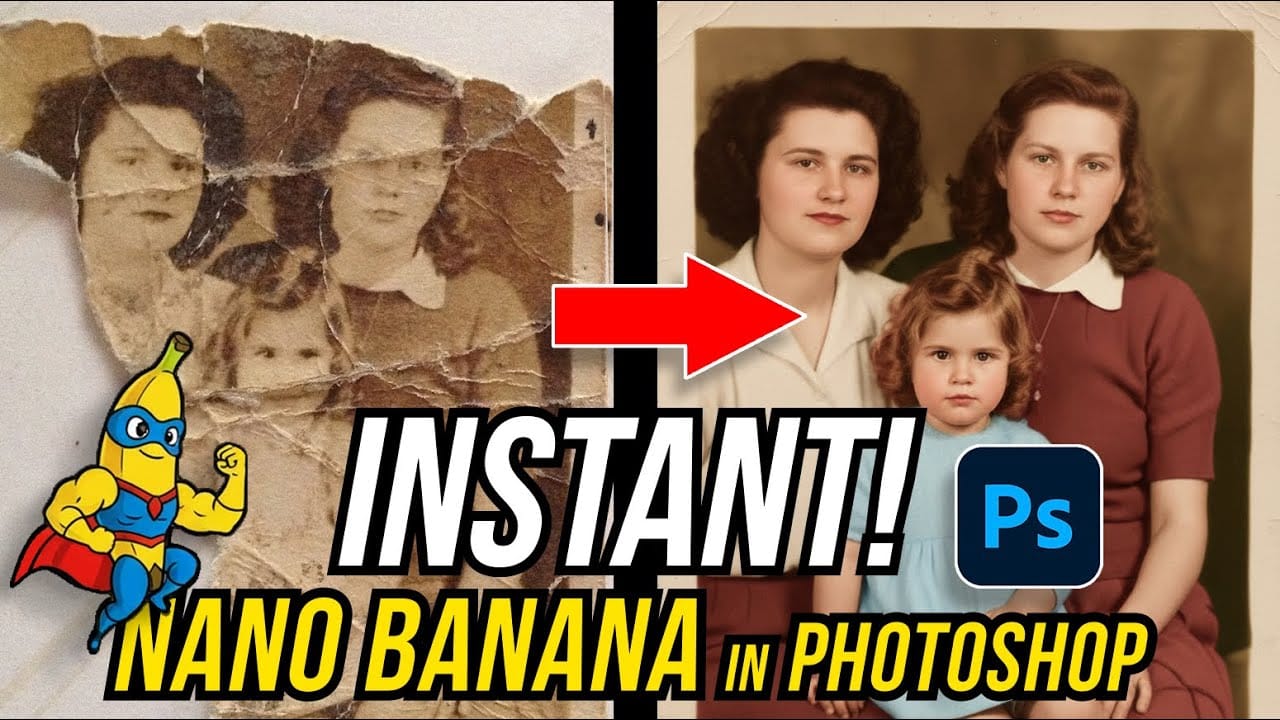
How to Restore Old Damaged Photos Using Nano Banana in Photoshop
Old family photos with scratches, tears, and missing sections can seem beyond repair. Google's Nano Banana AI model, now integrated into Photoshop, makes full restoration possible in minutes rather than hours.
This powerful tool excels at maintaining facial characteristics while automatically filling in damaged areas and adding realistic color to black and white images.
Watch the Tutorial
Essential Tips for Photo Restoration with Nano Banana
* Access the Contextual Taskbar — If you don't
100 Wonderful Photoshop Photo Effects tutorials
Learn how to create awesome photo effects in photoshop with this gallery of 100 impressive Photoshop tutorials.
 Enrique Flouret
7 Photoshop Tools Replaced by AI: Are They Still Relevant?
Adobe's integration of AI-powered features has fundamentally changed how photographers and designers approach common editing tasks. From reflection removal to noise reduction, many traditional Photoshop tools now have AI counterparts that promise faster results with minimal manual work.
This video demonstrates how seven classic Photoshop tools compare against their AI replacements, showing practical examples of when the new technology excels and when traditional methods still hold their ground.
Discover Hidden Photoshop AI Tools to Transform Your Photos
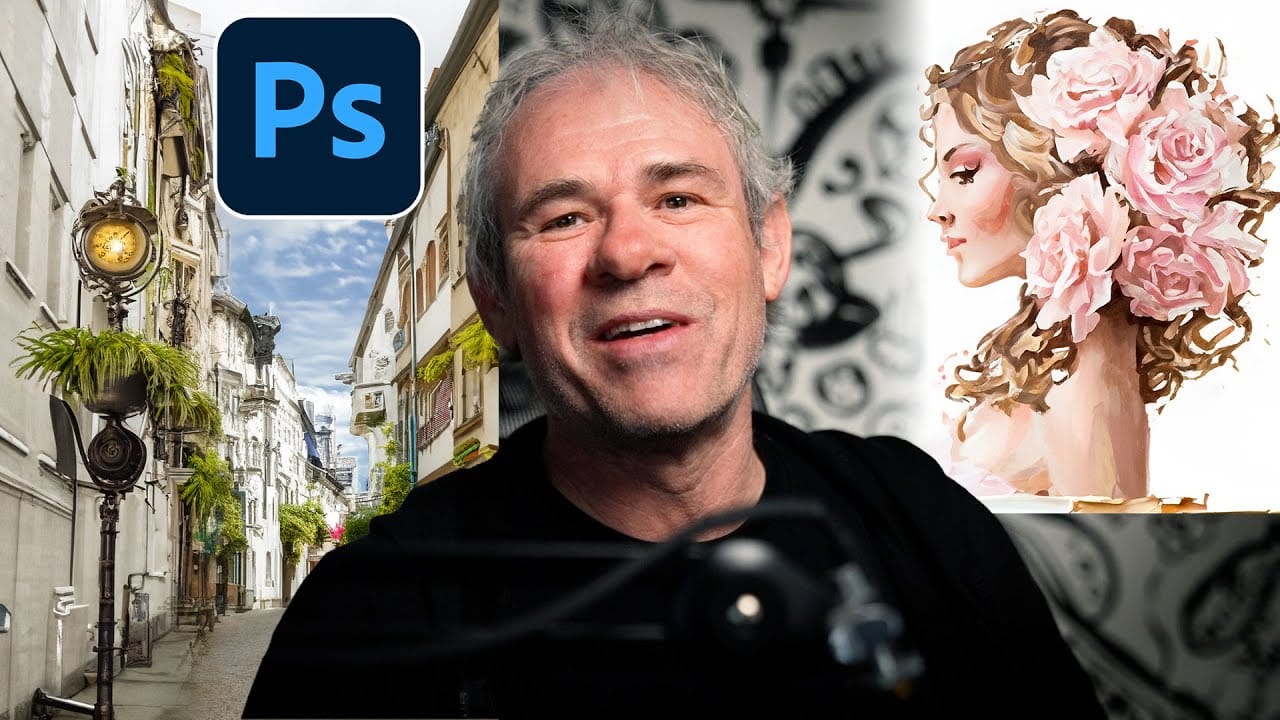
Transform ordinary photographs into captivating works of art using advanced Generative AI features in Photoshop. This guide reveals a powerful, often overlooked technique to unlock incredible artistic potential from your images.
Discover how to apply stunning styles, from delicate watercolors to bold Art Deco and futuristic visions, by mastering a subtle yet impactful control within Photoshop's AI capabilities.
Watch the Video
Understanding Generative AI's Creative Control
Generative AI to
Complete Guide to AI Photo Editing with Photoshop's Generative Fill
Modern photo editing has entered a new era where artificial intelligence can solve complex visual problems in seconds. Tasks that once required hours of manual work—removing unwanted objects, changing skies, adding realistic elements—can now be accomplished with simple selections and text prompts.
This comprehensive tutorial demonstrates 37 practical applications of Photoshop's AI-powered generative fill feature. From basic sky replacements to advanced portrait retouching, these techniques show
10 Ways AI Completely Transformed My Photoshop Techniques
Repetitive tasks like making complex selections, removing unwanted objects, and cleaning up blemishes can consume hours of an editor's time. While traditional Photoshop methods offer precise control, they are often slow and require significant technical skill for what should be simple fixes.
This guide demonstrates how to integrate modern AI features into your daily workflow. You will learn practical techniques for everything from one-click selections and generative fills to automated retouchin
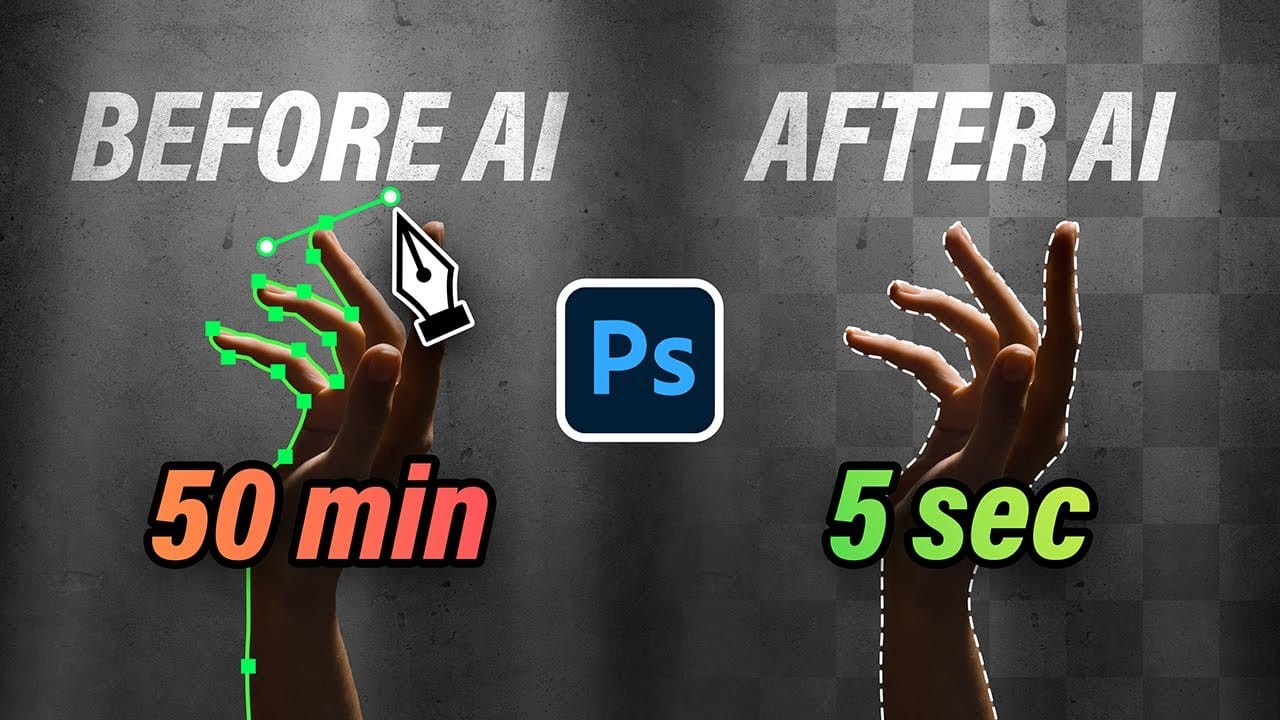
How to Use Photoshop 2026's New AI Upscale, Sharpen, and Denoise Filters
Photoshop 2026 introduces three powerful AI filters that transform low-quality images into crisp, professional results. These tools tackle common photo problems: pixelated enlargements, soft details, and grain from low-light conditions.
Each filter uses advanced AI models to enhance different aspects of your images, with options ranging from standard to premium quality depending on your Creative Cloud plan.
Watch the Tutorial
Key Tips for AI Image Enhancement
* Choose Topaz Gigapixel for