Creating curved text in Photoshop has traditionally required complex workarounds that often distorted the letters. The new Dynamic Text tool in Photoshop Beta changes this completely, allowing you to place text on arches, circles, and custom curves while maintaining perfect letter shapes.
This tool offers three main options: arch, circle, and bow configurations, each with precise controls for positioning, spacing, and direction that make curved typography both simple and professional.
Watch the Video
Video by photoshopCAFE. Any links or downloads mentioned by the creator are available only on YouTube
Practical Tips
Master these key techniques to get the most from the Dynamic Text tool:
- Use tracking controls to adjust letter spacing instead of manual adjustments - this maintains consistent curves
- Hold Alt/Option and use arrow keys to fine-tune kerning between specific letter pairs directly on screen
- Access the Path Selection tool to drag the start and end points of your text along the curve for precise positioning
- Switch between above path, center path, and below path options in the Properties panel to change text alignment
- Use the Direct Selection tool to modify curve anchor points and create custom text paths that follow specific shapes
Related Articles and Tutorials
Explore these tutorials to expand your text and design skills in Photoshop:
Photoshop’s Dynamic Text Feature: Automatic Text Alignment and Resizing
Text alignment in Photoshop has long been a tedious process of manual adjustments, multiple layers, and constant realignment whenever you change font sizes or content. The traditional workflow forces designers to work with separate text layers and spend valuable time fine-tuning positions with transform tools and guides. Photoshop’s new Dynamic
 PiXimperfect
How to Edit Text in Images Using Generative Fill
Changing text within existing images has traditionally required complex masking and reconstruction techniques. Modern AI-powered tools now make it possible to seamlessly replace words and phrases in photographs while maintaining realistic typography, lighting, and perspective that matches the original scene. This technique works particularly well for signs, storefronts, billboards, and
 Adobe Photoshop
How to Type Text on a Path in Photoshop
Creating text that curves along shapes opens up creative possibilities for logos, circular designs, and decorative typography. This technique transforms ordinary text placement by making letters follow the contours of any path you create. The process works with any shape tool in Photoshop, giving you complete control over how your
 Dansky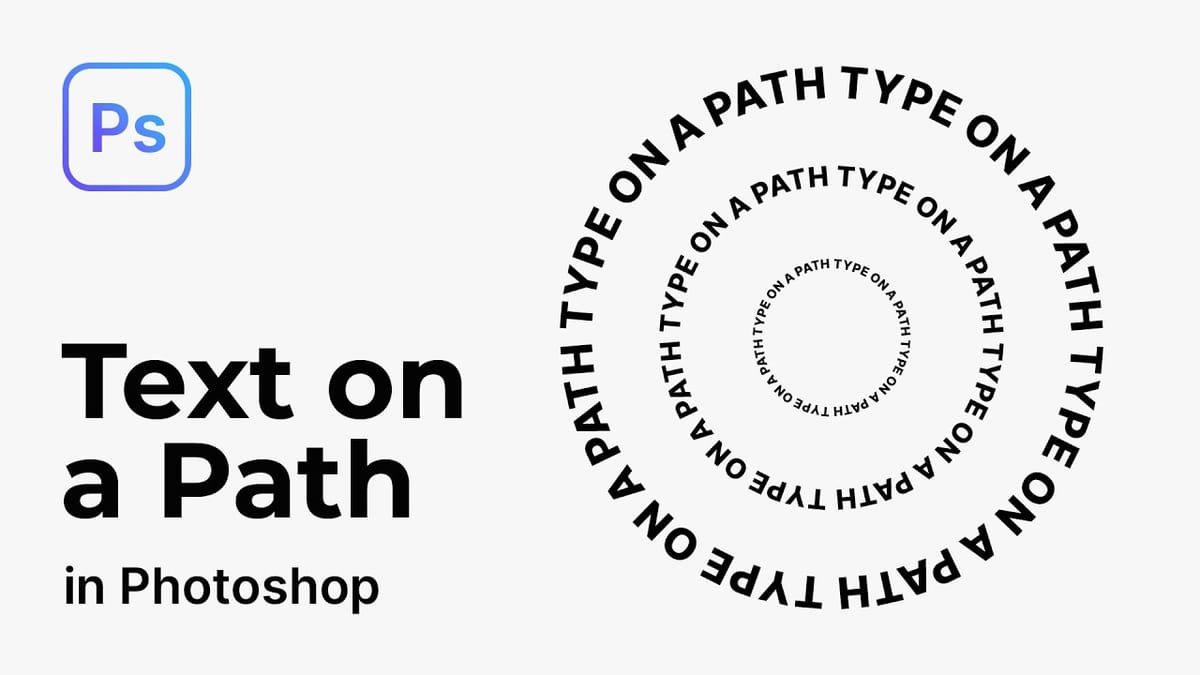
How to Wrap Text Around Any Shape in Photoshop
Creating text that flows naturally around irregular shapes transforms static layouts into dynamic, professional designs. This technique works particularly well for posters, magazine layouts, and editorial designs where text needs to integrate seamlessly with complex subjects rather than simply sitting in rigid rectangular boxes. The process combines selection tools, path
 Photoshop Arthouse
Dynamic Text Tool in Photoshop - Auto-Resizing Text Feature
Text alignment and sizing across multiple layers can quickly turn into a time-consuming puzzle. Manually adjusting each text element, creating guides for alignment, and constantly repositioning elements whenever you make changes disrupts the creative flow. Photoshop’s new Dynamic Text feature bridges the gap between point text and paragraph text, automatically
 Brendan Williams
How Photoshop's Updated Frame Tool Simplifies Layer Cropping
Cropping individual layers in Photoshop has traditionally required multiple complex steps involving selections, layer masks, or clipping masks. The updated Frame Tool now offers a streamlined drag-and-drop approach that eliminates confusion and reduces workflow steps.
These improvements make layer cropping accessible to beginners while speeding up workflows for advanced users through custom shape integration and simplified image placement.
Watch the Tutorial
Essential Frame Tool Tips
* Ac

7 Overlooked Photoshop Tools That Will Save You Hours
You're probably using Photoshop the hard way.
You've mastered the basics - Magic Wand for selections, Clone Stamp for removals, layer masks for compositing. But you're likely missing out on dozens of features that could cut your editing time in half.
Adobe has quietly (okay, not so quietly) added dozens of time-saving features that most users never discover.
Here's the thing: Photoshop's interface is overwhelming. With hundreds of tools and panels, it's natural to stick with what works and ig