Creating text that curves along shapes opens up creative possibilities for logos, circular designs, and decorative typography. This technique transforms ordinary text placement by making letters follow the contours of any path you create.
The process works with any shape tool in Photoshop, giving you complete control over how your text flows around circles, custom paths, or geometric forms.
Watch the Video
Video by Dansky. Any links or downloads mentioned by the creator are available only on YouTube
Practical Tips
Master text on paths with these essential techniques from the video:
- Hold Shift while dragging the ellipse tool to create perfect circles for even text flow
- Use Command/Control + A and align tools to center your shape precisely on the canvas
- Hover over the shape edge until the cursor changes before clicking to add text to the path
- Duplicate text layers with Command/Control + J and rotate 180 degrees for top and bottom text placement
- Adjust shape properties after adding text by changing fill to none and adding stroke for cleaner designs
Related Articles and Tutorials
Explore these advanced text techniques to expand your typography skills:
Create Motion Blur Text Effect in Photoshop with Path Blur
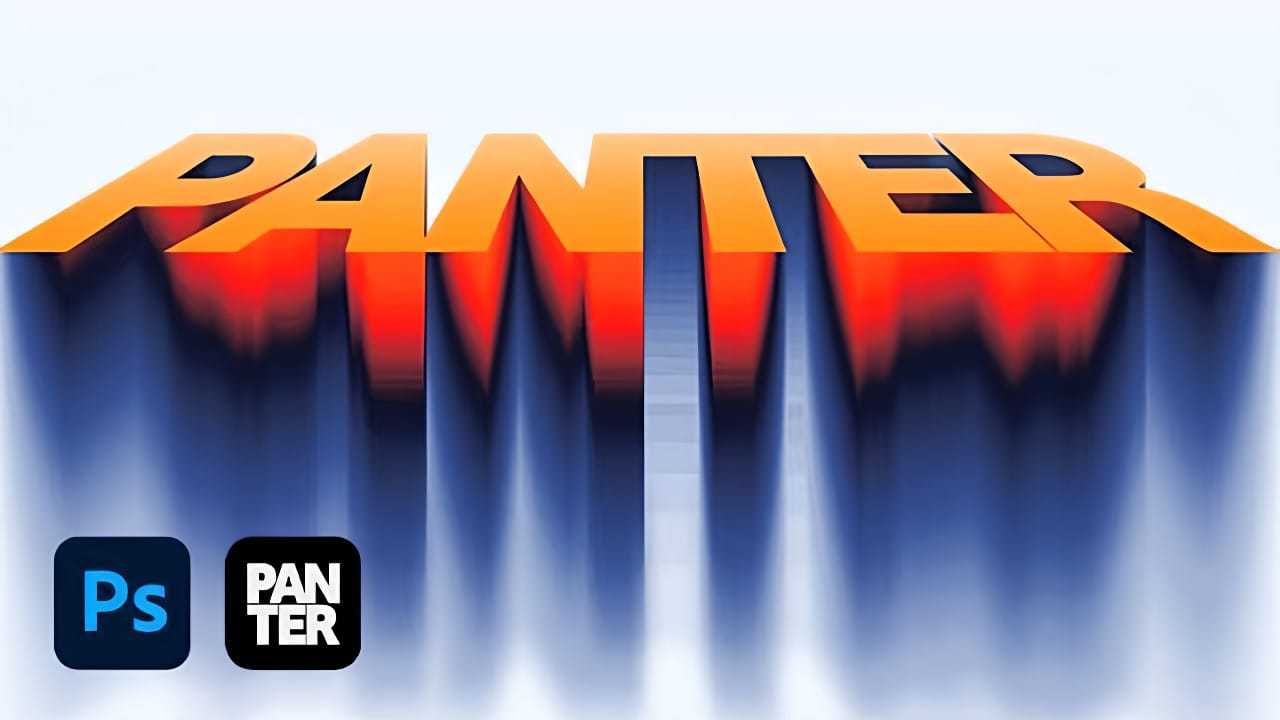
Motion blur transforms static typography into dynamic visual elements that appear to race across the screen. This effect creates the illusion of speed and movement, perfect for sports graphics, action posters, and modern designs.
The technique combines Photoshop's Path Blur filter with strategic layering and color gradients to produce professional-looking motion trails.
Watch the Tutorial
Essential Tips for Motion Blur Text Effects
* Convert text to smart objects before applying transform
Create handwritten text in Photoshop
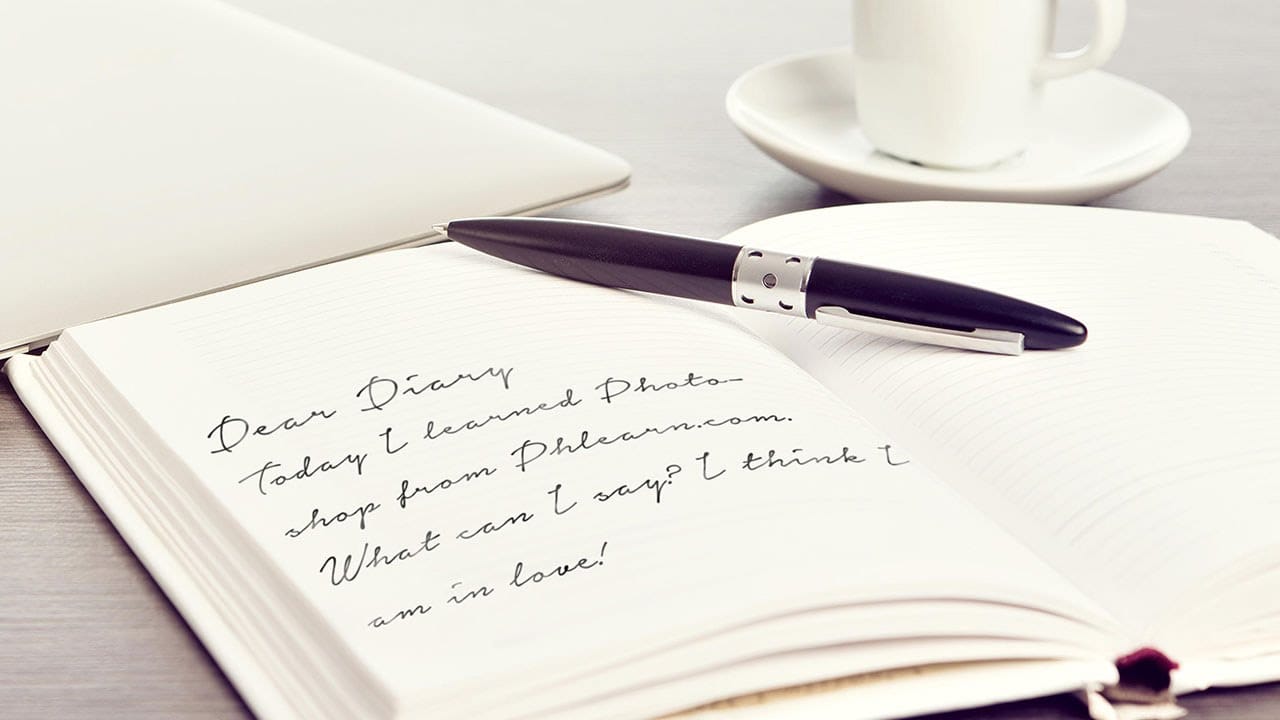
In this tutorial, you will discover how to create handwritten text in Photoshop. The process is straightforward and involves a few simple steps. First, you'll need to choose a font that resembles handwritten text. Once you've selected the appropriate font, you can start typing out your desired text and adjust the size and positioning to your liking.
Next, you'll want to add some texture to the text to make it look more authentic. This can be achieved by using various Photoshop tools, such as th
How to Wrap Text Around Any Shape in Photoshop
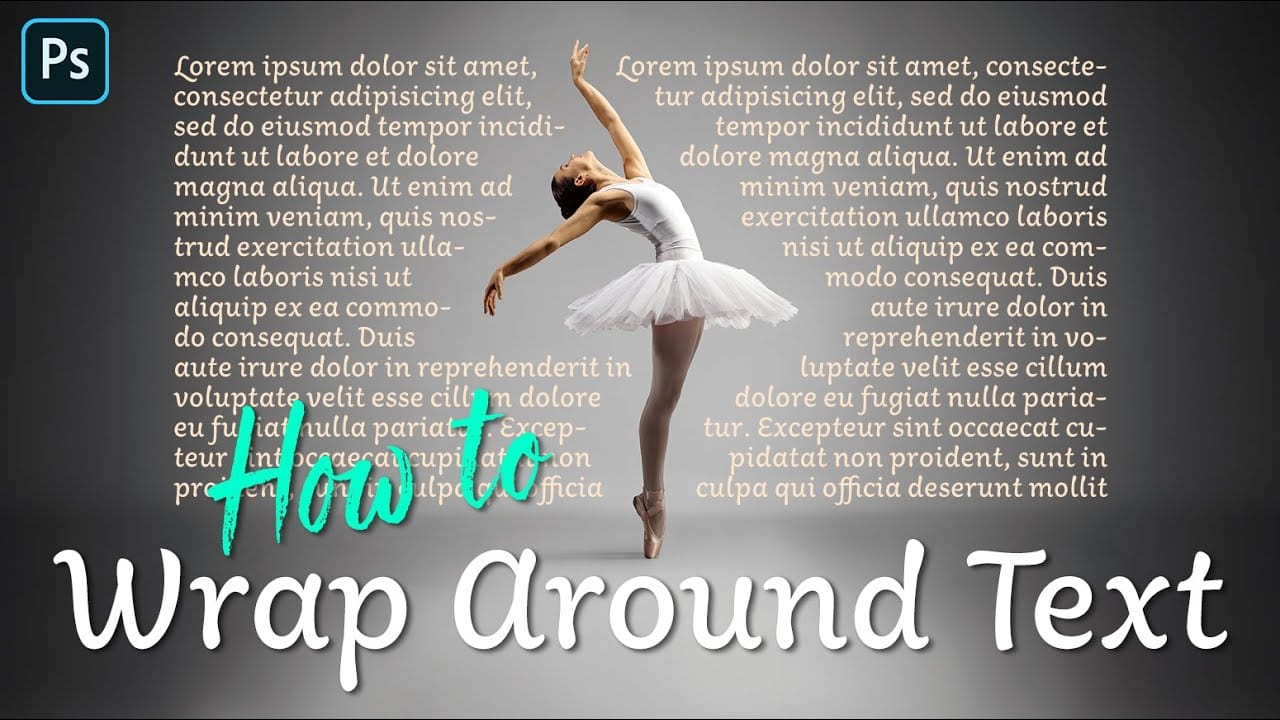
Integrating text seamlessly with complex or irregular shapes can elevate a design from good to exceptional. While standard text boxes are straightforward, the ability to make text flow naturally around the contours of a subject opens up significant creative possibilities, adding dynamism and visual interest to layouts.
This tutorial will guide you through the process of wrapping text around any shape in Photoshop, regardless of its irregularity. You will learn practical techniques for selecting
Essential Type Tool Techniques in Photoshop
Text in Photoshop offers far more creative potential than basic typing and font selection. Advanced type tool techniques unlock professional-level text manipulation, from precise warping control to custom character distortion and knockout effects. These methods transform ordinary text into dynamic design elements that integrate seamlessly with complex compositions and visual effects.
Watch the Tutorial
Beyond Basic Typography in Digital Design
Typography in digital design extends far beyond
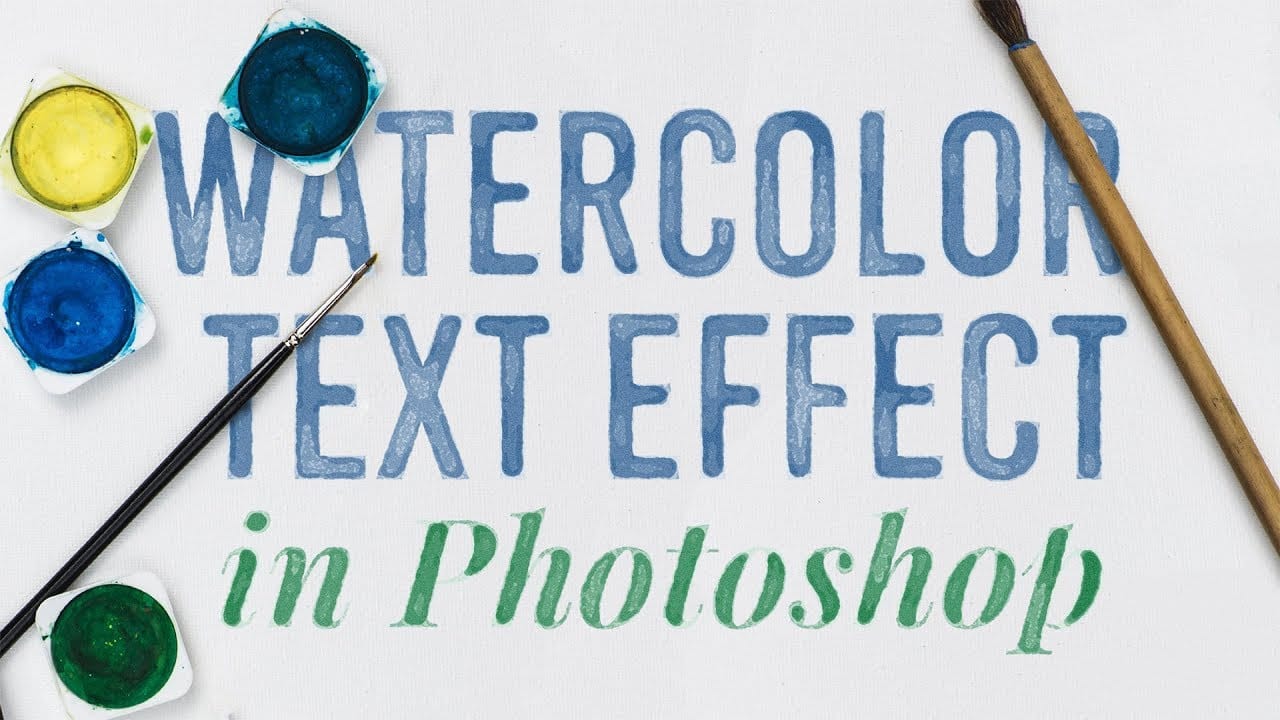
How to create a watercolor text effect in Adobe Photoshop
Achieve a beautiful, artistic watercolor look for your text in Photoshop. This tutorial guides you through applying a unique effect that transforms ordinary text into vibrant, hand-painted artwork, perfect for creative projects.
Watch the Video
Practical Tips for Watercolor Text Effects
Replicating the delicate nuances of watercolor requires careful use of Photoshop's features. Here are key techniques from the tutorial to master this unique effect:
* Convert your text layer to a Smart Obj
How to Place an Image in Text in Photoshop
Turn ordinary text into a striking visual by filling it with an image. This popular design technique is perfect for posters and graphics. This tutorial shows you how to use clipping masks in Photoshop to easily place any photo inside your words.
Watch the Tutorial
Practical Tips for Creating Image-Filled Text
Follow these key steps from the video to master this simple yet powerful technique.
* Choose a bold font. Use a thick, bold typeface so that more of your image is visible inside th

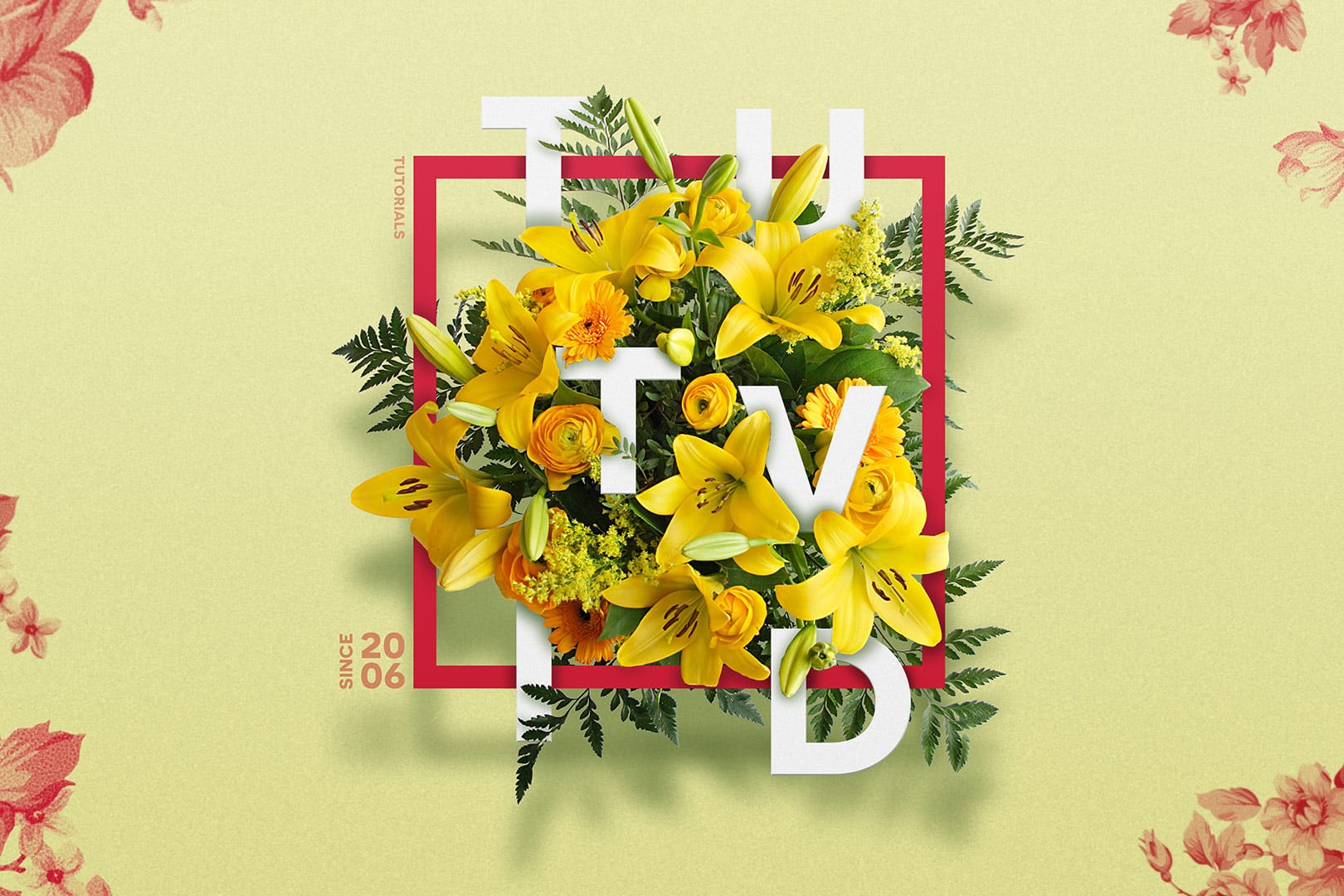
Create a Floral Typography Text Effect in Photoshop
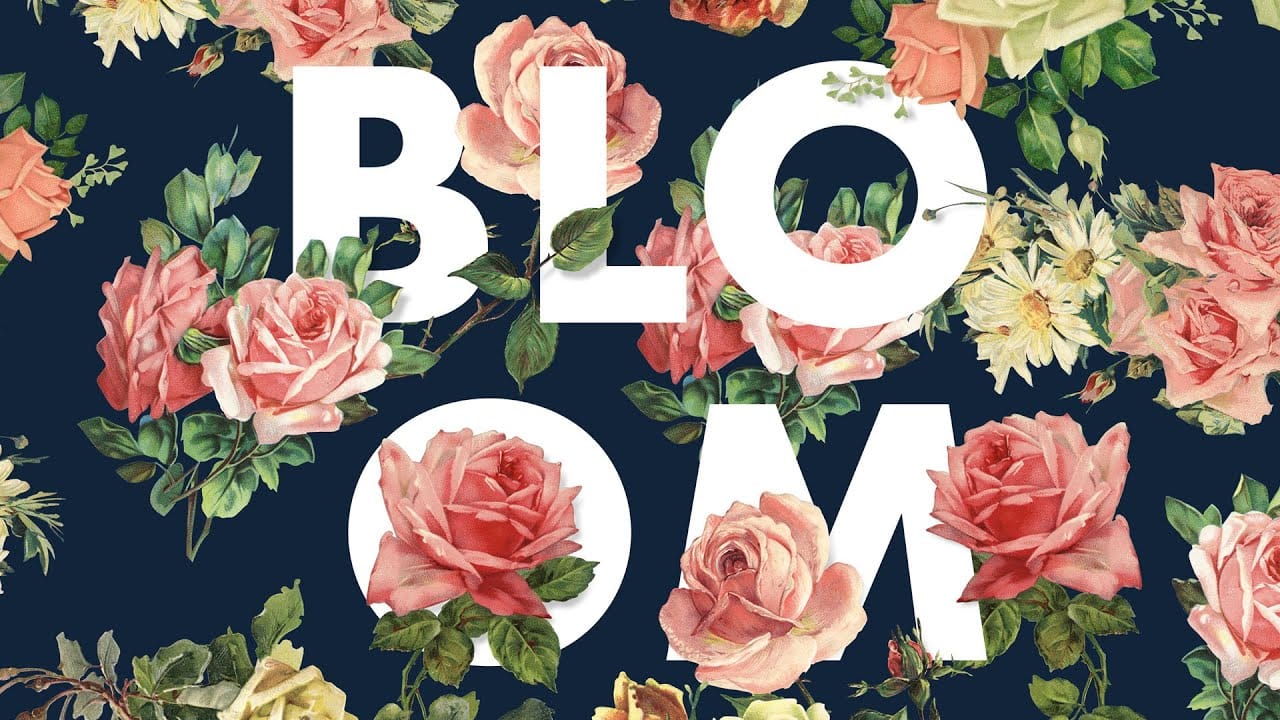
Learn to create stunning floral typography in Photoshop. This tutorial teaches you to blend vibrant flowers with custom text, achieving a captivating visual that seamlessly integrates botanical elements with your design. Master techniques for realistic depth, perfect for unique posters, art, or personal projects.
Watch the Full Tutorial
Practical Tips for Crafting Floral Text Effects
* Convert masked images to Smart Objects early in the process to maintain editability of layer masks and tr
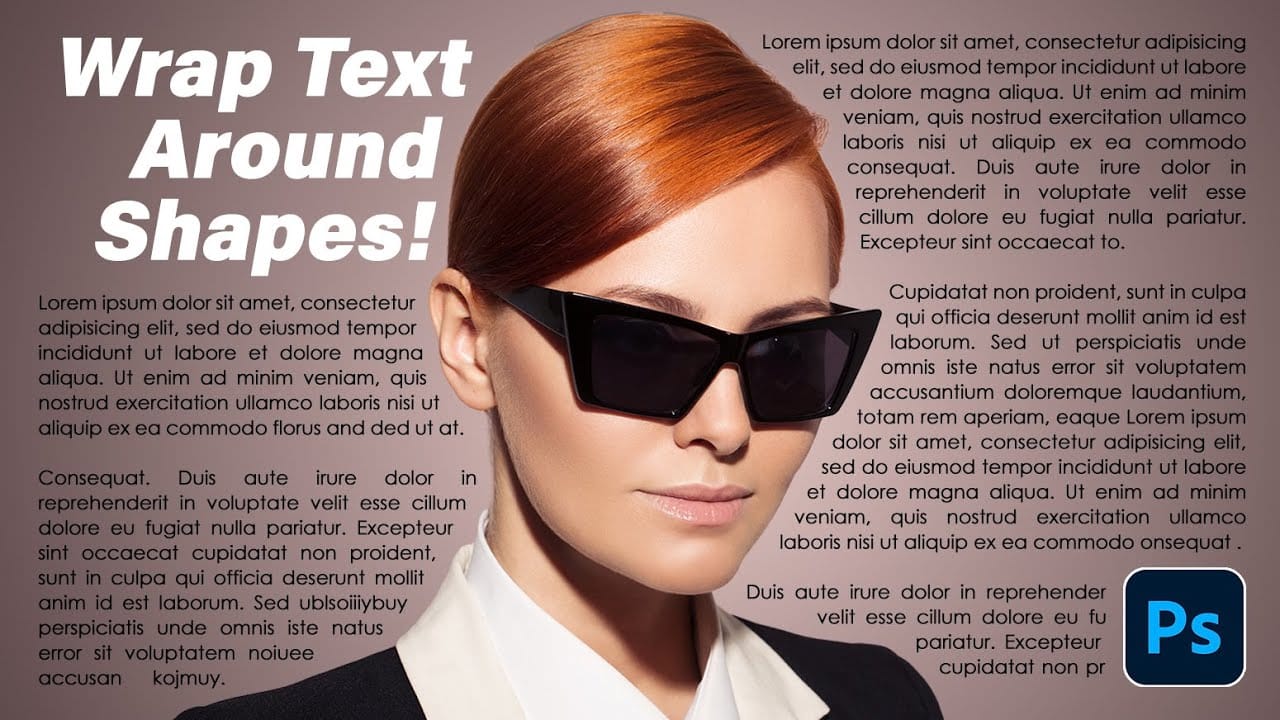
How to Wrap Text Around Any Shape in Photoshop
Creating text that flows naturally around irregular shapes transforms static layouts into dynamic, professional designs. This technique works particularly well for posters, magazine layouts, and editorial designs where text needs to integrate seamlessly with complex subjects rather than simply sitting in rigid rectangular boxes.
The process combines selection tools, path creation, and text formatting to achieve precise control over how your typography interacts with any shape or subject in your
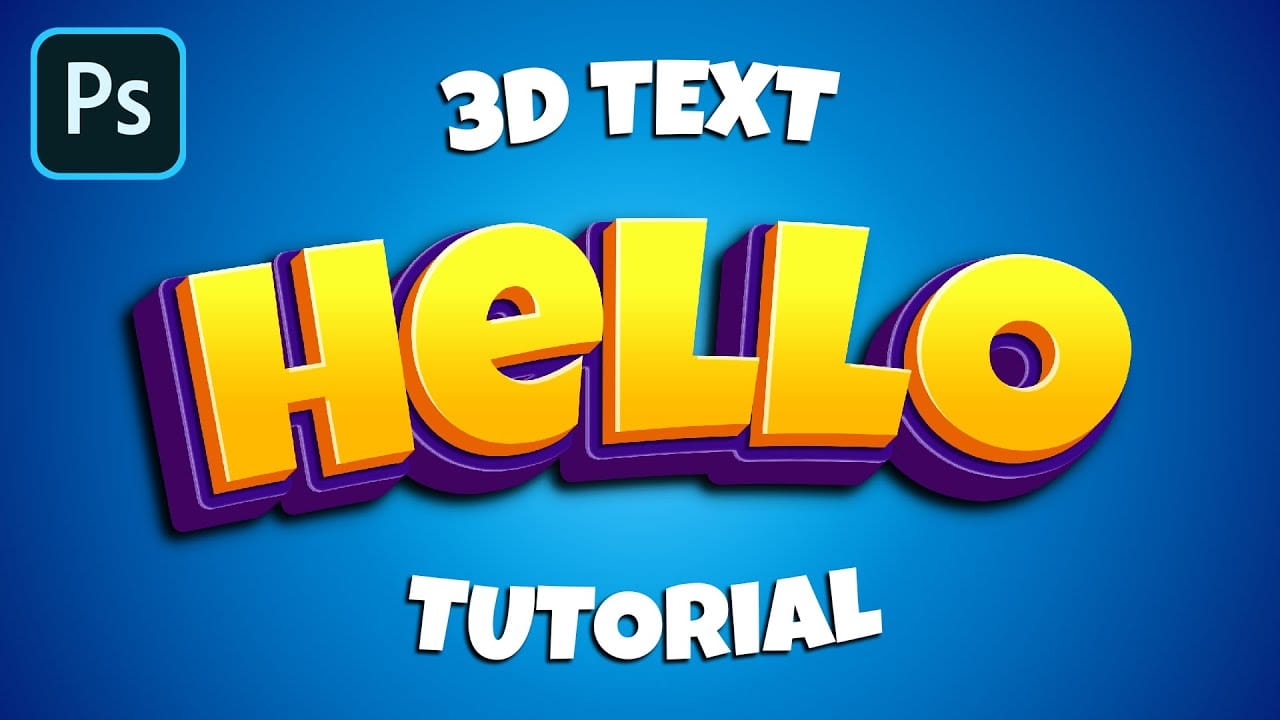
How to Make a Cartoon 3D Text in Photoshop
In this Photoshop tutorial by Learning Screen, you will learn how to create colorful, funny cartoon-style 3D text.
The tutorial guides you through the process of using various Photoshop tools and techniques to achieve a vibrant, playful text effect that stands out. The resulting text is bold and eye-catching, perfect for playful and energetic designs. This tutorial is ideal for projects like posters, children's book covers, or any other creative work that benefits from a fun and dynamic headlin
How to Create a Floral Typography Text Effect in Photoshop
Create striking floral typography by blending text seamlessly with flower images. This tutorial shows you how to interweave words among petals and stems, adding depth and artistic flair to your designs.
Watch the Full Tutorial
Practical Tips for Floral Typography
Enhance your workflow and achieve stunning results with these key techniques:
* Speed up your workflow by using shortcuts like Command/Control + Tab to switch documents, Command/Control + A to select all, Command/Control + C to c