Photoshop Dynamic Text Feature Tutorial: Auto-Fitting Typography Design

Photoshop Dynamic Text Feature Tutorial: Auto-Fitting Typography Design

Typography design often involves endless manual adjustments to make text fit perfectly within defined spaces. Every resize means recalculating font sizes, line breaks, and spacing to maintain clean alignment and readability.

Photoshop's new Dynamic Text feature automatically handles these calculations, creating pixel-perfect left and right margins while intelligently adjusting font sizes across different lines. This tool transforms how designers approach text layout by eliminating tedious manual formatting.

Watch the Tutorial

Video by Nucly • Photoshop and Creative Design Training. Any links or downloads mentioned by the creator are available only on YouTube

Understanding Dynamic Text Behavior

Dynamic Text represents a fundamental shift in how Photoshop handles typography. Unlike traditional text boxes where designers manually control every aspect, this feature prioritizes perfect alignment over individual control.

The system works by analyzing text content and available space, then automatically adjusting font sizes per line to achieve pixel-perfect margins. This creates consistently aligned text blocks regardless of box dimensions or content changes.

  • Automatic font size calculation per text line
  • Pixel-perfect left and right margin alignment
  • Intelligent line break decisions based on available space
  • Real-time text reflow when resizing containers
  • Limited manual control over traditional typography settings

Practical Tips for Dynamic Text

  • Use longer text content to give the system more flexibility in line arrangement and sizing decisions
  • Control line emphasis by adding manual line breaks before and after important words or phrases
  • Access dynamic text through Type menu, right-click context menu, or the T-with-thunderbolt icon in the toolbar
  • Adjust word spacing and line spacing using the dedicated controls in the Properties panel for better text flow
  • Hold Command while resizing to transform the entire text block instead of triggering dynamic reflow

Explore more advanced Photoshop typography and design techniques.

Photoshop Introduces Dynamic Text Feature
Designers frequently encounter the challenge of fitting text creatively into layouts without compromising readability or aesthetics. Traditional text handling in design software often means manually adjusting font sizes, leading, or tracking every time a text box is resized, which can be a time-consuming and frustrating process, especially for complex designs or when experimenting with different layouts. This tutorial introduces Photoshop's groundbreaking Dynamic Text feature, available in the
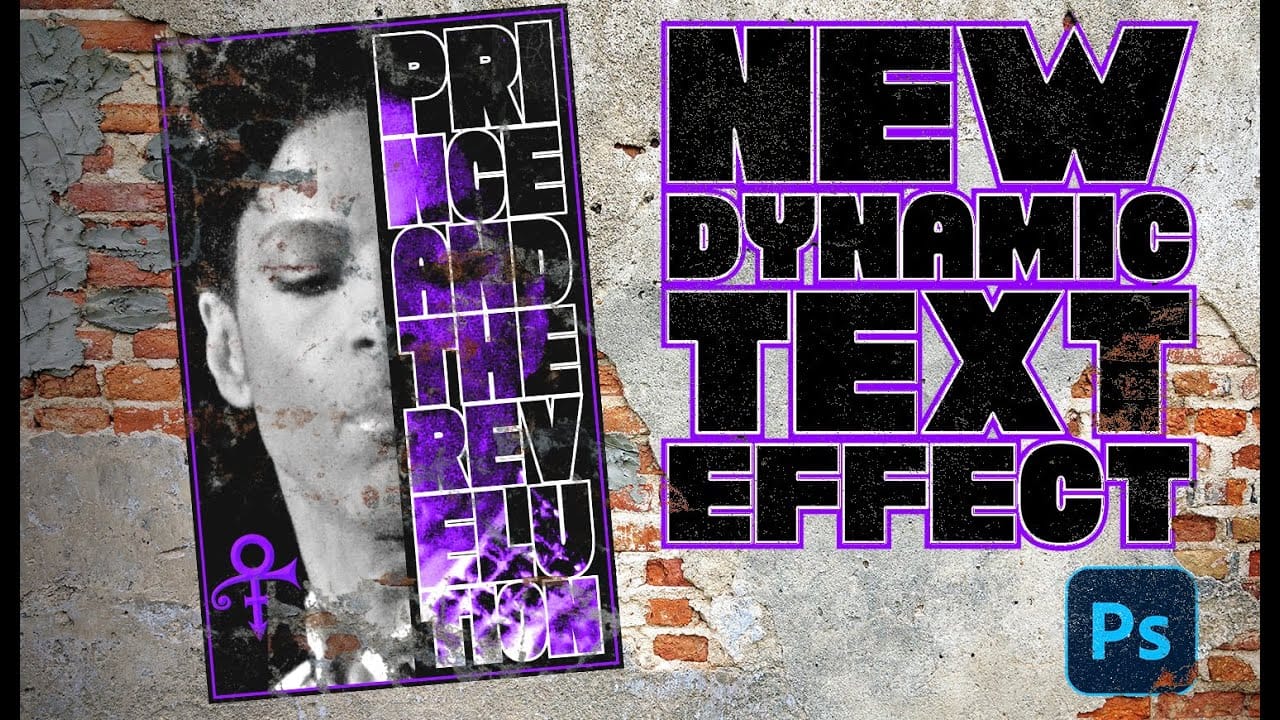
Create a Prince Poster Using Photoshop's Dynamic Text Feature
Prince's legendary status in music history deserves artwork that matches his iconic presence. Dynamic text in Photoshop offers a powerful way to create professional-looking posters that automatically adjust typography to fit perfectly within defined spaces, eliminating the tedious manual alignment process. This technique transforms ordinary text layouts into polished designs by intelligently resizing and repositioning each line to conform to boundaries. The result captures the bold, dramatic ae
TOP New Features in Photoshop – May 2025 Update
Many Photoshop users frequently encounter common challenges such as time-consuming manual selections for complex objects, difficulties in achieving precise color adjustments across an image, or struggling with inconsistent results when removing unwanted elements like reflections. These hurdles often slow down the creative process, making it frustrating to achieve a desired professional look efficiently. This guide explains how Photoshop's latest updates introduce powerful new functionalities, i
Exploring the Latest Features in Photoshop 2025
Photoshop 2025 introduces powerful new tools designed to make creative work easier, faster, and more flexible. From fine-tuning selections to moving objects and speeding up your workflow, these features feel built for the way creators actually work. In this video, we'll show you what's new and how these updates can help you work smarter — saving time on routine tasks, giving you more control over details, and opening up new ways to bring your ideas to life. Watch the video Breaking It Down

Get tutorials & freebies delivered to you.

Subscribe to the Photoshop Roadmap newsletter, a weekly roundup of new tutorials, insights and quality downloads, trusted by 6500+ readers.

You might also like

How to Use Color Average for Color Toning in Photoshop

Color average creates a unified color tone by analyzing all the colors in your image and calculating their mathematical average. This technique adds depth and cohesion to photos, composites, and AI-generated images by applying a subtle color wash that ties all elements together. The method works particularly well for composites...

How to Remove Complex Background Elements Using AI in Photoshop

Removing complex background elements like fencing or wire mesh has traditionally been one of the most time-consuming tasks in photo editing. New AI-powered tools in Photoshop can now eliminate these distracting elements while preserving fine details in your subject. This tutorial demonstrates two practical workflows: one using the latest Firefly...

How to Use Photoshop's Auto Layer Rename Feature

Messy layer names like "Layer 52 copy 4" and "Untitled 5" clutter your workspace and slow down complex projects. Photoshop's new auto-rename feature uses AI to automatically identify and name layers based on their content, from "Woman in yellow shirt" to "...

New Generative Fill Features in Photoshop Beta: Reference Images and Credit Tracking

Photoshop Beta introduces significant improvements to Generative Fill that address the most requested features from users. The updated interface now displays your generative credit balance and usage, while the new reference image capability lets you add up to eight specific images to guide AI generation with precise visual examples. These...

Essential Photoshop Tools for Beginners: Brush, Crop, and Move Tool Tutorial

Learning Photoshop tools feels overwhelming when you don't know where to start. This tutorial focuses on three essential tools that form the foundation of most Photoshop work: the brush tool for painting and retouching, the crop tool for resizing and straightening images, and the move tool for positioning...

How to Add Custom Textures to Photos in Photoshop

Adding textures to photographs can transform ordinary images into compelling artistic compositions. This technique uses multiple texture layers combined with strategic blending modes and color adjustments to create depth and visual interest. The process involves layering different texture types—color overlays, surface patterns, and lighting effects—then using masking techniques...

You’ve successfully subscribed to Photoshop Roadmap
Welcome back! You’ve successfully signed in.
Great! You’ve successfully signed up.
Success! Your email is updated.
Your link has expired
Success! Check your email for magic link to sign-in.