


Topaz Labs recently introduced Bloom, an exciting new web app that enlarges AI-generated images by up to 8×, opening new creative possibilities for digital artists and creators. But Bloom isn't just about making images bigger—it creatively enhances detail and texture, giving images a richer look. One significant advantage is that Bloom runs entirely in the cloud, so even beginners without powerful graphics hardware can easily experiment with AI upscaling.
Upscaling: From Photoshop Frustration to AI Enhancement
Before AI, enlarging images often meant losing quality. Many Photoshop users remember the frustrations of going to Image > Image Size, knowing the final image would inevitably turn into a blurry mess. These traditional methods were limited—they could enlarge images, but edges softened, details disappeared, and the overall sharpness suffered significantly.
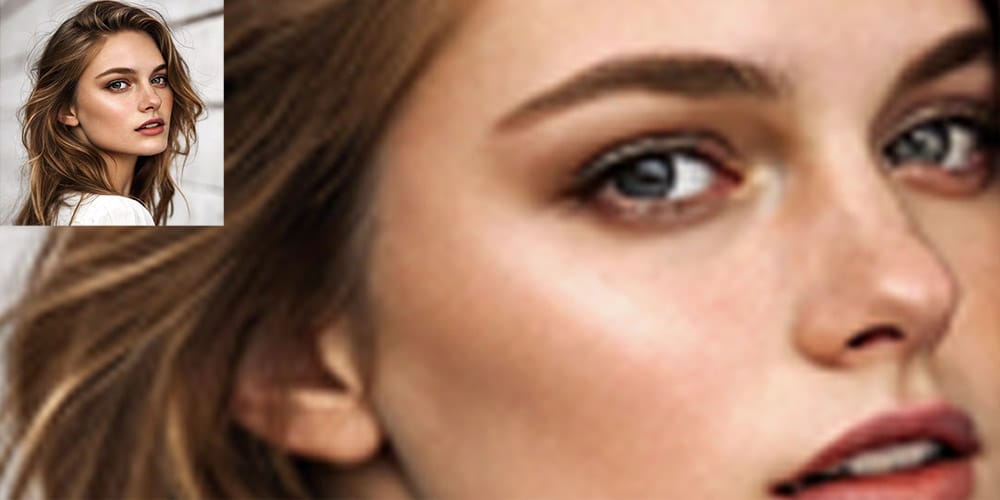
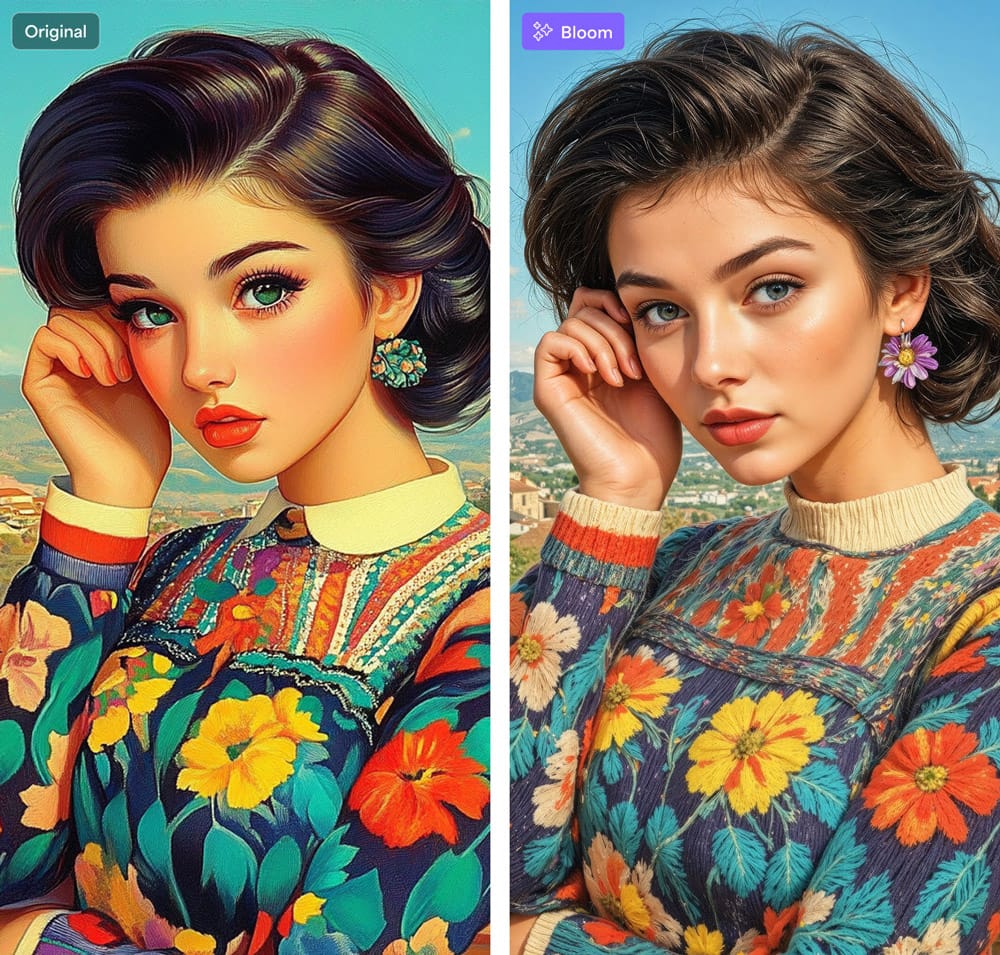
The arrival of AI changed everything. AI-based upscaling techniques analyze millions of images, learning to predict and generate new details. Instead of just enlarging pixels, AI upscalers add realistic textures, sharper edges, and convincing details.
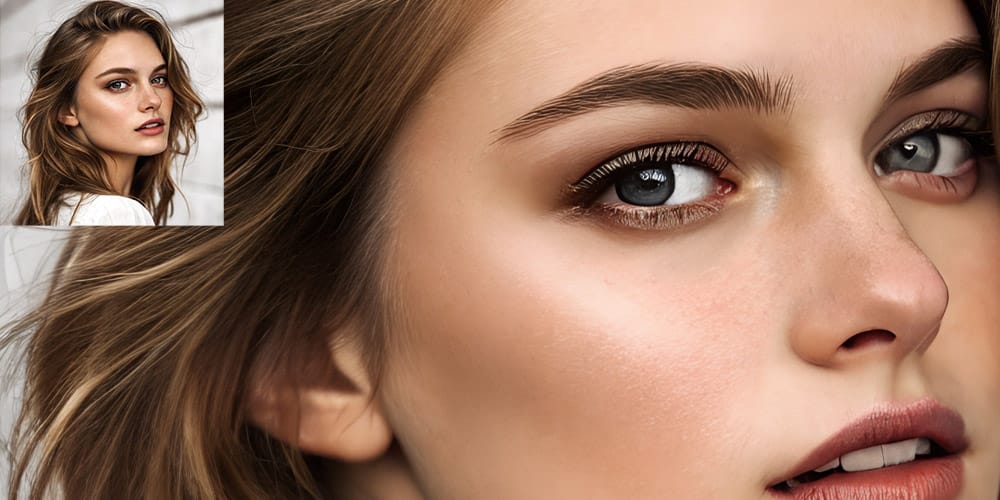
Bloom takes this concept even further with "creative upscaling." Rather than just enhancing existing detail, Bloom uses AI to invent additional stylistic textures and nuances, turning the enlargement process into a creative step rather than merely a corrective one.
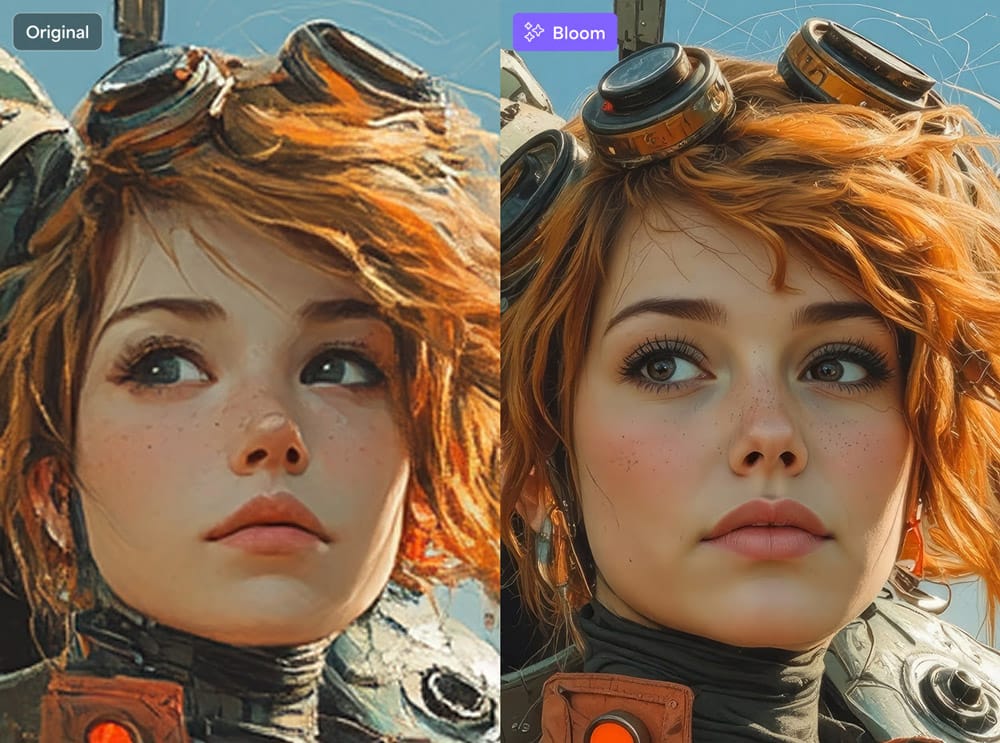
How Bloom Enhances Your Images
Bloom is designed with beginners and casual artists in mind, offering features that balance ease of use with powerful creative control:
- Users can select from multiple levels of creativity—low levels preserve the original look closely, while higher levels dramatically enhance textures, adding artistic flourishes to the image.
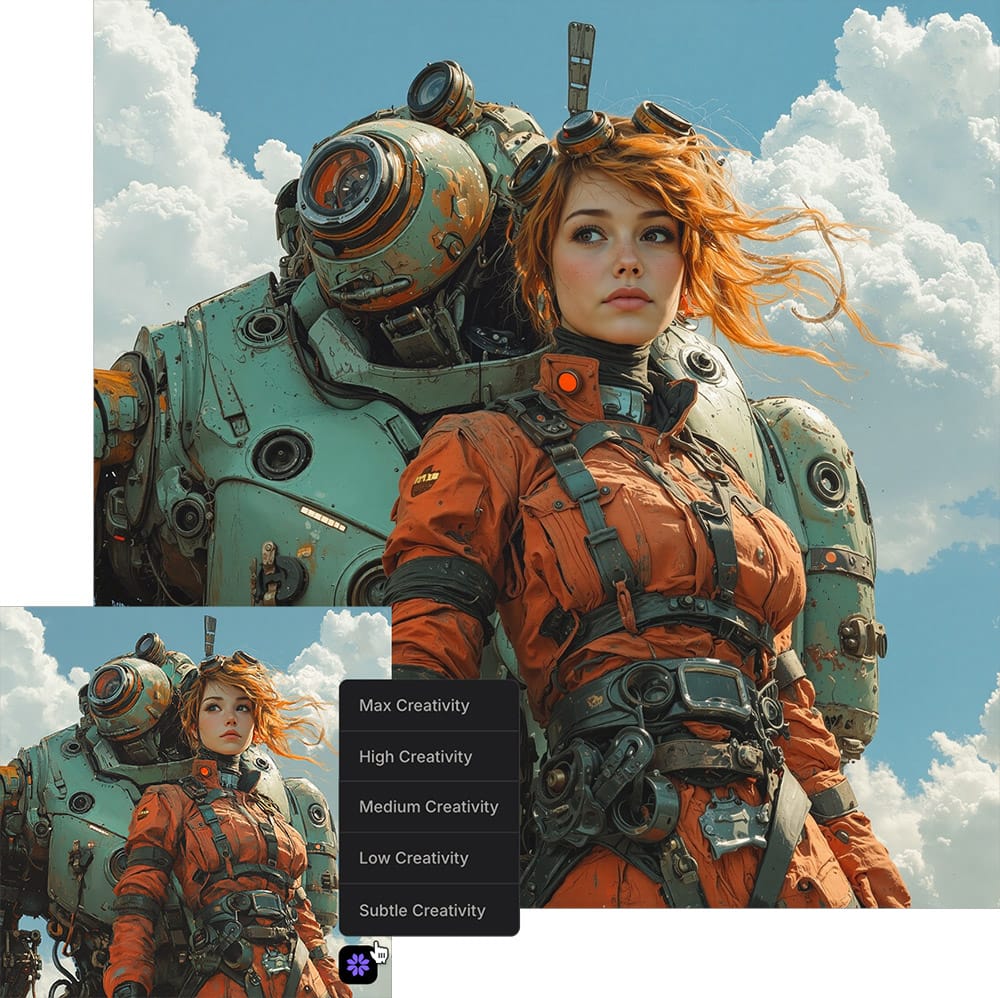
- The "Prompt Influence" feature lets users guide Bloom's creativity with a simple text prompt. A short description like "brushed metal texture" or "oil painting style" influences the details and textures Bloom invents.
- Each render generates up to four variations of the enlarged image, displayed in a neat grid for quick visual comparison. This makes it easy to choose the preferred artistic direction.
- With the "Remix" function, users can continuously refine and enrich their images by repeatedly feeding the best results back into the process, progressively adding detail and style.
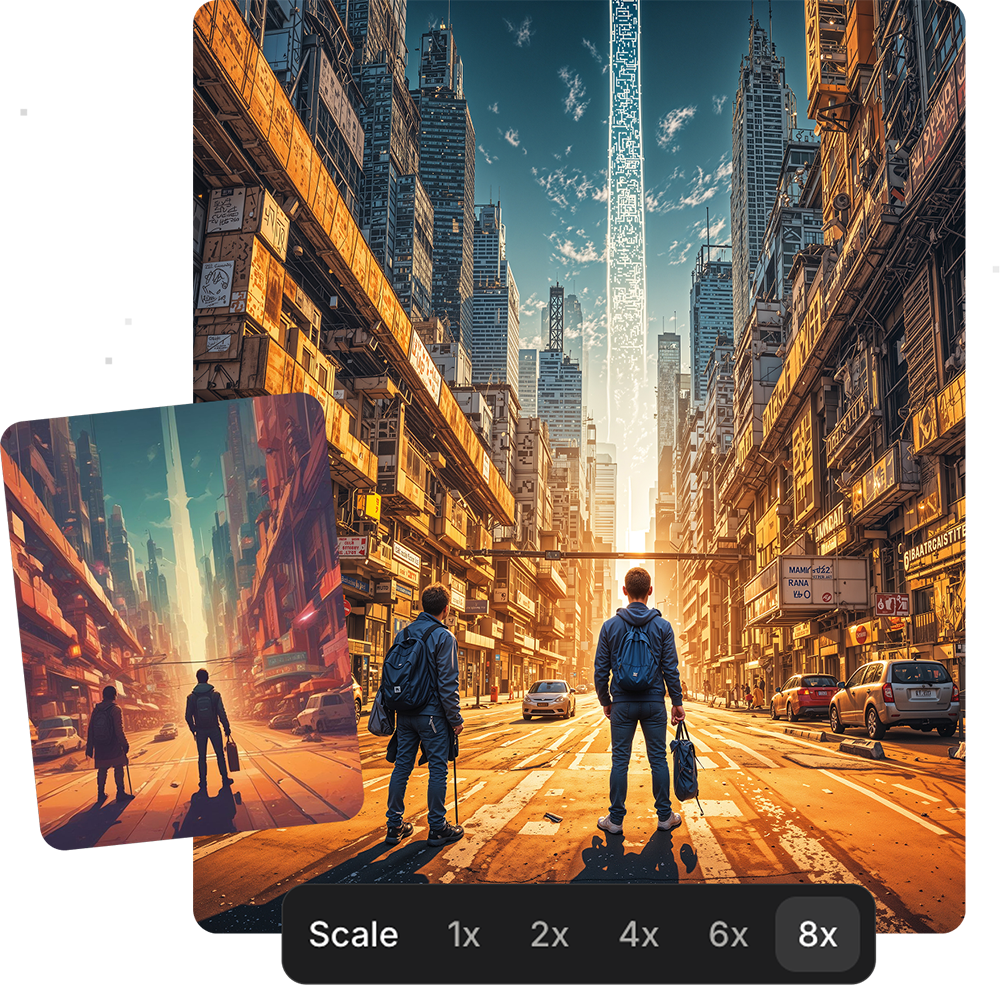
- It allows up to 8× enlargement, reaching impressive resolutions suitable for posters or detailed presentations, and the Premium plan even supports exports of up to 100 megapixels.
Understanding Bloom's Plans
Bloom offers several straightforward options suitable for various needs. The Free plan provides a generous and practical starting point: users can process ten images per month, up to 16 megapixels each. This allows newcomers ample opportunity to try Bloom and explore creative upscaling without commitment.
For those who require more frequent use, the Standard and Premium plans offer unlimited processing. Standard is ideal for hobbyists or casual use, while Premium targets professionals needing larger outputs (up to 100 megapixels) and commercial usage rights. Both paid plans begin with a 7-day free trial, allowing users to thoroughly test and understand the capabilities before committing.
How Bloom Differs from Gigapixel
Topaz Labs already has a popular desktop-based upscaler called Gigapixel, known primarily for restoring photographs by enhancing detail and removing noise. Bloom, on the other hand, is crafted specifically for AI-generated artwork, illustrations, and creative images. It excels in producing stylistic, detail-rich enlargements, offers multiple image variations at once, and eliminates the need for heavy desktop software through its cloud-based processing.
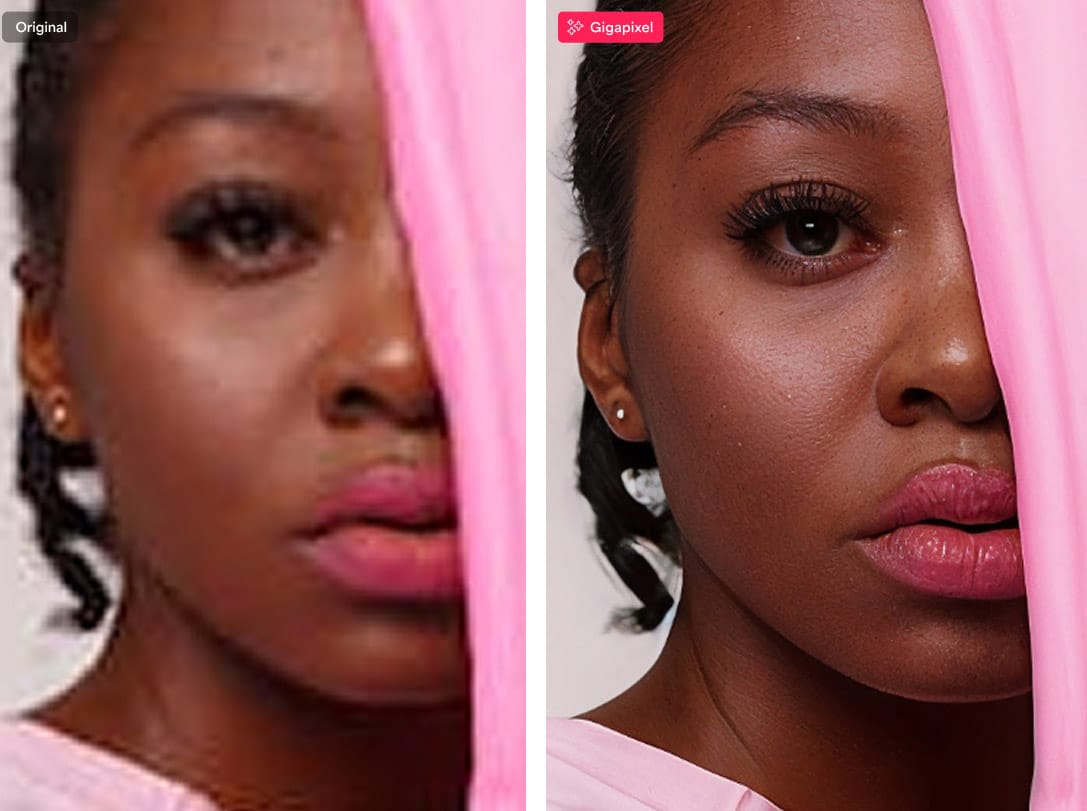
While Gigapixel remains an excellent choice for photographic restoration, Bloom uniquely targets users who want to explore artistic enhancements alongside significant image enlargement.
Incorporating Bloom into Your Workflow
Using Bloom is straightforward: Start by generating an AI image with popular tools like Midjourney, Adobe Firefly, or Stable Diffusion. Upload your chosen image to Bloom, select the scale you prefer (2×, 4×, 6×, or 8×), adjust the creativity slider, and optionally type in a short prompt to influence the details.
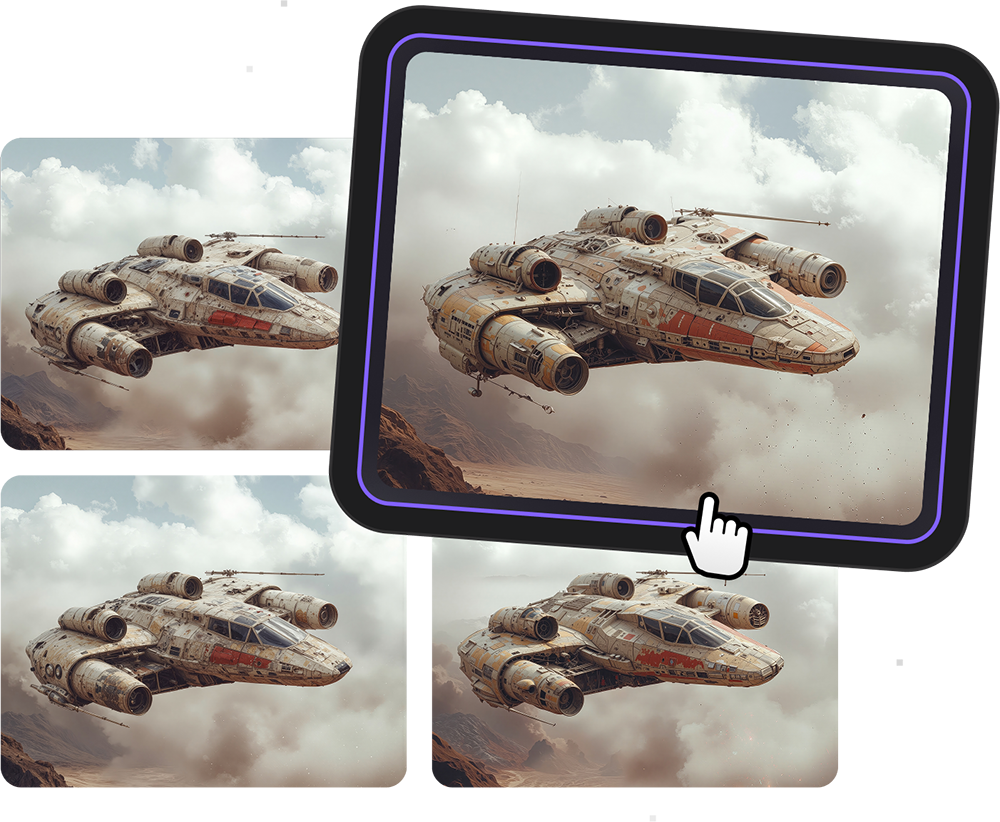
Bloom then delivers multiple enlarged variations of your image, ready for instant review. From there, you can select the version you prefer or remix it further to deepen the creative enhancements. This seamless process doesn't require powerful hardware—since everything happens on Topaz's cloud servers, even a basic laptop or smartphone browser is sufficient.
Ideal for Beginners and Creative Enthusiasts
Bloom is ideal for illustrators, digital artists, print-on-demand creators, educators, and anyone eager to experiment creatively without technical hassles. Its accessibility and simplicity make it an inviting tool for beginners looking to enhance their digital creations, effortlessly turning smaller AI-generated artworks into stunning high-resolution images.
Final Thoughts
Bloom effectively reframes image upscaling as a fun, creative, and accessible step in the digital art process. By removing barriers of hardware and technical complexity, Topaz Labs offers a powerful yet beginner-friendly approach to enhancing AI-generated art, making the creative potential of AI more approachable than ever.


