Transform ordinary portrait photography into vibrant, artistic compositions by adding colorful paint splashes that radiate outward from your subject. This technique combines simple photography setups with advanced masking methods to create surreal, eye-catching effects on a minimal budget.
Artist Natalia Seth demonstrates how to achieve professional-looking results using basic materials like actual paint splatters photographed in a dorm room, then seamlessly integrated into portrait images through careful layer masking and color adjustment techniques.
Watch the Video
Practical Tips
Master the paint splash portrait effect with these essential techniques from the tutorial:
- Use the Magic Wand Tool with a tolerance around 17, then apply Command+I to invert masks for cleaner paint splash cutouts
- Create backup copies of masked layers before applying layer masks to preserve your ability to make adjustments
- Arrange paint splashes in a radial pattern emanating from the eye area to create a natural sun-like composition
- Apply drop shadows at approximately 134-degree angles with 36% opacity to match your portrait's existing lighting direction
- Use the Warp transformation tool to reshape bulky paint areas and ensure complete coverage over facial features
Related Articles and Tutorials
Explore more creative paint and splash effects to enhance your portrait photography skills.
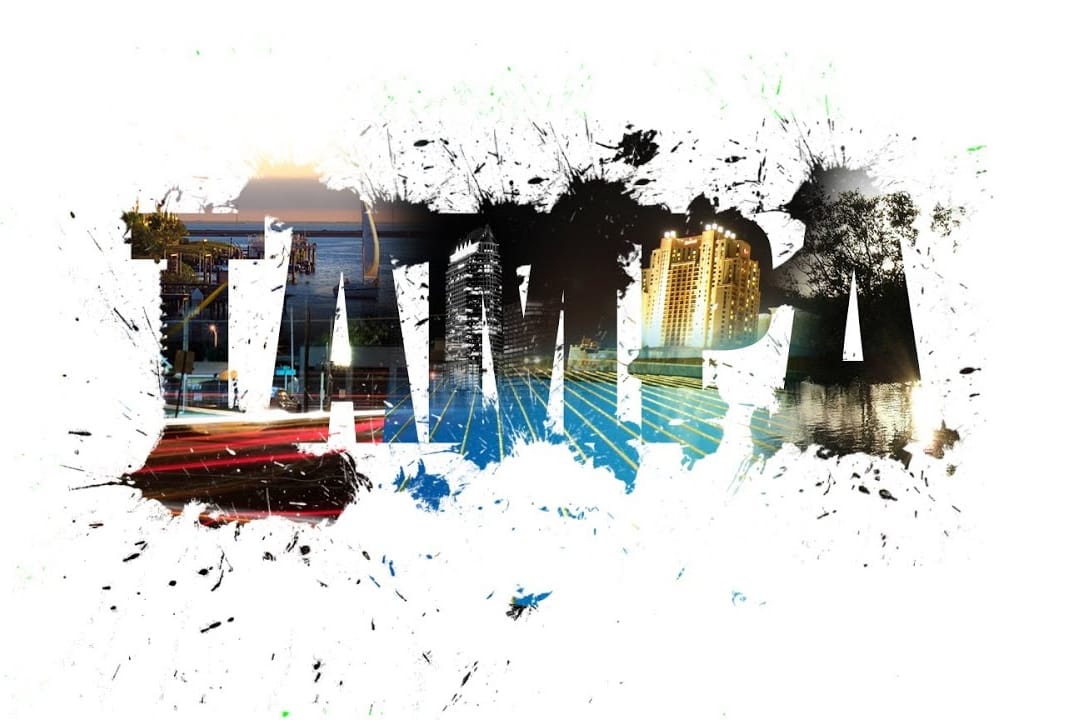
Create a Photo Text Splash Effect in Photoshop
Transform plain text into a vibrant visual statement by integrating multiple photos with a unique splash effect. This tutorial guides you through combining images and text using advanced masking techniques to achieve a captivating design.
Watch the Video
Practical Tips for Photo Text Splash Effects
Achieve a seamless and dynamic photo text splash effect with these key Photoshop techniques:
* Create custom brushes from splash images to expand the visual impact of your text, adding unique t
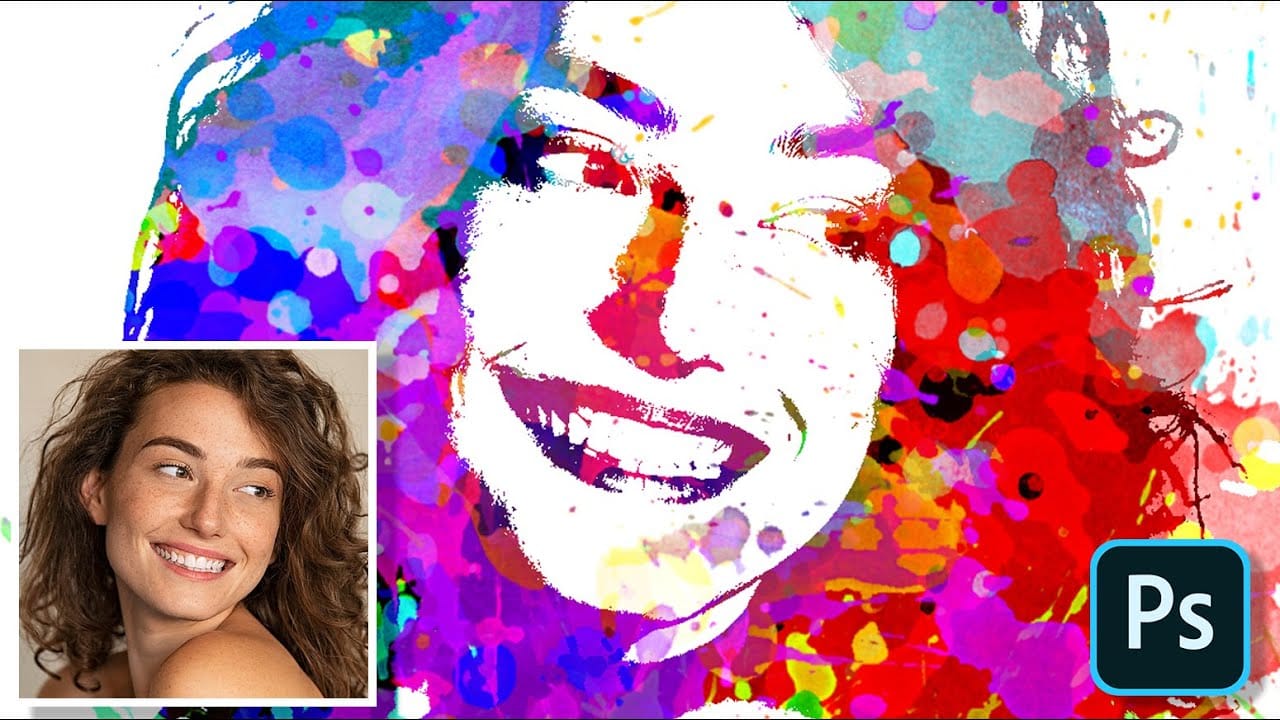
Create Paint Splatter Pop Art Portraits from Photos in Photoshop
Transforming ordinary photographs into vibrant, stylized artworks offers a unique avenue for creative expression in digital imaging. This process allows artists and designers to infuse personal style and abstract elements into conventional portraits, pushing the boundaries of traditional photography.
In this tutorial, you will learn a comprehensive workflow for converting a standard photo into a dynamic paint splatter pop art portrait using Adobe Photoshop. The video demonstrates key techniques
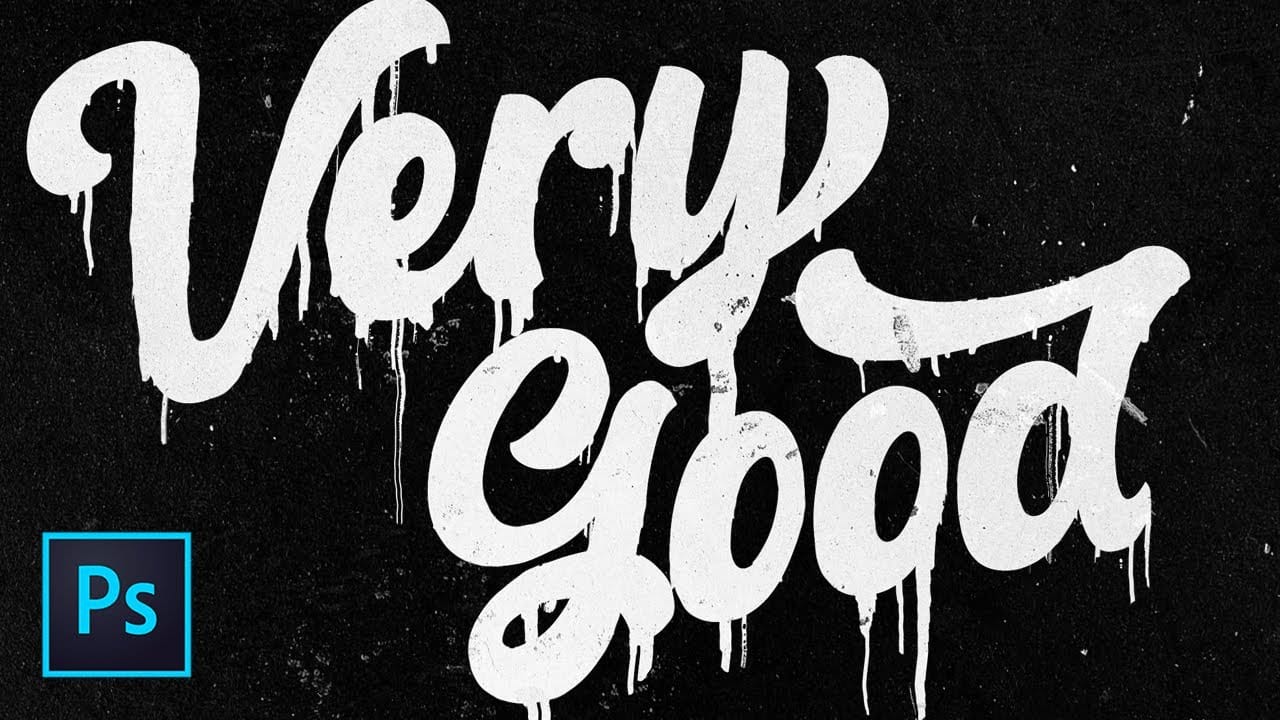
Dripping Paint Effect in Photoshop
Unleash a captivating visual aesthetic by learning how to create a dynamic dripping paint effect in Photoshop. This technique transforms ordinary text and logos into artistic, fluid designs that command attention. Discover a unique method that relies on Photoshop's powerful filters, rather than traditional hand-painting.
This tutorial provides a step-by-step guide to achieve this stunning effect, enabling you to apply it to various design projects. Elevate your creative work with a professional
Apply a painterly splatter effect to a photo in Photoshop
In this tutorial, you will learn how to create a unique and visually striking portrait photo with a splatter paint and drip effect in Photoshop. The techniques covered include overlay painting, blending, and coloring methods.
You'll start by working with your portrait image, experimenting with different overlay modes and blending options to achieve the desired paint-like effect. Then, you'll explore adding drips and splatters to the image, using various brushes and techniques to ensure a natura
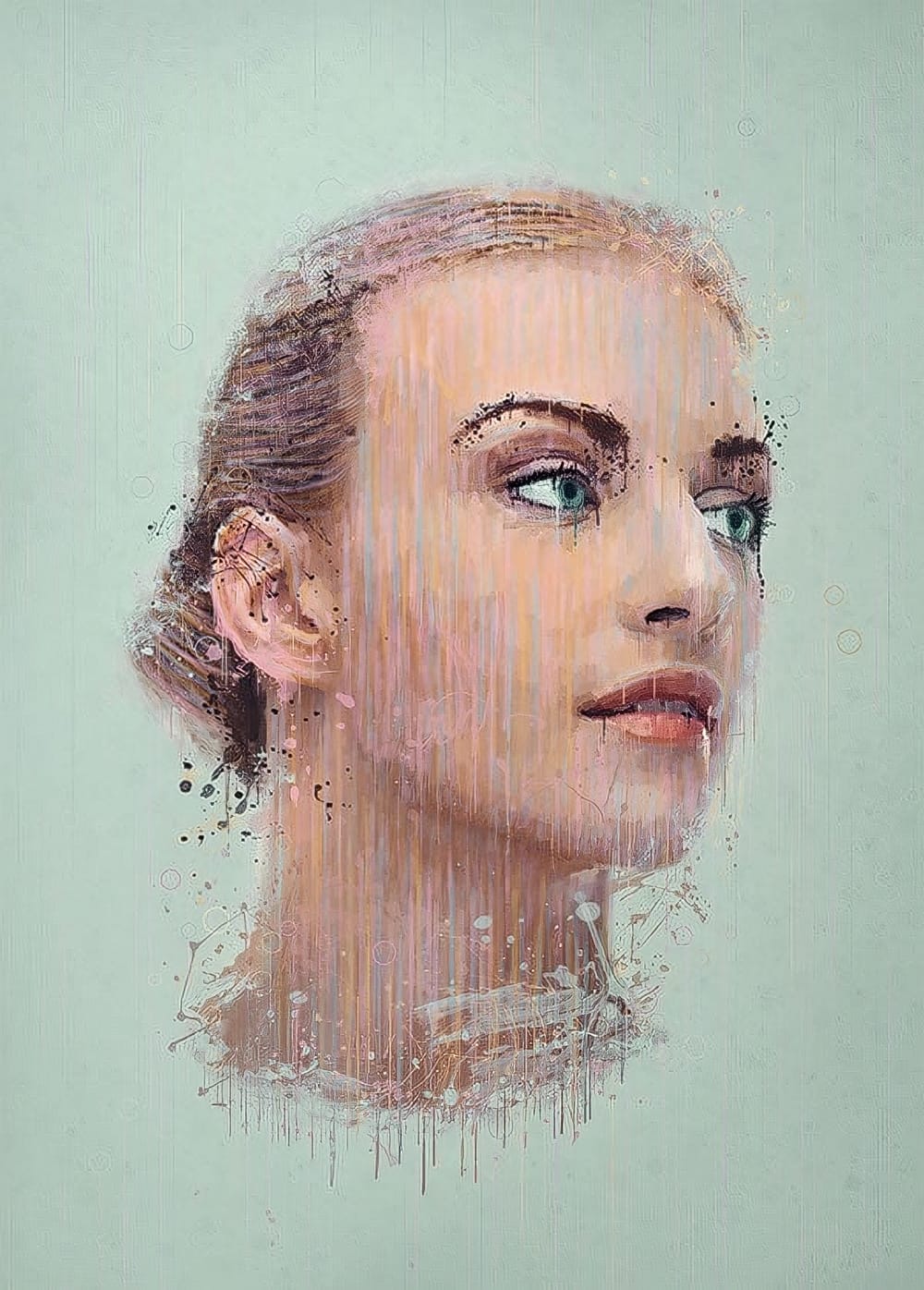
How to create a dripping paint text effect in Photoshop
In this tutorial, you will discover how to create a striking paint-dripping effect using Adobe Photoshop. This guide breaks down the process into clear, manageable steps, making it easy for you to follow along, regardless of your skill level.
First, you will start by preparing the base image, where you will add the paint element. Then, you'll learn how to manipulate and position the paint to achieve the desired dripping effect. Each step includes helpful tips and tricks to enhance your work.
F
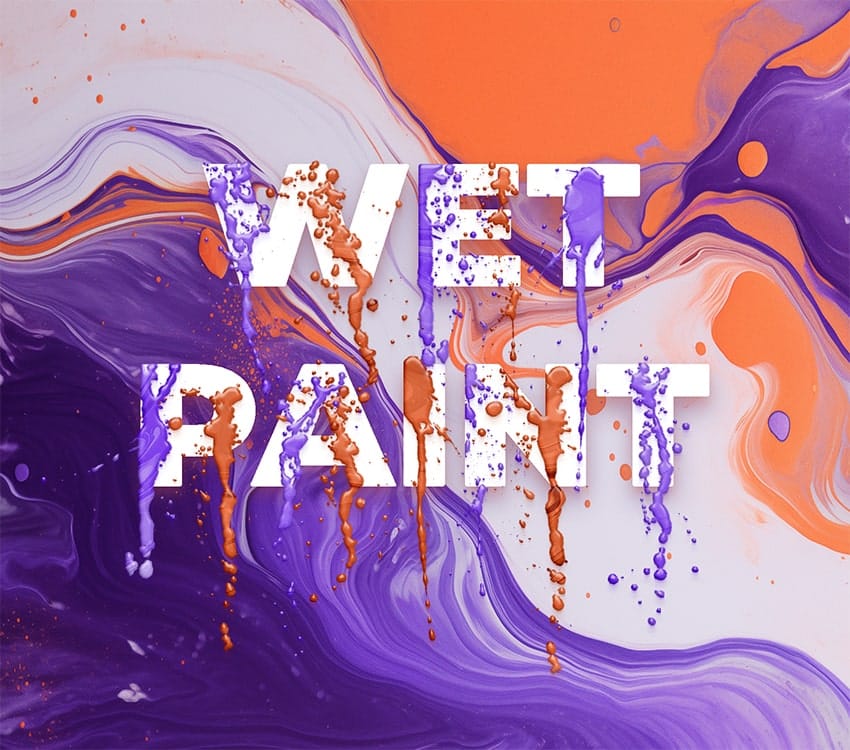
Create a Powerful Dispersion, Splatter Effect from a Photo in Photoshop
This tutorial explores how to create a striking dispersion and splatter effect in Adobe Photoshop, transforming ordinary photos into dynamic works of art. This technique gives the illusion that parts of your subject are breaking apart and scattering into particles, adding movement and drama to static images.
Viewers will learn the essential steps to achieve this popular effect, from preparing your subject and background to utilizing smart objects, layer masks, and custom splatter brushes. The v
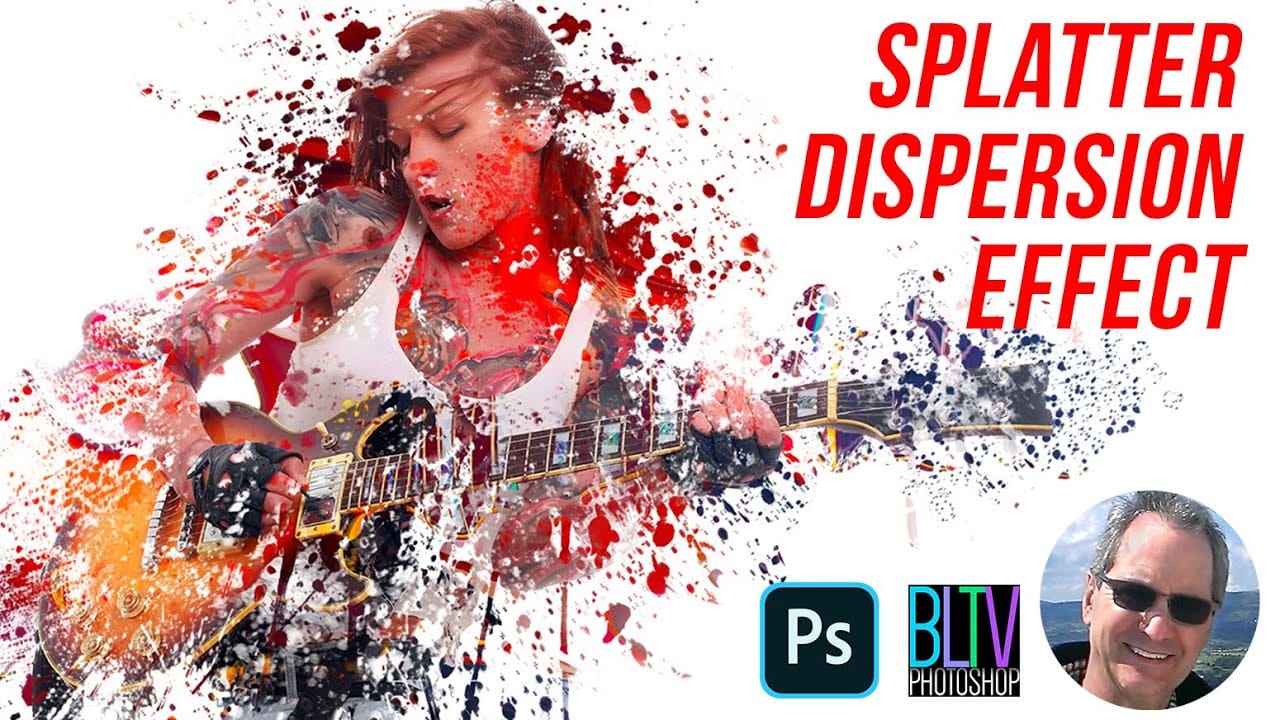
Colorful Slimy Drip Text Effect in Photoshop
In this tutorial by Noyse Works, you'll learn how to create a striking drip text effect in Photoshop.
The final image showcases a dynamic text with melting, paint-like drips, perfect for adding a creative, edgy touch to your designs. The tutorial covers techniques for blending, shading, and manipulating text to achieve a realistic dripping effect, making your text appear as if it's slowly melting away.
This effect is ideal for creating eye-catching posters, social media graphics, or any projec
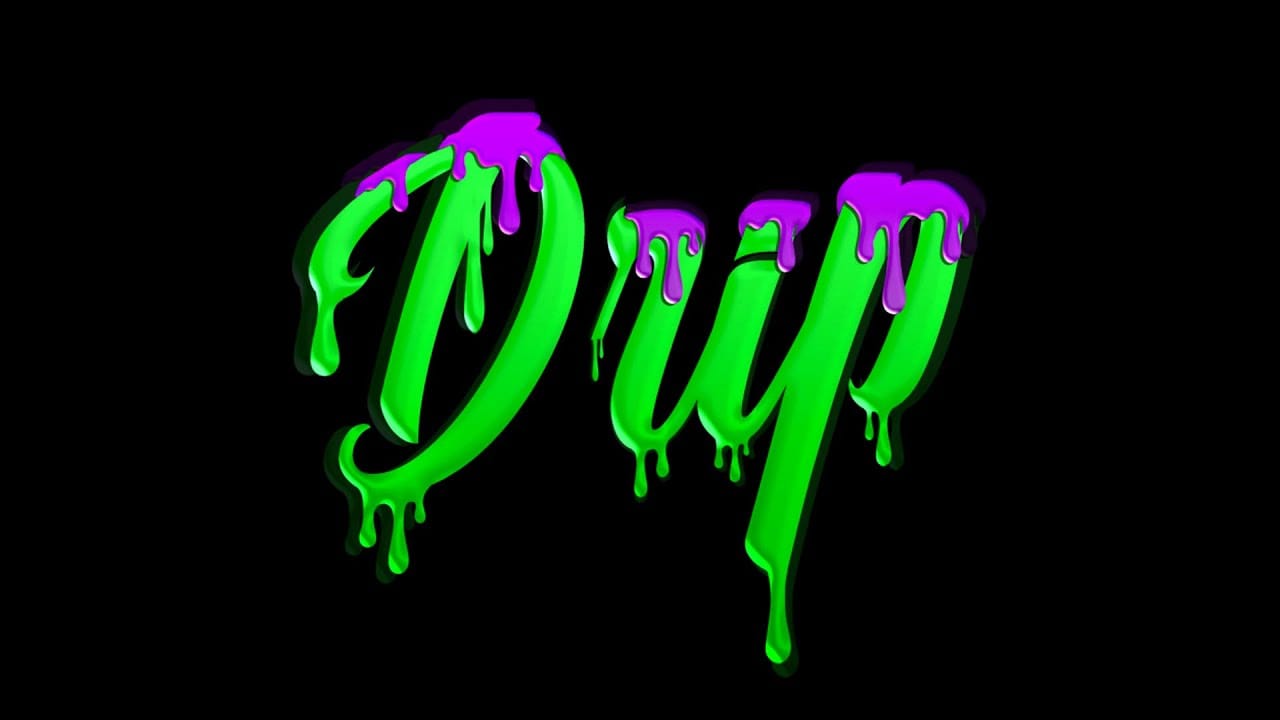
Colorful paint text effect
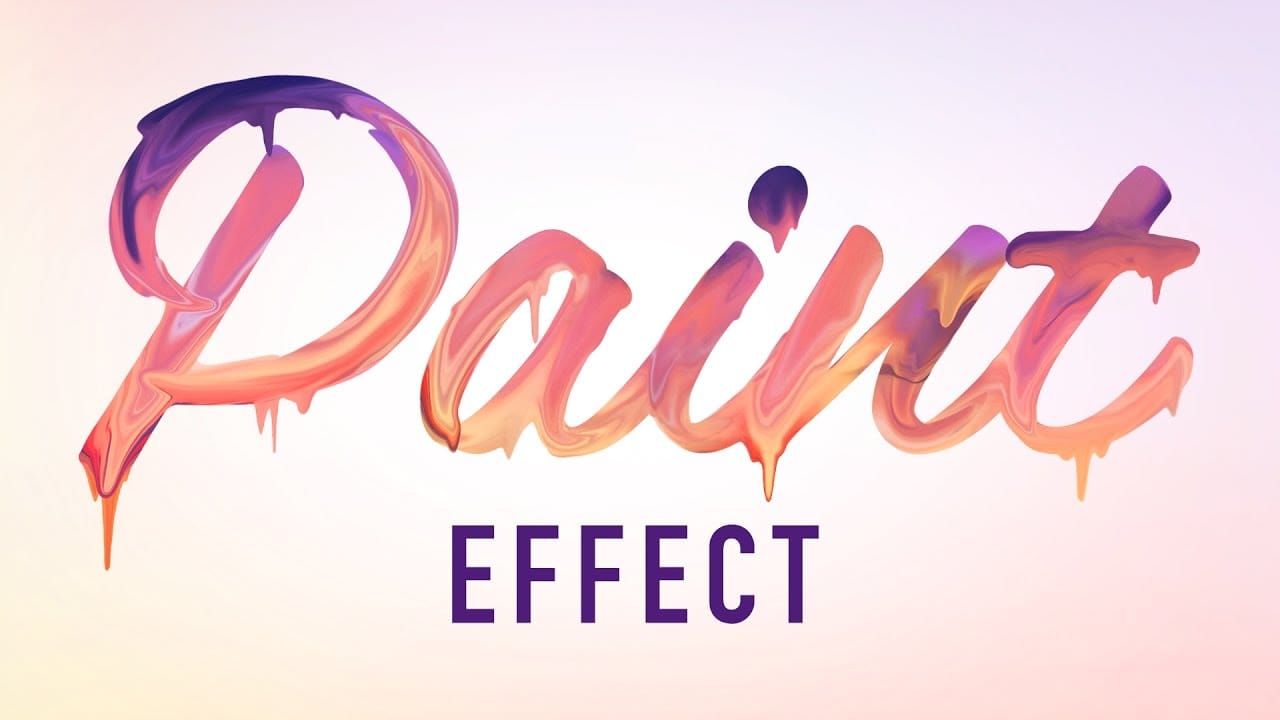
In this tutorial by Made By Mighty, you'll learn how to create a digital dripping paint text effect in Photoshop.
Taking a different approach than usual, this freestyle tutorial focuses less on importing values, lighting angles, and blending modes, and more on the creative process. You'll be guided through the steps needed to replicate this unique effect on your own text, with all the necessary information provided to help you achieve the look.
This tutorial is perfect for those looking to exp
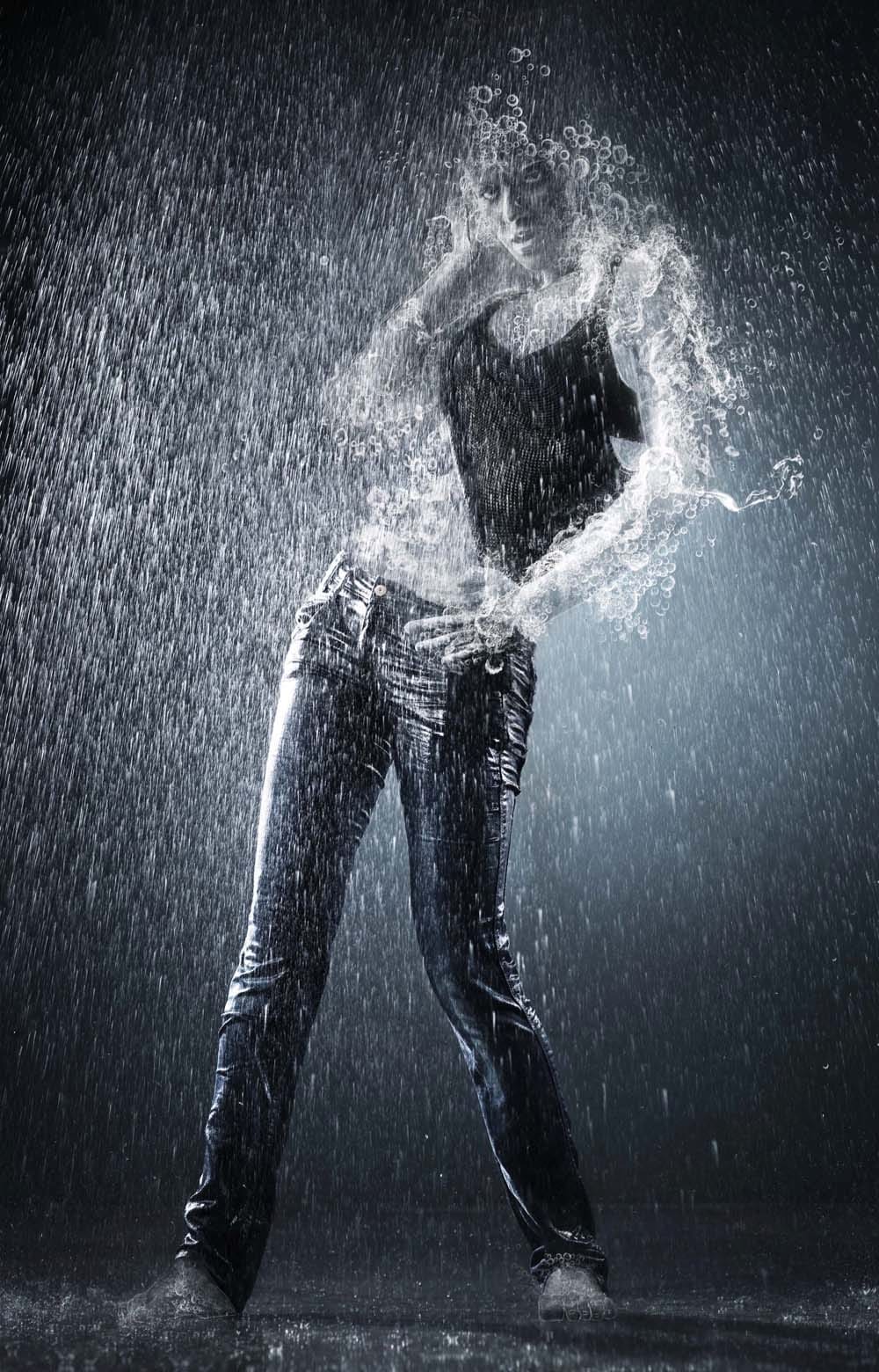
Paint Figures Using Splashing Water Effects in Photoshop
In this photo manipulation tutorial, Jennifer Cirpici introduces a method for creating a figure that appears to be made from water, using a stock photograph as the foundation. The process may seem complex, but Jennifer breaks it down into manageable steps, making it accessible to anyone interested.
Throughout the tutorial, you will learn various essential techniques, such as blending lighting and shadows effectively. She emphasizes the importance of establishing a focal point using gradients, w