Create Liquid Gradient Text Effect in Photoshop

Create Liquid Gradient Text Effect in Photoshop

Liquid text effects transform ordinary typography into flowing, organic shapes that seem to move across the page. This dynamic style captures the fluid properties of water, paint, or molten materials, creating text that appears to drip, flow, or splash.

The technique combines shape manipulation with blur effects and gradient mapping to achieve a smooth, liquid appearance that works particularly well for creative projects, digital art, and modern branding applications.

Watch the Video

Video by P A N T E R. Any links or downloads mentioned by the creator are available only on YouTube

Understanding Liquid Text Design

Liquid text effects rely on the visual principles of fluidity and organic motion. The key lies in breaking away from rigid typography constraints and allowing letterforms to flow naturally into one another. This approach mimics how liquids behave in the physical world, where surface tension and gravity create smooth, curved transitions.

The visual impact comes from combining several technical elements: path manipulation to create flowing shapes, strategic blurring to soften harsh edges, and gradient mapping to add depth and color variation. The smudge tool plays a crucial role in creating those characteristic liquid drips and flowing connections between letters.

Modern liquid text designs often incorporate vibrant gradient schemes that suggest movement and energy. Colors flow seamlessly from one hue to another, reinforcing the fluid aesthetic and creating visual interest that draws the viewer's attention to the message.

Practical Tips for Liquid Text Effects

  • Convert text to shapes early in the process to enable path manipulation with the direct selection tool
  • Use moderate smudge tool strength (around 40%) to maintain control while creating fluid connections
  • Apply field blur with multiple focal points to create depth and enhance the liquid appearance
  • Add subtle noise before applying gradient maps to create texture that mimics real liquid surfaces
  • Build gradient maps with multiple color stops, progressing from dark to light tones for realistic depth

Explore more creative applications of gradient effects and text styling techniques.
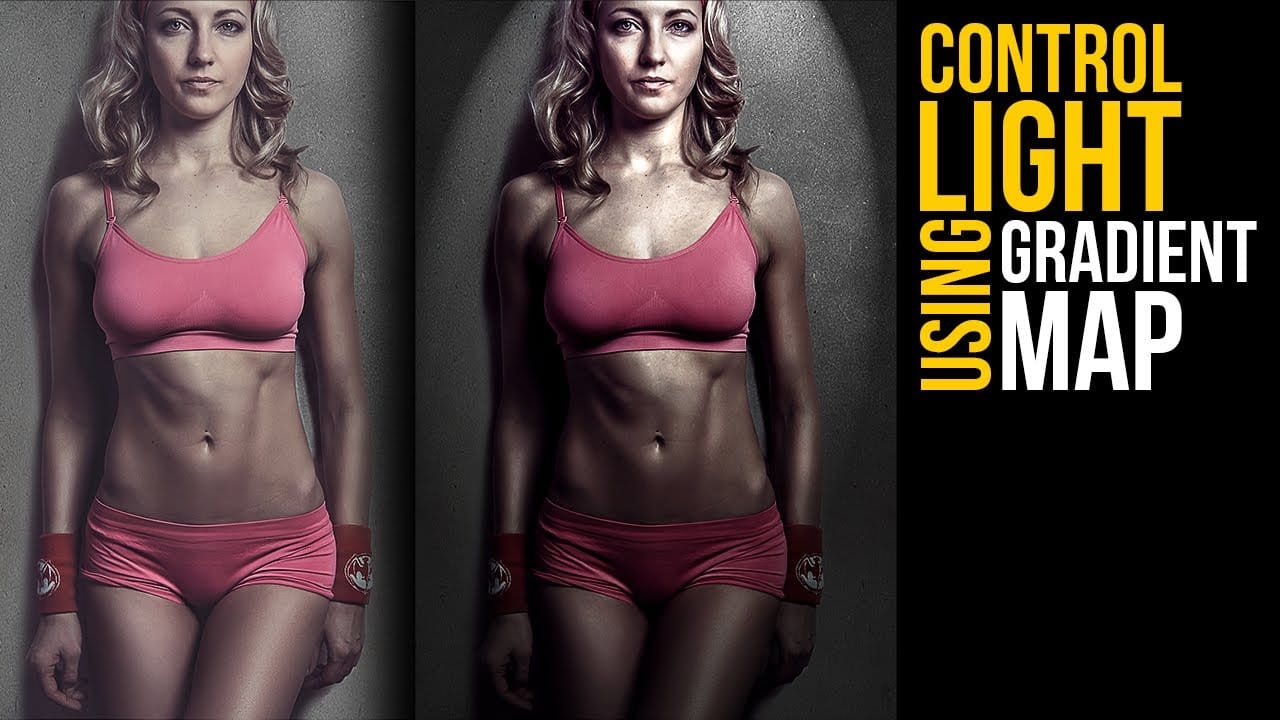
Create lighting effects using Gradient Maps in Photoshop
In this Photoshop tutorial by Unmesh Dinda from Piximperfect you will learn an interesting technique to completely mold and control light in Photoshop using Gradient Maps along with amazing light effects to add drama, depth, and dimension. In this video, learn how to manipulate multiple levels of light. Whether you want to remove shiny flash hotspots or add more shine, make harsh light soft or soft light harsh, with Gradient Maps, you can control almost everything. Gradient Map allows you to co
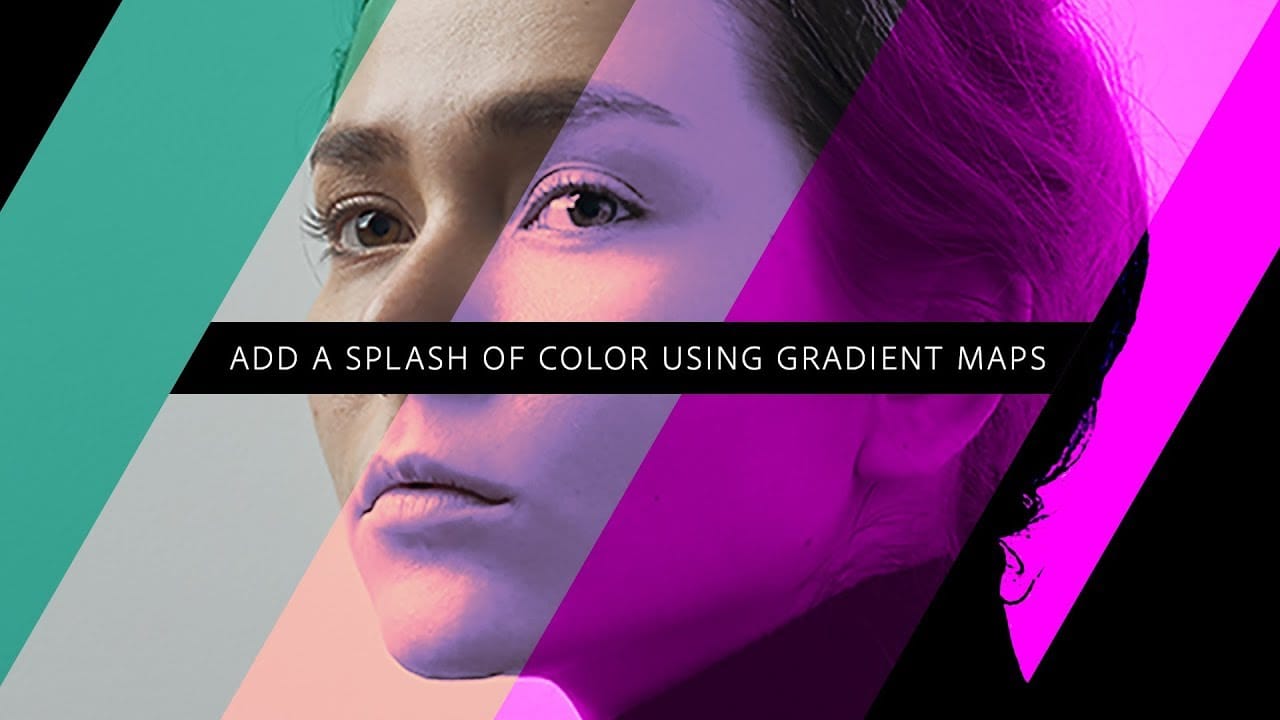
Add a splash of color using gradient maps in Photoshop
In this engaging tutorial, Adobe Evangelist Paul Trani reveals the power of Gradient Maps in Photoshop to introduce stunning colors to your designs. Gradient Maps are a versatile tool that applies color gradients to your images, enabling you to create striking visual effects with ease. Paul walks you through the process of applying and adjusting Gradient Maps, demonstrating how this technique can significantly enhance the depth and vibrancy of your designs. The tutorial covers essential tips an
Create Metal Gradients in Photoshop
Nathaniel Dodson, a renowned expert from TutVid, shares a Photoshop tutorial that explores the art of creating metal gradients. The tutorial offers a nostalgic journey into the realm of skeuomorphic design, guiding the user through the process of crafting a captivating metal gradient. The author delves into the intricacies of color selection, providing valuable insights on the hues that work best for this particular design approach. By following the step-by-step instructions, the user can effor
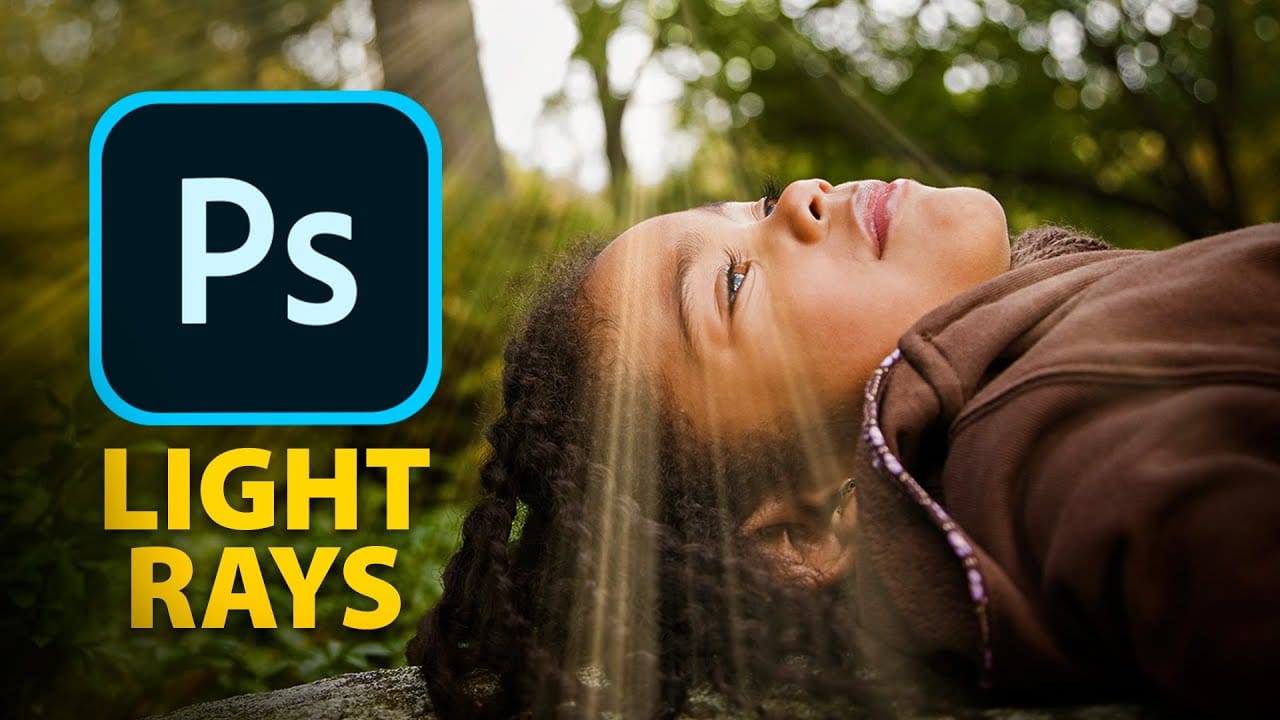
Epic gradient trick for beautiful light rays in Photoshop
In this tutorial, Jesus Ramirez teaches you how to create stunning light rays in Photoshop using an ingenious gradient trick. By utilizing a Gradient Fill layer in an unconventional way, you can achieve a mesmerizing light ray effect that adds a dramatic touch to your photos. This method is straightforward and effective, making it accessible even for beginners. Part of the Photoshop in-app tutorials, this guide allows you to open the tutorial image directly from Photoshop and follow along with

Get tutorials & freebies delivered to you.

Subscribe to the Photoshop Roadmap newsletter, a weekly roundup of new tutorials, insights and quality downloads, trusted by 6500+ readers.

You might also like

Professional Portrait Retouching with the B.S.T. Method in Photoshop

Professional portrait retouching requires artistic choices that automated tools can't make. The B.S.T. method breaks retouching into three focused steps: removing blemishes with precision, smoothing skin while preserving natural texture, and equalizing skin tones throughout the image. This systematic approach gives you complete control over every...

Create Motion Blur Light Effects in Photoshop

Transform ordinary portraits into dynamic, cinematic images by combining path blur effects with creative background textures. This technique creates the illusion of camera movement while maintaining focus on key elements like the subject's eyes, resulting in professional-looking motion blur effects that add energy and visual interest to static...

How to Paint Realistic Jewelry on Portraits in Photoshop

Adding painted jewelry to portraits transforms ordinary photos into fantasy portraits with ornate accessories that never existed. This digital painting technique uses careful layering, proper lighting, and realistic shadows to create convincing rings, earrings, and decorative headpieces. The method combines basic brush work with advanced blending techniques to build up...

How to Sharpen Images Using the High Pass Filter in Photoshop

The High Pass filter method remains one of the most versatile sharpening techniques in Photoshop, offering precise control over which image areas receive enhancement. This non-destructive approach works by identifying edge details and allowing you to selectively apply sharpening exactly where it's needed most. Unlike automated sharpening tools,...

How to Find Missing Actions in the New Photoshop Actions Panel

The redesigned Actions panel in Photoshop can catch users off guard when their custom actions seem to disappear. With the new tabbed interface, your previously created actions are still there—they're just located in a different tab than before. Understanding the new layout will help you quickly access...

Fast Portrait Retouching: Remove Stray Hairs, Clothing Wrinkles, and Fix Backgrounds

Every portrait photographer knows the feeling: you've captured a beautiful shot, but stray hairs, wrinkled clothing, and messy backgrounds turn editing into hours of tedious work. These common retouching challenges can drain your time and energy, especially when dealing with high-volume projects or tight deadlines. This tutorial demonstrates...

You’ve successfully subscribed to Photoshop Roadmap
Welcome back! You’ve successfully signed in.
Great! You’ve successfully signed up.
Success! Your email is updated.
Your link has expired
Success! Check your email for magic link to sign-in.