Create a stunning photo mosaic portrait in Photoshop

Create a stunning photo mosaic portrait in Photoshop

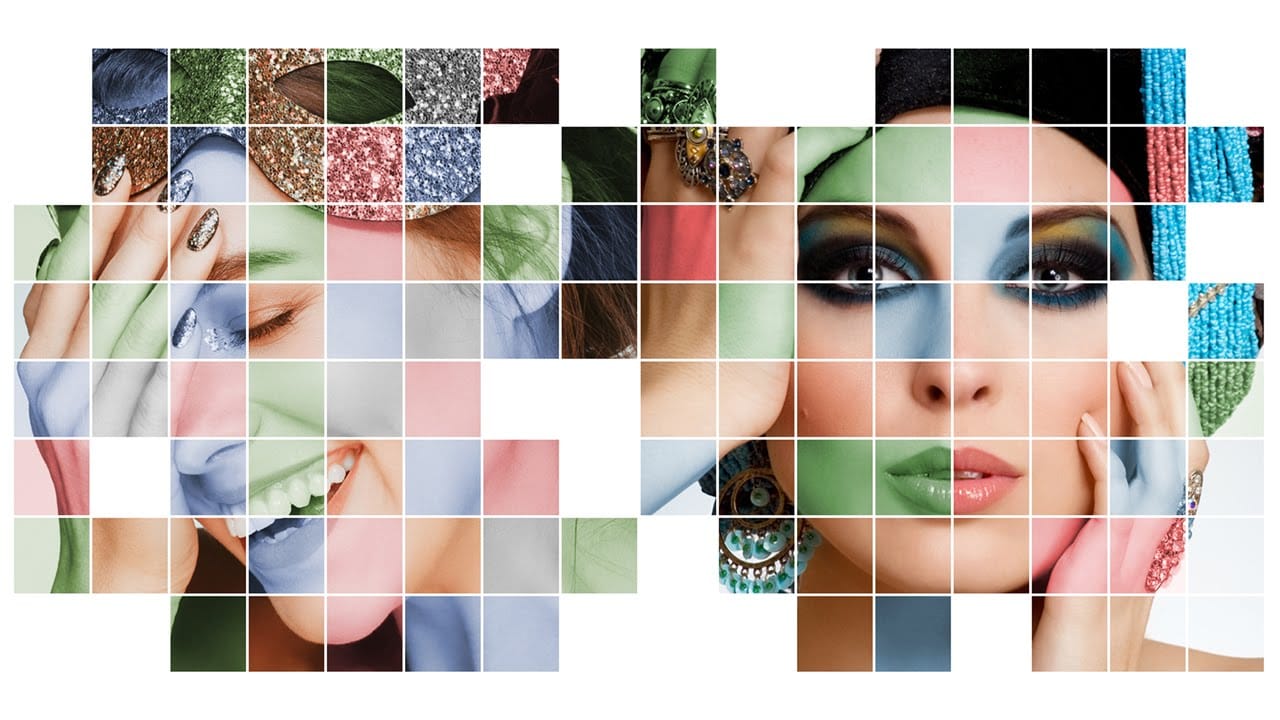
Photo mosaic portraits offer a unique way to transform a primary image into a captivating artwork composed of numerous smaller photographs. This technique allows for the creation of intricate visual narratives, where individual details contribute to a larger, unified image.

This video tutorial guides you through the entire process of designing and assembling these complex portraits in Photoshop. You will discover practical steps for preparing your source images, configuring the mosaic layout, and applying the final pattern to your chosen subject, enhancing its visual impact.

Watch the Video

Video by Blue Lightning. Any links or downloads mentioned by the creator are available only on YouTube

The Art and Science of Photo Mosaics

The creation of a photo mosaic involves a fascinating interplay between individual photographic elements and their collective contribution to a larger image. At its core, this technique leverages the brain's ability to perceive both micro and macro details simultaneously. Each small image acts as a 'pixel,' contributing color and tone to the overall composition, while retaining its own distinct identity upon closer inspection.

Achieving a compelling photo mosaic requires careful consideration of several factors. The quality and variety of the source images are paramount, as they directly influence the richness and detail of the final pattern. Equally important is the balance between the visibility of the individual mosaic photos and the clarity of the overarching portrait, ensuring that neither element overshadows the other.

This method transforms a collection of disparate images into a cohesive visual statement, making it a powerful tool for artistic expression or personalized gifts. The subtle blending of the mosaic pattern with the subject's features adds depth and a unique textural quality that traditional portraits cannot replicate.

Practical Tips for Photo Mosaic Creation

  • Organize all small photos into a single folder before starting to streamline the mosaic creation process.
  • Use Photoshop's File > Automate > Contact Sheet II feature to arrange your photos, ensuring that "Flatten All Layers" is unchecked for individual photo manipulation.
  • After the initial layout, unlink the layer and layer mask of individual photos to precisely resize and reposition them within their mask using the Transform Tool (Ctrl/Cmd + T).
  • Crop any thin white borders around the mosaic after assembly using the Rectangular Marquee Tool and Image > Crop.
  • Define your completed mosaic as a pattern via Edit > Define Pattern, allowing for easy application to your main subject.
  • Adjust the visibility of the mosaic pattern on your subject by converting the subject to a Smart Object and using Image > Adjustments > Shadows/Highlights, then refining the Pattern Fill layer's size and Blend Mode to Overlay.

Explore more creative Photoshop techniques to enhance your digital art and photography projects.
How to make epic reflections in Photoshop
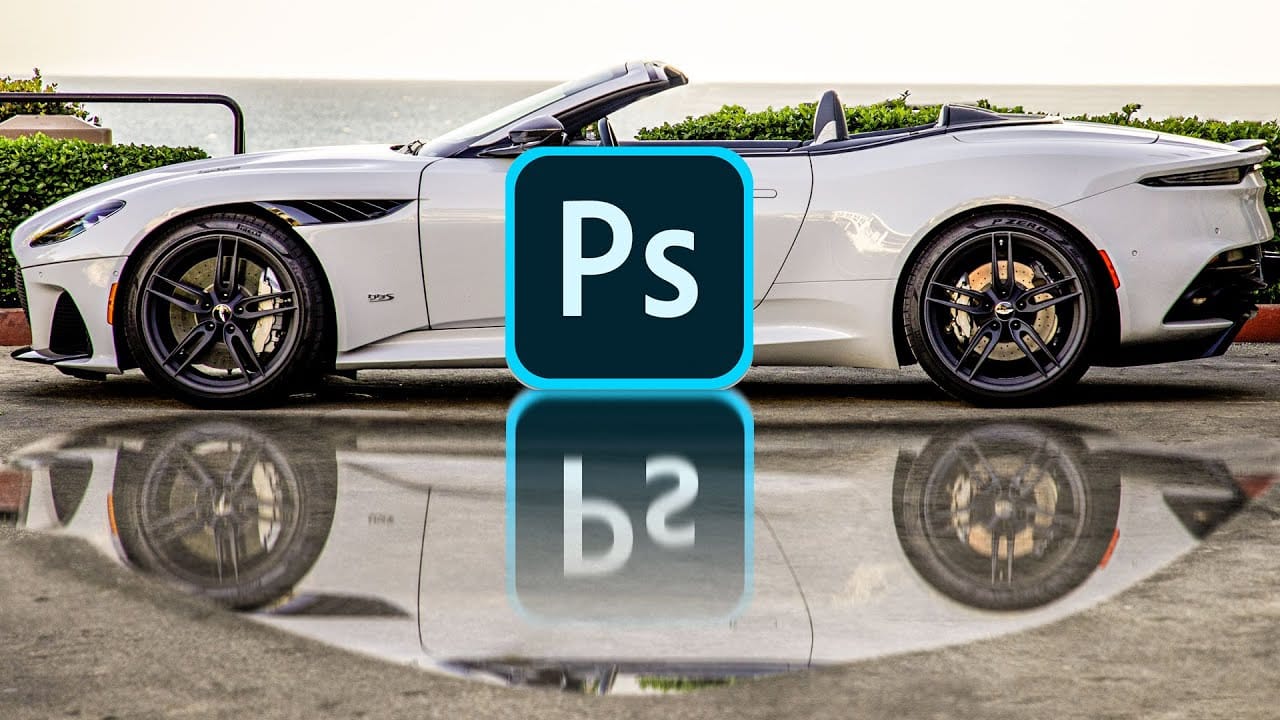
This tutorial will teach you techniques to create captivating reflections and lifelike puddles in Photoshop. Renowned expert Colin Smith will guide you through the process, ensuring your images and designs achieve a heightened sense of realism and visual impact. You'll learn tips and strategies to craft reflections that seamlessly blend with your photographic elements or design compositions, whether replicating the surface of a lake, the facade of a skyscraper, or the rippling effect of a puddl
Create Fun Colored Grid Photo Mosaics in Photoshop
Marty Geller from Blue Lightning TV presents a Photoshop tutorial on creating fun colored grid photo mosaics. The author guides users through the process of transforming their photos into beautiful, color-grid, mosaic graphics. The tutorial is designed to be accessible to those with limited Photoshop skills. By following the step-by-step instructions, users can easily create these unique and visually appealing photo mosaics. The author emphasizes that the technique is suitable for everyone, reg
Create a Typographic Portrait in Photoshop
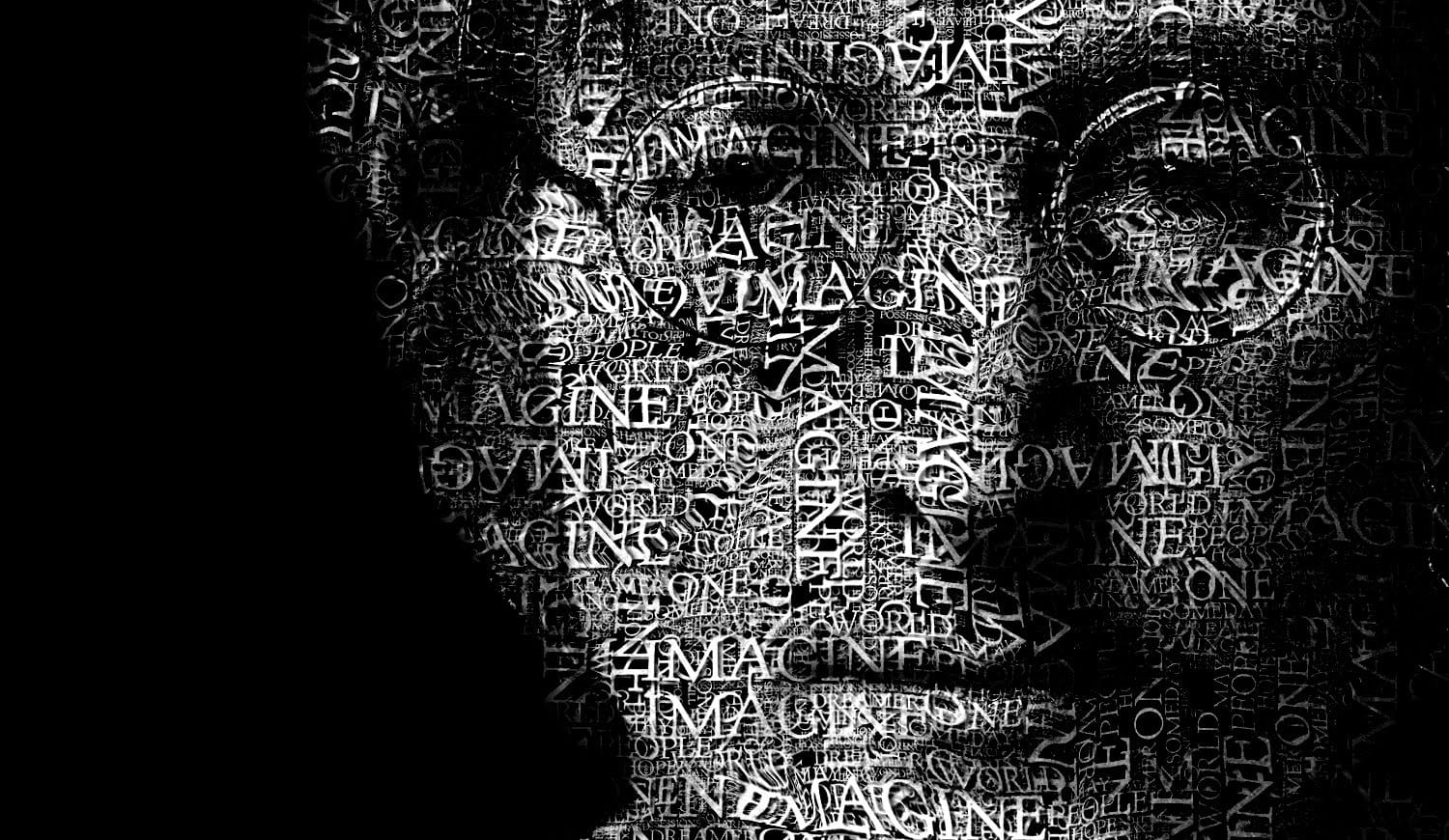
This Photoshop tutorial by Blue Lightning TV takes you through crafting a stunning portrait built entirely from words. Learn to prep your photo, create a text cloud filled with the subject's special words, and position and manipulate the text to perfectly follow the contours of the face. The video guides you through using displacement maps, smart objects, and adjustment layers to achieve a cohesive and personalized final image. It's a creative twist on portraiture, perfect for adding a unique t
How to Color, Brighten and Sharpen Eyes in Photoshop
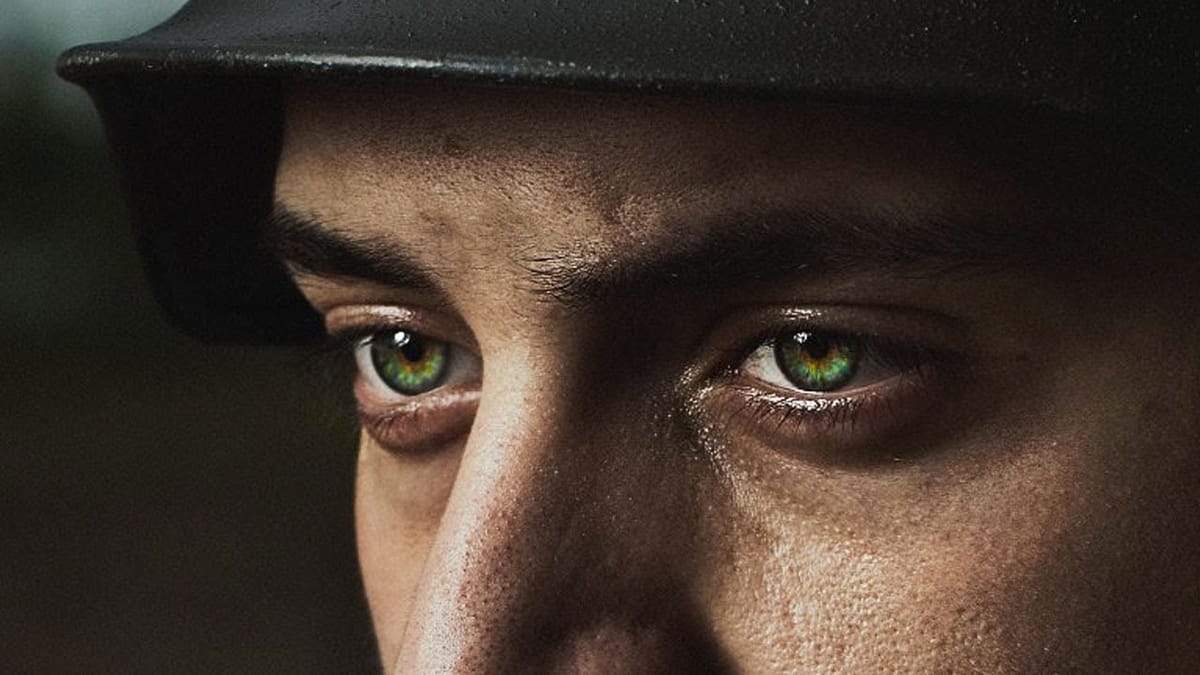
In this tutorial by Aaron Nace from Phlearn, learn how to enhance eyes in Photoshop to make them captivating and sharp. Techniques include coloring the eyes by sampling natural hues and adjusting lightness and saturation, using blending modes like “Soft Light” or “Overlay” for a natural look, and softening edges

Get tutorials & freebies delivered to you.

Subscribe to the Photoshop Roadmap newsletter, a weekly roundup of new tutorials, insights and quality downloads, trusted by 6500+ readers.

You might also like

How to Enhance Skin Tones Using Gradients in Photoshop

Skin tones often appear washed out or lifeless in photographs due to challenging lighting conditions or camera settings. This gradient-based technique brings vibrancy back to portraits while creating natural-looking dimensional highlights that draw the viewer's eye to key facial features. The method uses Color Range selections combined with...

7 Signs You're a Photoshop Pro - Skill Assessment Guide

Professional Photoshop mastery isn't about memorizing every menu or filter. It's about developing efficient workflows, understanding core concepts, and building muscle memory for essential techniques. Real pros focus on the right tools for their specific needs rather than trying to learn everything. This comprehensive assessment covers...

How to Use Generative Upscale with Multiple AI Models in Photoshop

Pixelated vintage photos and low-resolution images no longer need to stay small. Photoshop's Generative Upscale feature now offers multiple AI models to enlarge images up to 4x their original size while adding remarkable detail and clarity. This new feature includes three distinct AI models—Adobe's Firefly...

Create a Pointillism Effect in Photoshop

Pointillism, the late 19th-century painting technique that uses small dots of color to form images, creates a distinctive artistic look where colors blend optically when viewed from a distance. This digital recreation technique transforms ordinary photographs into artwork that mimics the style of masters like Paul Signac. The process combines...

How to Convert WebP to JPEG in Bulk Using Image Processor

Converting large folders of WebP images to JPEG format can be time-consuming when done manually. Image Processor provides an efficient solution for batch conversion, automatically handling multiple files while maintaining quality settings and organization. This method works with any image format conversion and creates organized output folders, making it ideal...

How to Use Generative Credits in Adobe Creative Cloud: Standard vs Premium Features

Adobe's generative AI features transform how creatives work, but understanding which tools consume credits can save you time and budget frustration. The credit system divides features into standard and premium tiers, with different consumption rates based on processing complexity. Knowing the difference between assistive AI tools that cost...

You’ve successfully subscribed to Photoshop Roadmap
Welcome back! You’ve successfully signed in.
Great! You’ve successfully signed up.
Success! Your email is updated.
Your link has expired
Success! Check your email for magic link to sign-in.