Creating professional-looking background blur can transform ordinary photos into stunning portraits with proper depth of field. The key lies in combining the right selection techniques with blur filters to achieve natural-looking results that rival expensive camera lenses.
This approach focuses on precision and speed, ensuring your subject remains sharp while the background gradually transitions into a smooth, pleasing blur that draws attention to your main focal point.
Watch the Video
Video by PiXimperfect. Any links or downloads mentioned by the creator are available only on YouTube
Practical Tips
Master these essential techniques to achieve professional background blur results:
- Use precise selections around your subject before applying blur to maintain sharp edges
- Apply Gaussian blur in controlled amounts to create gradual depth transitions
- Work with layer masks to fine-tune which areas receive blur effects
- Adjust blur intensity based on the distance between subject and background
- Save your selections as channels for future edits and refinements
Related Articles and Tutorials
Explore these background editing techniques to enhance your photo editing workflow.
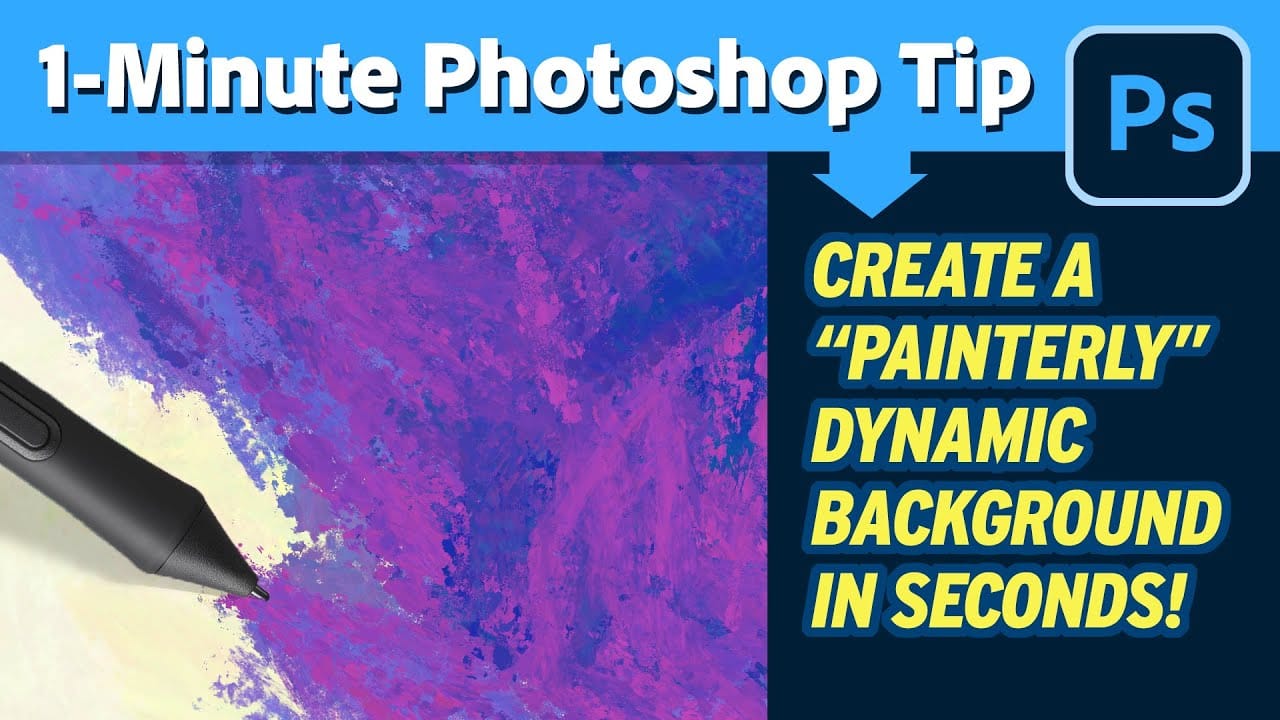
Create painterly backgrounds in Photoshop FAST!
Painting in Photoshop doesn't have to be flat and lifeless. In this quick 1-minute video tutorial, Kyle T Webster shows you how to create vibrant painterly backgrounds with ease. By taking advantage of color dynamics, you can add depth and life to your backgrounds, transforming them from flat to fabulous in no time.
Kyle demonstrates how simple adjustments and techniques can significantly enhance the overall look and feel of your digital paintings. Whether you're a beginner or an experienced ar
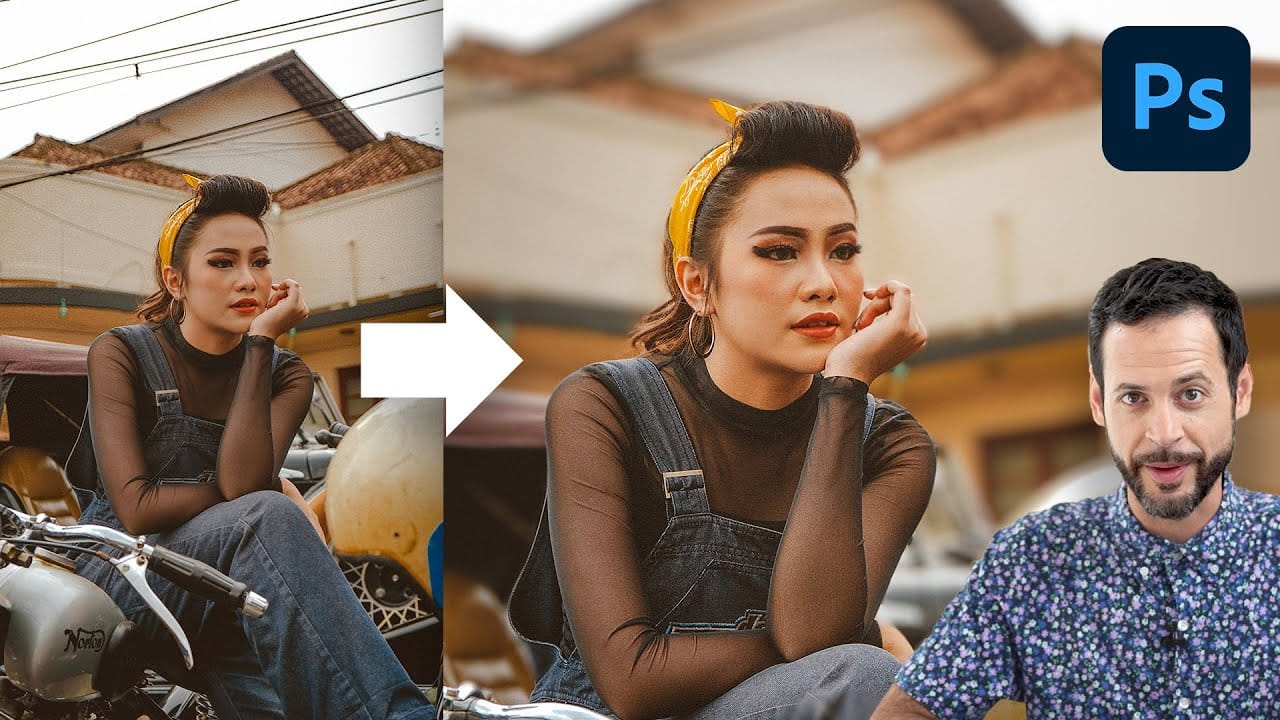
Automatically blur backgrounds in Photoshop
Aaron Nace dives into Photoshop's new Depth Blur Neural Filter, a tool designed to simplify the process of blurring backgrounds and simulating a shallow depth of field. This tutorial covers how to use this feature to quickly achieve a soft, out-of-focus background with minimal effort.
Aaron provides a step-by-step guide on applying the Depth Blur Neural Filter, highlighting its ease of use and efficiency. He also examines the tool's performance, discussing its strengths and any potential limita
Did you know Photoshop has new Quick Actions?
Discover how to speed up your workflow with Photoshop's new Quick Actions, presented by Colin Smith from Photoshop Cafe. This tutorial reveals the ease and efficiency of using Quick Actions to perform common tasks with just one click. Colin walks you through locating these Quick Actions and demonstrates how to use them to blur backgrounds, apply duotones, remove backgrounds, and more.
While some features, like the Blur Background action, might not always produce perfect results, Colin shares a

The easy background remover tool hidden in Photoshop!
In this Photoshop tutorial, PiXimperfect shares their insights on the amazing power of the Background Eraser tool. Viewers will learn how to easily cut out hair or complex edges using this versatile tool, as well as the best settings for various situations.
The tutorial also covers how to make the Background Eraser tool completely non-destructive. This allows users to change the background or make it transparent without permanently altering the original image. Whether you want to remove the bac

How to Remove Backgrounds in Photoshop: 5 Essential Tools
Background removal can make or break your image editing workflow. The right tool depends on your specific image: solid backgrounds need different approaches than complex hair details or high-contrast scenes.
This tutorial covers five powerful Photoshop tools that handle different background removal challenges, from simple graphics to intricate details.
Watch the Tutorial
Practical Tips for Background Removal
* Use Blend If for solid colored backgrounds by accessing layer styles and adjust

Flawless 1-Min Skin Retouch Action in Photoshop
In this tutorial, you will learn a fast and effective technique for retouching skin using Photoshop. This method focuses on creating smooth, beautiful skin in under a minute.
You'll discover how to generate a brand new skin texture from scratch and apply advanced blurring techniques. The goal is to achieve smooth and even skin without any blemishes, all while preserving the natural skin texture. By following these steps, you can quickly transform your photos without losing detail.
Additionally

How to Cut Out Objects from Backgrounds in Photoshop
Perfect cutouts can transform ordinary photos into stunning composites. Photoshop's automated tools have revolutionized background removal, making complex selections accessible to photographers at any skill level.
This tutorial demonstrates a practical approach to object extraction that balances speed with quality, perfect for creating composite images where elements need to blend seamlessly into new environments.
Watch the Tutorial
Practical Tips for Object Extraction
* Unlock the backgr

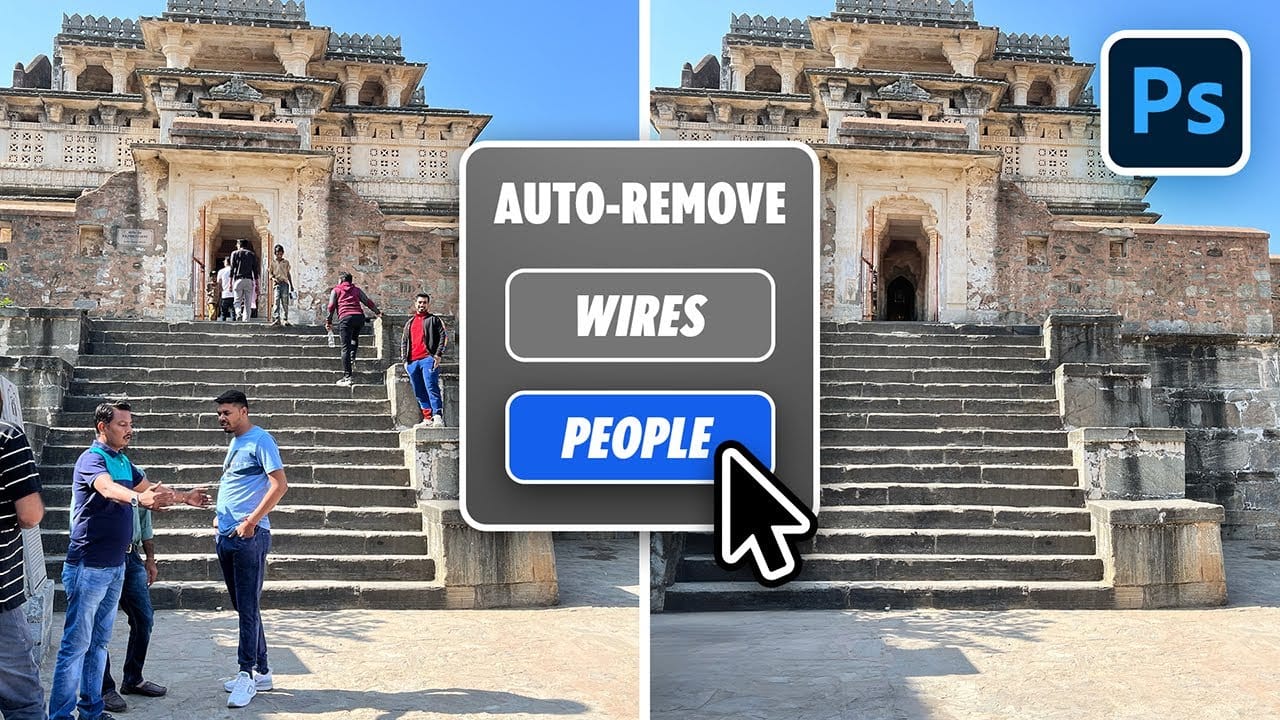
Remove All Distractions From a Photo in One Click using Adobe Photoshop
This tutorial by PiXimperfect introduces an impressive new feature in Adobe Photoshop Beta that simplifies photo editing. By utilizing the updated Remove Tool, users can effortlessly eliminate distractions from their images with just one click.
The tutorial highlights how this feature can efficiently remove unwanted elements such as people, power lines, and various other distractions that can detract from the overall quality of a photograph. Ideal for photographers and graphic designers alike,
How to Use Select Subject for Background Removal and Edge Refinement
Background removal becomes effortless when you know how to use the right tools. AI-powered selection can instantly isolate subjects from their backgrounds, but the real skill lies in refining those selections to create professional results.
This guide covers the complete workflow from initial selection to edge refinement, plus creative techniques for backgrounds, adjustments, and color changes that transform your images.
Watch the Video
Practical Tips
Master these essential techniques to a