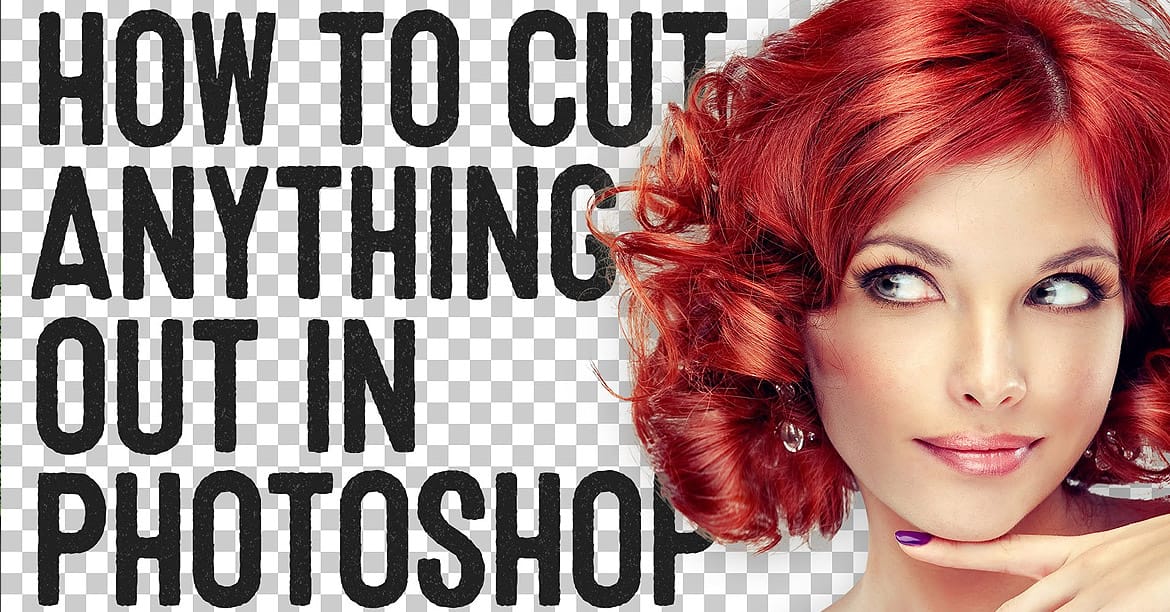
Perfect cutouts can transform ordinary photos into stunning composites. Photoshop's automated tools have revolutionized background removal, making complex selections accessible to photographers at any skill level.
This tutorial demonstrates a practical approach to object extraction that balances speed with quality, perfect for creating composite images where elements need to blend seamlessly into new environments.
Watch the Tutorial
Video by SandraD Imagery. Any links or downloads mentioned by the creator are available only on YouTube
Practical Tips for Object Extraction
- Unlock the background layer first to access contextual selection tools in the toolbar
- Use Remove Background as your starting point, then evaluate the selection quality for your specific needs
- Save extracted elements as PSD or TIFF files to preserve the mask data for future compositing work
- Zoom in to inspect hair and edge details where automated selections typically need manual refinement
- Use small brush sizes on the mask layer to blend elements naturally into new backgrounds
Related Articles and Tutorials
Explore more comprehensive selection techniques and advanced masking methods.
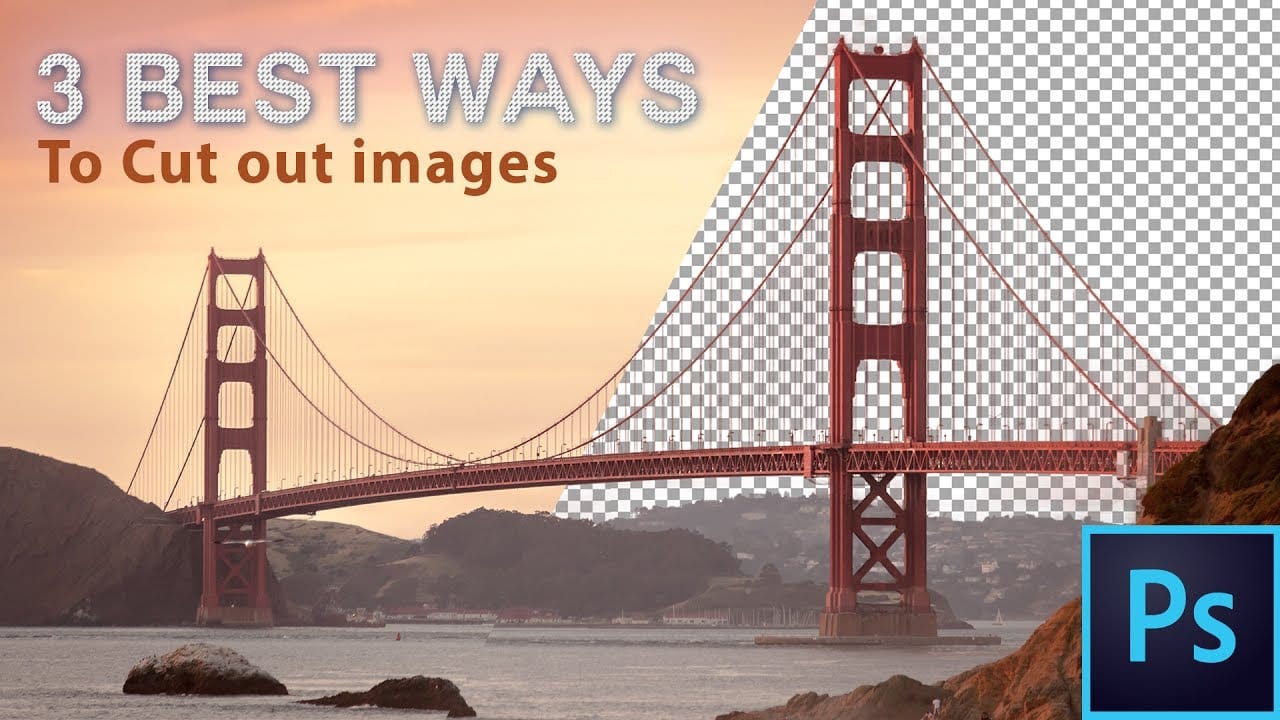
The 3 Easiest Ways To Cut Out Images In Photoshop
In this informative tutorial, author Brendan Williams shares three of the most effective techniques for image cropping in Photoshop. The guide covers the infamous Quick Selection Tool, the Channels method, and the highly versatile Pen Tool. Whether you're a newcomer to the program or a seasoned professional, these methods are sure to elevate your workflow and take your work to new heights.
The Quick Selection Tool, known for its intuitive and efficient selection capabilities, is explored in-dep
How to Cut Out Hair in Photoshop
This Photoshop tutorial by Phlearn will teach you some interesting techniques for cutting out hair from a background.
The process involves using the color channel with the highest contrast to create a selection, then applying a layer mask to isolate the hair. The tutorial also covers how to handle fringing around the hair using clipping masks and tools like the brush and clone stamp to ensure a natural look. This method is particularly effective with dark hair against a light background or vice

How to make difficult selections easy in Photoshop
In this detailed Photoshop tutorial by TutVid, you will be guided through the process of making intricate selections within the software. The focus is on selecting a person and accurately cutting them out using the Select and Mask tool in a two-step approach. This method ensures precise selection edges, making it effective for both clean, straight lines and complex details such as hair.
The tutorial aims to equip users with comprehensive knowledge about making refined selections in Photoshop, e

Learn how to cut things out like a pro in Photoshop
If you're using Photoshop, chances are you're going to have to clip a subject from its background and work your editing magic. As a newbie, you may have been using the eraser tool to death, making memes that you hope would impress your Facebook friends and go viral. Well, that's fine. But, ever wondered how to retouch a bad hair cut or trim a bonsai plant for a professional retouching job?
This video is your answer. Watch, practice, and repeat. In no time, you'd be editing fur. Yes, fur. And wh