Cutting out hair from backgrounds remains one of the most challenging tasks in photo editing, especially with curly or complex hair textures. This technique uses channel-based selections combined with layer masks to achieve clean cutouts that work seamlessly with any new background.
The method focuses on maximizing contrast between subject and background through channels, then refining the selection to eliminate common issues like fringing and rough edges.
Watch the Video
Practical Tips
Master these essential techniques for professional hair cutouts:
- Use the blue channel for maximum contrast between hair and light backgrounds
- Apply levels adjustment to enhance contrast without making hair look unnatural or scraggly
- Create clipping masks with darken blend mode to eliminate white fringing around edges
- Use the clone stamp tool to repair problem areas while maintaining natural hair texture
- Test your cutout against different colored backgrounds to identify any remaining edge issues
Related Articles and Tutorials
Explore these additional resources for mastering hair selection and background removal techniques.
Futuristic tool instantly cuts out hair in photoshop
Cutting out hair in Photoshop has always been a challenging task, but Colin Smith demonstrates a futuristic tool that makes it remarkably easy. In this tutorial, you'll learn how to quickly cut out hair and remove those pesky fuzzy edges using the new features in Select and Mask.
Colin walks you through the process of using Select and Mask, a powerful tool that significantly improves the precision and ease of selecting fine details like hair. He explains the different options within the tool, s

Precisely Cut Out Hair Using Color Range in Photoshop!
Mastering the Right Way to Use Color Range for Hair Masking in Photoshop! In this comprehensive guide, you'll discover how to accurately select and eliminate the background, even around challenging hair textures and styles. We will delve into crucial tips and techniques to enhance the quality of the mask so that it seamlessly blends with your new background.
Throughout this tutorial, we will also focus on effectively removing any unsightly edge fringes or halos that may occur, ensuring you achi

How to Cut Out Complex Hair and Fur in Photoshop Without Fringing
Sharp, clean cutouts separate amateur photo edits from professional composites. Subjects with hair or fur challenge even experienced Photoshop users because standard selection tools often leave noticeable color fringing around delicate edges.
This tutorial demonstrates a complete workflow that combines Photoshop's cloud-powered selection tools with manual refinement techniques to create flawless cutouts ready for any background.
Watch the Tutorial
Advanced Selection Methods for Complex Subj
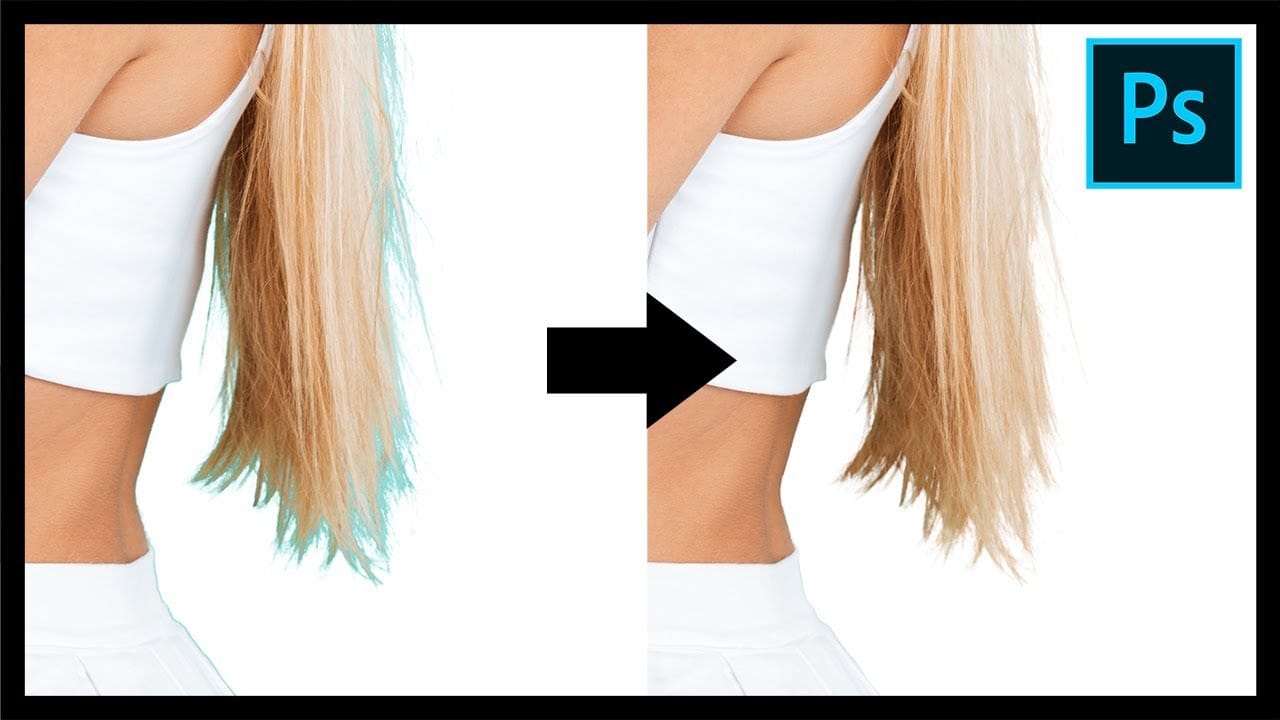
Remove Fringes After Cutting Out Hair in Photoshop
This tutorial by PiXimperfect addresses the crucial challenge of removing edge fringes that frequently arise during hair masking in Photoshop, a common issue that can compromise the integrity of composite images. For design professionals, achieving a flawless finish is paramount, and understanding how to eliminate these distracting color edges is essential for creating high-quality visuals.
In this guide, the focus is on utilizing Clipping Masks to enhance hair selection, allowing for a more pr
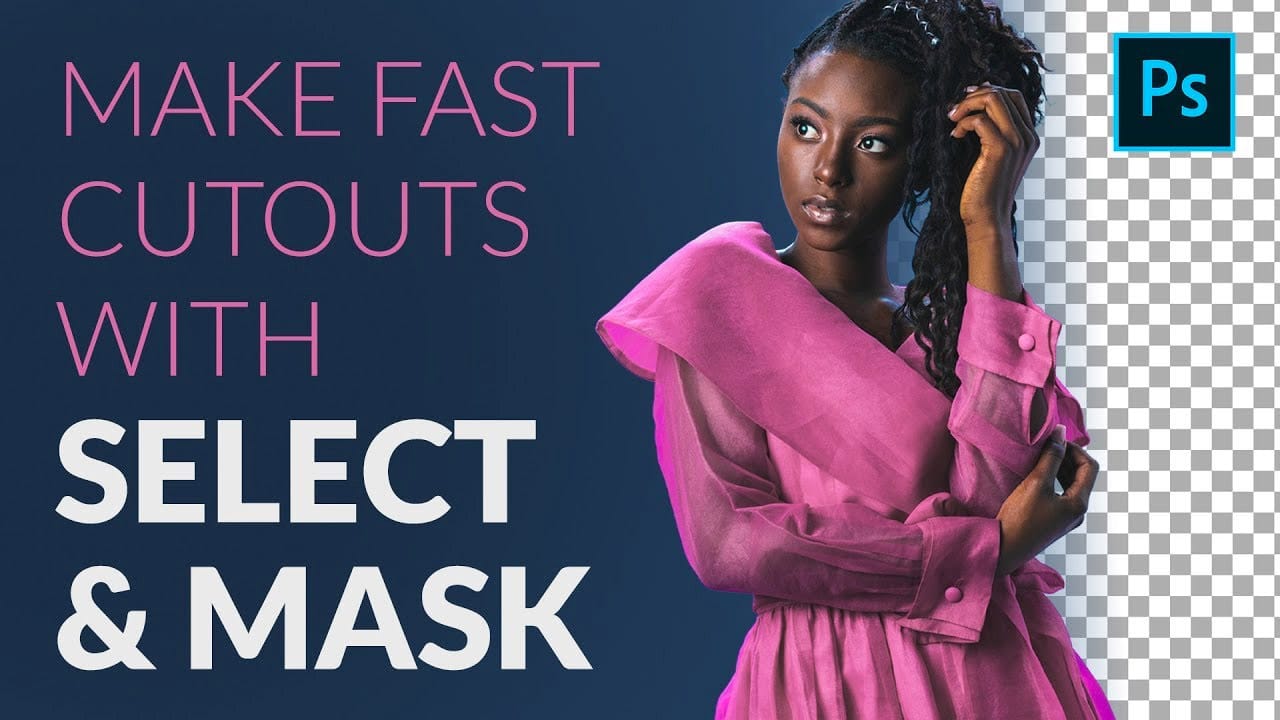
How to Cut Out a Person fast with Select & Mask in Photoshop
In this article Aaron Nace from Phlearn presents a comprehensive tutorial on creating fast and accurate cutouts of people using the Select and Mask feature in Photoshop. The author guides readers through the process, starting with the use of the Quick Selection Tool to make the initial selection, followed by the Refine Edge Tool to clean up the soft edges of hair and clothing. Additionally, the author demonstrates how to change the background color and add a spotlight effect to the subject, draw
How to make difficult selections easy in Photoshop
In this detailed Photoshop tutorial by TutVid, you will be guided through the process of making intricate selections within the software. The focus is on selecting a person and accurately cutting them out using the Select and Mask tool in a two-step approach. This method ensures precise selection edges, making it effective for both clean, straight lines and complex details such as hair.
The tutorial aims to equip users with comprehensive knowledge about making refined selections in Photoshop, e

How to Cut Out Objects from Backgrounds in Photoshop
Perfect cutouts can transform ordinary photos into stunning composites. Photoshop's automated tools have revolutionized background removal, making complex selections accessible to photographers at any skill level.
This tutorial demonstrates a practical approach to object extraction that balances speed with quality, perfect for creating composite images where elements need to blend seamlessly into new environments.
Watch the Tutorial
Practical Tips for Object Extraction
* Unlock the backgr

Cutting Out Complex Images in Photoshop: 3 Professional Refinement Techniques
Complex cutouts with intricate details like tree branches or hair often suffer from visible fringing and rough edges that make them look unprofessional. These three refinement techniques transform basic channel selections into clean, realistic cutouts.
Master these methods to eliminate fringing, restore natural colors, and achieve seamless integration with any background.
Watch the Video
Practical Tips for Complex Cutout Refinement
* Use the blue channel for maximum contrast when selectin
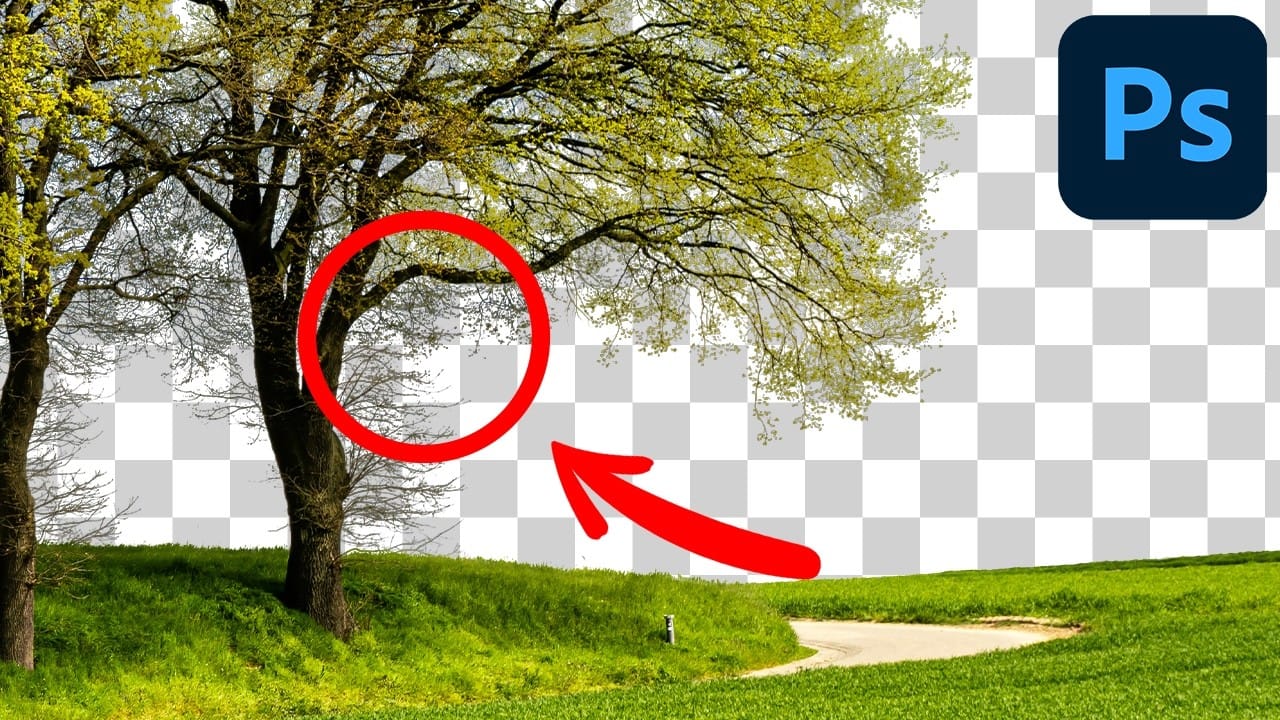
Learn how to cut things out like a pro in Photoshop
If you're using Photoshop, chances are you're going to have to clip a subject from its background and work your editing magic. As a newbie, you may have been using the eraser tool to death, making memes that you hope would impress your Facebook friends and go viral. Well, that's fine. But, ever wondered how to retouch a bad hair cut or trim a bonsai plant for a professional retouching job?
This video is your answer. Watch, practice, and repeat. In no time, you'd be editing fur. Yes, fur. And wh