Photoshop Beta's latest update introduces two tools worth knowing: a Quick Compare toggle for instant before/after previews, and a Dynamic Layer feature that lets you control AI-generated effects with a simple slider. Together, they streamline how you review edits and apply prompt-based changes like adding rain or shifting a scene from day to night.
Watch the Video
Video by Zenzdesign. Any links or downloads mentioned by the creator are available only on YouTube
Practical Tips
Key techniques covered in this walkthrough to get the most from these two beta features:
- Use the Toggle Quick Compare button in the left toolbar to switch between split view and single view — split view lets you drag a divider across the image, while single view toggles before/after with one click.
- To set a new starting point for your before/after comparison, save your file at the desired state, reopen it, and then continue editing — Photoshop uses the opened file as the "before."
- When using Prompt to Edit, write specific instructions to limit changes — phrasing like "don't change anything, only add rain" helps keep the AI focused on a single effect.
- After generating a prompt-based effect, click Dynamic Layer to convert it into an adjustable layer — this gives you a slider to control the intensity of the effect from 0% to 100%.
- Test Dynamic Layer results at different slider positions before committing — some conversions, particularly complex scene changes like day-to-night, may reduce image quality and may not suit all photos.
Related Articles and Tutorials
Explore more guides covering the latest tools and updates in Photoshop's beta and release versions.
Photoshop Beta: Discover the New Actions Panel
Achieving a specific creative look in Photoshop often requires knowing the right combination of tools and techniques, which can be a significant hurdle for both new and experienced users. While traditional actions can automate repetitive tasks, finding or creating the perfect one for a unique artistic goal isn't always straightforward.
This tutorial explores the completely redesigned Actions panel in Photoshop Beta, which uses AI to simplify complex edits. You will learn how to use natural lang

TOP New Features in Photoshop – May 2025 Update
Many Photoshop users frequently encounter common challenges such as time-consuming manual selections for complex objects, difficulties in achieving precise color adjustments across an image, or struggling with inconsistent results when removing unwanted elements like reflections. These hurdles often slow down the creative process, making it frustrating to achieve a desired professional look efficiently.
This guide explains how Photoshop's latest updates introduce powerful new functionalities, i

How to Use the New Rotate Object Feature in Photoshop Beta
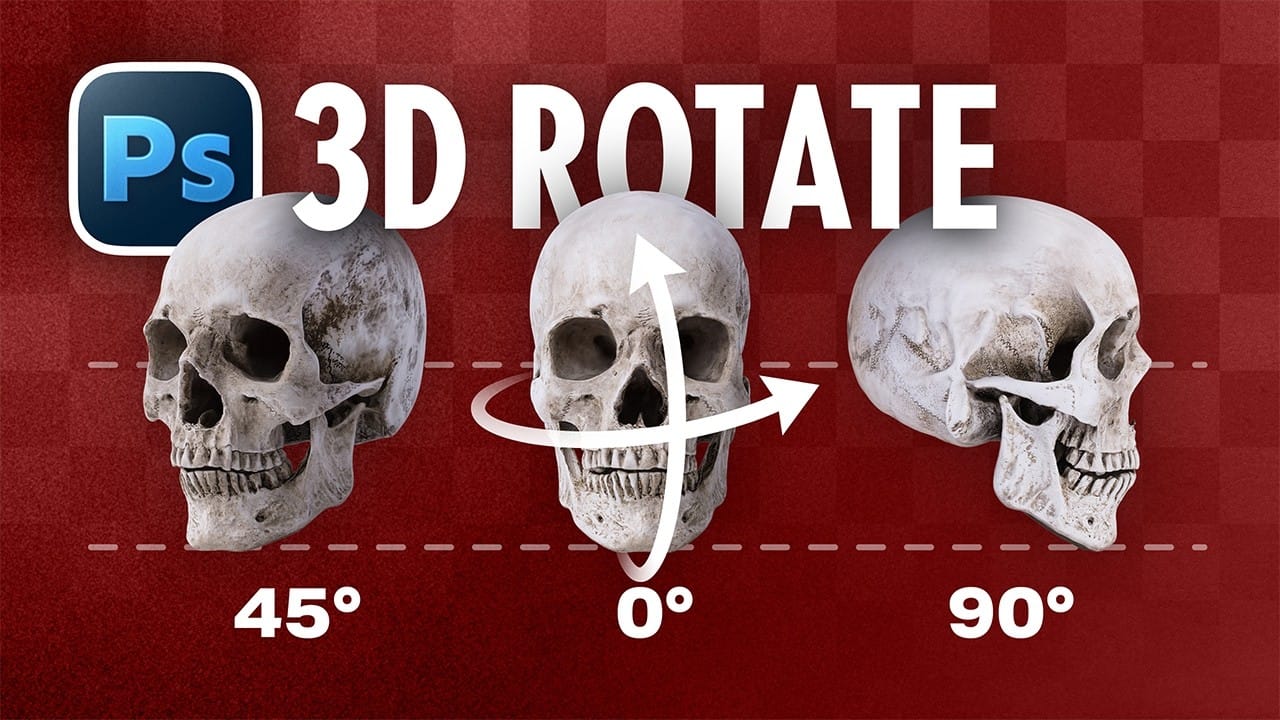
Photoshop's latest beta introduces a revolutionary feature that transforms flat 2D images into rotatable 3D objects. The new Rotate Object tool uses generative AI to create new angles and perspectives from a single image, then seamlessly composites them into scenes with realistic lighting and shadows.
This breakthrough feature eliminates the need for multiple product shots or complex 3D modeling, making professional compositing accessible with just a few clicks.
Watch the Video
Practical Ti

Photoshop Beta: Exploring the New Generative Workspace
The new Generative Workspace in Photoshop 2025 Beta transforms how you create and iterate on AI-generated images. This dedicated environment streamlines the entire process from initial prompts to final compositions, offering powerful tools for batch generation and precise control over your creative output.
Unlike traditional workflows that require switching between different panels and tools, the Generative Workspace centralizes everything in one interface, making it faster to experiment with v

How to Use New Camera Raw Adjustment Layers in Photoshop Beta
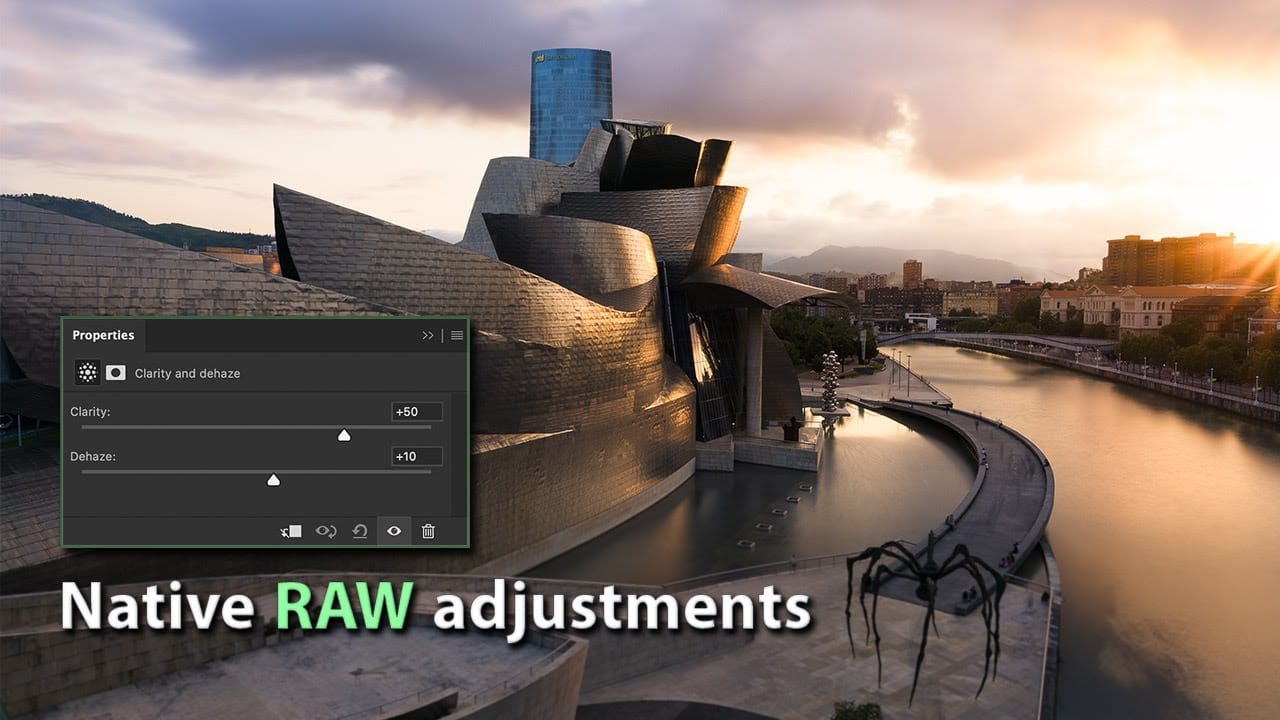
Three new adjustment layers in Photoshop beta bring Camera Raw's most powerful tools directly into your layers panel. Color and Vibrance, Clarity and Dehaze, and Grain adjustments now work as standard adjustment layers, eliminating the need for smart objects while maintaining all the precision masking and blending capabilities you expect.
This breakthrough allows photographers to apply global-quality Camera Raw adjustments with local control, creating more efficient workflows without file bloat
14 New Features in Photoshop 27.6 You Need to Know
Photoshop 27.6 brings significant updates that enhance workflow efficiency and creative possibilities. From improved reflection removal tools to smarter AI models, these features address real challenges photographers and designers face daily.
This comprehensive overview covers 14 key additions, including enhanced distraction detection, new AI capabilities, and improved workspace organization tools that can streamline your editing process.
Watch the Video
Practical Tips
Key techniques to ma

Photoshop 27.6: Complete Guide to New Features and Tools
Photoshop 27.6 introduces several powerful features that streamline common editing tasks. From bringing reflection removal directly into the main interface to AI-powered distraction detection, these updates focus on making complex workflows more accessible and efficient.
The update also includes enhanced generative models, improved layer management tools, and a redesigned actions panel that provides visual previews before applying effects.
Watch the Video
Practical Tips
Key techniques to m
How to Use the 3D Object Rotation Tool in Photoshop Beta
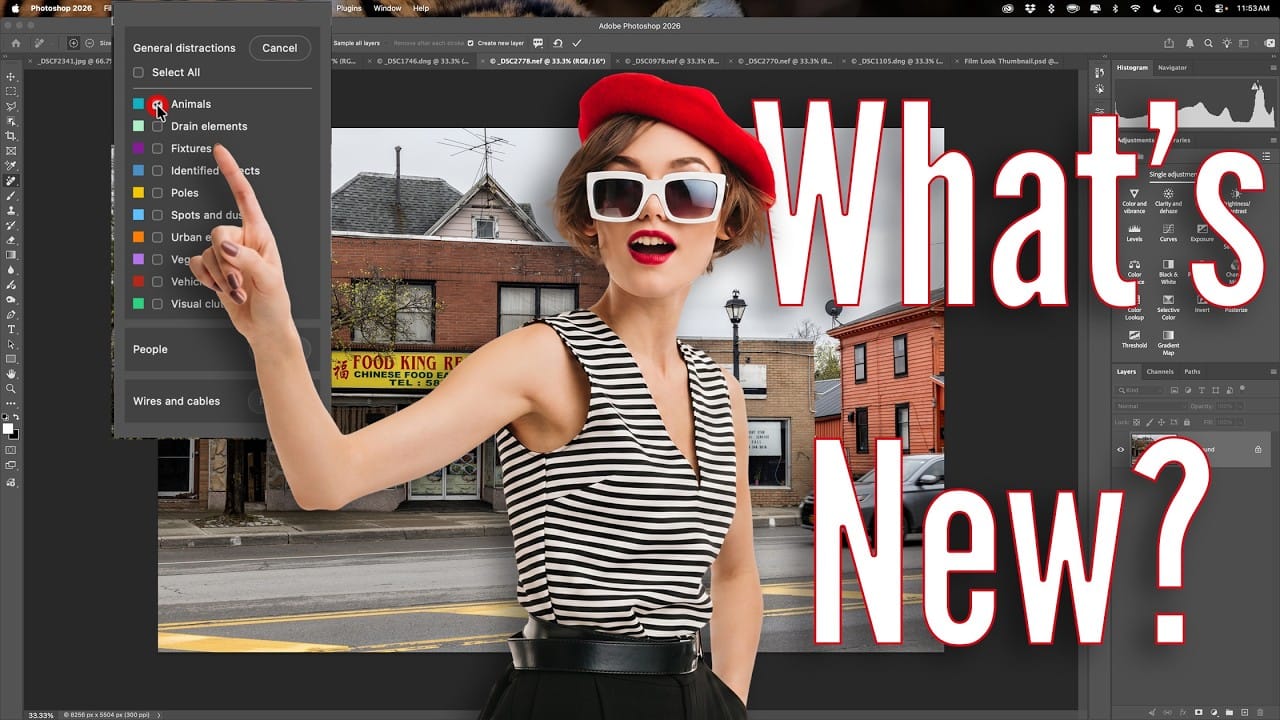
Adobe's new Rotate Object feature transforms flat 2D images into interactive 3D models that can be repositioned from any angle. This AI-powered tool automatically creates cutouts, maintains original textures, and generates missing details when objects are rotated beyond their original perspective.
The feature opens new possibilities for product photography, compositing, and creative positioning, though it works better with some subjects than others.
Watch the Video
Practical Tips
Master th