Hair masking has long been one of the most tedious tasks in photo compositing — especially when switching between dark and light backgrounds reveals unwanted halos along the edges. Photoshop's new Enhance Edge feature, available in beta 27.11, offers an AI-powered approach to this problem by generating expanded edge data rather than altering the mask itself.
Watch the Video
Video by PiXimperfect. Any links or downloads mentioned by the creator are available only on YouTube
Practical Tips
Keep these points in mind when deciding whether and how to use Enhance Edge in your workflow.
- Understand what Enhance Edge actually does: it generates new pixel data at the edges of the subject layer without changing the mask, which removes halos but does not improve mask accuracy.
- Avoid using Enhance Edge on high-resolution, fine-detail hair: the AI operates under a resolution limit and can reduce intricate strands to a blurred, flat result — use Filter > Other > Minimum on the mask instead for those cases.
- Use Decontaminate Colors as a free alternative: found in Select and Mask > Output Settings, it performs a similar edge expansion without consuming generative credits, though with less texture and dimension.
- Check your generative credit balance before applying: Enhance Edge currently costs 20 credits per use in the beta; click the starry square icon in the Options bar to review your balance beforehand.
- Repurpose the generated layer to increase hair volume: disabling the mask on the Enhance Edge output layer and compositing it over the original is a quick way to add fullness to hair without affecting the background.
Related Articles and Tutorials
Explore more tutorials covering hair selection, edge refinement, and masking techniques for cleaner composites.
Photoshop auto masks, new feature no one is talking about
Making precise selections in Photoshop has historically been one of the most time-consuming and challenging aspects of image editing. From intricate hair strands to complex tree foliage, achieving a clean mask often required significant manual effort and advanced techniques. However, recent advancements in artificial intelligence are rapidly transforming this fundamental process.
The video demonstrates the groundbreaking improvements in Photoshop's auto-masking capabilities, specifically within

Hair Selection in Photoshop: Modern AI Tools vs Traditional Techniques
Hair selection remains one of Photoshop's most challenging tasks, even with AI-powered tools. The new Select Subject feature with cloud processing offers impressive results, but often sacrifices fine hair details that make selections look natural.
This comprehensive comparison reveals when to use modern AI tools versus traditional channel-based methods, and how combining both approaches creates the most accurate hair masks for professional composites.
Watch the Tutorial
The Evolution of Hai
Futuristic tool instantly cuts out hair in photoshop
Cutting out hair in Photoshop has always been a challenging task, but Colin Smith demonstrates a futuristic tool that makes it remarkably easy. In this tutorial, you'll learn how to quickly cut out hair and remove those pesky fuzzy edges using the new features in Select and Mask.
Colin walks you through the process of using Select and Mask, a powerful tool that significantly improves the precision and ease of selecting fine details like hair. He explains the different options within the tool, s
Professional hair masking technique in Photoshop
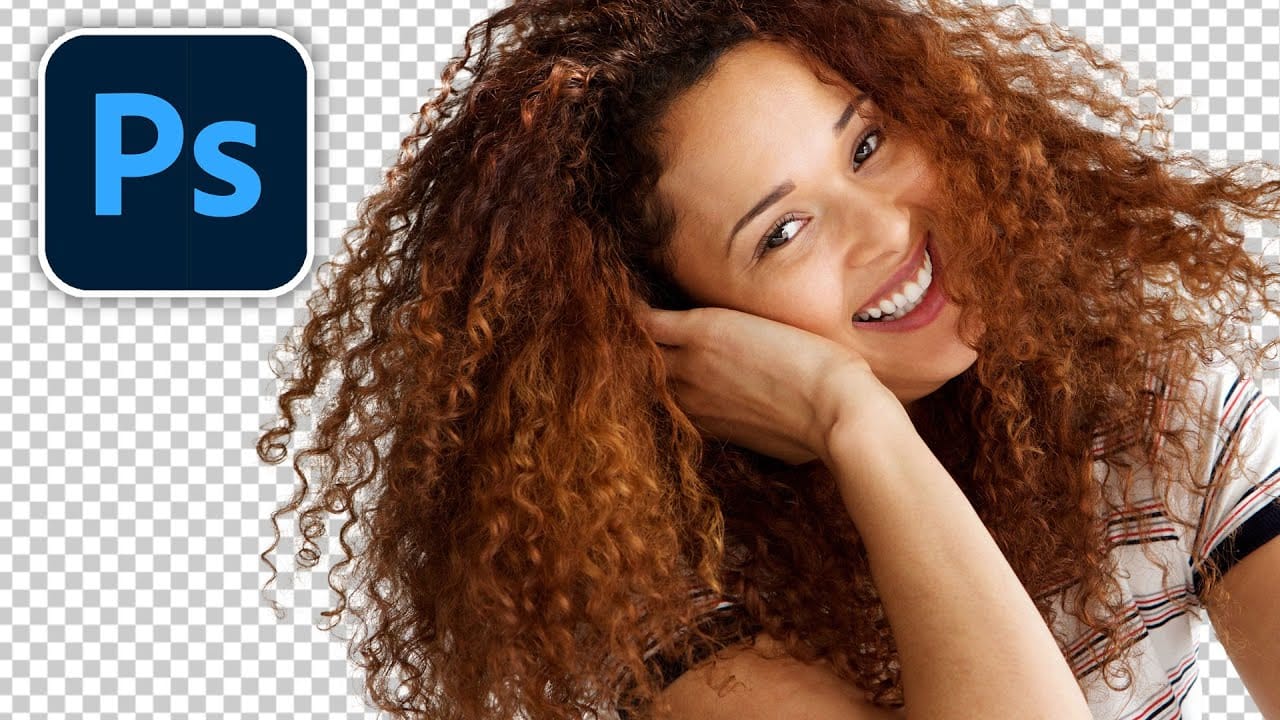
In this Photoshop tutorial, author Kevin Roodhorst provides a detailed guide on how to create a professional hair masking technique. The tutorial takes you through the step-by-step process of making the perfect hair mask.
The author explains the importance of masking hair in Photoshop, as it allows for precise selections and editing of individual strands. By following the instructions laid out in the tutorial, users can learn to isolate and refine the hair, enabling them to make seamless adjust
Amazingly Easy Advanced Hair Masking With Topaz ReMask Photoshop Plugin
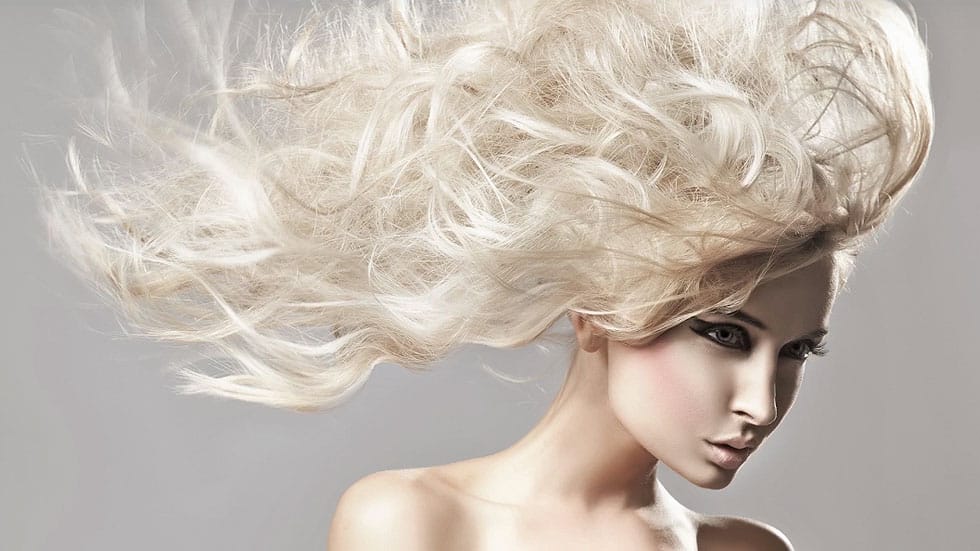
Masking hair can often feel like a frustrating challenge. Many have experienced the struggle, only to be left with disappointing outcomes. Fortunately, TopazLabs has designed an incredibly user-friendly masking plugin that simplifies this process significantly. While various masking plugins exist, this one stands out due to its intuitive interface and efficient results.
The Topaz Remask plugin makes hair masking accessible to everyone, regardless of experience level. Its straightforward tools a
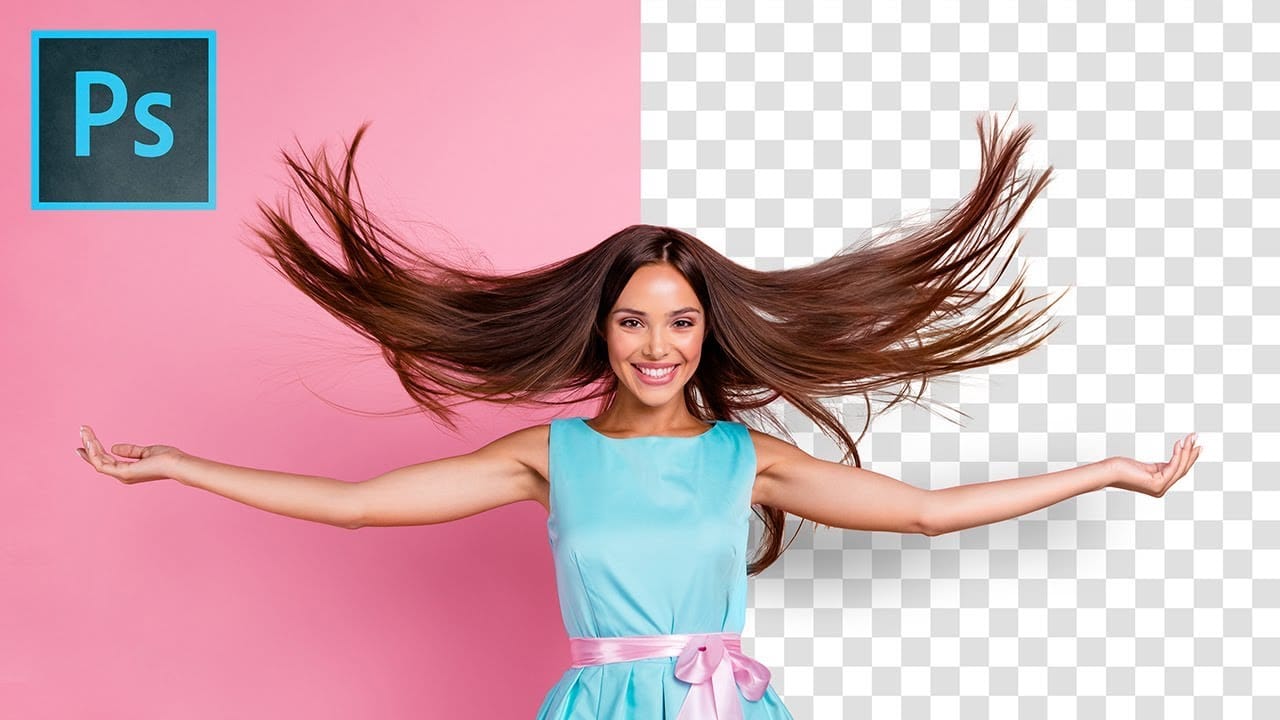
Precisely Cut Out Hair Using Color Range in Photoshop!
Mastering the Right Way to Use Color Range for Hair Masking in Photoshop! In this comprehensive guide, you'll discover how to accurately select and eliminate the background, even around challenging hair textures and styles. We will delve into crucial tips and techniques to enhance the quality of the mask so that it seamlessly blends with your new background.
Throughout this tutorial, we will also focus on effectively removing any unsightly edge fringes or halos that may occur, ensuring you achi
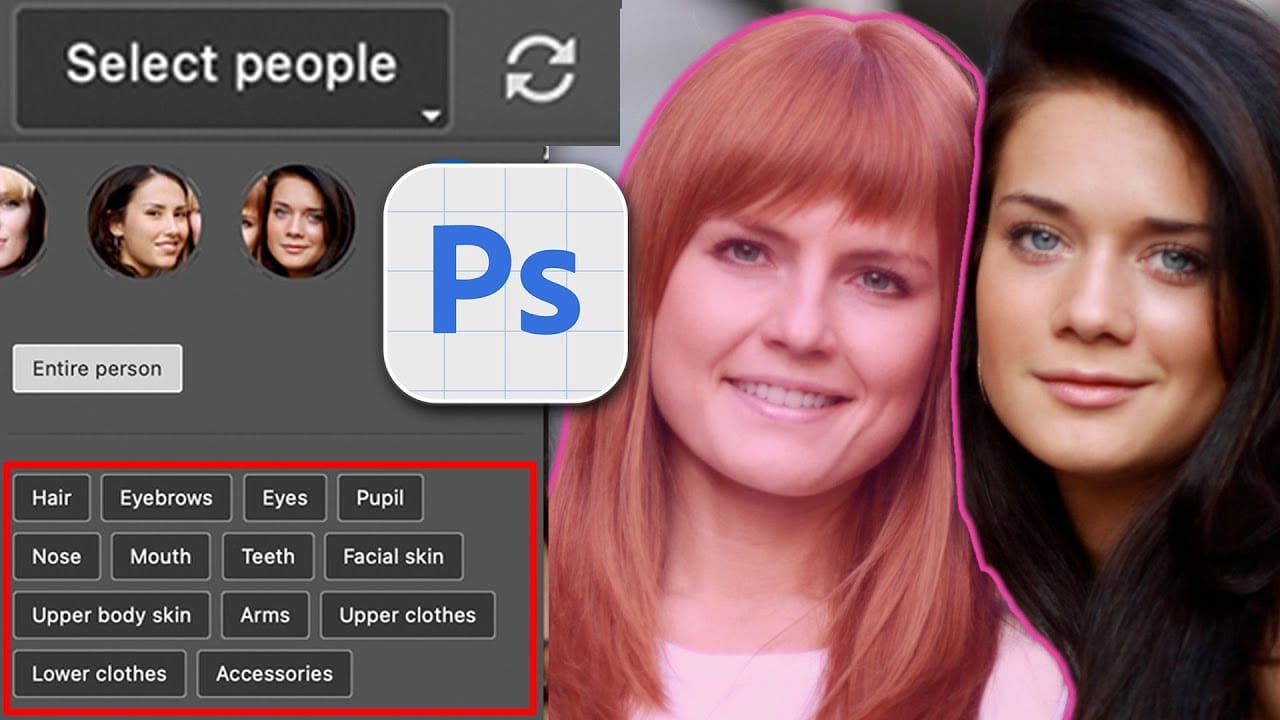
Select People, the most requested new photoshop feature
Achieving precise selections in image editing, especially when dealing with complex subjects like people, has historically been one of Photoshop's most time-consuming tasks. Manual masking of hair, intricate clothing, or multiple individuals often requires significant effort and a keen eye for detail, posing a common challenge for photographers and designers alike.
This video introduces a groundbreaking new feature in Photoshop that dramatically simplifies this process. Viewers will discover ho
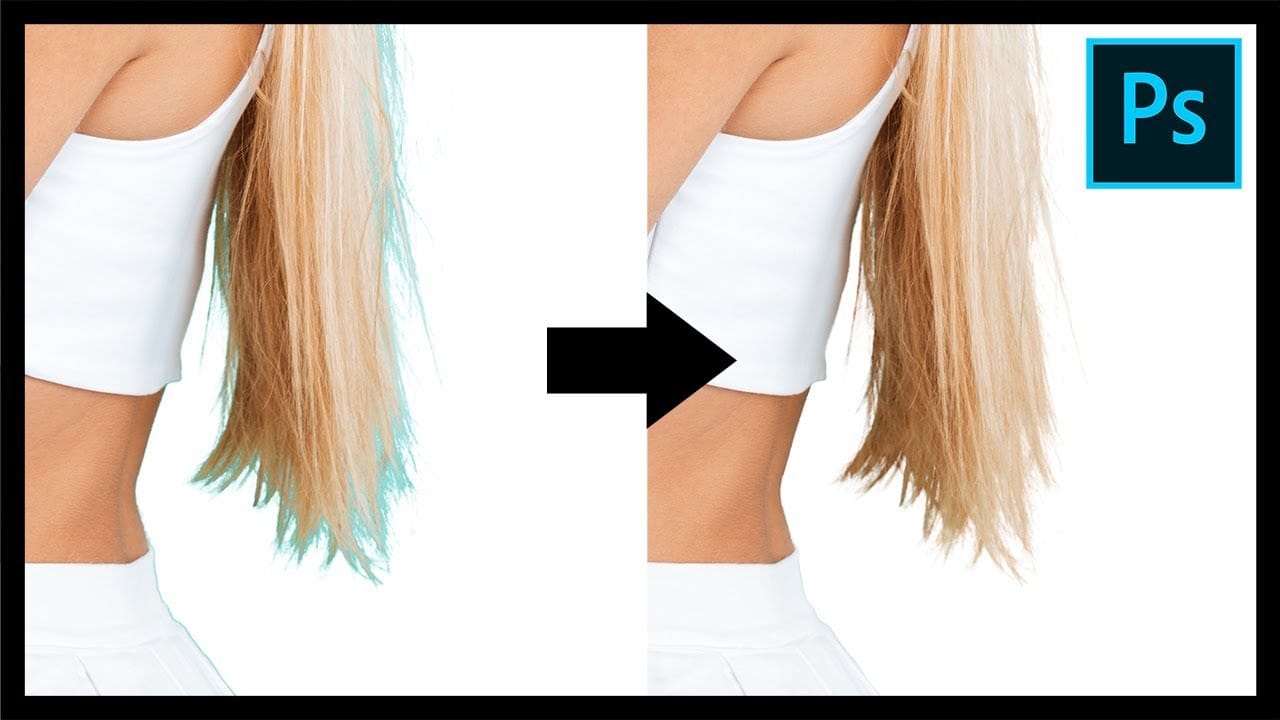
Remove Fringes After Cutting Out Hair in Photoshop
This tutorial by PiXimperfect addresses the crucial challenge of removing edge fringes that frequently arise during hair masking in Photoshop, a common issue that can compromise the integrity of composite images. For design professionals, achieving a flawless finish is paramount, and understanding how to eliminate these distracting color edges is essential for creating high-quality visuals.
In this guide, the focus is on utilizing Clipping Masks to enhance hair selection, allowing for a more pr
TOP New Features in Photoshop – May 2025 Update
Many Photoshop users frequently encounter common challenges such as time-consuming manual selections for complex objects, difficulties in achieving precise color adjustments across an image, or struggling with inconsistent results when removing unwanted elements like reflections. These hurdles often slow down the creative process, making it frustrating to achieve a desired professional look efficiently.
This guide explains how Photoshop's latest updates introduce powerful new functionalities, i

New Photoshop AI Features – Smarter, Faster, and More Efficient Tools!
Editing detailed selections, adjusting colors, and removing backgrounds in Photoshop can be tedious, especially when working with complex edges like hair or challenging objects. Manual work often stalls creative flow and makes it tough to achieve clean, professional results on tight deadlines.
This article introduces essential, time-saving features in the latest Photoshop update—including advanced AI-powered selection, color, and removal tools. Learn how these updates streamline everyday editin