Photoshop Beta currently includes two features that work quite differently from each other. The first adds a straightforward before-and-after comparison tool directly into the editing workspace — something that sounds simple but solves a real problem when a file already has multiple layers. The second, Dynamic Layers, uses AI to blend between two versions of an image, giving you frame-by-frame control over how much of a generated change to apply.
Watch the Video
Video by photoshopCAFE. Any links or downloads mentioned by the creator are available only on YouTube
Practical Tips
Here are the key takeaways from the video, covering both features and how to get the most out of them.
- Use the before-and-after tool from the toolbar icon to compare single or split views — zoom in with Option + scroll wheel to inspect specific areas like retouching or fine detail.
- The "before" state is set when the file was last opened, so close and reopen a file to update the reference point before continuing with new edits.
- To create a Dynamic Layer, use Prompt to Edit to generate an AI-altered version of your image, then apply Dynamic Layer from the taskbar — right-click the canvas edge to show it if it's not visible.
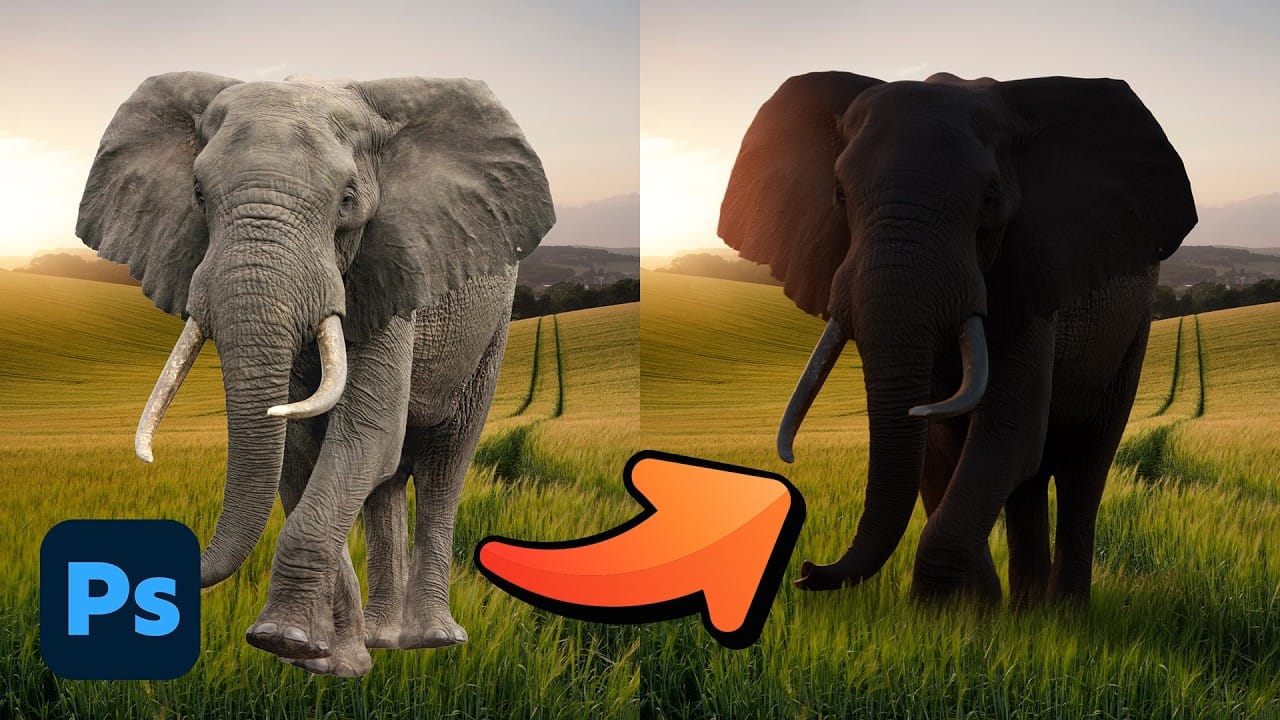
- Scrub the Dynamic Layer slider to choose how far the AI transformation is applied — useful for partial effects like early snowfall or a partially darkened sky rather than a full change.
- Once you've found the right position on the slider, use Duplicate as Pixel Layer to export that specific frame as a standard image you can continue editing.
Related Articles and Tutorials
Keep exploring with these tutorials covering recent updates and underused tools across Photoshop.