How to Create Realistic Lighting Effects and Dust Particles in Photoshop

How to Create Realistic Lighting Effects and Dust Particles in Photoshop

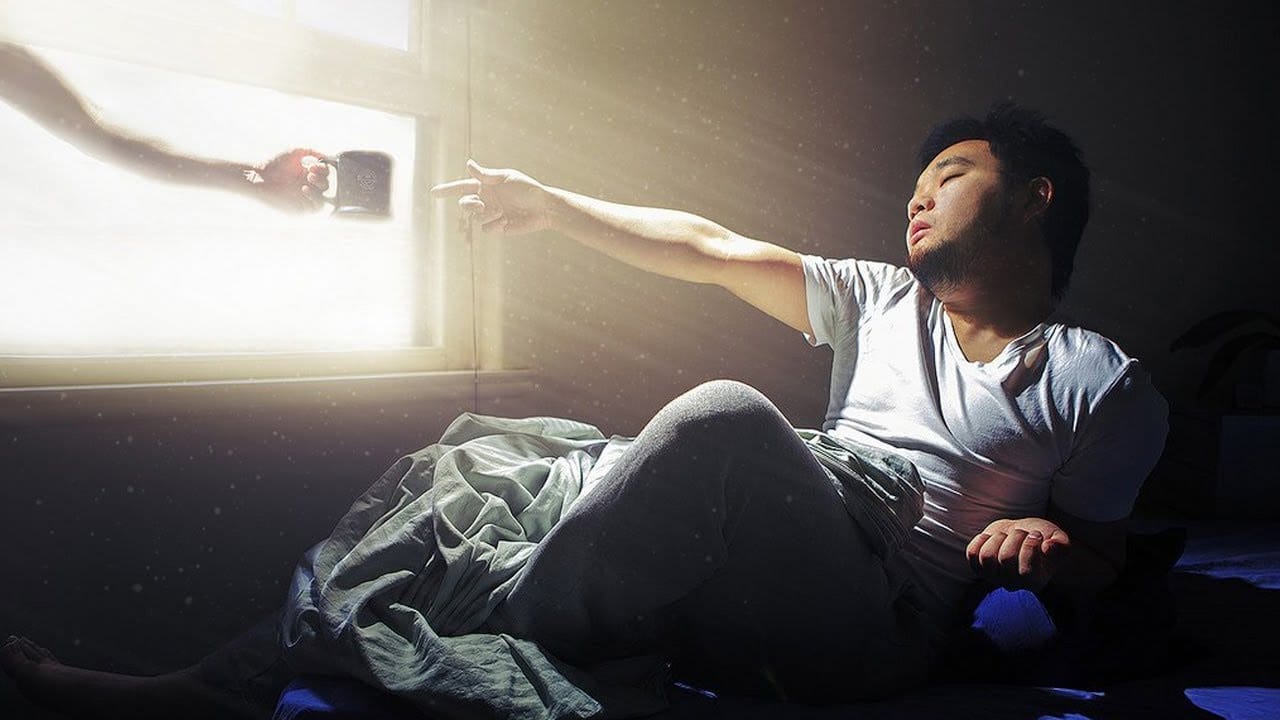
Creating convincing lighting effects requires more than just adding a bright spot to your image. The key to realism lies in ensuring your subject already has highlights that match the direction of your artificial light source, making the effect appear natural and believable.

This technique combines a simple soft brush method for the main light source with atmospheric dust particles that catch and reflect the light. The dust elements add authenticity to the scene, mimicking how particles become visible when illuminated in dark environments.

Watch the Video

Video by Glyn Dewis. Any links or downloads mentioned by the creator are available only on YouTube

Practical Tips

Follow these essential steps to create believable lighting effects that enhance your portraits:

  • Start with a small soft brush (0% hardness) and use Free Transform to enlarge it rather than creating a large brush initially to avoid edge cutoff
  • Ensure your subject has existing highlights on the side where your light source will be positioned before adding the effect
  • Use Screen blend mode on your dust particle layer to show only the lighter areas while hiding the darker parts
  • Apply layer masks to control where dust particles appear, keeping them away from your subject and focused in the light beam area
  • Add subtle motion blur to dust particles to create the impression of movement and make them feel more natural

Explore more lighting and atmospheric effects to enhance your photo editing skills:

Add Dust to a Road Photo in Photoshop
Adding realistic dust clouds to car photos can transform static images into dynamic scenes that suggest motion and atmosphere. This technique uses cloud brush presets and layering methods to build convincing dust effects without complex particle systems or advanced compositing. The approach works by layering different cloud brushes with varying opacities, then using masks and dodge-and-burn techniques to integrate the dust naturally with the vehicle and road surface. Watch the Video Practic
Learn how to create light rays and dust particles in Photoshop
As a reader, you'll find this tutorial by Aaron Nace from Phlearn to be an informative and practical guide. He'll show you how to create stunning light rays and dust particles from scratch in Photoshop, using a custom brush. The step-by-step instructions are easy to follow, making it accessible even for beginners. You'll learn how to set up the brush, adjust the opacity and size, and apply it to your image to achieve the desired effect. The resulting light rays and dust particles will add dept
How to Add Realistic Light and Shadow Effects to Portraits in Photoshop
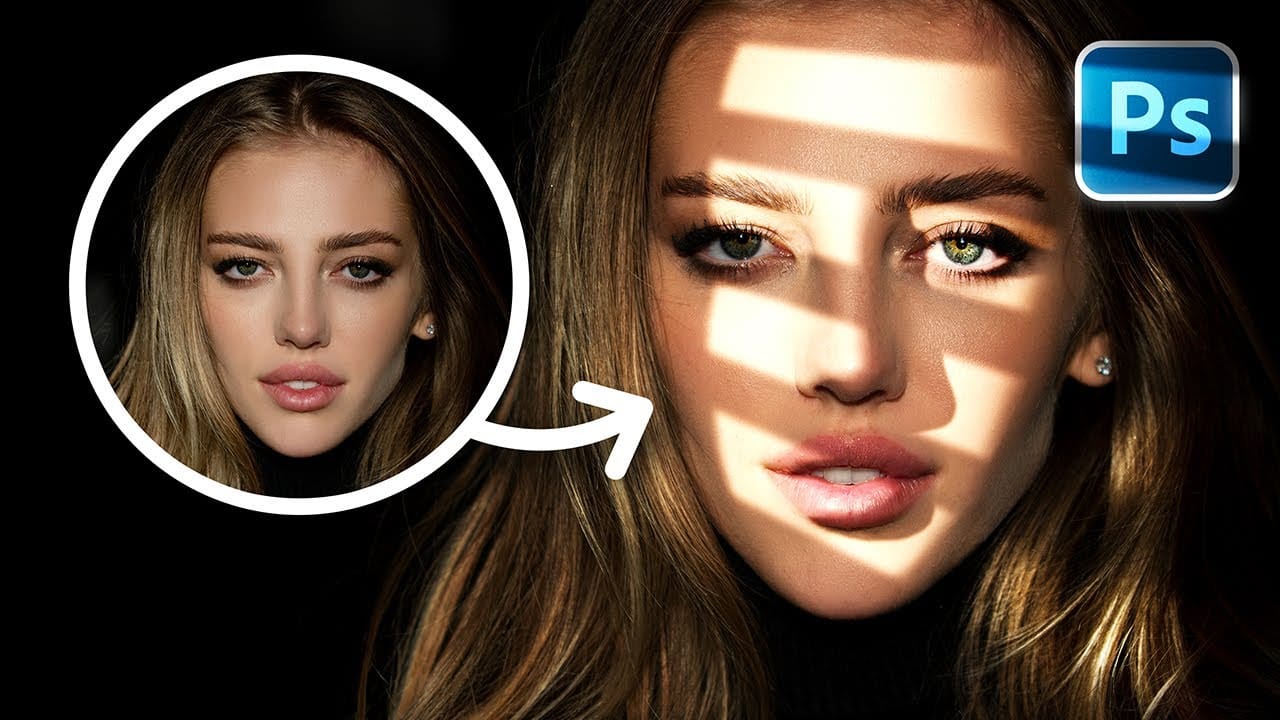
The difference between a flat portrait and one with captivating depth often comes down to how light and shadow play across the subject's features. Professional photographers spend thousands on studio lighting equipment, but digital artists can achieve dramatic lighting effects using only Photoshop tools. This technique transforms ordinary portraits into striking images with realistic light streaks and corresponding shadows. The method involves creating custom light sources that cast believable
Learn how to use lighting effects in Photoshop
Bringing different elements together in Photoshop requires more than just careful selection and placement; it demands mastery of lighting to achieve true realism. When composing an image, the way light interacts with each object determines its perceived depth, form, and how seamlessly it integrates into the scene. Neglecting proper lighting can make even the most detailed composite look flat and artificial. This tutorial demystifies Photoshop's powerful lighting effects, showing how to transfor
Download the Stunning StarDust Photoshop Premium Action
As a photographer, you're always looking for ways to enhance your images and make them stand out. The Stunning StarDust Photoshop Premium Action is a powerful tool that can help you achieve this effortlessly. With just a few clicks, you can transform your photos and create stunning lighting effects that will captivate your viewers. The action offers five different direction options, allowing you to customize the effect to your liking. Whether you want it to shoot up, down, left, right, or from
Add Striking Light Effects to Your Photos in Photoshop
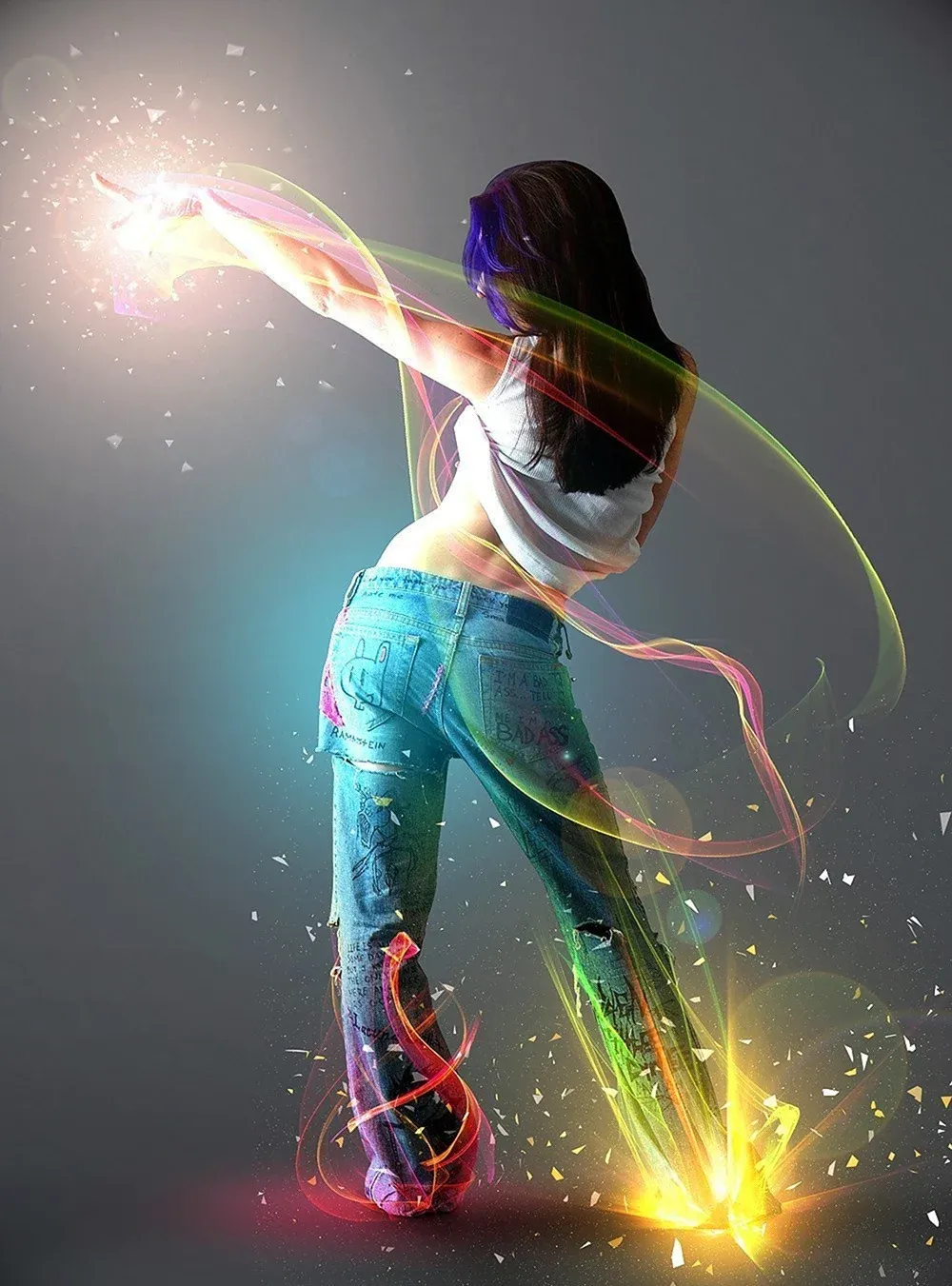
In this Photoshop tutorial from PSD Box, using the "Colors in Motion" textures pack and a model image from deviantArt or ISO Stock, you'll create a vibrant digital artwork. Start by meticulously removing the background with the Pen Tool and placing the model on a new canvas with a gradient backdrop. Enhance the image with non-destructive adjustments for color and contrast, adding realistic shadows for depth. Integrate various light effects from the packs, adjusting blending modes and using tool
Advanced Dave Hill Effect Photo Manipulation Tutorial
In this advanced Photoshop tutorial by PSD Box, Andrei shows how to transform a daytime photo into a nighttime scene. They start with basic adjustments like cropping and precise sky selection using color range and layer masks. Adding a dark, cloudy sky layer sets the nighttime tone, enhanced by layer styles for shadow depth. Adjustments with hue/saturation and gradient maps add warmth and darkness. Introducing a car, they paint shadows and soften with Gaussian blur, then use layer styles and hu
Lighting Effects to Create Drama in Photoshop
In this tutorial, John Whitehead demonstrates how to add dramatic lighting effects in Photoshop to transform flat lighting into something much more dynamic. You'll learn how to use various tools such as lighting effects filters, lens flare, smart objects, and LUTs to completely alter the mood and appearance of your image. If you want to follow along with the tutorial, you can download the provided image and apply the same techniques. This guide is perfect for photographers and digital artists l
Add beautiful natural background light effects in Photoshop
In this Photoshop tutorial by Unmesh Dinda from Piximperfect you will learn how to make the subject stand out by adding realistic light effects on the background. Learn to create beams of light pouring in from a source (like a window) and falling on the background naturally in Photoshop. We'll create the light by using Step and Repeat and then apply blend modes and masking to make it as realistic as possible. Watch tutorial
Powerful mental wave photo effect
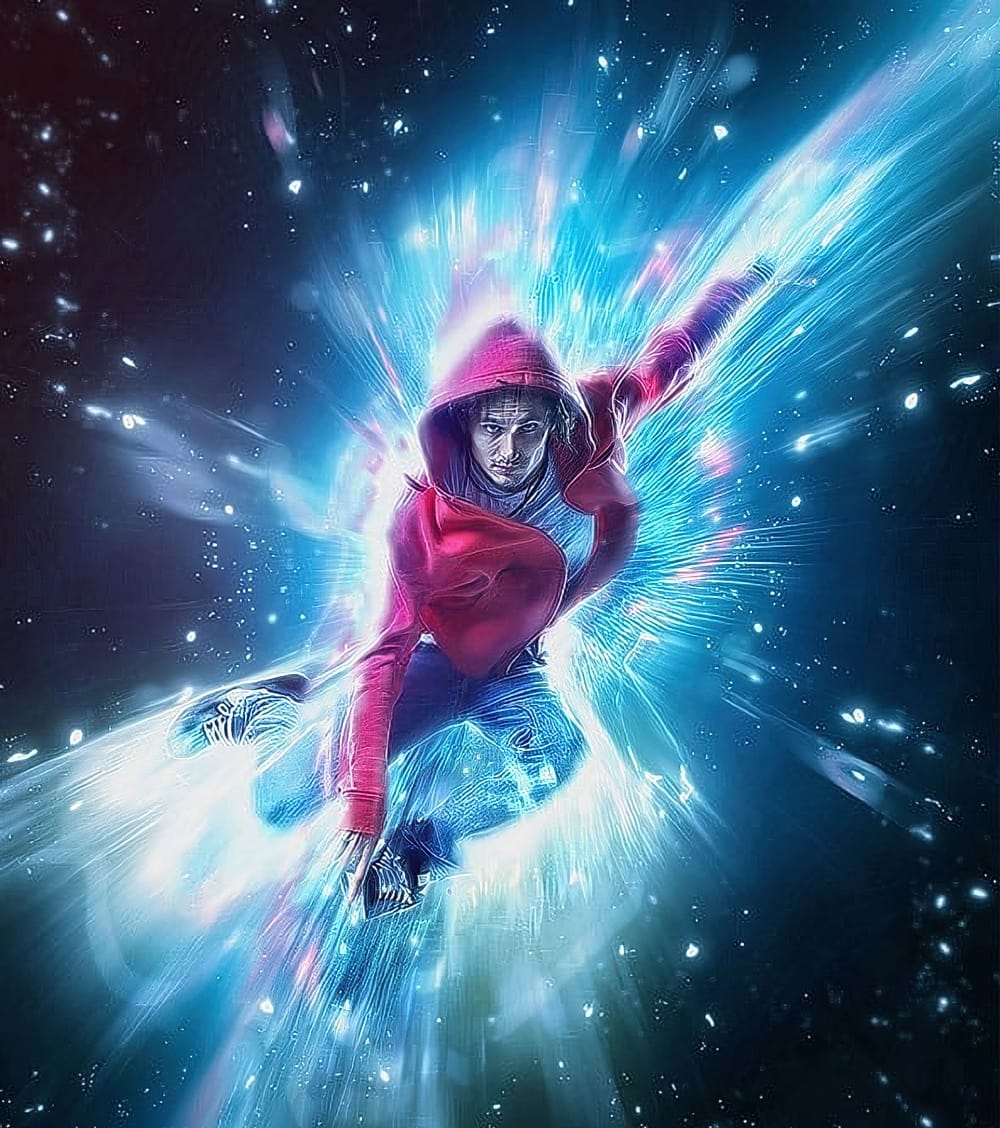
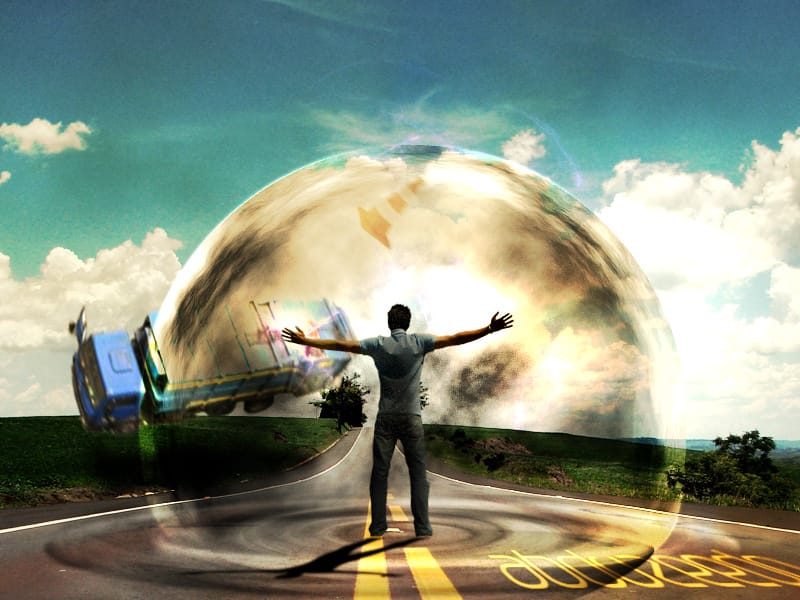
This tutorial by Fabio Sasso will show you how to create an impressive mental wave explosion effect in Photoshop. The step by step instructions guides you through the process of integrating a person into a road scene, enhancing realism through adjustments like shadow creation and lighting effects. It focuses on layer blending techniques, including Soft Light, Multiply, and Color Dodge, to achieve depth and illumination in cloud formations. The tutorial also covers the integration of additional

Get tutorials & freebies delivered to you.

Subscribe to the Photoshop Roadmap newsletter, a weekly roundup of new tutorials, insights and quality downloads, trusted by 6500+ readers.

You might also like

How to Set Up Mouse Scroll Zoom in Photoshop for Faster Navigation

Constantly reaching for the magnify tool or right-clicking to access zoom options disrupts your creative flow and slows down detailed work. Most users don't realize that Photoshop includes powerful scroll wheel zoom features that aren't enabled by default. These simple preference settings transform navigation into smooth,...

How to Fix Layer Panel Thumbnails Showing the Full Canvas in Photoshop

When working with complex layered files, layer thumbnails that display the entire canvas instead of just the layer content make it difficult to identify specific layers at a glance. This common issue occurs when the layers panel is set to show the "entire document" rather than focusing on...

Game Boy Pixel Effect Tutorial in Photoshop

The distinctive monochrome pixelated aesthetic of the original Game Boy has become an iconic visual style that evokes powerful nostalgia for classic handheld gaming. This technique transforms ordinary photographs into high-contrast, pixelated artwork that mimics the characteristic black and white display of Nintendo's legendary portable console. The process...

How to Cut Out Trees Using Blend If in Photoshop

Trees with complex branching patterns challenge traditional selection tools, often leaving messy edges and incomplete cutouts. The Blend If feature offers a powerful alternative for extracting trees from contrasting backgrounds by targeting specific color channels rather than attempting pixel-by-pixel selection. This technique works particularly well when trees are photographed against...

Should You Use Photoshop's New AI Credit System or Stick to Traditional Tools

Adobe's credit-based AI system is creating a dilemma for photographers and digital artists. With 250 monthly credits that can disappear after just a few generative fill operations, many are questioning whether these new tools are worth the investment or if traditional skills remain more valuable. This perspective from...

How to Use Point Color in Photoshop's Camera Raw Filter for Precise Color Adjustments

Point Color, hidden within Photoshop's Camera Raw filter, offers unprecedented control over individual colors in your images. This powerful tool lets you target specific color ranges with precision, adjusting hue, saturation, luminance, variance, and range for each selected area. Unlike traditional color adjustment methods, Point Color uses an...

You’ve successfully subscribed to Photoshop Roadmap
Welcome back! You’ve successfully signed in.
Great! You’ve successfully signed up.
Success! Your email is updated.
Your link has expired
Success! Check your email for magic link to sign-in.