How to Fix Layer Panel Thumbnails Showing the Full Canvas in Photoshop

How to Fix Layer Panel Thumbnails Showing the Full Canvas in Photoshop

When working with complex layered files, layer thumbnails that display the entire canvas instead of just the layer content make it difficult to identify specific layers at a glance. This common issue occurs when the layers panel is set to show the "entire document" rather than focusing on the actual layer boundaries.

Adjusting this setting transforms unclear, tiny thumbnails into clear previews that show only the relevant content for each layer, making layer navigation much more efficient.

Watch the Video

Video by 2-Minute Design. Any links or downloads mentioned by the creator are available only on YouTube

Practical Tips

Use these essential techniques to optimize your layers panel visibility and workflow:

  • Access panel options by clicking the menu icon (three horizontal lines) in the top-right corner of the layers panel
  • Change thumbnail contents from "Entire Document" to "Layer Bounds" to show only active pixels
  • Adjust thumbnail size in the same panel options menu to match your screen size and preference
  • Apply this setting once and it will remain active for all future documents
  • Use larger thumbnails when working with detailed graphics or small text elements

Explore more workspace optimization and interface customization techniques:
How to Fix Three Confusing Default Settings in Photoshop
Sometimes Photoshop's default settings can make beginners think their software or hardware is broken. Images that fly around uncontrollably when panning, scroll bars appearing on full-size images, and zoom tools that seem to have a mind of their own are all caused by simple preference settings that can be easily adjusted. These three navigation behaviors often frustrate new users, but understanding what they do and how to control them will give you a much smoother editing experience. Watch th
How to Create Digital Scrapbook Carousels in Photoshop
Digital scrapbook pages capture memories beautifully, but a single page limits your storytelling. Creating a carousel format lets you design multiple connected panels that work together as one cohesive piece while giving viewers more content to explore. This technique uses frames, custom shapes, and smart export settings to build templates you can reuse with different photos. The result is a swipeable gallery perfect for social media platforms. Watch the Video Practical Tips These essentia
Best unknown trick for retouching in Photoshop
In this insightful Photoshop tutorial, Colin Smith uncovers a valuable but often overlooked trick to enhance your retouching process. The tutorial introduces a method to simultaneously display your image at two different sizes—one for detailed editing and the other for a broader overview. This dual-view setup allows you to efficiently monitor and adjust both fine details and overall composition without constantly switching between zoom levels. Colin explains how this technique helps in identify
Photoshop Workspace Basics: Navigation, Zooming, and Essential Interface Elements
Photoshop's interface can feel overwhelming when you first open the program. Dozens of panels, tools, and menus compete for attention, making simple tasks feel complicated. This tutorial breaks down the essential workspace elements and teaches fundamental navigation skills that form the foundation of efficient Photoshop work. Watch the Tutorial Essential Workspace Navigation Tips These core techniques will help you work more efficiently in Photoshop from day one: * Access hidden panels q
How to Create a Carousel for Social Media in Photoshop
Social media carousels let viewers swipe through multiple connected images that tell a cohesive visual story. Creating these multi-panel layouts requires precise sizing, strategic photo placement, and an efficient export workflow to generate individual posts that work seamlessly together. This technique uses guides, slices, and batch export features to streamline the entire process from initial setup to final delivery. Watch the Video Practical Tips Master carousel creation with these esse
Rotate and Flip Images and Layers with Precision in Photoshop
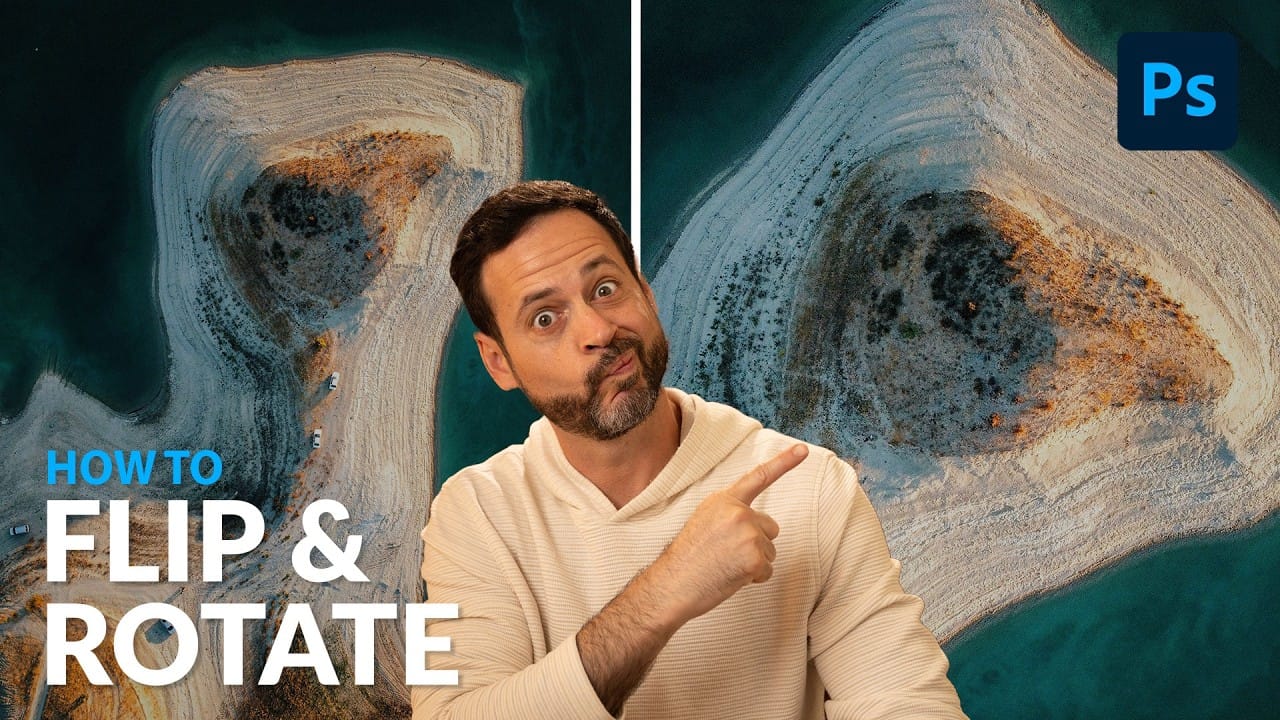
Often in image editing, photographs or design elements are not oriented correctly or require a creative re-orientation for a new composition. This common challenge can be frustrating when simple rotation tools affect the entire canvas, disrupting other layers, or when precise control over individual elements is needed. This tutorial demonstrates two distinct methods for rotating and flipping images in Photoshop: one for the entire canvas and another for individual layers. Understanding these a
Create a stunning Panograph effect in Photoshop
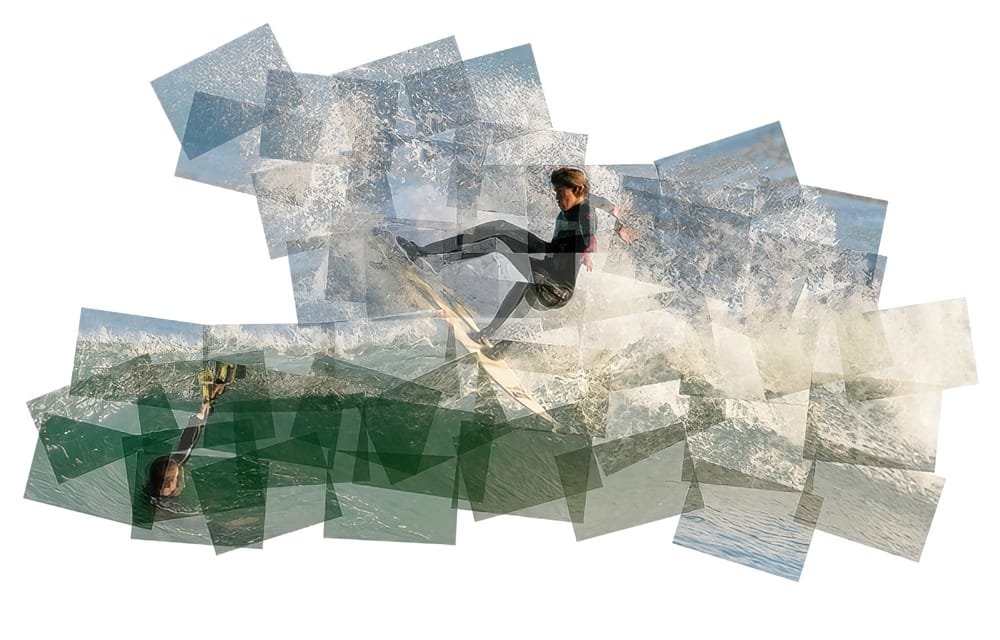
As a reader, you'll be amazed by the stunning Panograph effect you can create in Photoshop. Panography is a unique technique that mimics the way our eyes naturally perceive the world around us. Instead of capturing a single, static image, Panography allows you to depict the details and perspectives that your eyes pick up as they scan a scene. By applying the Panography style to your existing photographs, you can bring a new level of depth and visual interest to your images. The scale of detail
How Photoshop's Updated Frame Tool Simplifies Layer Cropping
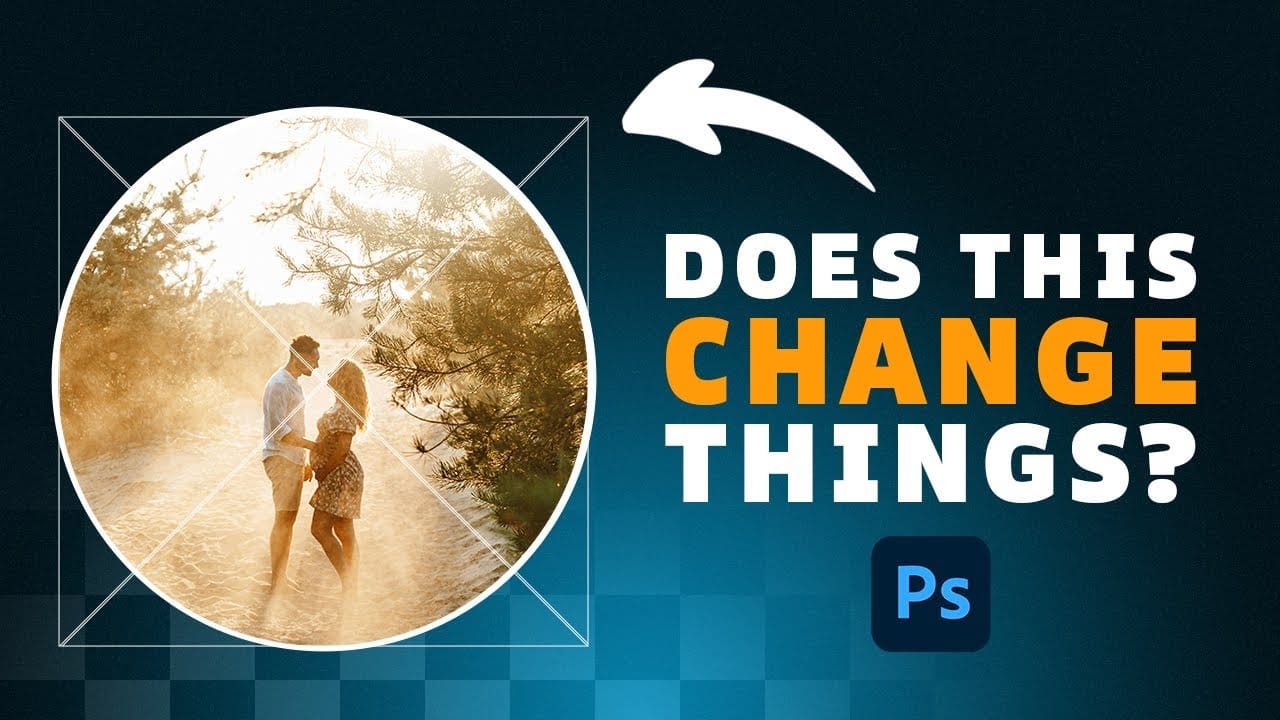
Cropping individual layers in Photoshop has traditionally required multiple complex steps involving selections, layer masks, or clipping masks. The updated Frame Tool now offers a streamlined drag-and-drop approach that eliminates confusion and reduces workflow steps. These improvements make layer cropping accessible to beginners while speeding up workflows for advanced users through custom shape integration and simplified image placement. Watch the Tutorial Essential Frame Tool Tips * Ac
Why Your Photoshop Brush Creates a Caterpillar Effect (And How to Fix It)
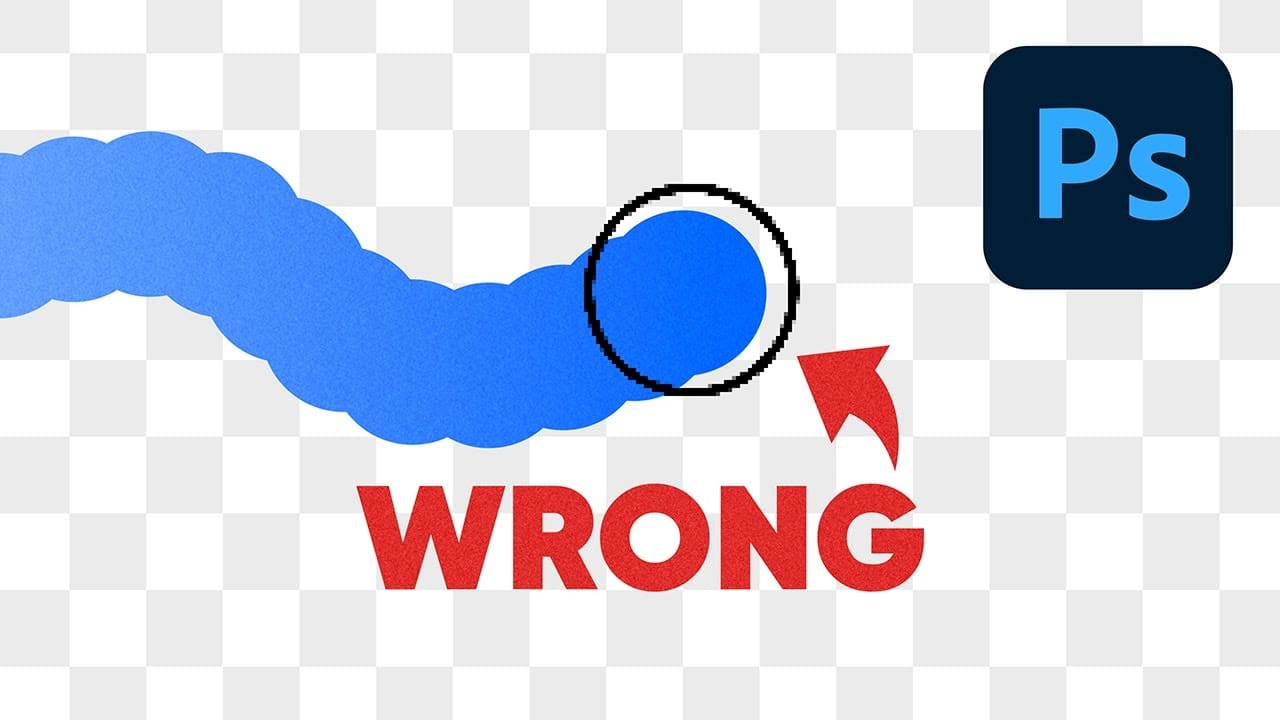
One of the most frustrating issues Photoshop users encounter is when their brush strokes suddenly become uneven or thicker than expected. You might start painting with a smooth brush only to see a jagged "caterpillar" effect appear, or notice your soft brush creating strokes that are much thicker than the brush cursor suggests. This video explains the root cause of these common brush problems and provides practical solutions. You'll discover how Photoshop's spacing settings control brush behavi

Get tutorials & freebies delivered to you.

Subscribe to the Photoshop Roadmap newsletter, a weekly roundup of new tutorials, insights and quality downloads, trusted by 6500+ readers.

You might also like

How to Use Color Average for Color Toning in Photoshop

Color average creates a unified color tone by analyzing all the colors in your image and calculating their mathematical average. This technique adds depth and cohesion to photos, composites, and AI-generated images by applying a subtle color wash that ties all elements together. The method works particularly well for composites...

How to Remove Complex Background Elements Using AI in Photoshop

Removing complex background elements like fencing or wire mesh has traditionally been one of the most time-consuming tasks in photo editing. New AI-powered tools in Photoshop can now eliminate these distracting elements while preserving fine details in your subject. This tutorial demonstrates two practical workflows: one using the latest Firefly...

How to Use Photoshop's Auto Layer Rename Feature

Messy layer names like "Layer 52 copy 4" and "Untitled 5" clutter your workspace and slow down complex projects. Photoshop's new auto-rename feature uses AI to automatically identify and name layers based on their content, from "Woman in yellow shirt" to "...

New Generative Fill Features in Photoshop Beta: Reference Images and Credit Tracking

Photoshop Beta introduces significant improvements to Generative Fill that address the most requested features from users. The updated interface now displays your generative credit balance and usage, while the new reference image capability lets you add up to eight specific images to guide AI generation with precise visual examples. These...

Essential Photoshop Tools for Beginners: Brush, Crop, and Move Tool Tutorial

Learning Photoshop tools feels overwhelming when you don't know where to start. This tutorial focuses on three essential tools that form the foundation of most Photoshop work: the brush tool for painting and retouching, the crop tool for resizing and straightening images, and the move tool for positioning...

How to Add Custom Textures to Photos in Photoshop

Adding textures to photographs can transform ordinary images into compelling artistic compositions. This technique uses multiple texture layers combined with strategic blending modes and color adjustments to create depth and visual interest. The process involves layering different texture types—color overlays, surface patterns, and lighting effects—then using masking techniques...

You’ve successfully subscribed to Photoshop Roadmap
Welcome back! You’ve successfully signed in.
Great! You’ve successfully signed up.
Success! Your email is updated.
Your link has expired
Success! Check your email for magic link to sign-in.