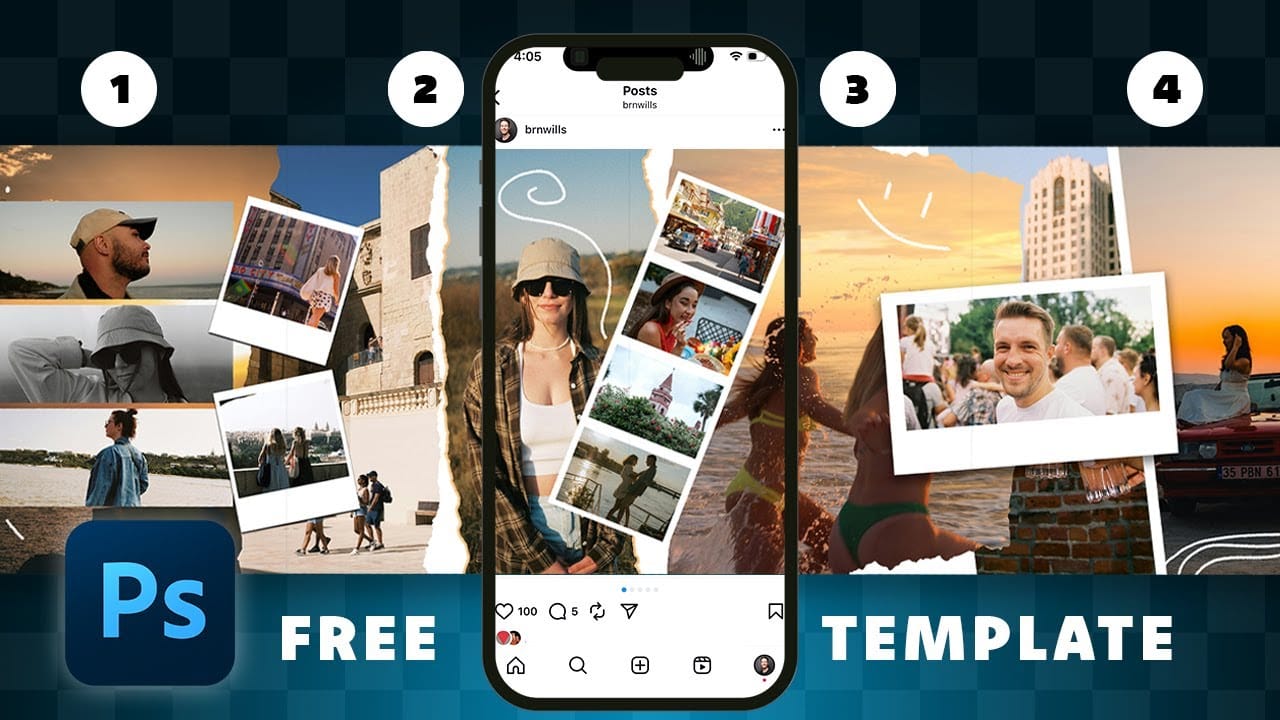
Social media carousels let viewers swipe through multiple connected images that tell a cohesive visual story. Creating these multi-panel layouts requires precise sizing, strategic photo placement, and an efficient export workflow to generate individual posts that work seamlessly together.
This technique uses guides, slices, and batch export features to streamline the entire process from initial setup to final delivery.
Watch the Video
Practical Tips
Master carousel creation with these essential techniques that ensure professional results:
- Calculate canvas width by multiplying individual post dimensions by the number of panels needed (up to 10 for Instagram)
- Use the New Guide Layout feature to automatically divide your canvas into equal columns with precise spacing
- Enable "Snap to Guides" before creating slices to ensure each panel boundaries align perfectly with your layout
- Load multiple images as a stack using File > Scripts > Load Files into Stack for efficient batch importing
- Create strategic photo overlaps between panels to build visual curiosity that encourages swiping
Related Articles and Tutorials
Explore more techniques for creating engaging multi-image layouts and social media content.
How to Create Digital Scrapbook Carousels in Photoshop
Digital scrapbook pages capture memories beautifully, but a single page limits your storytelling. Creating a carousel format lets you design multiple connected panels that work together as one cohesive piece while giving viewers more content to explore.
This technique uses frames, custom shapes, and smart export settings to build templates you can reuse with different photos. The result is a swipeable gallery perfect for social media platforms.
Watch the Video
Practical Tips
These essentia
Carnival Photoshop Brushes
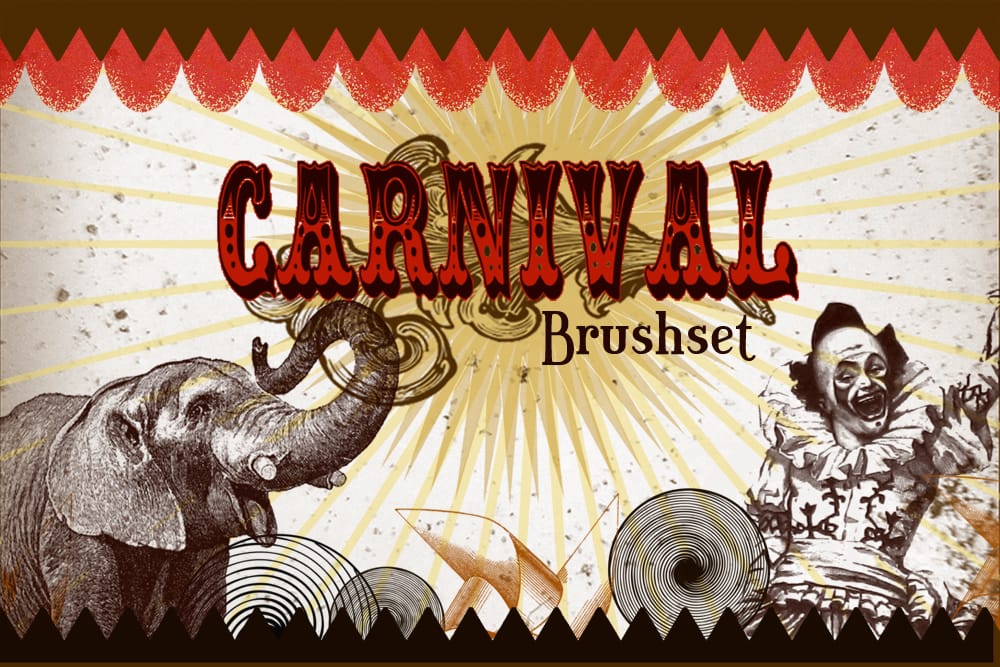
These Photoshop brushes capture the whimsical and nostalgic feel of the carnival and circus. They feature various elements such as carousels, tents, balloons, and more.
These brushes can be a valuable tool for anyone looking to add a touch of vintage charm to their digital creations. Whether you're working on a poster, a t-shirt design, or a scrapbook layout, these brushes can help you achieve the perfect aesthetic.
The brushes are easy to use and can be seamlessly integrated into your Photosh
Create a Vintage Circus Poster in Photoshop
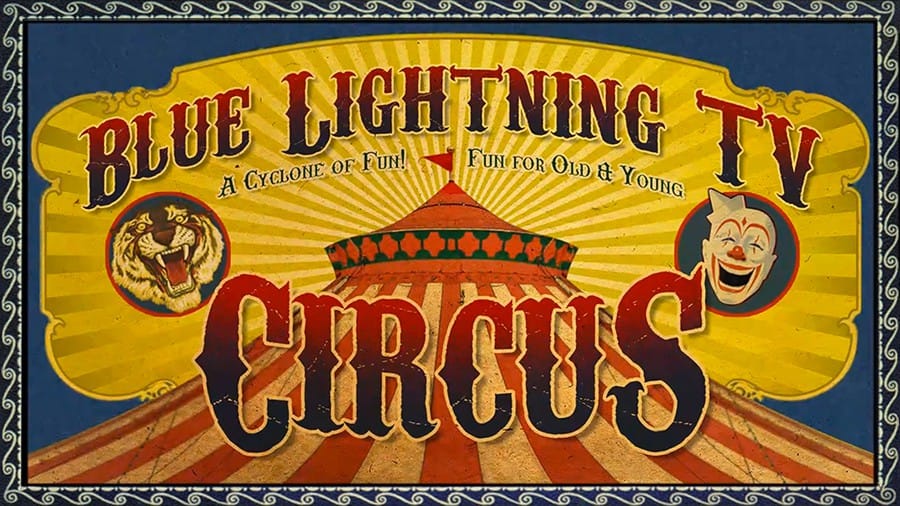
In this tutorial you will how to make a custom, vintage, circus poster. Part 1 shows how to make the finished poster base and Part 2 shows how to add the text. Download Circus Poster PSD template, Download the Paper texture, Download the Magical Dreams font, Download Carnivalee Freakshow Regular font.
Part 1
Part 1
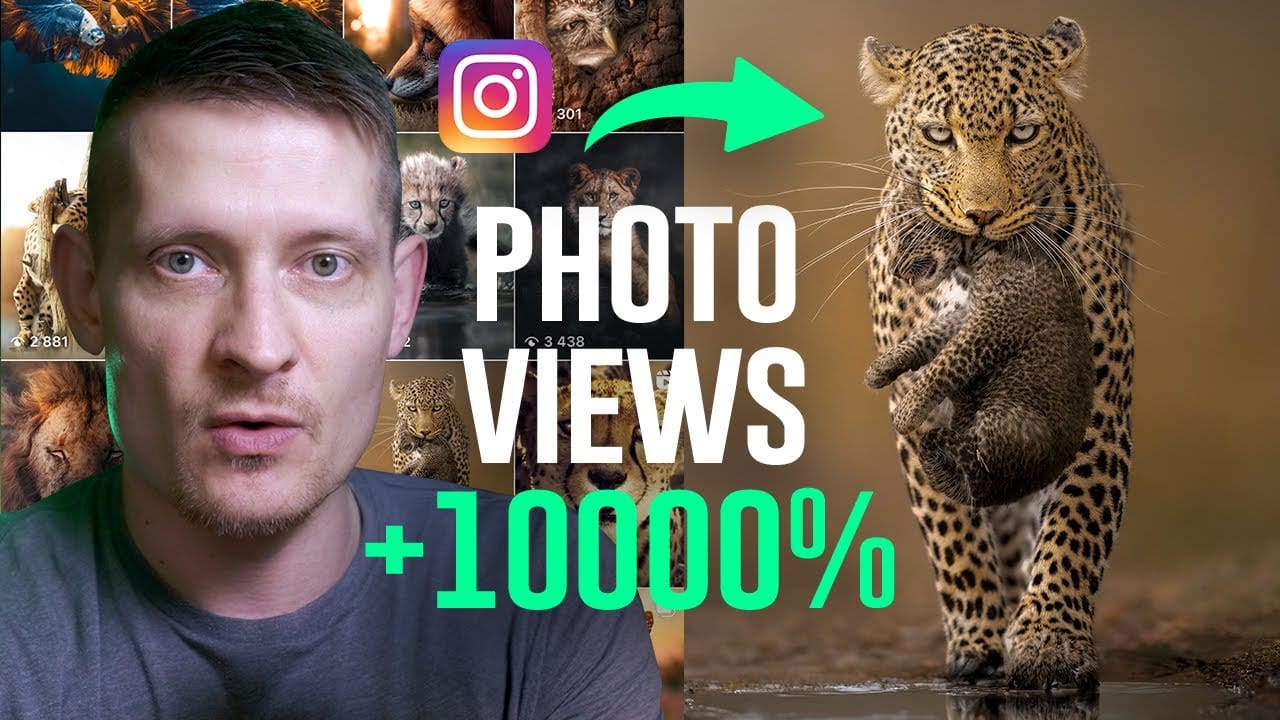
Use This Photoshop Technique to Boost Your Social Media Views
Creating a photo that captures attention on a busy social media feed is a common challenge. Even with a strong composition, an image can get lost in the noise if it lacks the polished, atmospheric quality that makes viewers stop and look closer. The frustration often lies in knowing what to do in post-production to elevate a good photo to a great one.
This video offers a practical look into the editing process behind a wildlife photo that successfully captured a wide audience. By walking throug
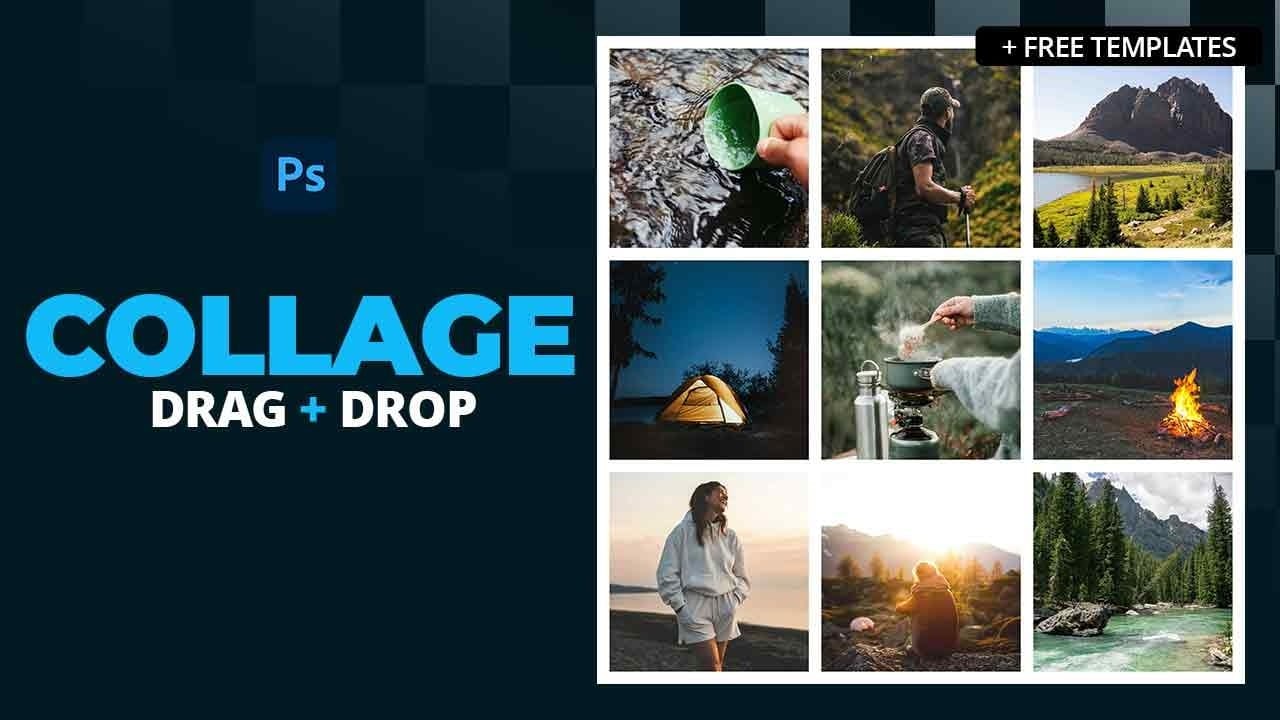
How to Create Simple Photo Collages in Photoshop
Photo collages offer a versatile way to combine multiple images into a cohesive visual story or artistic display. Whether for personal projects, digital scrapbooks, or social media content, effectively arranging diverse photographs is key to a compelling outcome.
This tutorial demonstrates a straightforward method for creating structured photo collages in Photoshop, leveraging powerful features like guides and frames to achieve precise layouts with minimal effort.
Watch the Video
Structurin
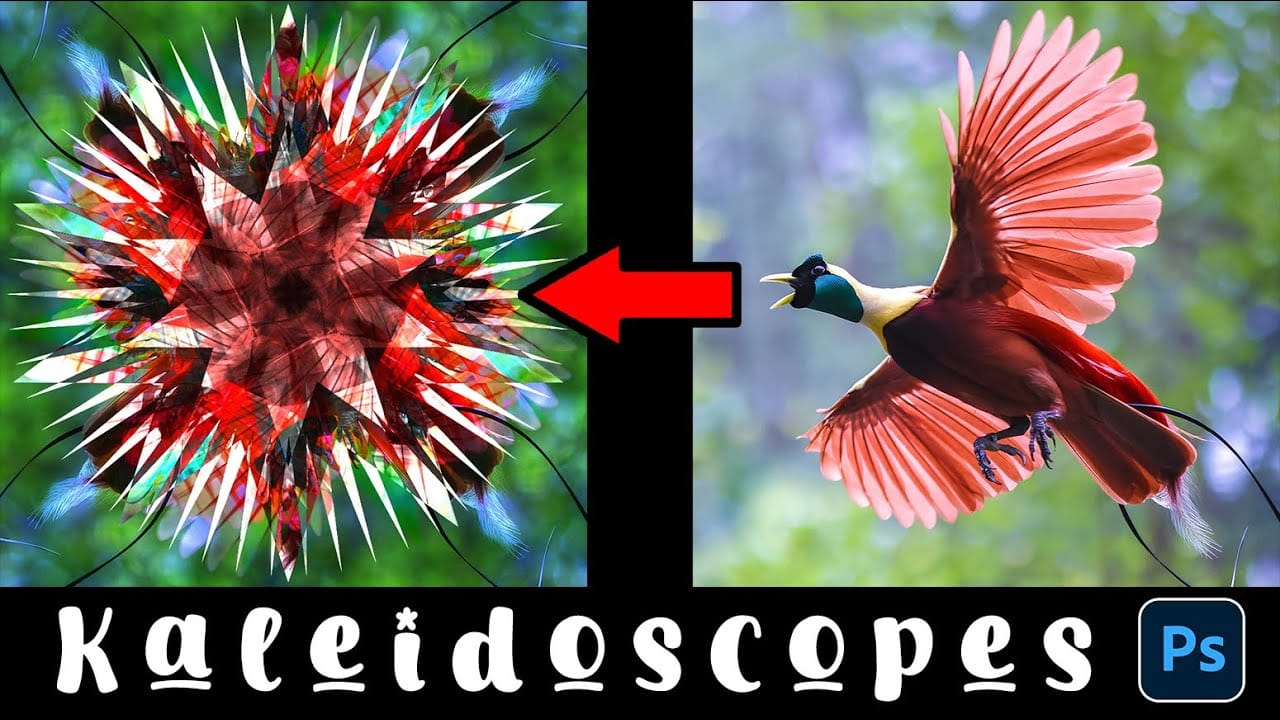
How to Create a Kaleidoscope Effect from Photos in Photoshop
The kaleidoscope effect transforms ordinary photographs into mesmerizing, symmetrical patterns reminiscent of the classic toy. This technique uses smart objects, multiple rotated layers, and custom shapes to create stunning geometric designs that maintain the original photo's essence while adding artistic flair.
By combining layer masks with various blend modes, you can produce unique visual effects that work beautifully for backgrounds, artistic prints, or creative compositions.
Watch the Vi
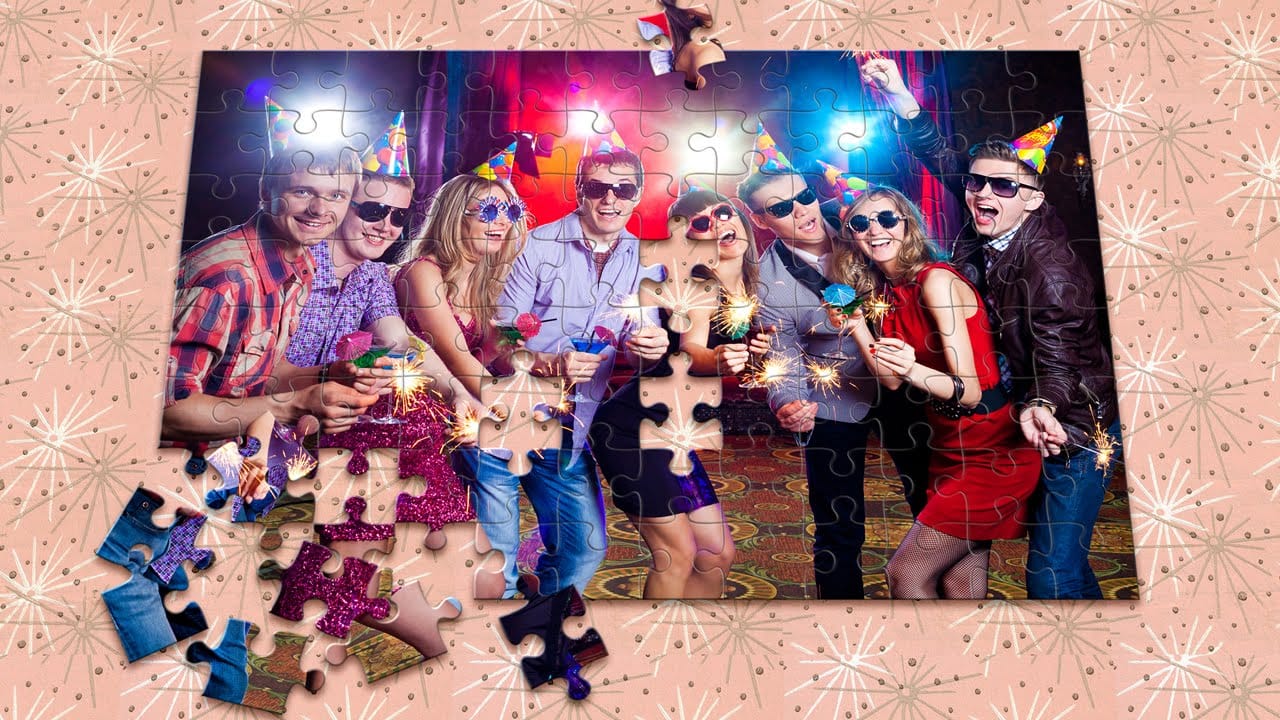
Transform Photos into Jigsaw Puzzles in Photoshop
This video demonstrates a creative method for transforming ordinary photographs into engaging jigsaw puzzles using Adobe Photoshop CC and later versions. It showcases how to achieve a realistic puzzle effect, complete with individual pieces, bevels, and shadows.
Viewers will learn to leverage a free Adobe plugin to automatically generate puzzle pieces, define custom background patterns, and artfully reposition individual elements. The tutorial emphasizes practical steps to achieve a dynamic vis
Create a Photo Caricature in Photoshop
The tutorial on TutsPlus demonstrates how to create a photo caricature using Adobe Photoshop. It shows the user how to exaggerate specific features of a face to produce a comical and humorous representation of a person. Photoshop's transform, warp, and liquify tools are perfect for this task, allowing the user to manipulate a photographic portrait and transform it into a unique caricature.
The step-by-step instructions guide the user through the process, from selecting and preparing the source

Create a Photo Text Splash Effect in Photoshop
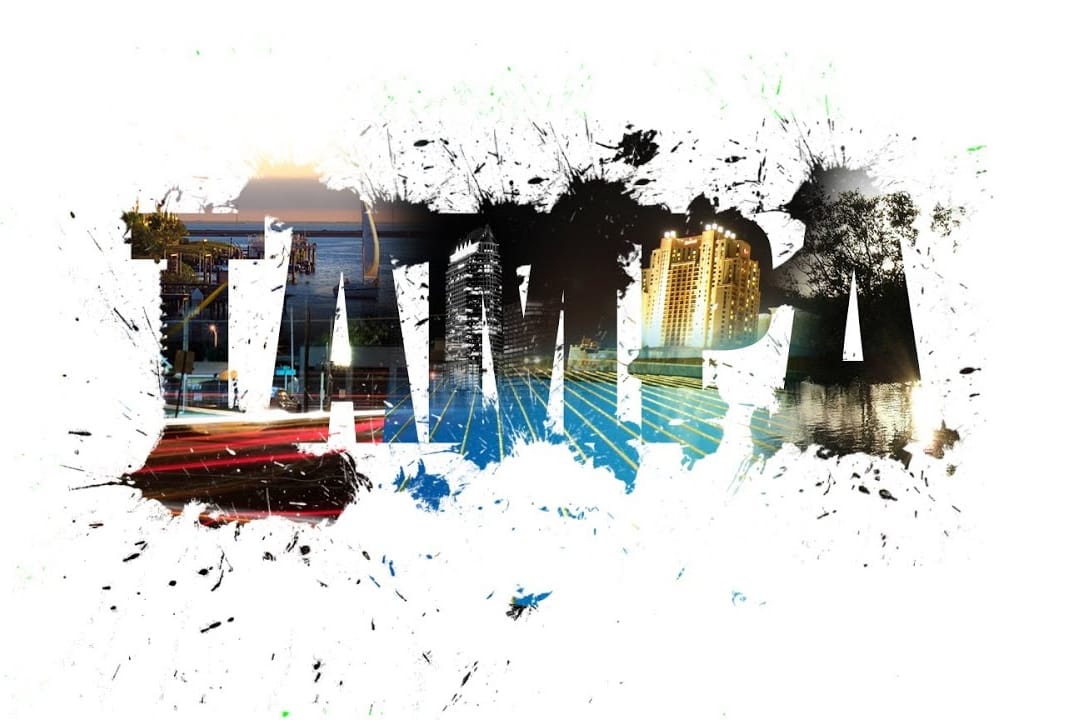
Transform plain text into a vibrant visual statement by integrating multiple photos with a unique splash effect. This tutorial guides you through combining images and text using advanced masking techniques to achieve a captivating design.
Watch the Video
Practical Tips for Photo Text Splash Effects
Achieve a seamless and dynamic photo text splash effect with these key Photoshop techniques:
* Create custom brushes from splash images to expand the visual impact of your text, adding unique t