How to Edit Text in Images Using Generative Fill

How to Edit Text in Images Using Generative Fill

Changing text within existing images has traditionally required complex masking and reconstruction techniques. Modern AI-powered tools now make it possible to seamlessly replace words and phrases in photographs while maintaining realistic typography, lighting, and perspective that matches the original scene.

This technique works particularly well for signs, storefronts, billboards, and other text elements embedded in photographic content, offering designers a powerful way to customize images without starting from scratch.

Watch the Video

Video by Adobe Photoshop. Any links or downloads mentioned by the creator are available only on YouTube

Practical Tips

Follow these key techniques to achieve realistic text replacement results in your images.

  • Select the entire image with Ctrl+A (Cmd+A on Mac) before accessing the Generative Fill dialog for the expanded input box
  • Choose the FLUX Kontext Pro model specifically for text editing tasks, as it provides superior results for typography work
  • Place both original and replacement text in quotation marks within your prompt to ensure precise recognition and substitution
  • Assign a custom keyboard shortcut to the Generative Fill command to speed up your workflow for frequent text editing tasks
  • Write detailed prompts that specify exactly which words to replace and what they should become, maintaining clear instruction formatting

Explore more techniques for working with text and typography in your design projects.

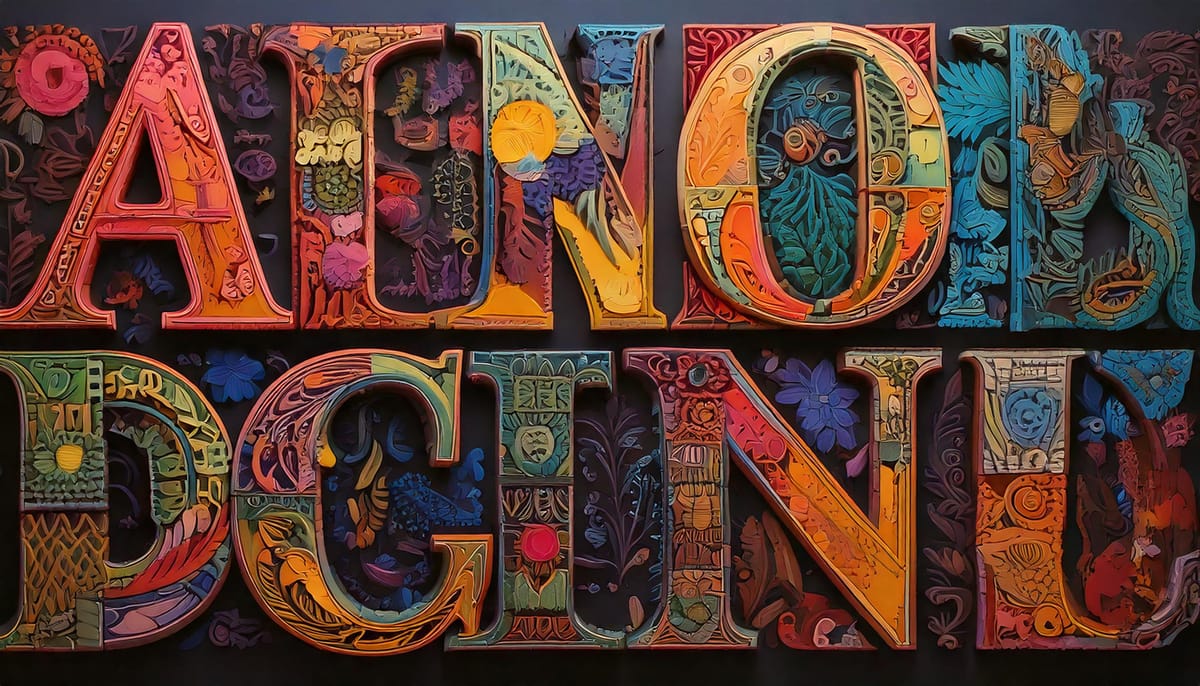
The Beauty of Letters: Exploring Typography Through AI Innovation
Letters transcend mere symbols; they represent a fusion of form and function. Their shapes—whether curved, angular, bold, or delicate—carry a visual language that resonates with viewers. While familiar, they also hold potential for innovation. Through the lens of artistry, traditional forms can transform into something extraordinary. This is
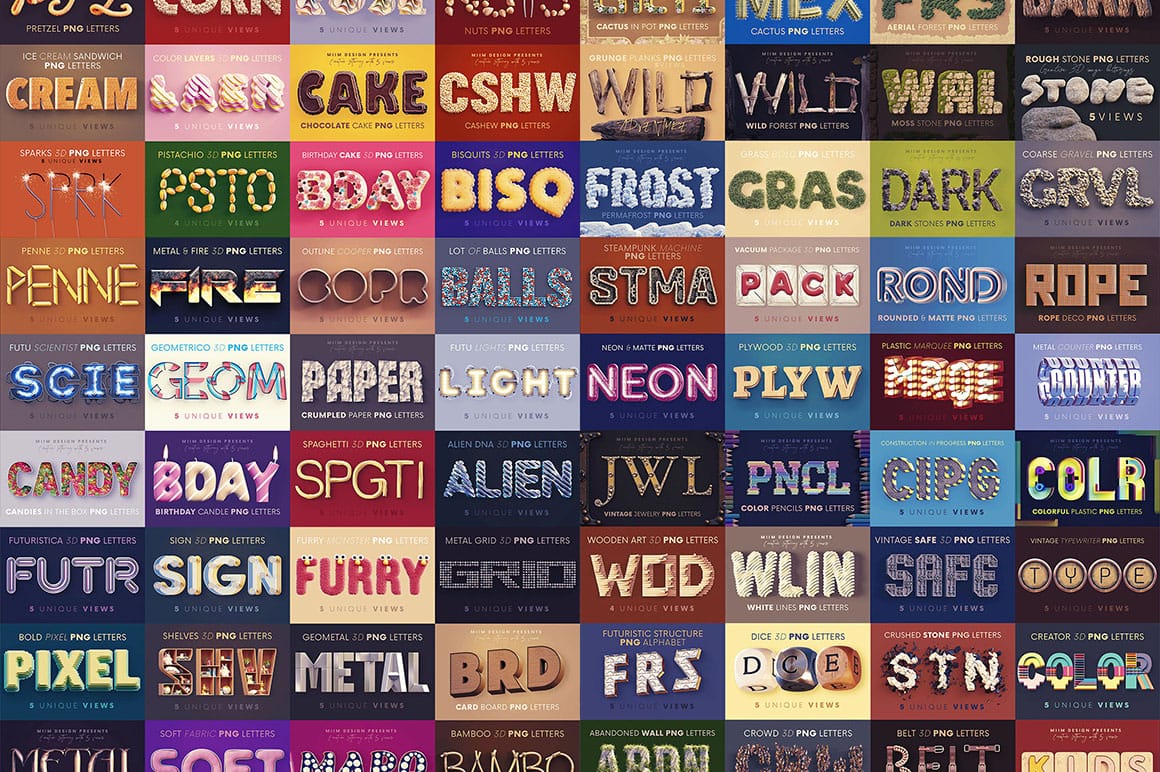
100+ Brilliant Photoshop Text Effects: The Ultimate 2025 Roundup
You won’t admit this: You spend hours making text look like liquid gold. Not for clients. Not for your portfolio. Just because. Here’s the thing: Text effects are your guilty pleasure. You tell yourself you’re “practicing.” You say you’re “building skills.” But really? You just love watching letters transform into
Huge Creative 3D Lettering bundle with 72 Stunning Sets
This impressive 3D typography bundle offers a total of 72 stunning lettering sets, making it a valuable addition to any designer’s toolkit. With six unique lettering or 3D image alphabet sets included, this collection is perfect for both print and web projects. At a very low price, it presents an
A Library of Thousands of Editable Text Effect Templates
This collection offers an expansive repository of thousands of professional text effect templates, providing an immediate visual upgrade for any design project. Hosted on Creative Fabrica, this library is filled with visually impressive, high-impact assets that are fully editable and ready for immediate use. A Massive Selection of High-Impact Styles
Essential Type Tool Techniques in Photoshop
Text in Photoshop offers far more creative potential than basic typing and font selection. Advanced type tool techniques unlock professional-level text manipulation, from precise warping control to custom character distortion and knockout effects. These methods transform ordinary text into dynamic design elements that integrate seamlessly with complex compositions and visual effects. Watch the Tutorial Beyond Basic Typography in Digital Design Typography in digital design extends far beyond
Photoshop Introduces Dynamic Text Feature
Designers frequently encounter the challenge of fitting text creatively into layouts without compromising readability or aesthetics. Traditional text handling in design software often means manually adjusting font sizes, leading, or tracking every time a text box is resized, which can be a time-consuming and frustrating process, especially for complex designs or when experimenting with different layouts. This tutorial introduces Photoshop's groundbreaking Dynamic Text feature, available in the
Create a Typographic Portrait in Photoshop
This tutorial explores a creative method for transforming a standard photographic portrait into a unique work of art composed entirely of text. It demonstrates how to combine typography with image manipulation to create a visually compelling and personalized artistic statement. Viewers will learn how to prepare an image, generate and integrate custom text, and apply advanced Photoshop techniques like displacement mapping to achieve a stunning, text-based artwork that subtly conforms to the cont

Get tutorials & freebies delivered to you.

Subscribe to the Photoshop Roadmap newsletter, a weekly roundup of new tutorials, insights and quality downloads, trusted by 6500+ readers.

You might also like

How to Use Select Subject for Background Removal and Edge Refinement

Background removal becomes effortless when you know how to use the right tools. AI-powered selection can instantly isolate subjects from their backgrounds, but the real skill lies in refining those selections to create professional results. This guide covers the complete workflow from initial selection to edge refinement, plus creative techniques...

How to Wrap Text Around Any Shape in Photoshop

Creating text that flows naturally around irregular shapes transforms static layouts into dynamic, professional designs. This technique works particularly well for posters, magazine layouts, and editorial designs where text needs to integrate seamlessly with complex subjects rather than simply sitting in rigid rectangular boxes. The process combines selection tools, path...

How to Remove Dust and Sensor Spots Using Photoshop Tools

Dust spots and sensor particles are inevitable challenges in digital photography, appearing as dark specks that distract from otherwise clean images. Camera sensors collect dust over time, creating consistent spots that show up across multiple photos, particularly in bright sky areas or uniform backgrounds. Both Lightroom and Photoshop offer specialized...

Photoshop vs Affinity Photo: Feature Comparison and Professional Analysis

When choosing professional photo editing software, the decision often comes down to comparing features, performance, and value. This detailed comparison examines the core capabilities of both applications across noise reduction, smart selections, object removal, masking, and AI-powered tools. The analysis covers real-world scenarios that professionals encounter daily, from complex background...

Create Realistic Water Reflections Using Generative Fill in Photoshop

Traditional reflection techniques in photo editing often produce unrealistic results because they simply flip and copy existing image elements. Real reflections show different viewing angles and reveal surfaces not visible in the original photograph—like the underside of vehicles or objects viewed from below water level. Generative fill technology solves...

Photoshop Integration with ChatGPT: Real-World Performance Test

Adobe's new integration brings Photoshop functionality directly into ChatGPT, promising to streamline photo editing through conversational commands. This hands-on evaluation reveals how well the AI-powered interface actually performs compared to traditional Photoshop workflows. Understanding the real capabilities and limitations of this integration helps determine when it's...

You’ve successfully subscribed to Photoshop Roadmap
Welcome back! You’ve successfully signed in.
Great! You’ve successfully signed up.
Success! Your email is updated.
Your link has expired
Success! Check your email for magic link to sign-in.