Essential Photoshop Tools for Beginners: Brush, Crop, and Move Tool Tutorial

Essential Photoshop Tools for Beginners: Brush, Crop, and Move Tool Tutorial

Learning Photoshop tools feels overwhelming when you don't know where to start. This tutorial focuses on three essential tools that form the foundation of most Photoshop work: the brush tool for painting and retouching, the crop tool for resizing and straightening images, and the move tool for positioning elements.

You'll also learn how to customize your toolbar, organize tool groups, and troubleshoot common issues that frustrate beginners. These fundamentals will give you confidence to explore more advanced techniques.

Watch the Video

Video by PiXimperfect. Any links or downloads mentioned by the creator are available only on YouTube

Practical Tips

These essential techniques will help you work more efficiently with basic tools:

  • Always turn off "delete cropped pixels" to preserve image data when cropping
  • Use keyboard shortcuts: C for crop tool, V for move tool, B for brush tool
  • Reset problematic tools by clicking the arrow next to the tool icon and selecting "reset tool"
  • Hold Control/Command to temporarily activate auto-select when using the move tool
  • Create custom toolbar presets to remove unused tools and streamline your workspace

These tutorials will help you master the fundamentals and build confidence with essential techniques:
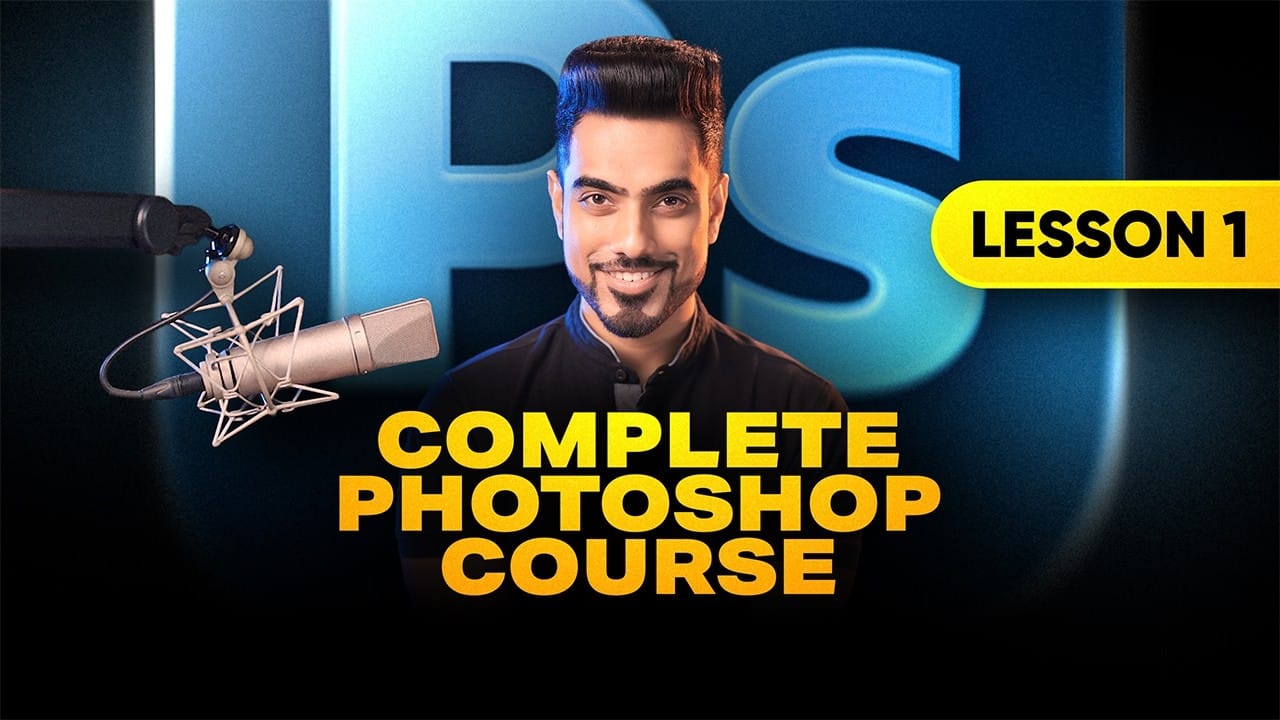

Complete Photoshop Basics Tutorial: Interface, Tools, and Essential Skills for Beginners
Opening Photoshop for the first time can feel overwhelming. The countless tools, panels, and menus create confusion that keeps many beginners from exploring the software's potential. This comprehensive tutorial breaks down Photoshop into manageable concepts, covering everything from basic installation to advanced workspace navigation. You'll learn the fundamental skills needed to start editing photos and creating digital artwork with confidence. Watch the Video Practical Tips Master these
30 Days of Photoshop: The Complete Series Breakdown for Beginners
If you’ve ever wanted a structured way to learn Photoshop without jumping between random tutorials, this series is about as close as it gets. Aaron Nace, from PHLEARN, created a free “30 Days of Photoshop” training series where each day focuses on a specific skill — starting from absolute basics
Learn Photoshop in 40 Minutes: Complete Beginner Tutorial
Photoshop's reputation as a complex, overwhelming program keeps many beginners from diving in. The endless array of tools, panels, and settings can feel impossible to master without proper guidance. This comprehensive tutorial breaks down Photoshop learning into four clear phases that work for any project. From document setup to final export, you'll understand the logical workflow that makes this powerful software finally make sense. Watch the Tutorial Essential Tips for Photoshop Beginners
Photoshop for Beginners – Free Course
Learn Adobe Photoshop with this amazing FREE course. Go from beginner to pro in 23 lessons exploring all the essential Photoshop tools and techniques. You'll start at the beginning and work quickly into more exciting techniques. Learn how to use Photoshop layer styles, how to change color levels, how to retouch and manipulate images, and much more. If you're a photographer, marketer, or designer, this course will give you the core skills you need. Watch tutorial
Photoshop for Beginners: 30-Minute Masterclass
This fast-track course offers everything you need to start using Photoshop in just a few minutes. Designed specifically for beginners, it guides you through essential concepts and tools, enabling you to build a solid foundation in the software. You will learn the basics of Photoshop, making it easy to grasp even if you have no prior experience. The tutorial covers key features and techniques, helping you gain confidence as you explore the program. Whether you're looking to refine your skills or
Customize and Create Your Own Photoshop Tools
Unlock the Power of "Tool Presets" to Create Custom Tools & Make Your Workflow Extremely Fast! Simplify your Photoshop life by learning the concepts of Tool Presets, and then, we will explore some built-in presets to get you started. In this tutorial, we will learn to create two super useful custom tools, and also how to create your own tools according to your personal workflow in Photoshop. No matter what you do in Photoshop, from designing to retouching or even compositing, custom tools are i
Photoshop Workspace Basics: Navigation, Zooming, and Essential Interface Elements
Photoshop's interface can feel overwhelming when you first open the program. Dozens of panels, tools, and menus compete for attention, making simple tasks feel complicated. This tutorial breaks down the essential workspace elements and teaches fundamental navigation skills that form the foundation of efficient Photoshop work. Watch the Tutorial Essential Workspace Navigation Tips These core techniques will help you work more efficiently in Photoshop from day one: * Access hidden panels q
Basic Photoshop techniques you really need to learn
Photoshop hasn't changed as much as it looks. New features come and go, but the same core techniques keep showing up in real work. If you skip them, everything feels harder than it should. This post focuses on those basics, not as isolated tricks, but as skills you'll keep using no matter what you create. You don't need dozens of tutorials. You need a small set of techniques you actually understand and can reuse. Non-destructive editing fundamentals Most beginner frustration comes from editi
You can learn Photoshop in 15 minutes - here's how
If you're looking to learn Photoshop quickly, this beginner tutorial is perfect for you. In just 15 minutes, you can get started with the basics and gain the confidence to explore further. The tutorial covers essential topics such as opening images, creating new documents, and navigating the workspace. You will also learn about key tools that are crucial for photo editing. While it's true that Photoshop is a vast program with plenty to learn, this quick guide aims to provide a solid foundation.
21 Photoshop Tips – From Basic to Advanced!
Photoshop's extensive toolkit means there's always something new to learn or a more efficient way to approach a task, whether you are just starting or have years of experience. Mastering its nuances can significantly enhance both your creative output and workflow efficiency. This video offers a comprehensive collection of 21 tips, guiding viewers from foundational techniques to more sophisticated methods for image manipulation, compositing, and graphic design. Each tip is designed to provide pr

Get tutorials & freebies delivered to you.

Subscribe to the Photoshop Roadmap newsletter, a weekly roundup of new tutorials, insights and quality downloads, trusted by 6500+ readers.

You might also like

Professional Portrait Retouching with the B.S.T. Method in Photoshop

Professional portrait retouching requires artistic choices that automated tools can't make. The B.S.T. method breaks retouching into three focused steps: removing blemishes with precision, smoothing skin while preserving natural texture, and equalizing skin tones throughout the image. This systematic approach gives you complete control over every...

Create Motion Blur Light Effects in Photoshop

Transform ordinary portraits into dynamic, cinematic images by combining path blur effects with creative background textures. This technique creates the illusion of camera movement while maintaining focus on key elements like the subject's eyes, resulting in professional-looking motion blur effects that add energy and visual interest to static...

How to Paint Realistic Jewelry on Portraits in Photoshop

Adding painted jewelry to portraits transforms ordinary photos into fantasy portraits with ornate accessories that never existed. This digital painting technique uses careful layering, proper lighting, and realistic shadows to create convincing rings, earrings, and decorative headpieces. The method combines basic brush work with advanced blending techniques to build up...

How to Sharpen Images Using the High Pass Filter in Photoshop

The High Pass filter method remains one of the most versatile sharpening techniques in Photoshop, offering precise control over which image areas receive enhancement. This non-destructive approach works by identifying edge details and allowing you to selectively apply sharpening exactly where it's needed most. Unlike automated sharpening tools,...

How to Find Missing Actions in the New Photoshop Actions Panel

The redesigned Actions panel in Photoshop can catch users off guard when their custom actions seem to disappear. With the new tabbed interface, your previously created actions are still there—they're just located in a different tab than before. Understanding the new layout will help you quickly access...

Fast Portrait Retouching: Remove Stray Hairs, Clothing Wrinkles, and Fix Backgrounds

Every portrait photographer knows the feeling: you've captured a beautiful shot, but stray hairs, wrinkled clothing, and messy backgrounds turn editing into hours of tedious work. These common retouching challenges can drain your time and energy, especially when dealing with high-volume projects or tight deadlines. This tutorial demonstrates...

You’ve successfully subscribed to Photoshop Roadmap
Welcome back! You’ve successfully signed in.
Great! You’ve successfully signed up.
Success! Your email is updated.
Your link has expired
Success! Check your email for magic link to sign-in.