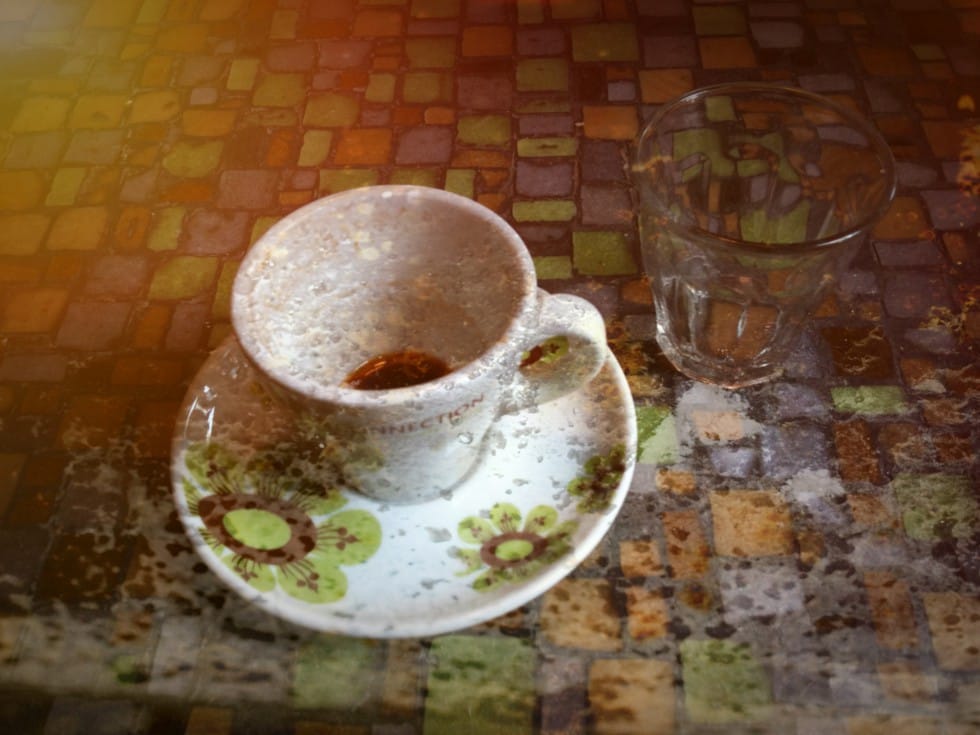
Adding textures to photographs can transform ordinary images into compelling artistic compositions. This technique uses multiple texture layers combined with strategic blending modes and color adjustments to create depth and visual interest.
The process involves layering different texture types—color overlays, surface patterns, and lighting effects—then using masking techniques to control exactly where each texture appears in your final image.
Watch the Video
Video by PHLEARN. Any links or downloads mentioned by the creator are available only on YouTube
Practical Tips
Master photo texture blending with these essential techniques for professional-looking results:
- Start with color textures using Lighten or Linear Dodge blend modes, then adjust opacity for subtle integration
- Invert dark textures (Ctrl/Cmd + I) and use Screen blend mode to create light texture overlays instead of dark ones
- Use Hue/Saturation adjustments with Colorize checked to match texture colors to your base image
- Apply layer masks with black brush painting to selectively hide texture areas that interfere with your subject
- Finish with Camera Raw color grading to unify all texture layers with your original photograph
Related Articles and Tutorials
Explore more creative texture and photo enhancement techniques:
Rust & Ruin: 8 Bold Grunge and Distressed Textures
A bold set of 8 high-resolution grunge textures built from layers of rust, peeling paint, corrosion, and worn surfaces. Raw, textured, and full of character, these backgrounds bring the beauty of decay into your designs. Designed at 4095 × 3072, they’re perfect for posters, album covers, branding, overlays, digital art,
 Creative Closeup
How to Create Custom Textures in Photoshop Using Brushes
Custom textures add depth and character to photos without relying on expensive texture packs. This technique uses specialized Photoshop brushes and blending modes to create unique overlay textures from scratch.
The process combines multiple layers, color variations, and finishing filters to produce professional-quality textures that work perfectly for photo blending projects.
Watch the Tutorial
Essential Tips for Creating Custom Textures
* Start with a large brush size nearly as big as yo
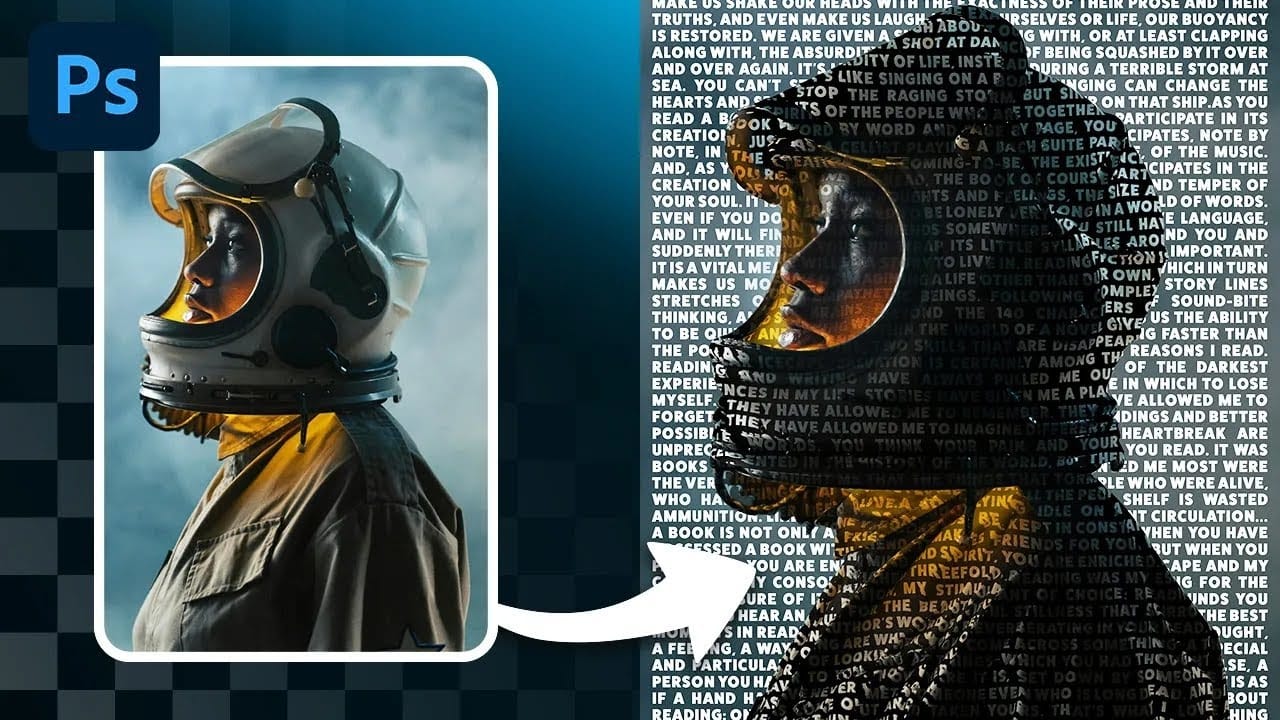
Create a Striking Text Portrait Poster in Photoshop
Transforming an ordinary portrait into a captivating text-based artwork presents a unique creative challenge in Photoshop. Often, the frustration lies in making text appear to organically wrap around a subject's contours rather than just sitting flat over the image. Achieving this seamless integration, especially when dealing with complex shapes, can feel like navigating an intricate technical puzzle.
This tutorial offers a clear pathway to mastering text portrait effects using advanced masking
How to Create Textured Portrait Collages in Photoshop
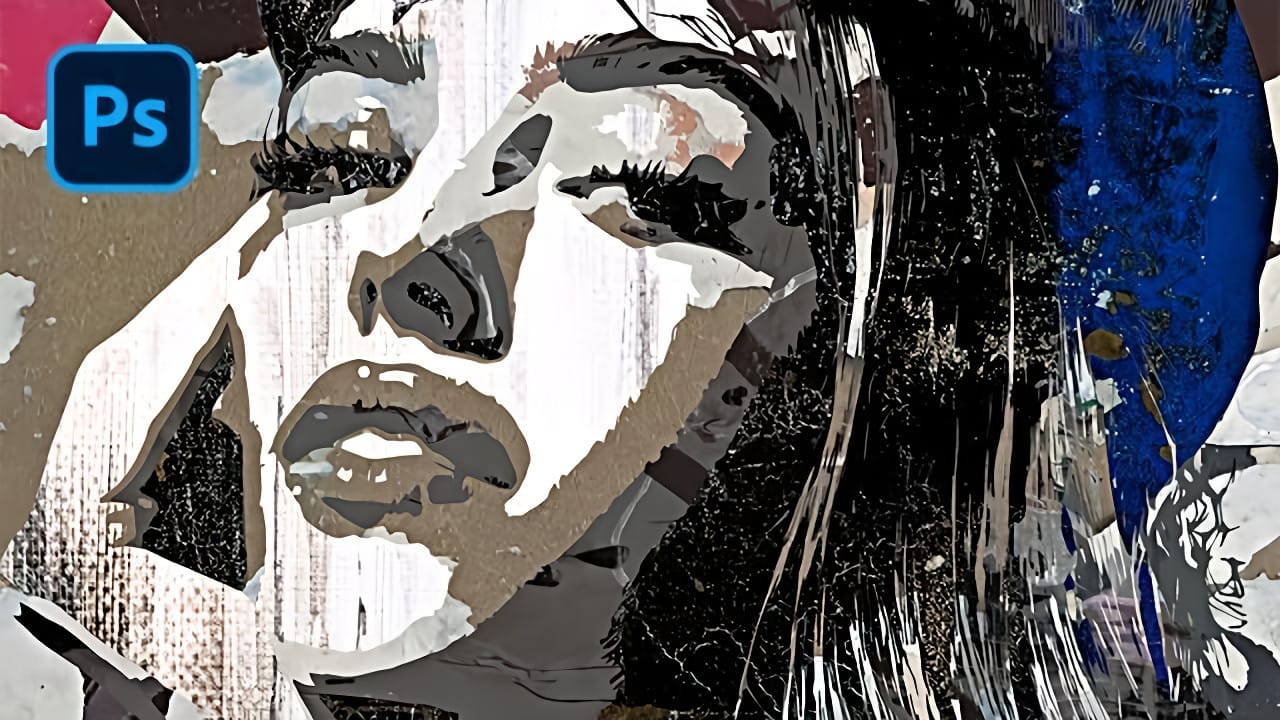
Portrait collages open up creative possibilities that go far beyond traditional photo editing. By combining artistic filters, color manipulation, and texture mapping, you can transform ordinary portraits into striking visual compositions that blend photography with graphic design elements.
This technique breaks down complex imagery into simplified color zones, then maps different textures to each area. The result is a unique artistic effect that maintains the subject's recognizable features whi
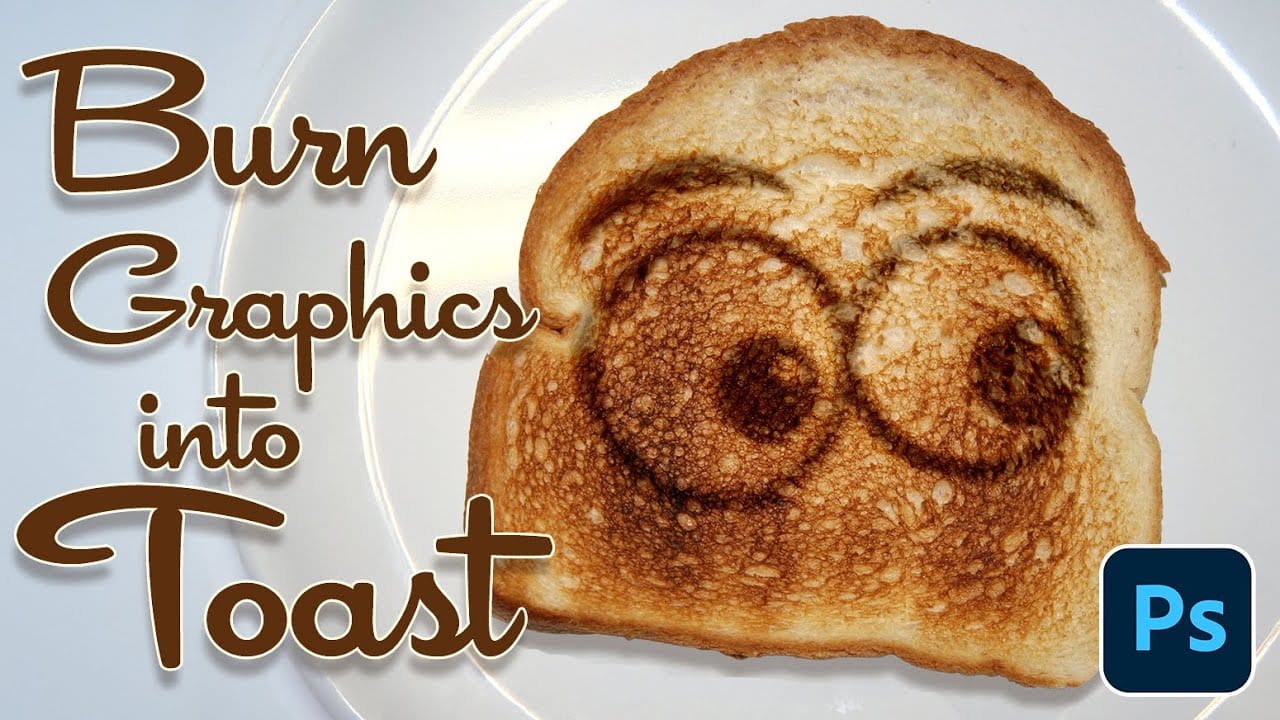
Burn Text and Graphics into a toast in Photoshop
Integrating digital elements onto textured surfaces realistically is a key challenge in graphic design. Photoshop provides powerful tools to simulate physical interactions, turning flat images into convincing 3D effects.
This tutorial shows how to create burnt graphics and text that blend seamlessly into a slice of toast. You'll learn essential techniques for applying textures and effects that mimic real-world interactions.
Watch the Tutorial
The Role of Displacement Maps in Realistic Textu
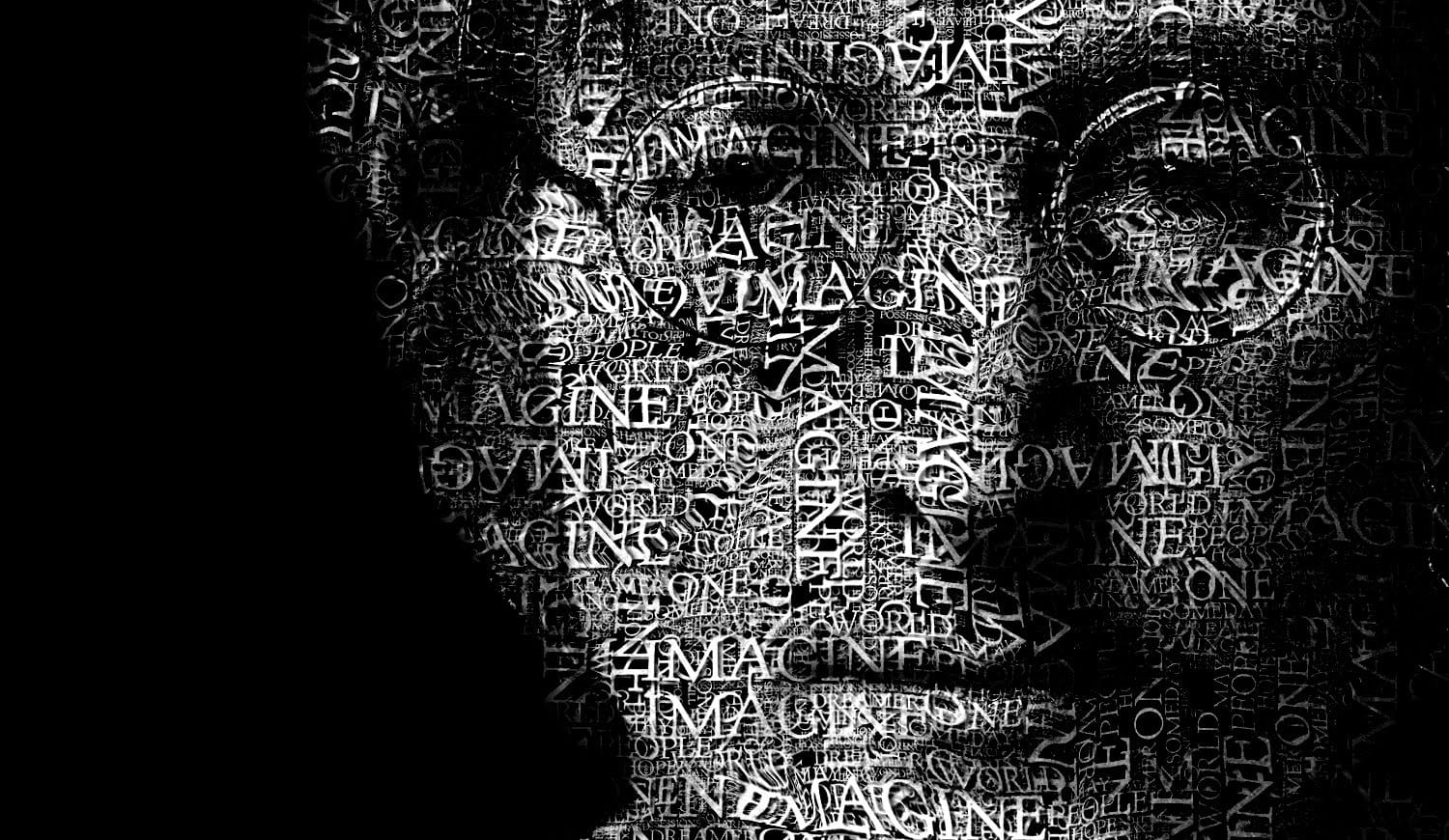
Create a Typographic Portrait in Photoshop
This tutorial explores a creative method for transforming a standard photographic portrait into a unique work of art composed entirely of text. It demonstrates how to combine typography with image manipulation to create a visually compelling and personalized artistic statement.
Viewers will learn how to prepare an image, generate and integrate custom text, and apply advanced Photoshop techniques like displacement mapping to achieve a stunning, text-based artwork that subtly conforms to the cont
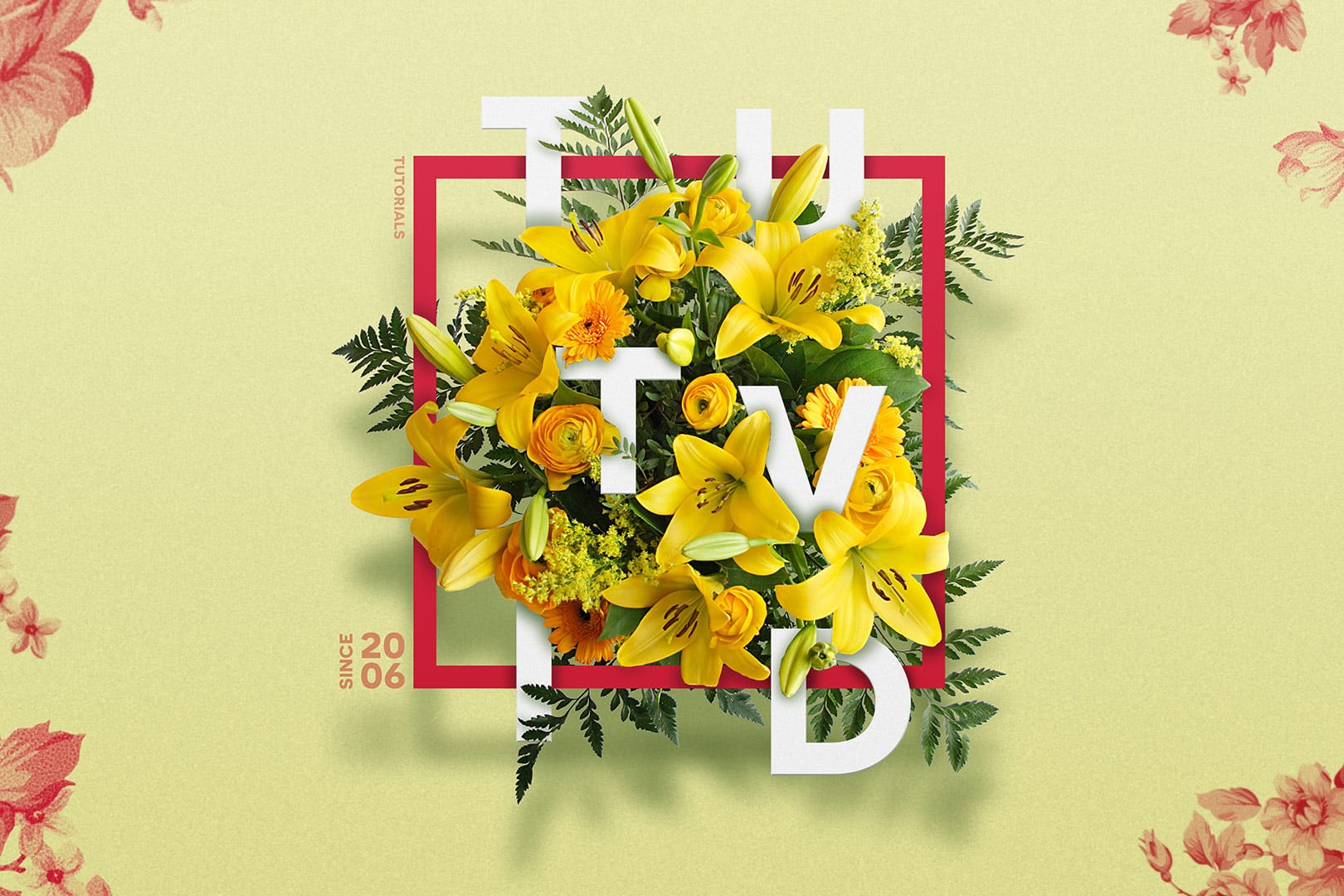
Create a Floral Typography Text Effect in Photoshop
Learn to create stunning floral typography in Photoshop. This tutorial teaches you to blend vibrant flowers with custom text, achieving a captivating visual that seamlessly integrates botanical elements with your design. Master techniques for realistic depth, perfect for unique posters, art, or personal projects.
Watch the Full Tutorial
Practical Tips for Crafting Floral Text Effects
* Convert masked images to Smart Objects early in the process to maintain editability of layer masks and tr
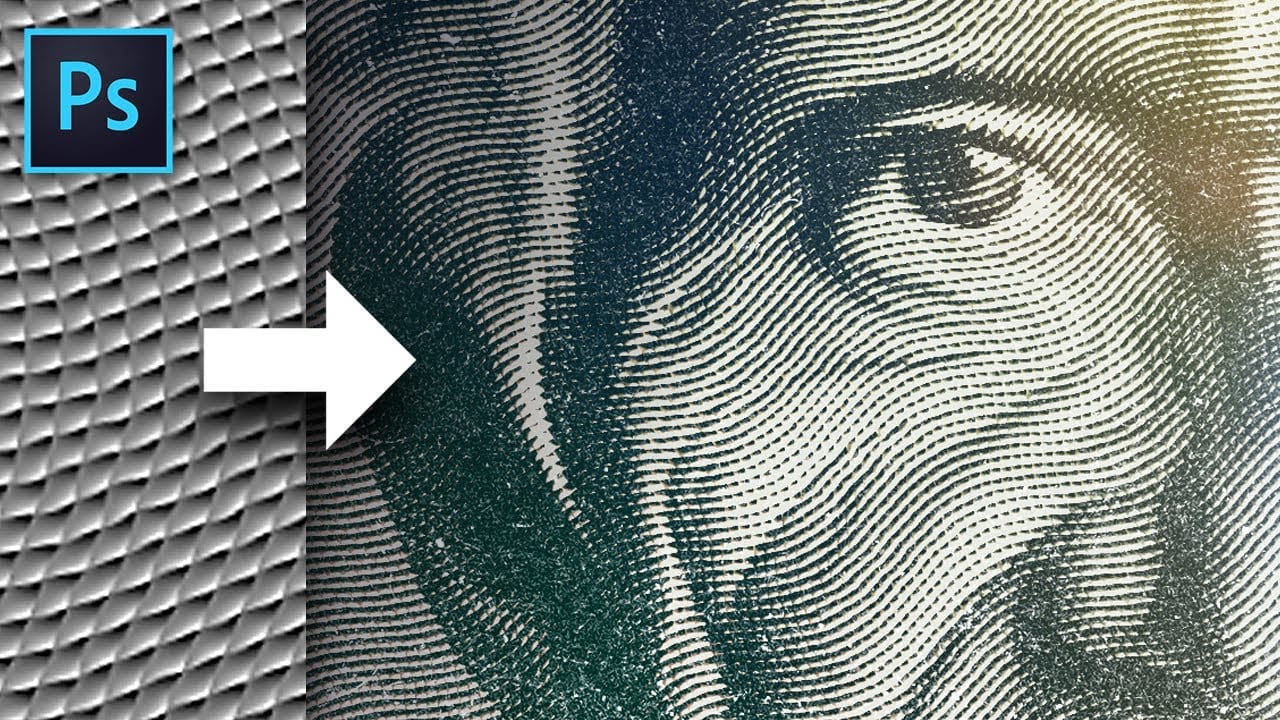
This magic texture creates an engraved money effect in Photoshop
Transform ordinary photos into vintage, engraved artwork using Photoshop's powerful texture and filter techniques. This tutorial reveals a simple method to create a classic dollar bill-style illustration effect that adds depth and artistic character to your images.
Watch the Video
Practical Tips for Creating the Engraved Money Effect
Master the art of transforming photographs into vintage, engraved illustrations with these key techniques:
* Create a custom 10x10 pixel grayscale texture as
Create Gorgeous Images With Topaz Texture Effects Plugin
Creating textured images in Photoshop is quite easy. Just paste a texture on a layer above your image, apply an Overaly Blending Mode and you are done! Looks ugly, doesn't it? Sorry. That's the way. If you don't like it you will have to spend most of your day downloading textures that look good on the web but don't blend well with your image. Needless to say that your image will still look bad. You have to start throwing some color correction tricks, vignettes, another texture, levels, and so on