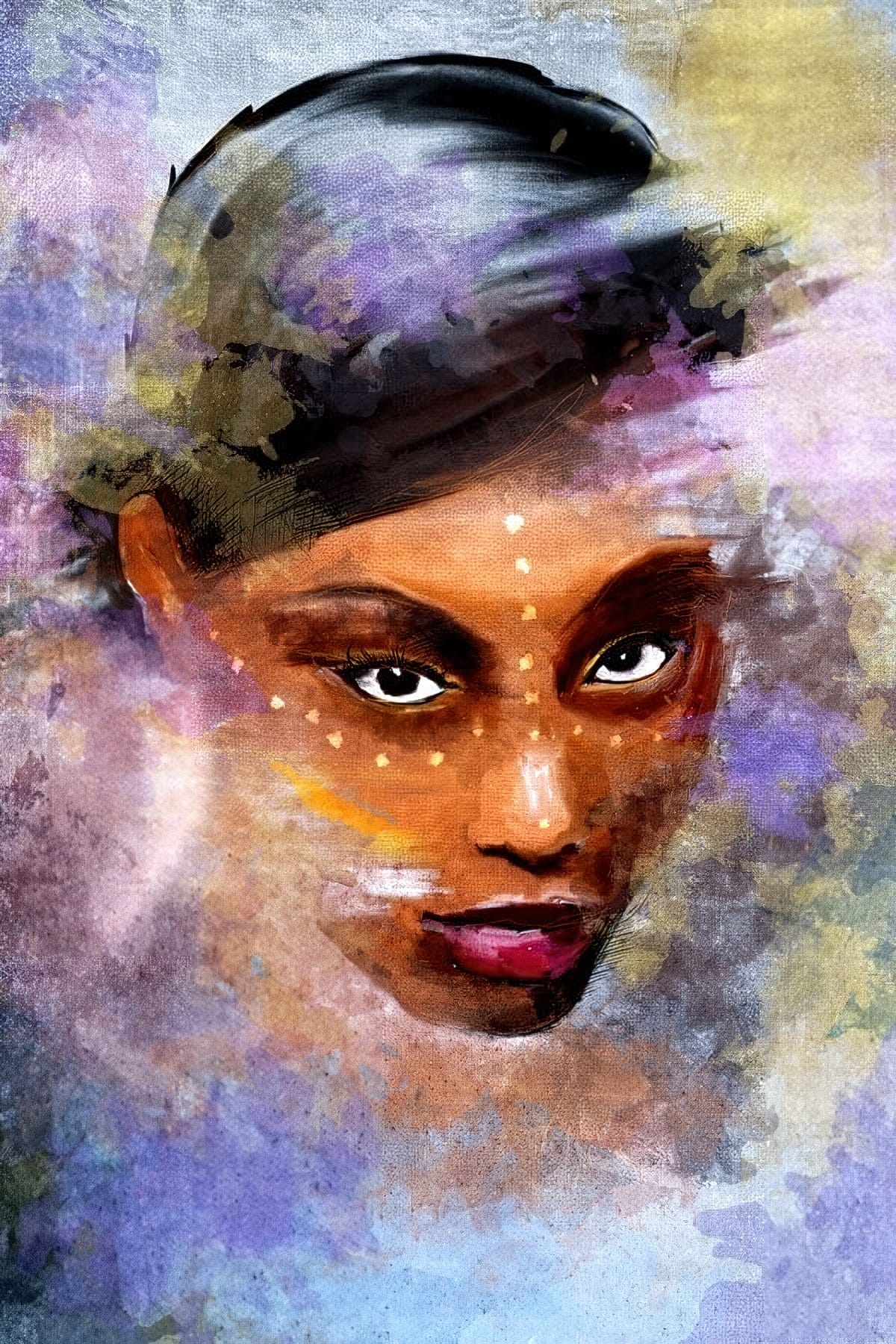
Portrait collages open up creative possibilities that go far beyond traditional photo editing. By combining artistic filters, color manipulation, and texture mapping, you can transform ordinary portraits into striking visual compositions that blend photography with graphic design elements.
This technique breaks down complex imagery into simplified color zones, then maps different textures to each area. The result is a unique artistic effect that maintains the subject's recognizable features while adding layers of visual interest through mixed media textures.
Watch the Tutorial
Video by P A N T E R. Any links or downloads mentioned by the creator are available only on YouTube
Practical Tips for Textured Collages
- Convert your portrait to a smart object before applying any filters to maintain editing flexibility
- Use four distinct texture types that match your intended tonal range from darkest to lightest
- Apply the cutout filter twice with identical settings to create sharper, more defined color zones
- Set blend-if controls by dragging the white triangle left for dark areas and black triangle right for light areas
- Adjust texture scale and positioning after applying blend modes to achieve better visual balance
Related Articles and Tutorials
Explore more creative portrait techniques and artistic photo manipulation methods.
6 exciting portrait effects you can do in Photoshop
Thanks to Snapchat app, you can easily swap faces with a friend or add funny animal masks to your face in a second. Hilarious! But what about quality?
Portrait retouching in Photoshop is not limited to high-end, professional retouching for magazines or photo books. You can also create some creative artistic portraits. Yeah, I bet you knew that. But do you know how to do it?
In this guide I will share 6 excellent Photoshop portrait effects tutorials from artists and instructors such as Marty Ge
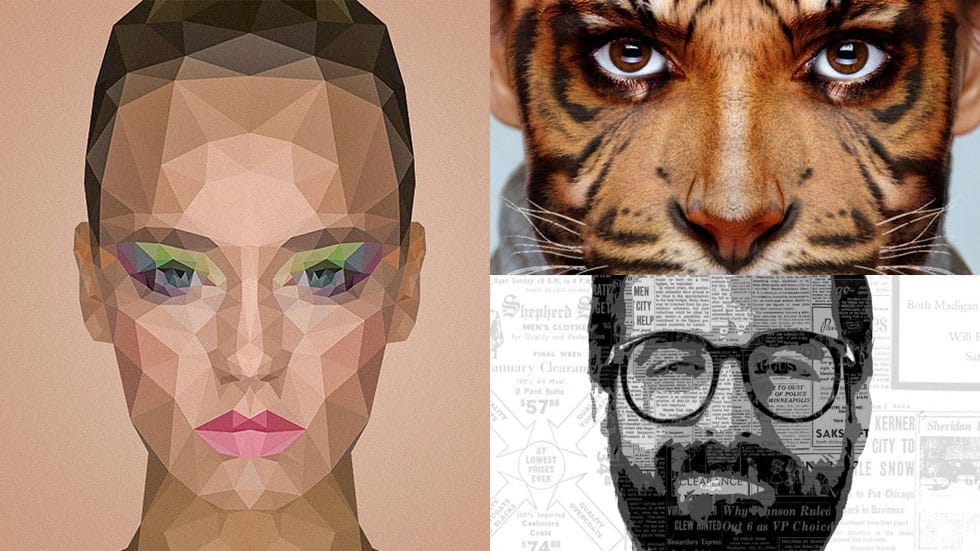
15 Fantastic Photoshop Portrait Effects You’ll Want to Slap on Every Selfie Right Now
Sure, the title says you’ll want to slap these effects on every selfie (that was me trying to grab your attention 😅) — but let’s be honest: these aren’t one-tap filters. Every tutorial here is built on real Photoshop craftsmanship — lighting, masking, blending, and a good dose of creative
 Enrique Flouret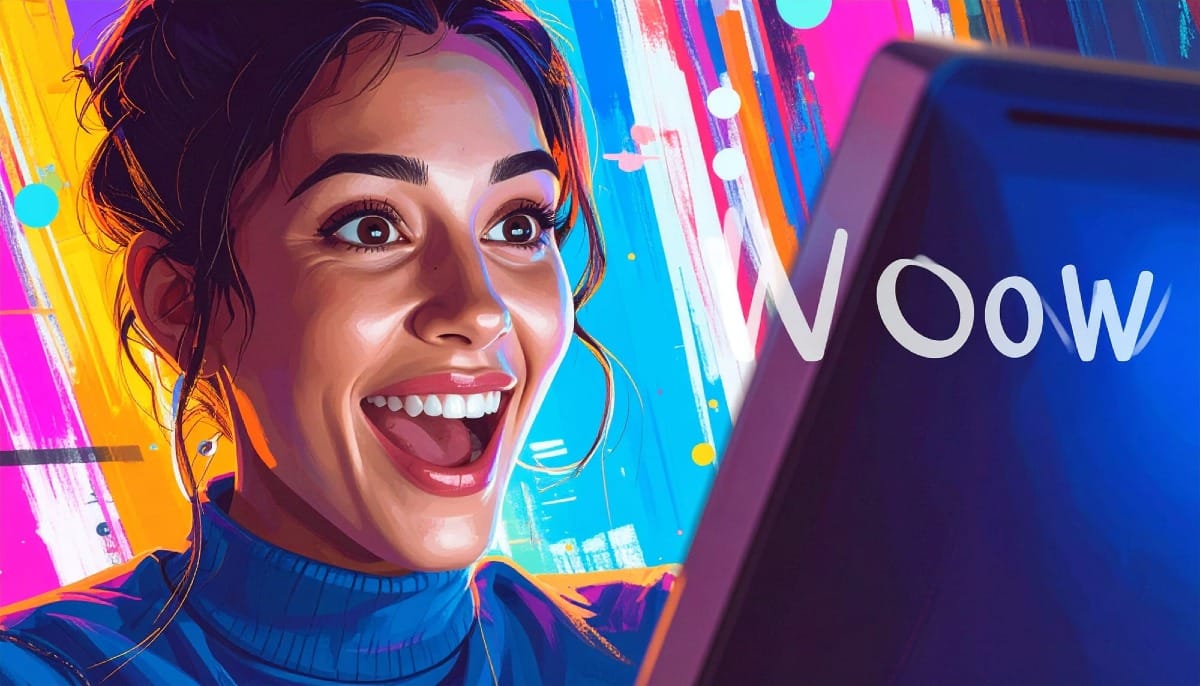
Add a Painterly Effect to a Portrait in Photoshop
Transforming a simple photograph into a breathtaking pencil sketch is a skill that sits at the intersection of art and technology. For designers seeking to push the boundaries of their creativity, mastering this technique can open up new avenues for artistic expression. Adobe Photoshop, with its vast array of tools and features, provides the perfect platform to achieve this intricate effect. In today's post, we delve into the sophisticated process of turning a photo into a pencil sketch, offerin
Create a Film Strip Photo Collage Portrait effect in Photoshop
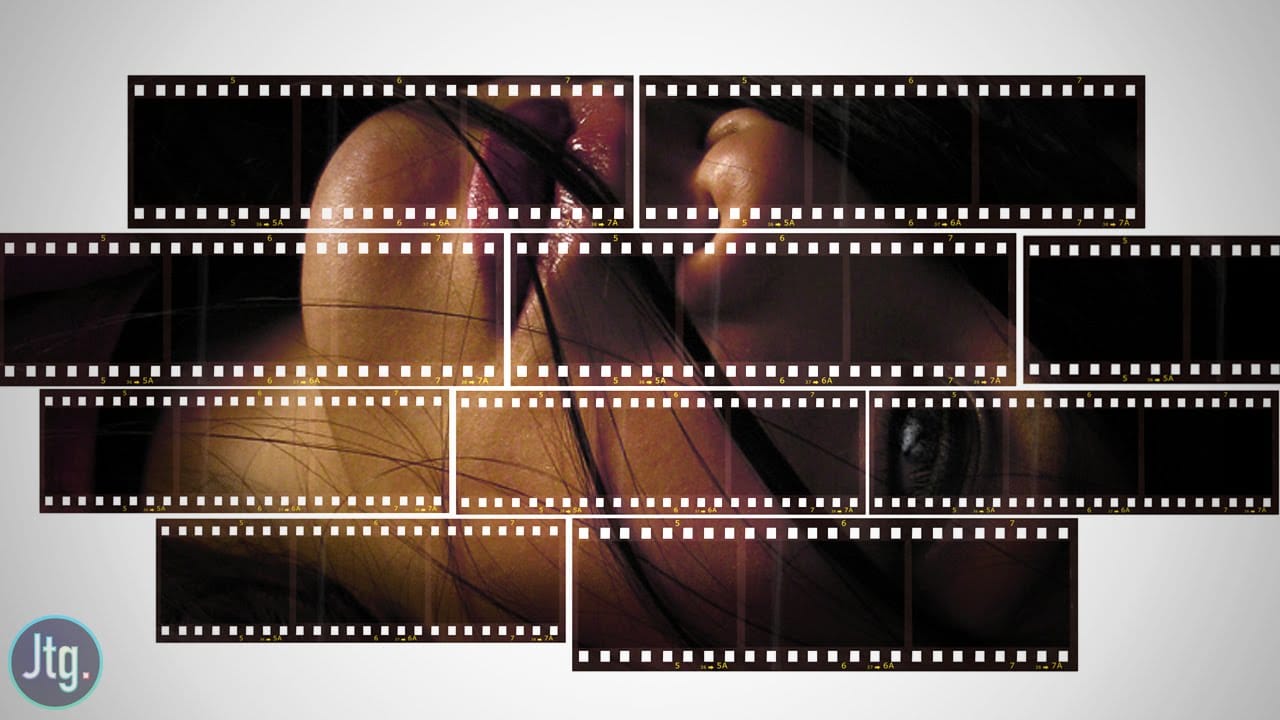
The film strip effect is a popular technique that allows you to frame your images in a unique, retro-inspired way. According to author Justin Odisho, this effect can be achieved in a few simple steps using Adobe Photoshop.
The process involves creating a collage-style layout with multiple images arranged in a filmstrip-like fashion. This approach not only adds a nostalgic touch to your photographs but also enables you to showcase several related or complementary images in a visually appealing m