Add Floral Patterns to Black Dresses Using Brushes in Photoshop

Add Floral Patterns to Black Dresses Using Brushes in Photoshop

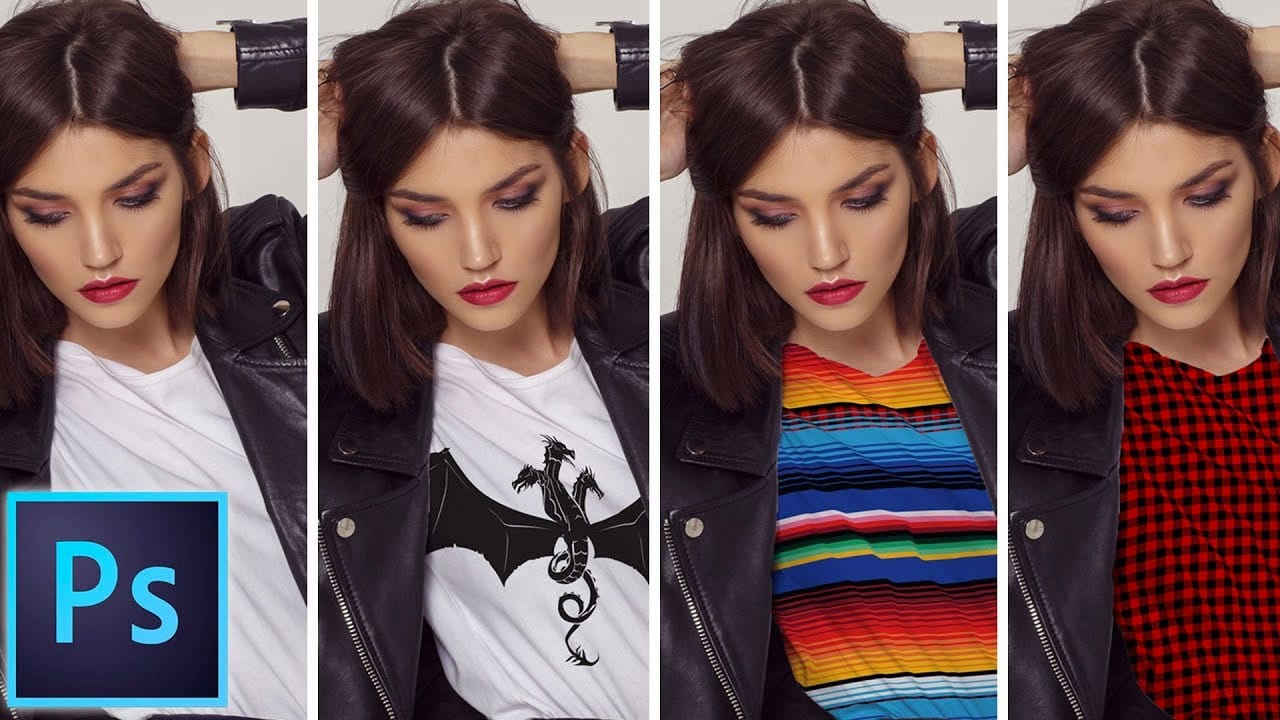
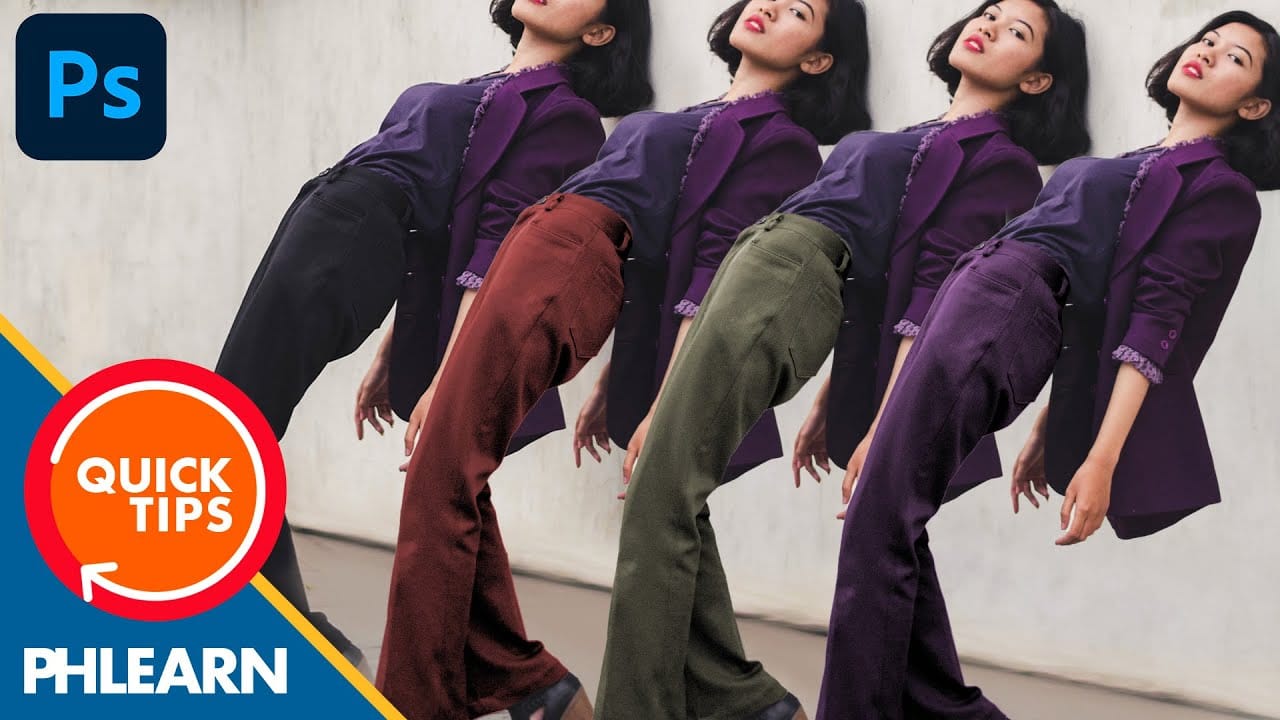
Transform plain black clothing into vibrant, patterned garments using custom brushes and strategic layer blending. This non-destructive technique combines precise selections with clipping masks to paint realistic floral designs directly onto fabric while preserving the original photograph.

The method works particularly well on black materials because the hard light blend mode allows colorful patterns to show through naturally, creating the appearance of printed fabric rather than overlaid graphics.

Watch the Video

Video by Nikki Harrison. Any links or downloads mentioned by the creator are available only on YouTube

Practical Tips

These key techniques will help you achieve realistic floral patterns on clothing:

  • Use Select Subject to create a precise layer mask, then create a clipping mask to contain your brush work to the selected area
  • Set your pattern layer to hard light blend mode to allow colors to interact naturally with the black fabric underneath
  • Apply multiple colors in layers (purples, greens, then reds) to create depth and natural color variation in your floral design
  • Use the eraser tool with a sharp brush to clean up any pattern that spills onto skin or unwanted areas
  • Adjust the fill percentage (around 55%) rather than opacity to fine-tune the pattern intensity for a more realistic appearance

Explore more advanced clothing customization and pattern application techniques:
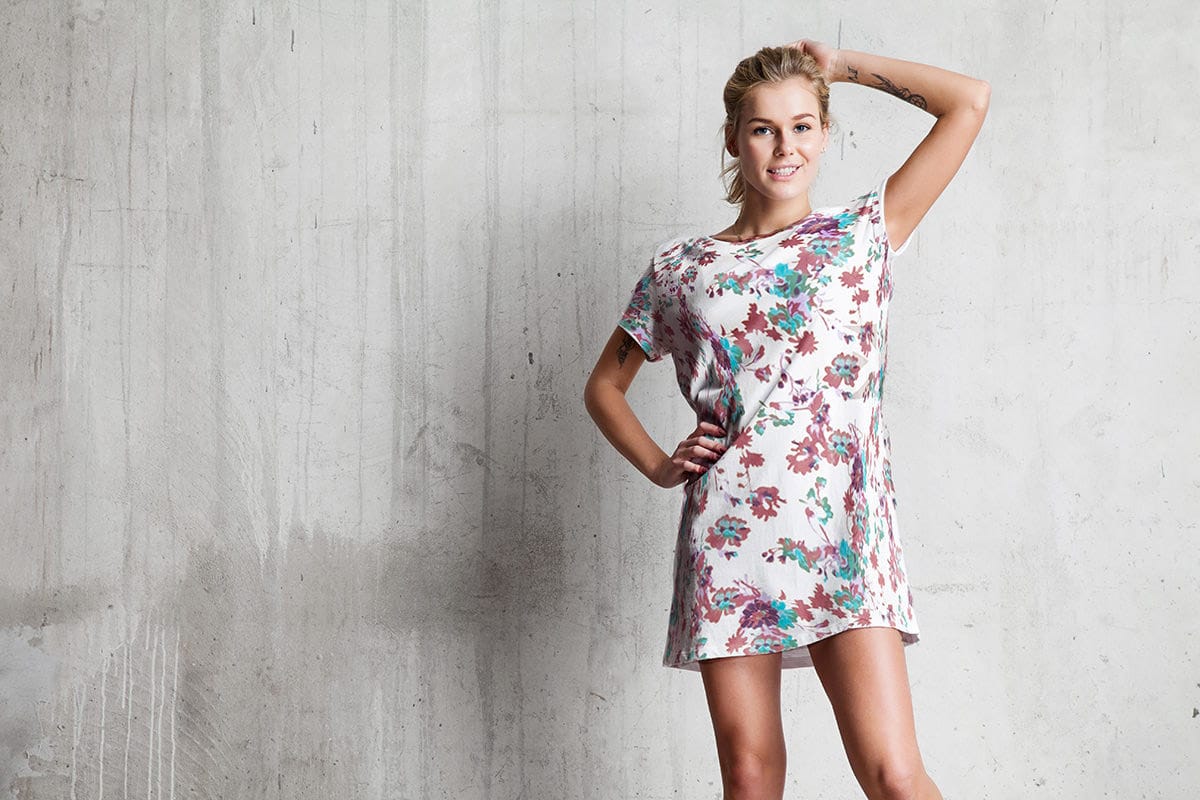
How to Add Patterns to Clothing in Photoshop
Creating realistic pattern overlays on clothing requires more than simply placing a texture on top. The fabric needs to conform to wrinkles, follow the garment's contours, and blend naturally with existing highlights and shadows. This technique combines precise selection work, the Liquify filter, and strategic blending modes to transform any pattern into convincing fabric that appears to be part of the original garment. Watch the Video Practical Tips These key techniques will help you achi
How to add a logo or pattern to a shirt in Photoshop
In his Photoshop tutorial, author Colin Smith guides viewers through the process of adding a logo, graphic, pattern, or texture onto clothing. This technique allows for quick and easy customization of apparel, enabling users to swap out designs in a matter of seconds. Smith's step-by-step instructions demonstrate how to seamlessly incorporate the desired visual element onto a shirt or other garment. By leveraging the power of Photoshop's layers and blending modes, users can achieve a profession
Add Patterns to Any Fabric in Photoshop
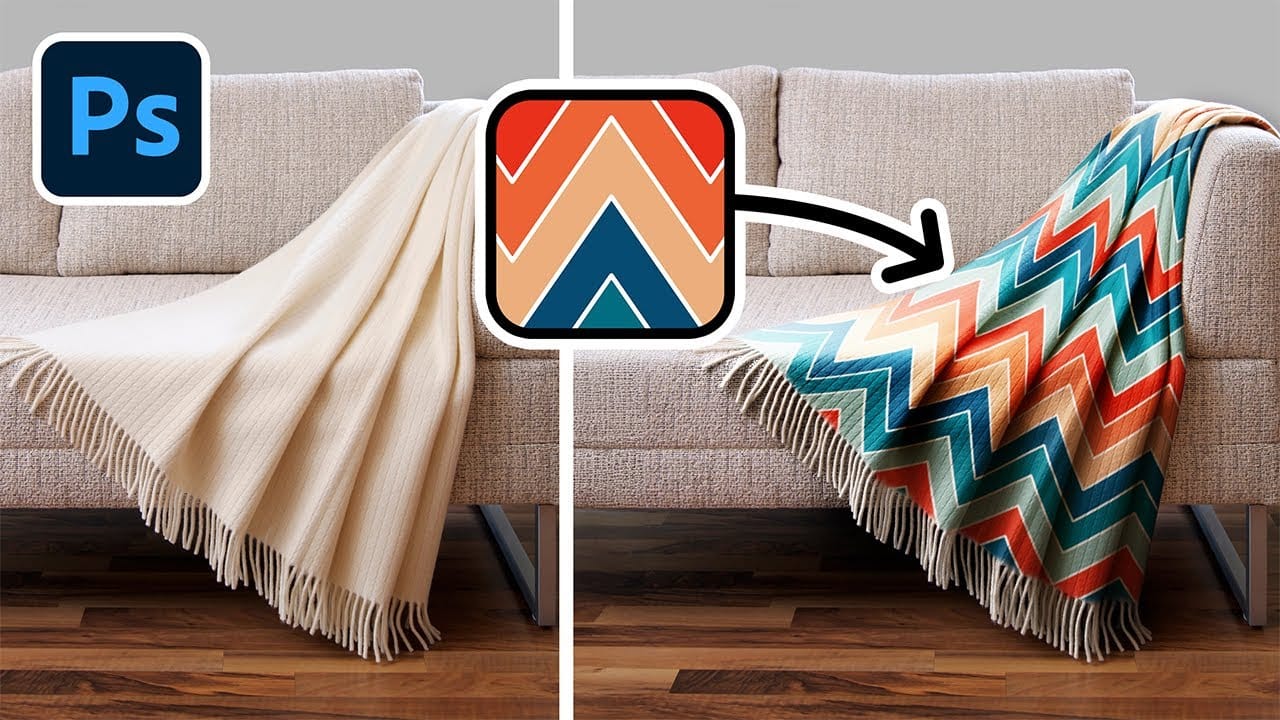
Digital artists and designers often face the challenge of integrating patterns onto fabric textures in a way that looks natural and convincing. Simply overlaying a pattern rarely achieves the desired realism, as fabric surfaces are rarely flat and uniform. Understanding how to make patterns conform to the unique contours of textiles is essential for creating believable composites and product mockups. This video tutorial provides a comprehensive guide to applying patterns to various fabric types
Black Moody Color Grading in Photoshop
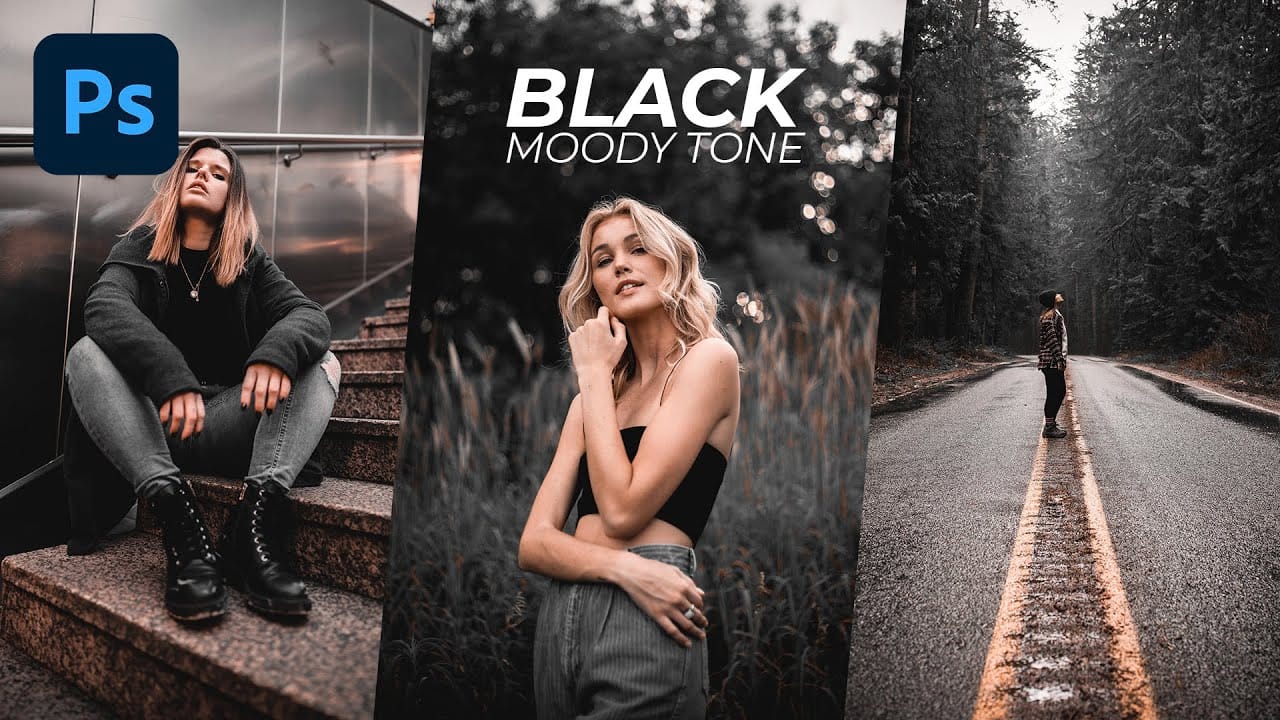
In this comprehensive Photoshop tutorial from WebFlippy, you'll learn how to create a stunning black tone moody color grading effect. This technique is perfect for adding depth and atmosphere to your photos, giving them a dramatic and sophisticated look. The tutorial provides a detailed, step-by-step guide on how to achieve this effect, making it accessible even for those new to Photoshop. You'll also discover how to save your adjustments as a preset, which allows you to quickly apply the same
Create a colorful wallpaper in Photoshop
In this Photoshop tutorial by Andrei Oprinca, you'll learn how to create an abstract wallpaper with colorful elements and effects. Oprinca starts by creating a new document with a light gray gradient background, converting it into a smart object, and adding noise. He then extracts a model's hair using the pen tool and refines the edges with the refine edge tool. Various shapes are added using the brush tool, lasso tool, and gradient tool, along with adjustment layers to alter the color tone. Le
How to change the color of clothing in Photoshop
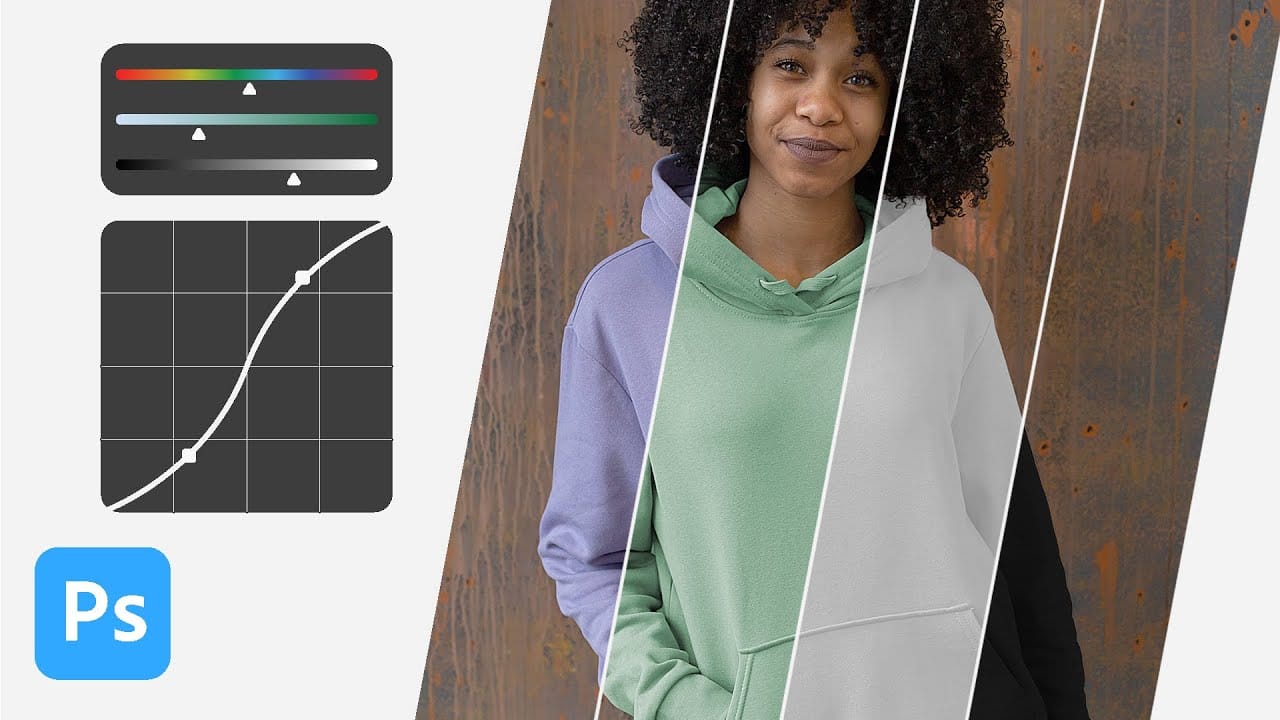
Changing clothing colors in product photos or portraits requires precise selection techniques and the right adjustment layers to achieve realistic results. Standard color replacement methods often fall short when creating convincing black or white clothing, which demand special attention to highlights and shadows. This method combines selection tools with dual adjustment layers to control both color and contrast, ensuring your color changes look natural and professional across any fabric type.
How To Create Detailed Graphic Patterns in Photoshop
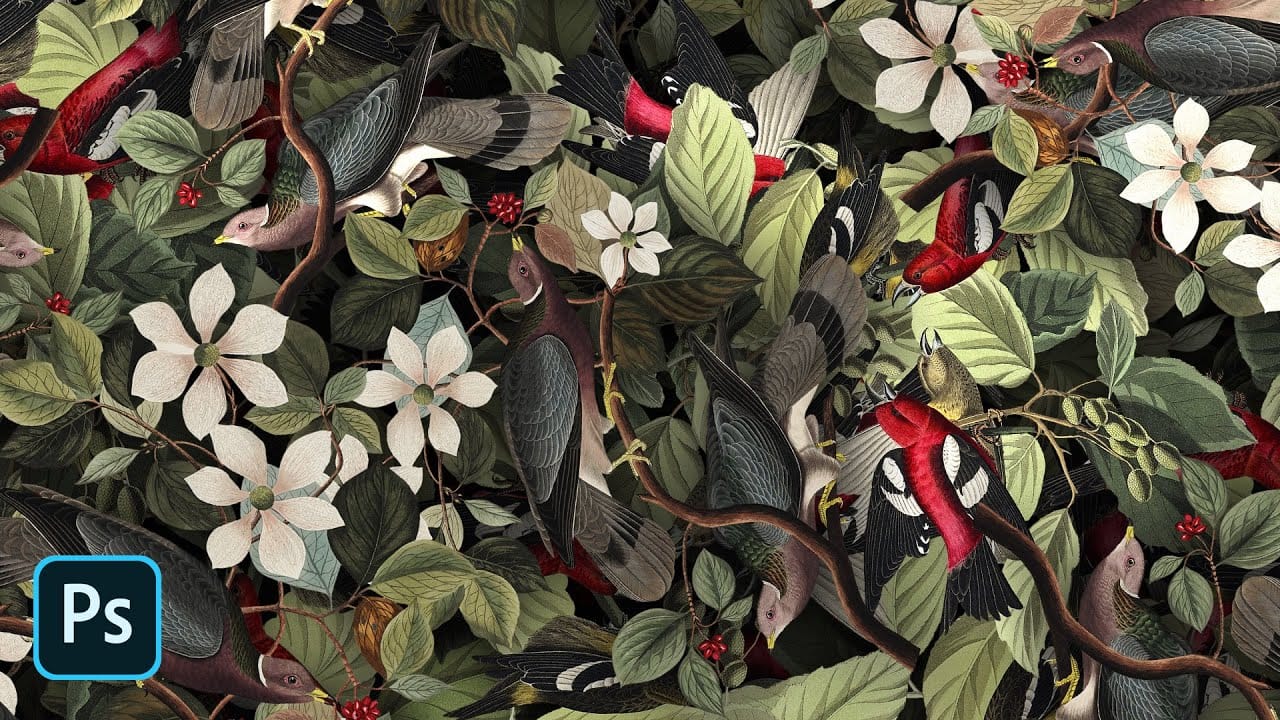
Transforming a single image into a sprawling, intricate design can elevate any creative project, from custom fabrics to unique digital backgrounds. This technique allows designers to fill vast areas with graphics, producing complex visual textures without noticeable repetition. It offers an innovative way to generate dynamic backgrounds and decorative elements that truly stand out. This tutorial reveals an effective method for developing detailed abstract patterns using any source image, like a
How to make colors pop in Photoshop
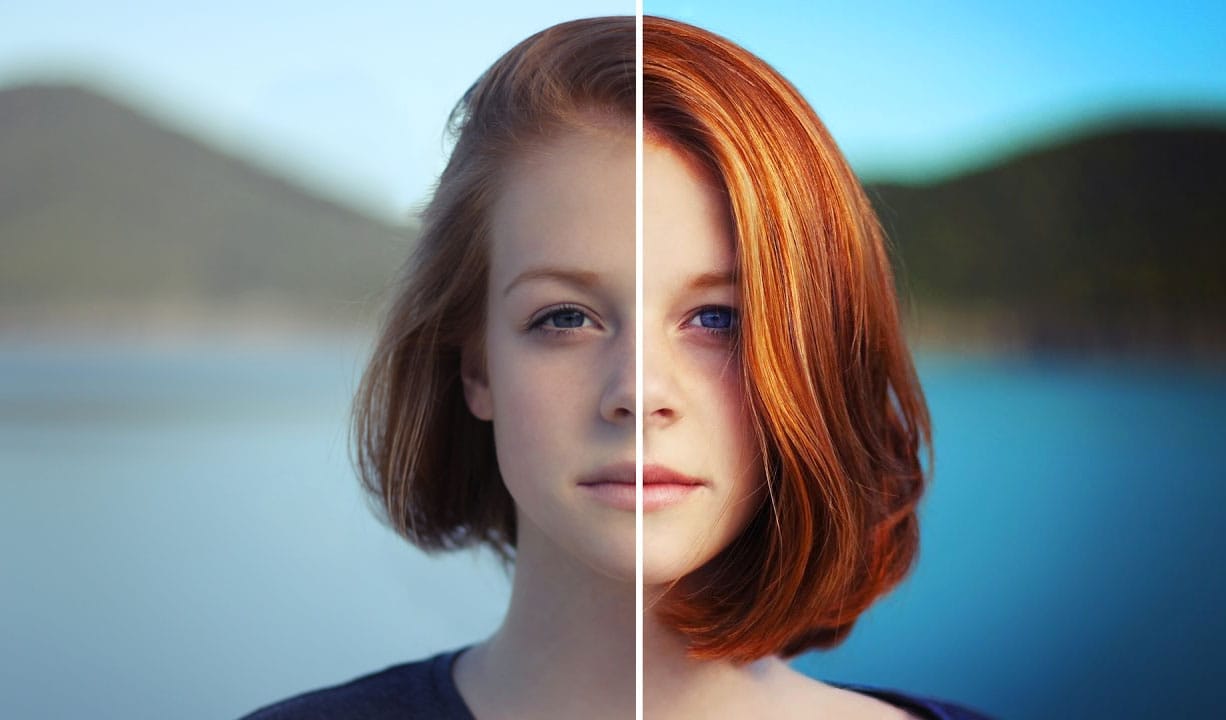
Selective color enhancement transforms dull photographs into vibrant, dramatic images by targeting specific areas like hair, skin, eyes, and clothing. This non-destructive approach uses precise selections and adjustment layers to boost colors naturally. The technique creates professional results by treating each element separately, allowing you to enhance blue sweaters, brighten eyes, warm skin tones, and intensify hair colors without affecting the entire image. Watch the Tutorial Practical
How to Change Black into Any Color in Photoshop
In this tutorial, Aaron Nace demonstrates how to transform black elements in your images into any color using Photoshop. This technique involves utilizing Levels and Hue/Saturation Adjustment Layers to achieve the desired color changes. Aaron guides you through the process of adjusting these settings to effectively modify black areas in your photos. This method is particularly useful for fashion and product photo retouching, allowing you to customize colors for creative or branding purposes. T
Transform Black to Any Color in Photoshop, Including White: Best Method
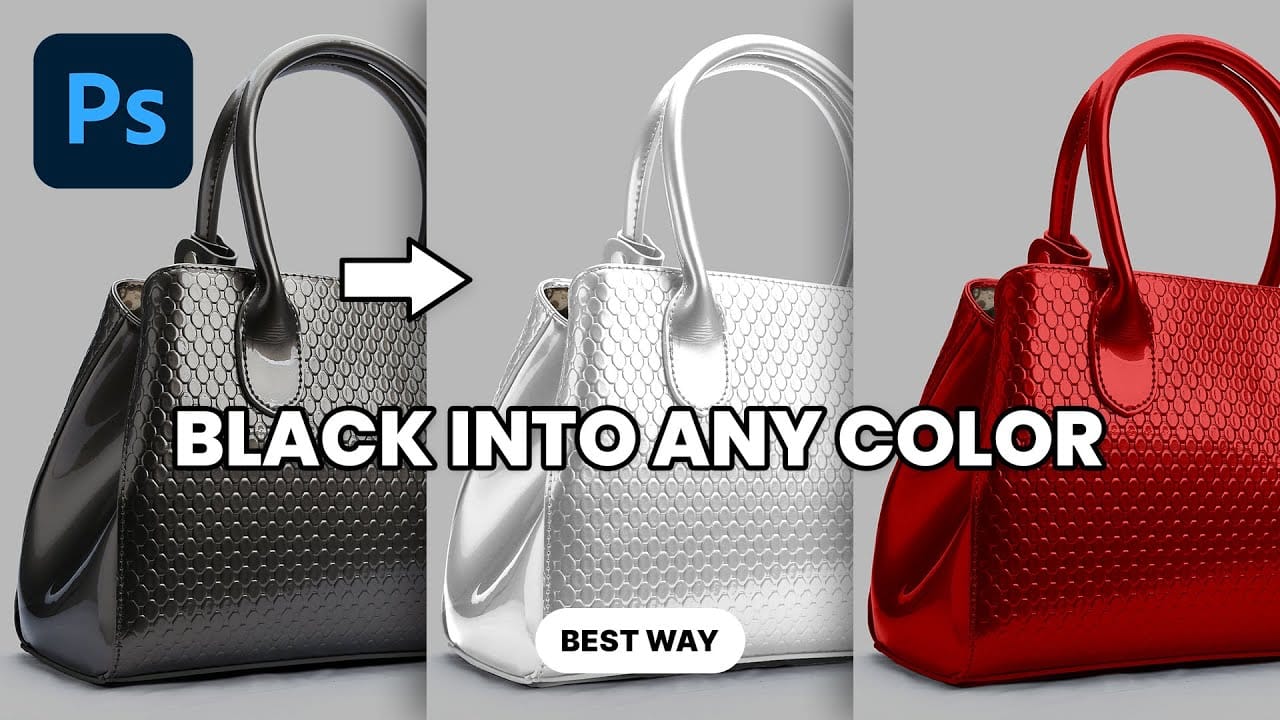
Changing the color of a black object in Photoshop can be a surprisingly frustrating task. Standard color adjustment tools often fail because pure black contains no hue or saturation data to manipulate, leaving designers and retouchers searching for a more effective solution. This tutorial demonstrates a powerful and flexible method for recoloring black objects, allowing you to turn them into any color you choose—even solid white. By learning this non-destructive technique, you can gain precise

Get tutorials & freebies delivered to you.

Subscribe to the Photoshop Roadmap newsletter, a weekly roundup of new tutorials, insights and quality downloads, trusted by 6500+ readers.

You might also like

How to Use Color Average for Color Toning in Photoshop

Color average creates a unified color tone by analyzing all the colors in your image and calculating their mathematical average. This technique adds depth and cohesion to photos, composites, and AI-generated images by applying a subtle color wash that ties all elements together. The method works particularly well for composites...

How to Remove Complex Background Elements Using AI in Photoshop

Removing complex background elements like fencing or wire mesh has traditionally been one of the most time-consuming tasks in photo editing. New AI-powered tools in Photoshop can now eliminate these distracting elements while preserving fine details in your subject. This tutorial demonstrates two practical workflows: one using the latest Firefly...

How to Use Photoshop's Auto Layer Rename Feature

Messy layer names like "Layer 52 copy 4" and "Untitled 5" clutter your workspace and slow down complex projects. Photoshop's new auto-rename feature uses AI to automatically identify and name layers based on their content, from "Woman in yellow shirt" to "...

New Generative Fill Features in Photoshop Beta: Reference Images and Credit Tracking

Photoshop Beta introduces significant improvements to Generative Fill that address the most requested features from users. The updated interface now displays your generative credit balance and usage, while the new reference image capability lets you add up to eight specific images to guide AI generation with precise visual examples. These...

Essential Photoshop Tools for Beginners: Brush, Crop, and Move Tool Tutorial

Learning Photoshop tools feels overwhelming when you don't know where to start. This tutorial focuses on three essential tools that form the foundation of most Photoshop work: the brush tool for painting and retouching, the crop tool for resizing and straightening images, and the move tool for positioning...

How to Add Custom Textures to Photos in Photoshop

Adding textures to photographs can transform ordinary images into compelling artistic compositions. This technique uses multiple texture layers combined with strategic blending modes and color adjustments to create depth and visual interest. The process involves layering different texture types—color overlays, surface patterns, and lighting effects—then using masking techniques...

You’ve successfully subscribed to Photoshop Roadmap
Welcome back! You’ve successfully signed in.
Great! You’ve successfully signed up.
Success! Your email is updated.
Your link has expired
Success! Check your email for magic link to sign-in.