How To Create Detailed Graphic Patterns in Photoshop

How To Create Detailed Graphic Patterns in Photoshop

Transforming a single image into a sprawling, intricate design can elevate any creative project, from custom fabrics to unique digital backgrounds. This technique allows designers to fill vast areas with graphics, producing complex visual textures without noticeable repetition. It offers an innovative way to generate dynamic backgrounds and decorative elements that truly stand out.

This tutorial reveals an effective method for developing detailed abstract patterns using any source image, like a photograph or illustration. It focuses on filling large canvases with randomly placed graphics, ensuring a unique and immersive pattern effect every time.

Watch the Video

Video by Spoon Graphics. Any links or downloads mentioned by the creator are available only on YouTube

Understanding Random Fill Patterns in Photoshop

Photoshop's random fill script offers a powerful alternative to traditional seamless patterns, particularly for projects requiring a large, non-repeating design. This method allows for a dynamic and organic arrangement of elements, moving beyond simple tileable textures to create truly unique visual compositions. The flexibility to adjust density, scaling, and rotation for each layer contributes to a richer, more complex final pattern.

Achieving a compelling detailed pattern involves layering multiple applications of the random fill, adjusting parameters like density and brightness to build depth. Fine-tuning elements like drop shadows and brightness adjustments further enhances the three-dimensional quality, making the pattern appear as if it recedes and protrudes from the background.

  • Dynamic Pattern Generation: Creates non-repeating designs across large areas.
  • Layered Approach: Builds complexity by adding multiple fills with varied settings.
  • Customizable Elements: Controls density, scaling, rotation, and color randomness.
  • Depth Enhancement: Utilizes drop shadows and brightness adjustments to add dimension.
  • Source Image Flexibility: Works with any photo or illustration.

Practical Tips for Creating Detailed Graphic Patterns

  • Prepare your source image by clipping it from its background and defringing to eliminate halos.
  • Resize your graphic to a manageable size before defining it as a pattern using the Edit > Define Pattern menu.
  • Begin with a black canvas, then use Edit > Fill with the random fill script, adjusting density and scaling.
  • Build your pattern in layers, adding new layers and applying the random fill multiple times, varying settings.
  • Apply a subtle drop shadow layer style to all pattern layers to add depth and definition to the graphics.
  • Incorporate brightness and contrast adjustment layers clipped to specific pattern layers for varied tonal depth.
  • Use the High Pass filter with an Overlay blending mode on a merged layer to subtly sharpen the final pattern.

Discover more techniques for generating patterns and applying them effectively within your Photoshop projects.
How to create seamless patterns in Photoshop with graphics or images
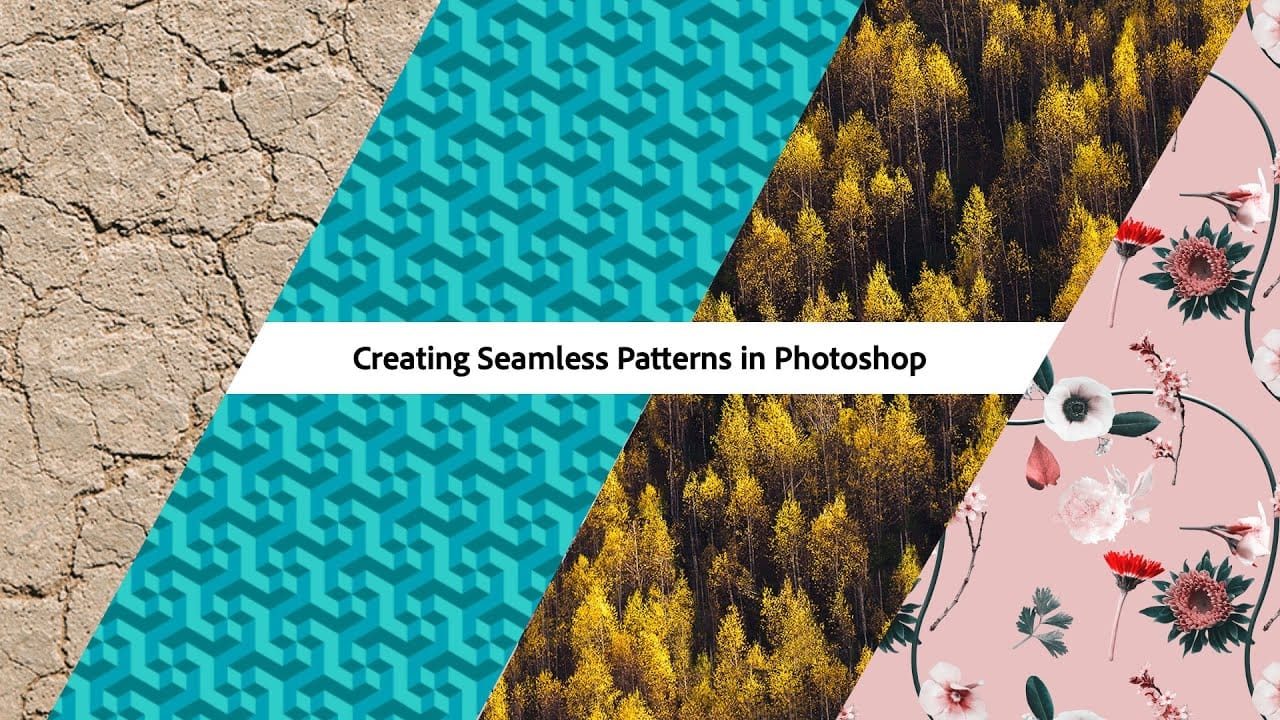
If you want to learn how to make a pattern in photoshop, this tutorial will share how to create a seamless repeating pattern with both graphics and an image. This way you can design a pattern for your digital art, printing, or graphic design, while also saving textured patterns from images to use in your composites and photo manipulations! With the help of the Offest filter, this entire process of making a pattern in photoshop is surprisingly simple and is an awesome way to add more creative as
Creating Seamless Patterns in Photoshop
In this tutorial, Adobe Evangelist Paul Trani delves into the process of creating seamless patterns in Photoshop. Seamless patterns are essential for various design projects, from backgrounds to textiles, and mastering them can significantly enhance your design capabilities. Paul takes you through the entire process, from setting up your initial design to ensuring that the pattern tiles seamlessly across any surface. He covers essential techniques such as defining pattern edges, adjusting spaci
How to Add Patterns to Clothing in Photoshop
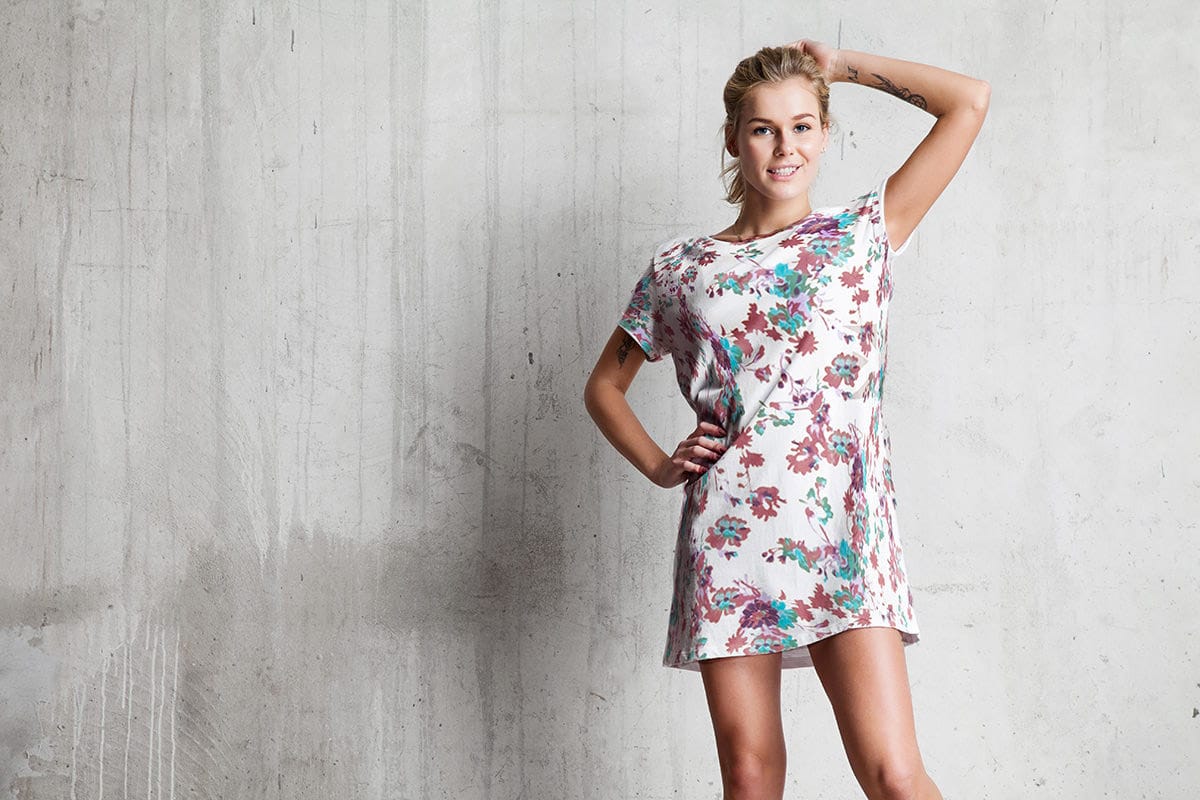
In this comprehensive tutorial, author Aaron Nace from Phlearn guides readers through the process of adding a pattern to clothing in Photoshop. The step-by-step approach ensures that even novice users can easily follow along and achieve professional-looking results. The tutorial begins by explaining how to scale and rotate the pattern, positioning it with precision to create a seamless and visually appealing design. From there, the author demonstrates the use of the Liquify tool, a powerful fea
Add Patterns to Any Fabric in Photoshop
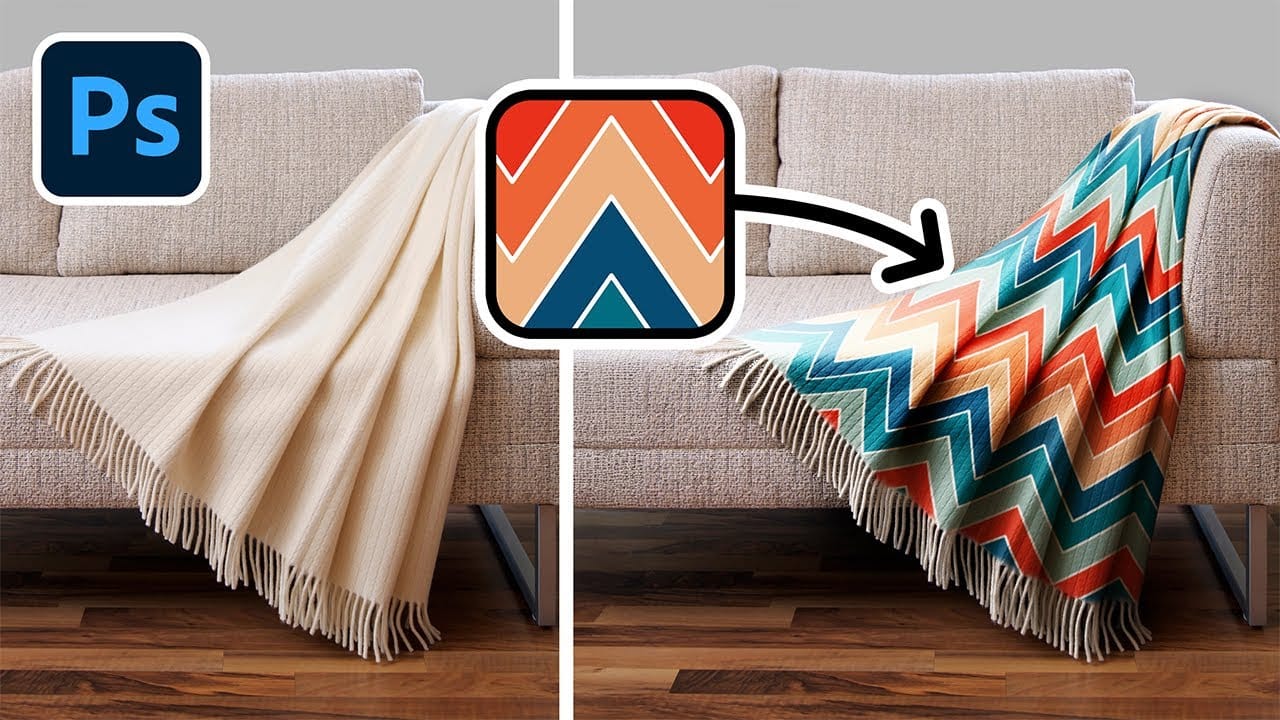
Digital artists and designers often face the challenge of integrating patterns onto fabric textures in a way that looks natural and convincing. Simply overlaying a pattern rarely achieves the desired realism, as fabric surfaces are rarely flat and uniform. Understanding how to make patterns conform to the unique contours of textiles is essential for creating believable composites and product mockups. This video tutorial provides a comprehensive guide to applying patterns to various fabric types

Get tutorials & freebies delivered to you.

Subscribe to the Photoshop Roadmap newsletter, a weekly roundup of new tutorials, insights and quality downloads, trusted by 6500+ readers.

You might also like

Create an Old Masters Painting Effect from a Studio Portrait in Photoshop

Old Masters paintings capture drama and character through rich textures, dramatic lighting, and warm color palettes. By combining strategic dodging and burning with selective color adjustments and composite backgrounds, you can transform a simple studio portrait into a classical painterly masterpiece. This technique focuses on enhancing natural textures rather than...

How to Use AI Depth Masking in Photoshop for Targeted Subject and Background Editing

AI depth masking revolutionizes how you select and edit specific areas of your photos by analyzing three-dimensional space rather than shapes or colors. This powerful feature uses artificial intelligence to calculate depth layers, allowing you to brighten subjects while darkening backgrounds or apply targeted adjustments based on distance from the...

9 Lazy Photoshop Habits You Need to Break Right Now

Photoshop has added incredible AI features and smarter workflows over the last few years to save you time. Yet, you might still be stuck using clunky, manual workarounds you learned years ago. If you are constantly repeating tedious tasks, you are losing time and actively limiting the quality of your...

Professional Portrait Retouching with the B.S.T. Method in Photoshop

Professional portrait retouching requires artistic choices that automated tools can't make. The B.S.T. method breaks retouching into three focused steps: removing blemishes with precision, smoothing skin while preserving natural texture, and equalizing skin tones throughout the image. This systematic approach gives you complete control over every...

Create Motion Blur Light Effects in Photoshop

Transform ordinary portraits into dynamic, cinematic images by combining path blur effects with creative background textures. This technique creates the illusion of camera movement while maintaining focus on key elements like the subject's eyes, resulting in professional-looking motion blur effects that add energy and visual interest to static...

How to Paint Realistic Jewelry on Portraits in Photoshop

Adding painted jewelry to portraits transforms ordinary photos into fantasy portraits with ornate accessories that never existed. This digital painting technique uses careful layering, proper lighting, and realistic shadows to create convincing rings, earrings, and decorative headpieces. The method combines basic brush work with advanced blending techniques to build up...

You’ve successfully subscribed to Photoshop Roadmap
Welcome back! You’ve successfully signed in.
Great! You’ve successfully signed up.
Success! Your email is updated.
Your link has expired
Success! Check your email for magic link to sign-in.