Skin shine can ruin an otherwise perfect portrait, creating distracting bright spots that draw attention away from your subject. Using Photoshop's Selective Color adjustment layer combined with layer masking provides precise control over these problematic highlights.
This technique targets only the brightest areas of skin and allows you to selectively apply corrections where needed, maintaining natural skin texture throughout the process.
Watch the Video
Video by Photoshop Arthouse. Any links or downloads mentioned by the creator are available only on YouTube
Practical Tips
Key techniques for successful shine removal:
- Use the white tonal range in Selective Color to target only the brightest highlight areas
- Enable Absolute mode for stronger adjustments when dealing with prominent shine
- Invert the layer mask first, then paint with white to reveal corrections only where needed
- Set brush opacity to 70-75% for gradual, natural-looking corrections
- Adjust slider values based on your specific image's color characteristics and lighting conditions
Related Articles and Tutorials
Explore more professional skin retouching techniques and workflows:
A Definitive Guide to Portrait Beauty Retouching in Photoshop
Mastering beauty retouching gives you the ability to take any portrait further, fixing what the camera couldn’t, refining what the light missed, correcting the natural imperfections that skin always carries, and delivering results that hold up at any size and in any context. That range is wider than it seems.
 Enrique Flouret
Flawless 1-Min Skin Retouch Action in Photoshop
In this tutorial, you will learn a fast and effective technique for retouching skin using Photoshop. This method focuses on creating smooth, beautiful skin in under a minute.
You'll discover how to generate a brand new skin texture from scratch and apply advanced blurring techniques. The goal is to achieve smooth and even skin without any blemishes, all while preserving the natural skin texture. By following these steps, you can quickly transform your photos without losing detail.
Additionally

Model Skin Retouch Photoshop Actions
Introducing the Model Skin Retouch Photoshop Action, a powerful tool designed for photographers who need a quick and efficient way to retouch skin images. This action separates the skin and texture into different layers, allowing for even skin tones and reduced blemishes without making the image look unnatural or plastic-like. The benefits of this action include:
1. Maintaining Skin Texture: Ensures the skin retains its natural feel.
2. Even Skin Tone: Smooths and evens out skin tones for a p

Natural Skin Smoothing in Photoshop
Professional beauty retouching demands techniques that smooth skin while preserving natural texture. This advanced method combines inverted layers with Vivid Light blend mode to create seamless skin enhancement without the artificial "plastic" look common in over-processed images.
The technique works by canceling out layer information through inversion, then selectively applying blur and sharpening filters to reconstruct realistic skin texture while eliminating blemishes and color irregularitie
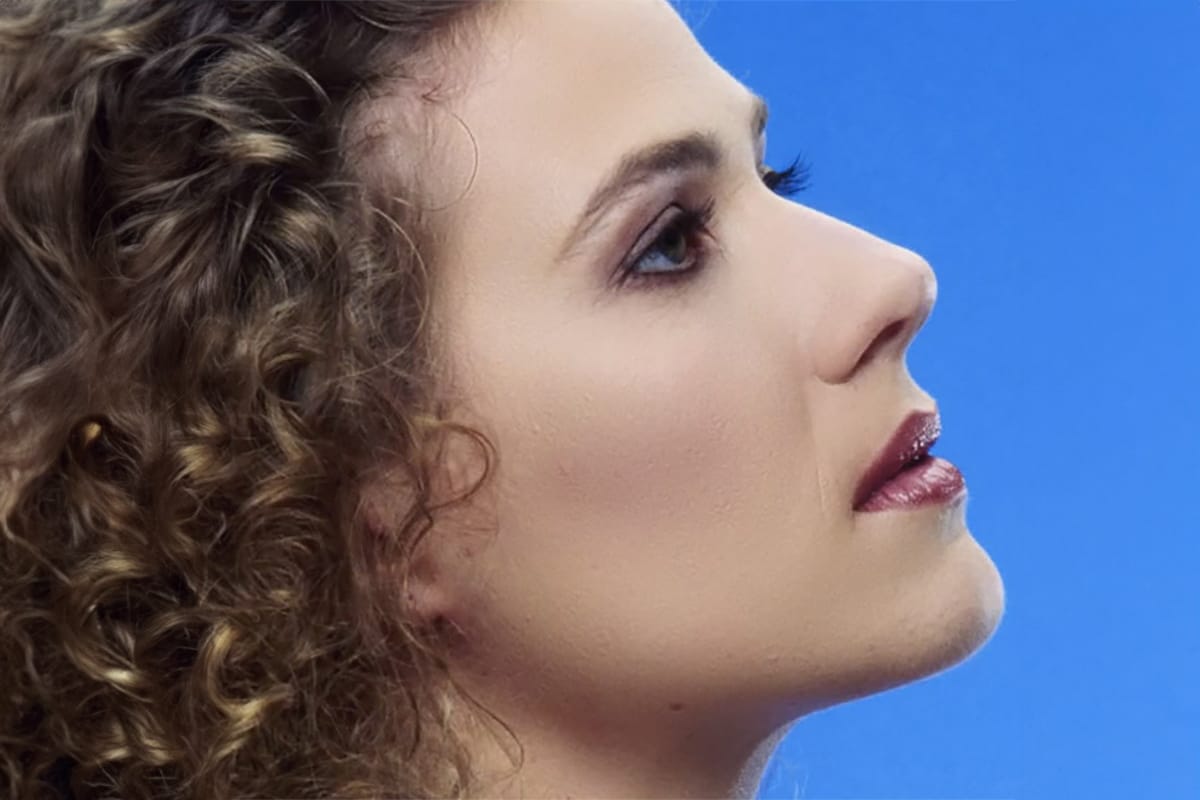
High-End Skin Retouching in Photoshop
Combining the power of Frequency Separation along with manual Sampling and Painting, learn how to recreate and sculpt the skin, maintaining a beautiful skin texture, in this tutorial by PiXimperfect.
Using this technique, you will not only achieve a smooth skin but also will have the control to naturally remove wrinkles, lift up the cheekbones, and renovate the whole structure of the skin with the skin texture still intact. This is an All-in-One Method whether you want to soften the skin or jus
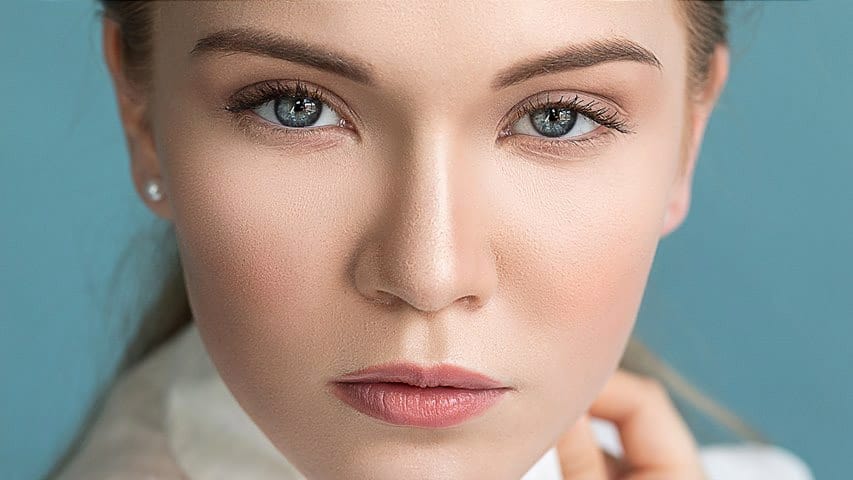
Smooth Skin and Remove Blemishes and Scars in Photoshop
Achieving flawless skin in portraits often requires careful retouching to enhance natural beauty without sacrificing detail. This tutorial demonstrates a reliable Photoshop workflow for refining skin texture and addressing common imperfections.
Viewers will discover how to efficiently smooth skin texture, eliminate blemishes and scars, and precisely restore important facial features like eyes and lips, ensuring a natural and polished outcome.
Watch the Tutorial
The Principles of Natural Ski
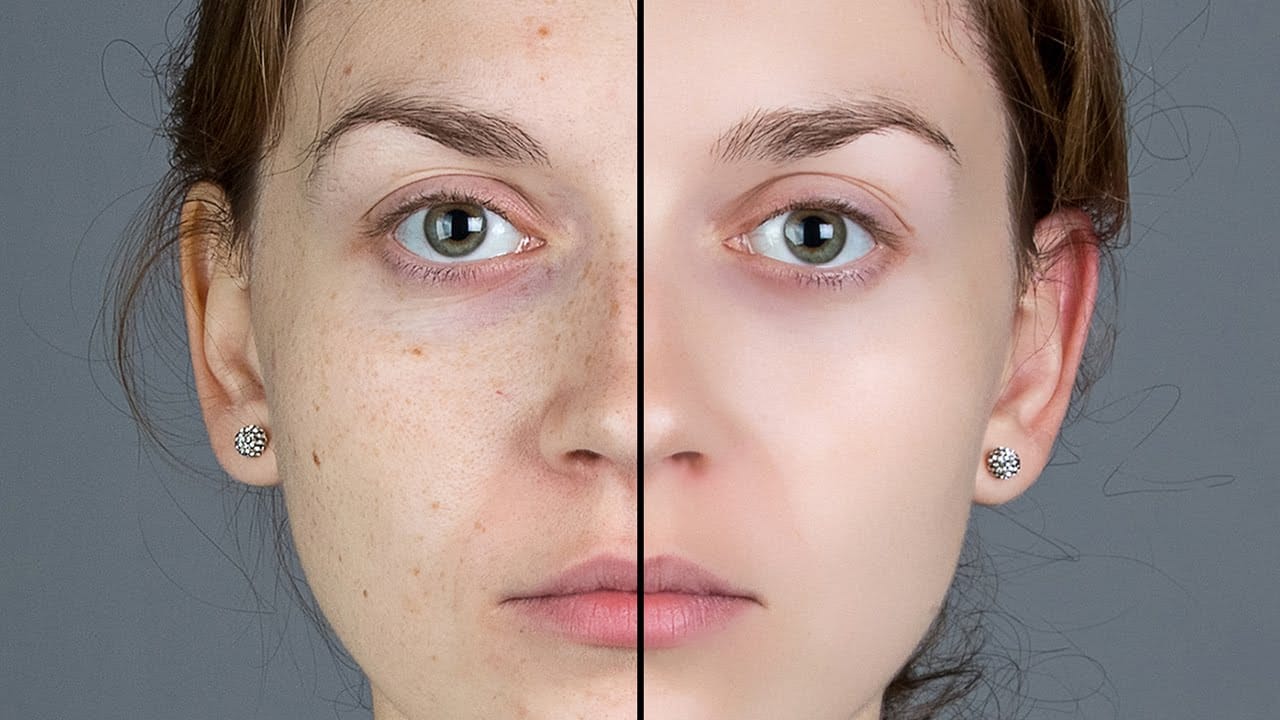
High-end skin retouching with just 2 layers in Photoshop
One of the simplest ways to perform high-end skin retouching in Photoshop! Whether you are creating magazine covers or working on a high-end project, achieve the best quality skin using just 2 layers! In this tutorial by PiXimperfect, we will learn a simple blend mode to do extensive dodging and burning to get the most realistic skin texture, maintaining the softness, and keeping the skin flawless.
This two-layer technique is just another way to do dodging and burning, but a little more easily
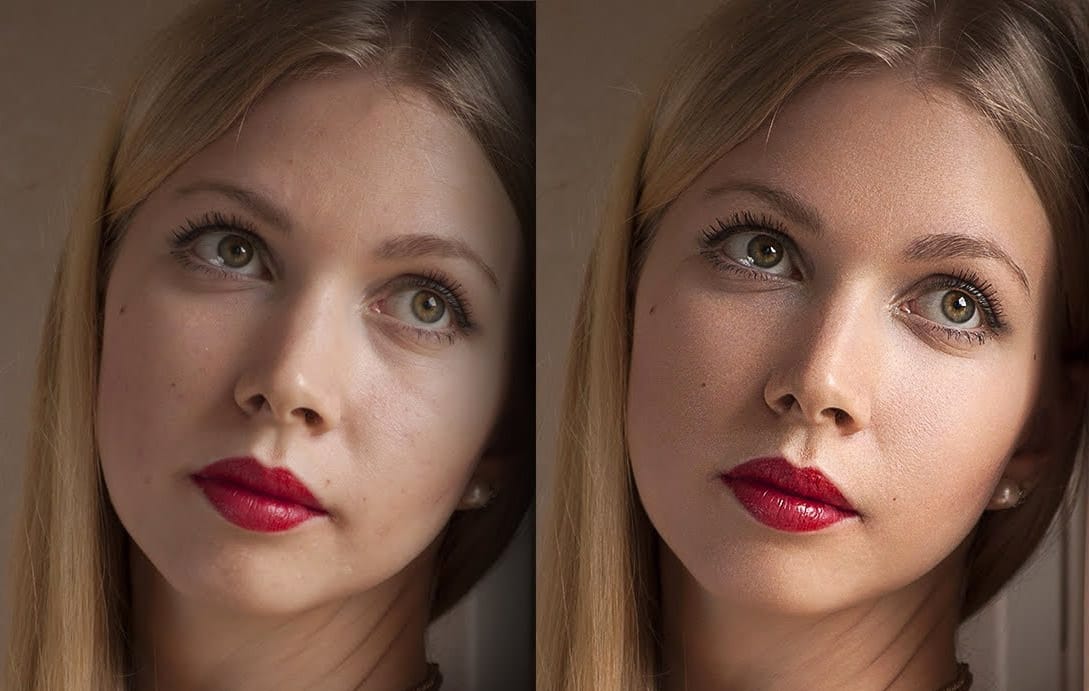
Skin Retouching and Soft Light Effect in Photoshop
In this tutorial, the author, Click 3D, guides viewers through the process of high-end skin retouching using the Frequency Separation technique and applying a soft light effect in Photoshop. The author explains the step-by-step instructions, making it accessible for both novice and experienced Photoshop users.
The tutorial covers how to use Frequency Separation to smoothen and refine skin texture, while maintaining the natural details. Additionally, the author demonstrates the application of th

5 easy ways to clean blemishes and heal skin in Photoshop
Skin imperfections such as blemishes, acne, or scars can significantly impact the visual appeal of an otherwise excellent photograph. Achieving a polished, natural finish often becomes a challenging and frustrating task, as manual removal methods can easily lead to unnatural-looking results if not executed with precision and care.
This comprehensive tutorial delves into multiple Photoshop techniques specifically designed for effectively healing and removing skin blemishes. Viewers will learn va
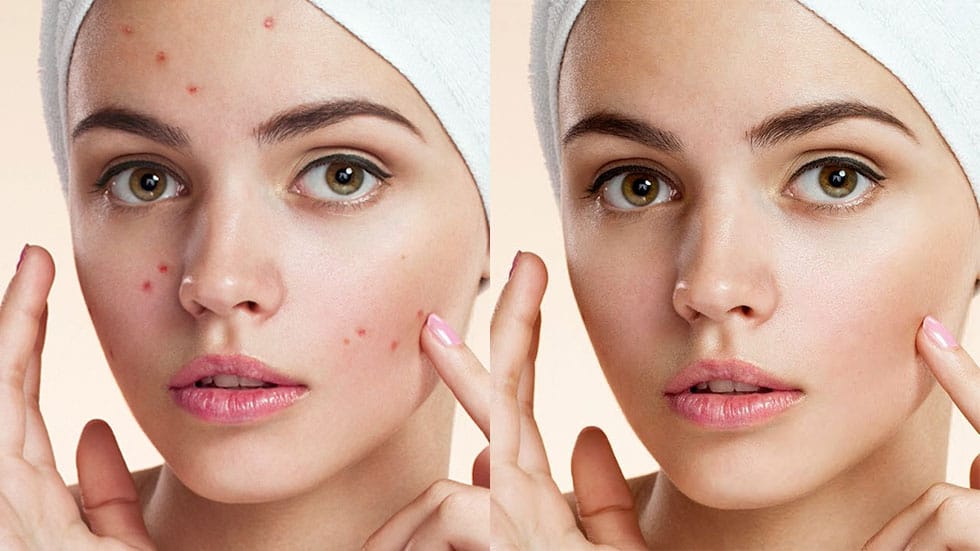
Aperty: The Portrait Editor That Understands Faces
Aperty uses AI to recognize facial features for targeted portrait retouching. 10x faster processing with natural results. Try the 7-day free trial.
 Enrique Flouret