Complete Guide to Digital Photo Compositing in Photoshop

Complete Guide to Digital Photo Compositing in Photoshop

Creating fantasy digital artwork requires mastering the art of photo compositing, where multiple elements come together to form a cohesive scene. This comprehensive tutorial demonstrates how to build a dramatic composition featuring a wolf and human figure in a mystical nighttime setting.

The process covers every aspect of professional compositing, from background removal and lighting techniques to color grading and atmospheric effects. You'll learn to create realistic shadows, add depth with blur effects, and enhance the mood with particles and mist.

Watch the Video

Video by Zenzdesign. Any links or downloads mentioned by the creator are available only on YouTube

Practical Tips

Master these essential techniques for creating professional photo composites that look believable and atmospheric.

  • Convert layers to Smart Objects before resizing to maintain image quality throughout the editing process
  • Use the Clone Stamp tool to refine edge details on fur and organic textures after automated background removal
  • Create consistent lighting by adding Hue/Saturation adjustment layers with colorize enabled and low-flow brush work
  • Build realistic shadows using Multiply blend mode with colors sampled from the surrounding environment
  • Apply depth of field effects using Blur Gallery filters to separate foreground and background elements

Explore these tutorials to expand your compositing skills and learn advanced photo manipulation techniques.

Essential Photo Compositing Tips for Better Image Blending
Professional photo compositing requires more than just combining images—it demands understanding how light, perspective, and color work together. These fundamental techniques separate amateur collages from convincing, professional-quality composites that tell compelling visual stories. Mastering composition rules, shadow behavior, and color matching creates seamless blends that viewers accept as natural.
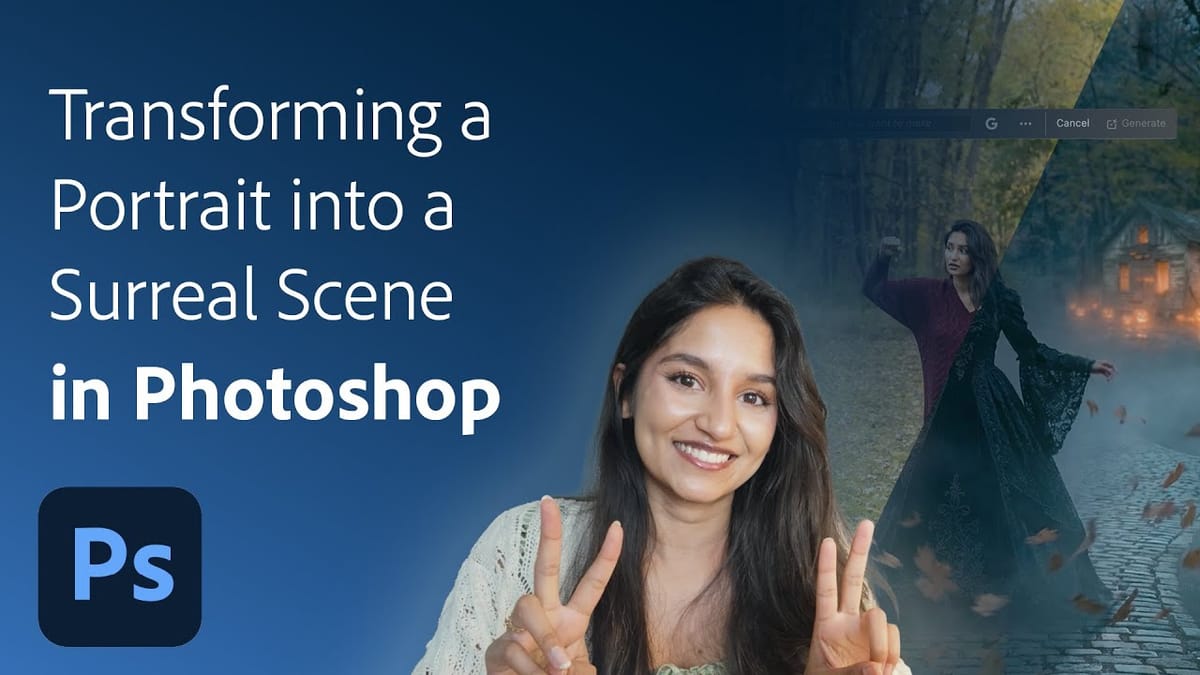
Create a Surreal Portrait Scene Using Generative Fill in Photoshop
Transforming an ordinary portrait into a magical nighttime scene traditionally requires advanced compositing skills and multiple stock images. This tutorial demonstrates how to create an entire surreal portrait using only Generative Fill, converting a simple daylight photo into an atmospheric Gothic scene complete with Victorian clothing, glowing lanterns, and mystical
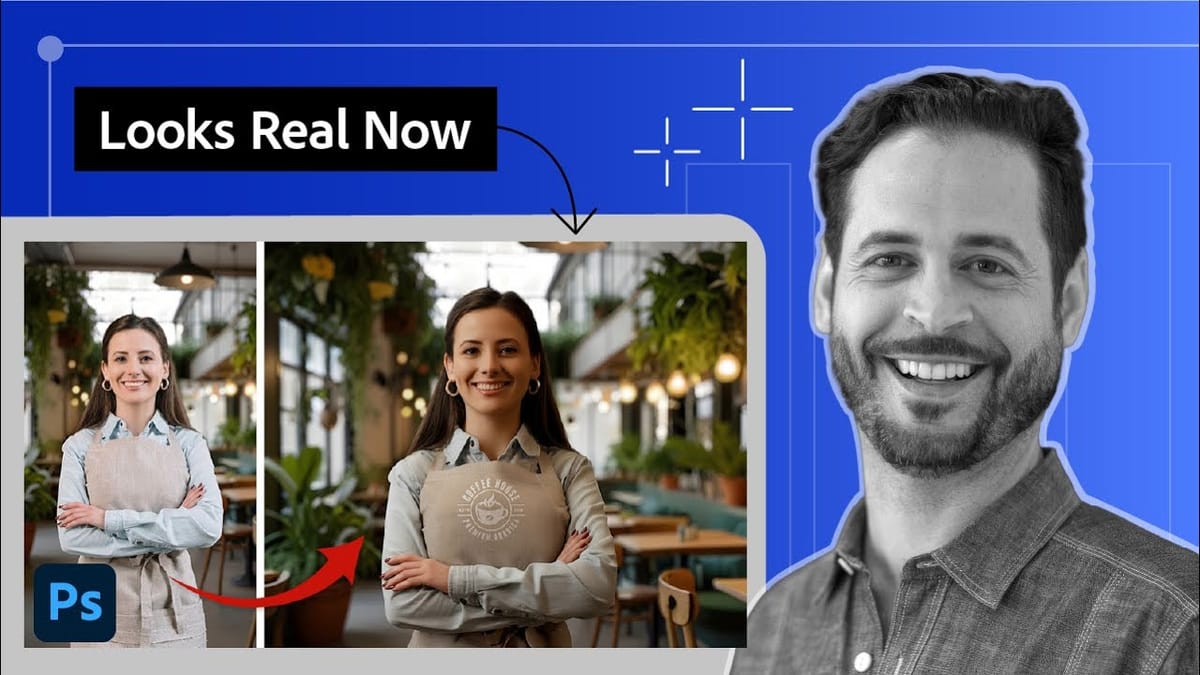
How to Use Harmonize to Automatically Match Lighting in Photoshop Composites
Creating seamless composites traditionally requires hours of manual color correction and lighting adjustments. The new Harmonize tool changes this by automatically analyzing your background and matching your subject’s lighting, shadows, and color tones with a single click. This AI-powered feature eliminates the need for complex adjustment layers and advanced color
Photoshop for Beginners – Free Course
Learn Adobe Photoshop with this amazing FREE course. Go from beginner to pro in 23 lessons exploring all the essential Photoshop tools and techniques. You'll start at the beginning and work quickly into more exciting techniques. Learn how to use Photoshop layer styles, how to change color levels, how to retouch and manipulate images, and much more. If you're a photographer, marketer, or designer, this course will give you the core skills you need. Watch tutorial
Photoshop for Beginners: 30-Minute Masterclass
This fast-track course offers everything you need to start using Photoshop in just a few minutes. Designed specifically for beginners, it guides you through essential concepts and tools, enabling you to build a solid foundation in the software. You will learn the basics of Photoshop, making it easy to grasp even if you have no prior experience. The tutorial covers key features and techniques, helping you gain confidence as you explore the program. Whether you're looking to refine your skills or
Create a Floral Typography Text Effect in Photoshop
Learn to create stunning floral typography in Photoshop. This tutorial teaches you to blend vibrant flowers with custom text, achieving a captivating visual that seamlessly integrates botanical elements with your design. Master techniques for realistic depth, perfect for unique posters, art, or personal projects. Watch the Full Tutorial Practical Tips for Crafting Floral Text Effects * Convert masked images to Smart Objects early in the process to maintain editability of layer masks and tr
Free Photoshop Course: Advanced Photoshop Compositing Techniques
This advanced Photoshop tutorial by Dansky from EnvatoTuts offers an excellent opportunity to enhance your skills. You will learn a variety of techniques that focus on combining creative assets effectively. The tutorial guides you through the intricacies of photo manipulation, allowing you to transform ordinary images into extraordinary visuals. You will explore different methods for achieving eye-catching visual effects that are crucial in creating professional artwork. By following along wit
Understanding the basics of Photoshop Smart Objects
Photoshop users often face the challenge of maintaining image quality when resizing or making multiple adjustments, which can lead to frustrating pixelation and loss of detail. This technical hurdle can significantly impact the final output, especially in professional design and photo compositing. This video tutorial demonstrates how Smart Objects in

Get tutorials & freebies delivered to you.

Subscribe to the Photoshop Roadmap newsletter, a weekly roundup of new tutorials, insights and quality downloads, trusted by 6500+ readers.

You might also like

How to Use Color Average for Color Toning in Photoshop

Color average creates a unified color tone by analyzing all the colors in your image and calculating their mathematical average. This technique adds depth and cohesion to photos, composites, and AI-generated images by applying a subtle color wash that ties all elements together. The method works particularly well for composites...

How to Remove Complex Background Elements Using AI in Photoshop

Removing complex background elements like fencing or wire mesh has traditionally been one of the most time-consuming tasks in photo editing. New AI-powered tools in Photoshop can now eliminate these distracting elements while preserving fine details in your subject. This tutorial demonstrates two practical workflows: one using the latest Firefly...

How to Use Photoshop's Auto Layer Rename Feature

Messy layer names like "Layer 52 copy 4" and "Untitled 5" clutter your workspace and slow down complex projects. Photoshop's new auto-rename feature uses AI to automatically identify and name layers based on their content, from "Woman in yellow shirt" to "...

New Generative Fill Features in Photoshop Beta: Reference Images and Credit Tracking

Photoshop Beta introduces significant improvements to Generative Fill that address the most requested features from users. The updated interface now displays your generative credit balance and usage, while the new reference image capability lets you add up to eight specific images to guide AI generation with precise visual examples. These...

Essential Photoshop Tools for Beginners: Brush, Crop, and Move Tool Tutorial

Learning Photoshop tools feels overwhelming when you don't know where to start. This tutorial focuses on three essential tools that form the foundation of most Photoshop work: the brush tool for painting and retouching, the crop tool for resizing and straightening images, and the move tool for positioning...

How to Add Custom Textures to Photos in Photoshop

Adding textures to photographs can transform ordinary images into compelling artistic compositions. This technique uses multiple texture layers combined with strategic blending modes and color adjustments to create depth and visual interest. The process involves layering different texture types—color overlays, surface patterns, and lighting effects—then using masking techniques...

You’ve successfully subscribed to Photoshop Roadmap
Welcome back! You’ve successfully signed in.
Great! You’ve successfully signed up.
Success! Your email is updated.
Your link has expired
Success! Check your email for magic link to sign-in.