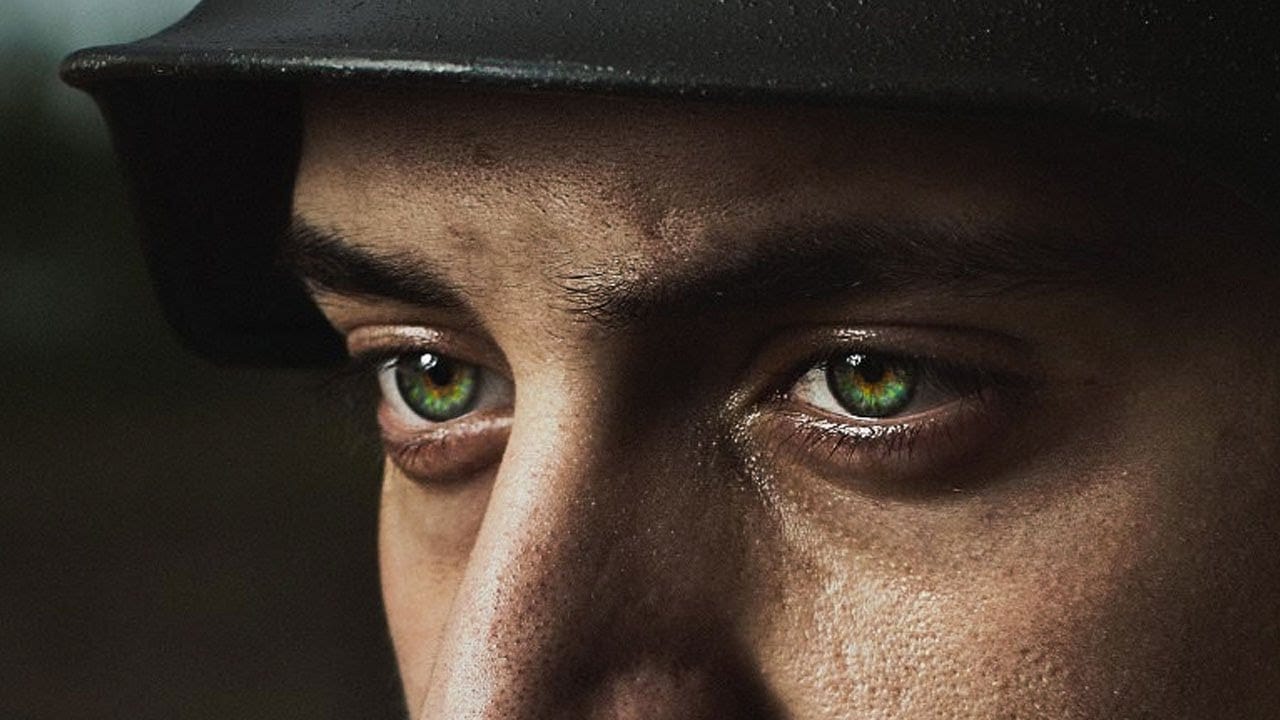
Science fiction-inspired eye effects transform ordinary portraits into dramatic cyberpunk imagery. This technique combines polar coordinate distortions with custom textures and strategic blending modes to create convincing holographic displays that appear to radiate from the eye itself.
The method relies on creating patterns in a square canvas, then using distortion filters to wrap these elements into radial formations that naturally follow the eye's curved surface.
Watch the Video
Practical Tips
Master these essential techniques for creating believable futuristic eye effects:
- Start with a perfectly square document (5000x5000 pixels) to ensure polar coordinates create perfect circles
- Use straight lines and geometric shapes before applying polar coordinates - vertical lines create concentric circles, horizontal lines create radial patterns
- Apply inversion (Ctrl/Cmd+I) to black elements before using Screen blend mode to make white patterns visible
- Add outer glow layer effects with blue tones to enhance the holographic appearance
- Use layer masks with soft brushes to fade effects toward the center of the eye for realistic integration
Related Articles and Tutorials
Explore these eye enhancement techniques to expand your portrait editing skills:
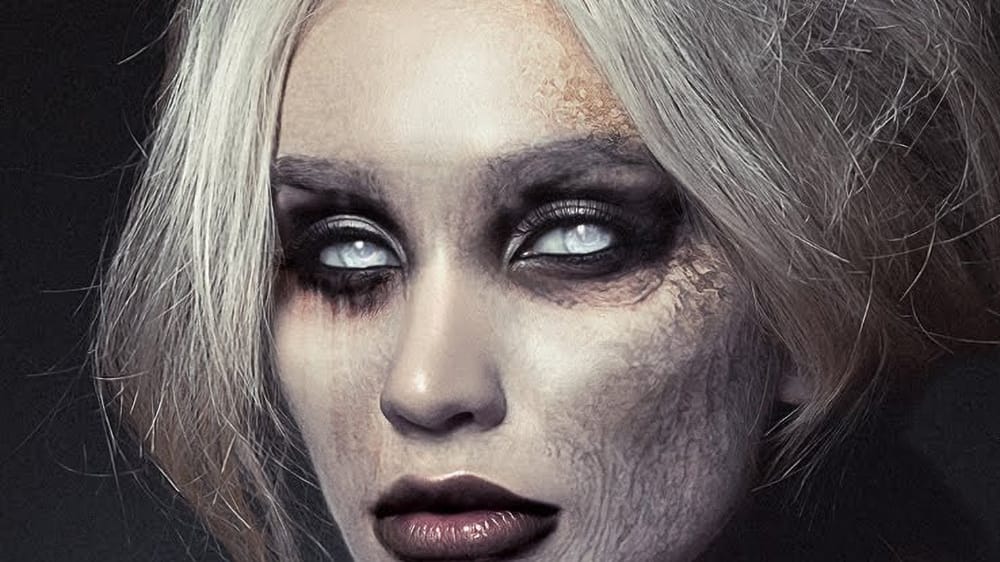
How to create evil undead eyes in Photoshop
Evil undead eyes can transform any portrait into a haunting, supernatural image. This technique draws inspiration from the reflective pupils of replicants in Blade Runner, creating glossy, realistic demon eyes that maintain depth and believability.
The method uses adjustment layers and simple masks to invert both pupils and irises while preserving the wet, reflective quality that makes eyes look convincingly alive.
Watch the Tutorial
Essential Tips for Creating Undead Eyes
Master these key
How to apply Realistic Eye Makeup Easily in Photoshop
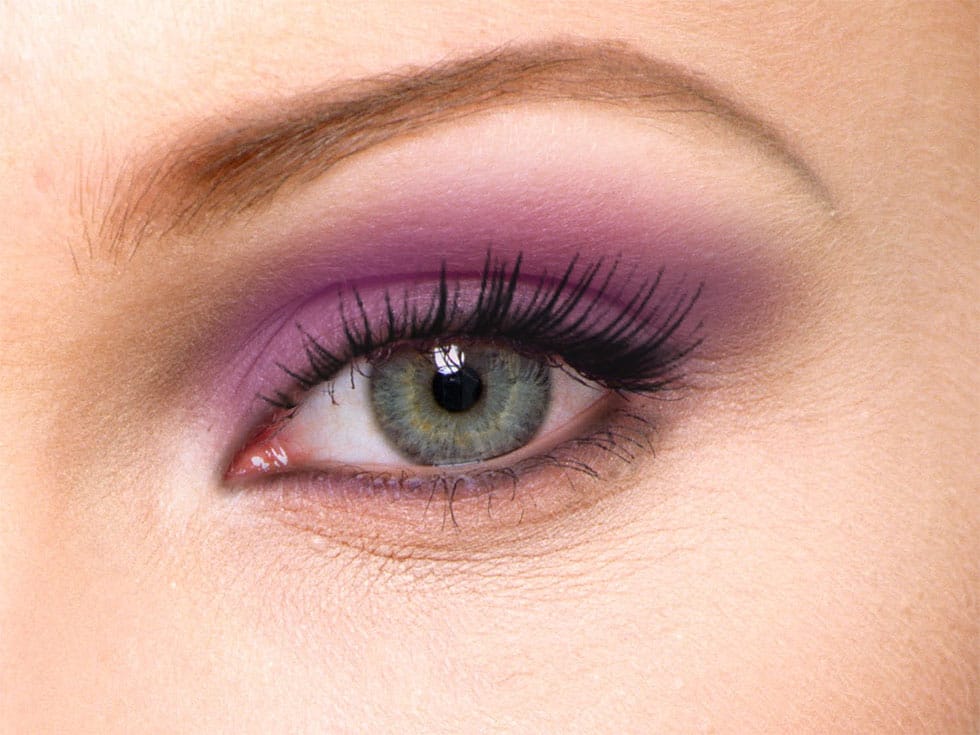
In a step-by-step tutorial, the author provides a guide on how to add digital eye makeup using Photoshop. The video demonstrates the process of applying realistic eye makeup by utilizing various blend modes.
The author suggests using a 'Soft Brush' to apply different eye shadow colors. This technique ensures that the colors are well-blended. Additionally, the author recommends applying 'Gaussian blur' to further blend the colors and create a more seamless appearance.
Finally, the author advise
Create Insane Details in the Eyes with Photoshop
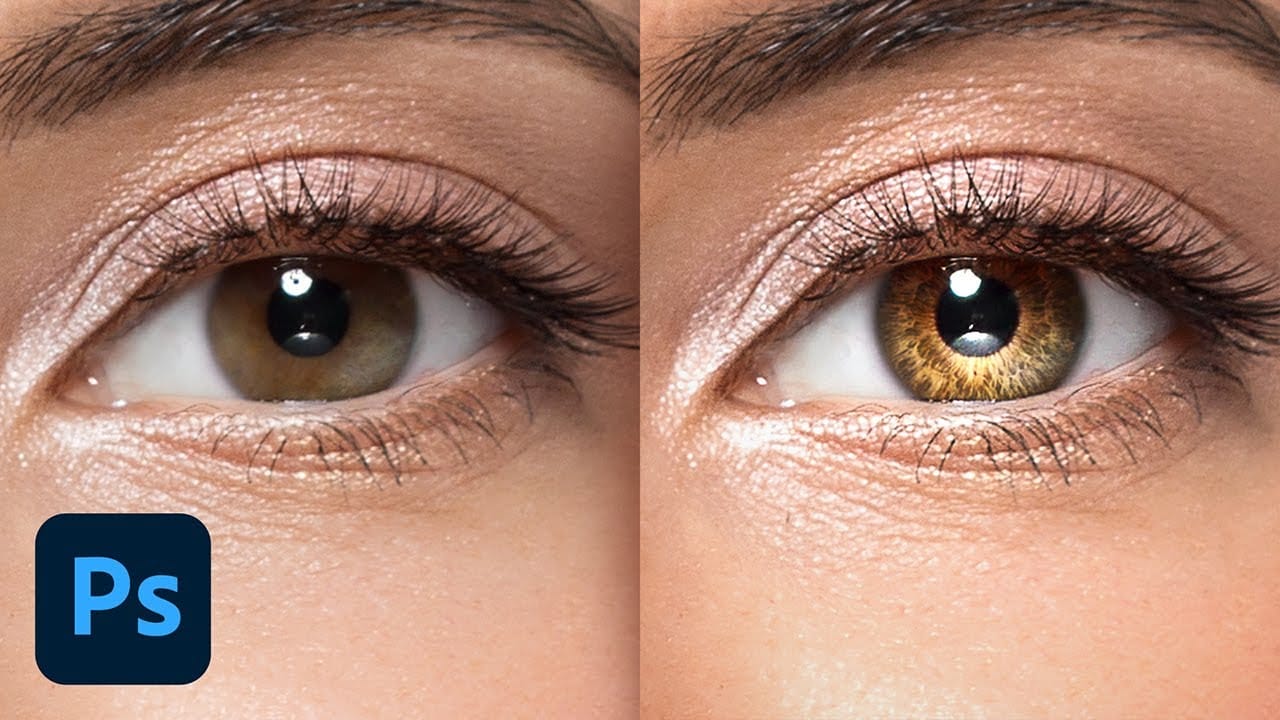
In this tutorial from PiXimperfect, you will learn how to add remarkable details to eyes in Photoshop. The process begins with the use of an iris brush that allows you to create intricate highlights and shadows, enhancing the eyes' natural beauty.
As you progress, you'll discover how to incorporate shine with a kicker light, making the eyes stand out and appear more engaging. This step is crucial for adding depth and dimension, pulling viewers' attention directly to the eyes.Finally, the tutori
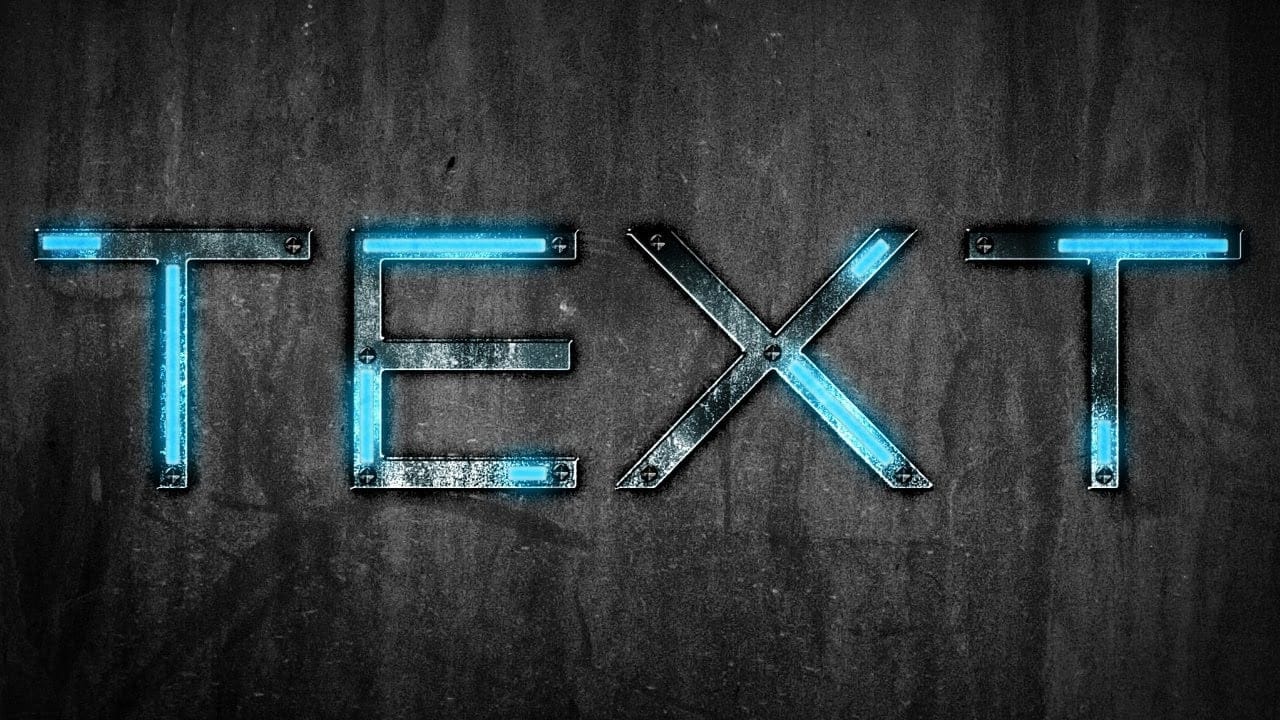
Futuristic Neon Text Effect in Photoshop
Discover how to combine futuristic aesthetics with raw, distressed character in Photoshop.
This tutorial guides you through crafting a unique grungy text effect, blending modern styles with industrial textures for striking typography designs.
Watch the Video Tutorial
Practical Tips for Futuristic Grunge Text Effects
To achieve this distinctive text effect, follow these key steps in Photoshop:
* Start with a grungy background texture, duplicating and importing it into your document.
* Se
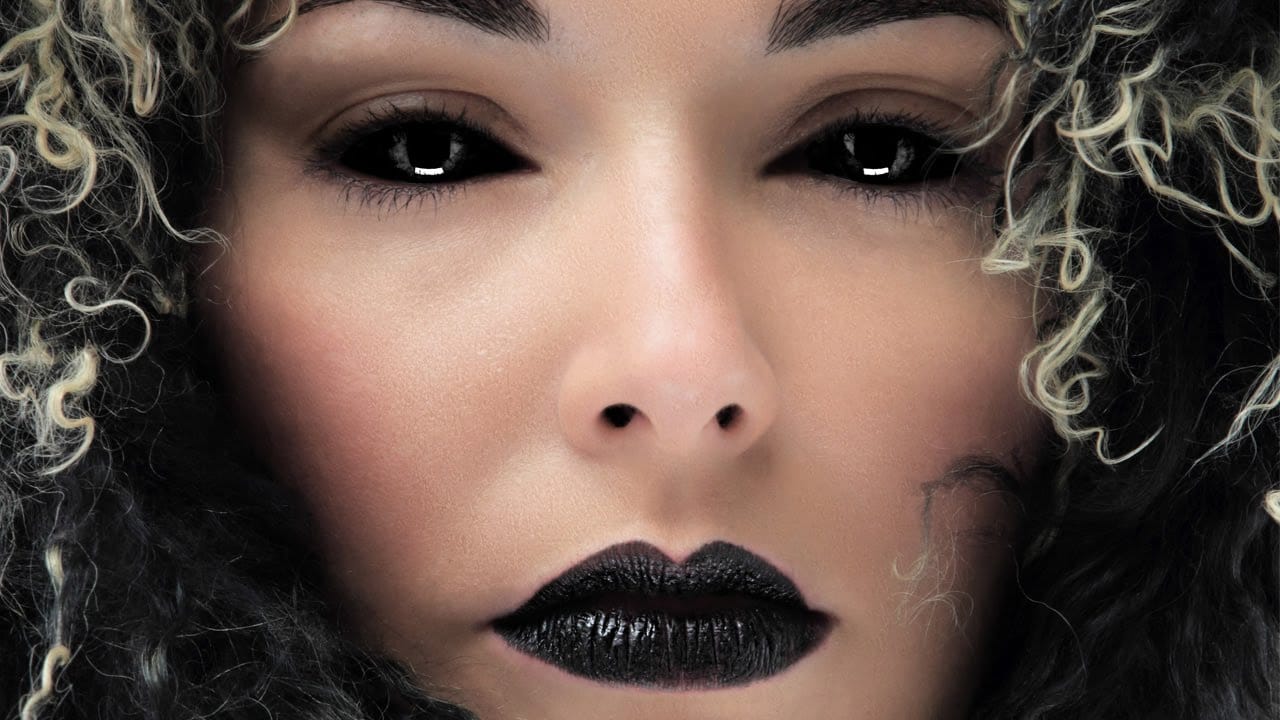
How to Black Out Eyes in Photoshop
Creating convincing black eyes in Photoshop requires more than simply painting over them with black. The key to believable results lies in preserving light reflections and creating realistic depth through strategic layering techniques.
This tutorial demonstrates how to achieve this dramatic effect while maintaining the natural lighting and shadows that make eyes appear three-dimensional rather than flat.
Watch the Tutorial
Essential Tips for Blacked-Out Eyes
Success with this technique dep
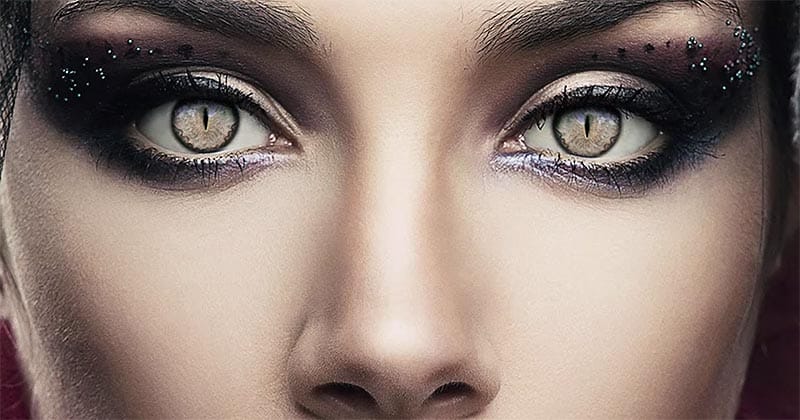
How to edit eyes in Photoshop
In this Photoshop tutorial by PSD Box, viewers learn how to creatively alter and enhance eye appearance in portraits.
The tutorial begins by introducing a photo of a woman and a cat's eye, demonstrating how to replace the woman's eyes with those of the cat using adjustment layers. Key adjustments include Hue/Saturation and Curves layers to modify eye color, contrast, and overall look. Techniques like layer masking ensure smooth integration of the cat's eyes onto the woman's face, while addition
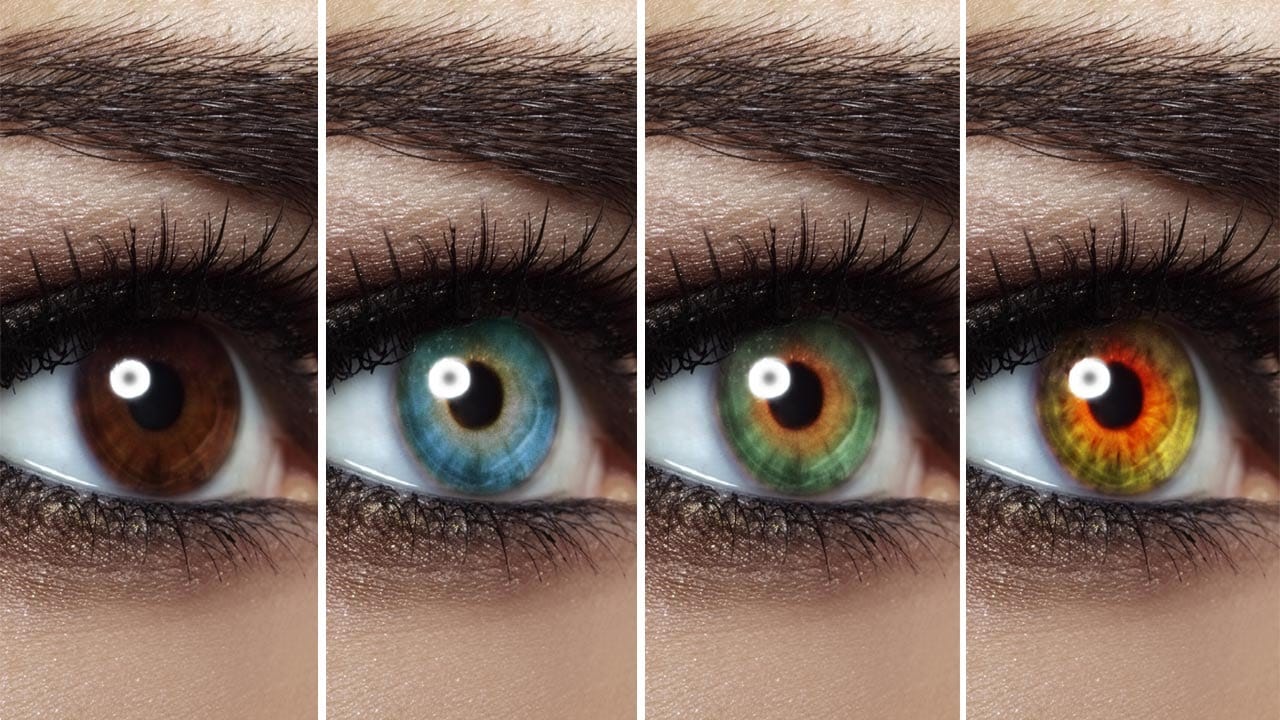
Change Eye Color in Photoshop
In this tutorial by Aaron Nace from Phlearn, discover how to transform eye colors effortlessly using Photoshop.
Aaron demonstrates techniques to precisely select and adjust eye colors using adjustment layers and masks. Learn to create realistic eye color changes by refining selections and applying hue adjustments. This tutorial is essential for photographers and digital artists looking to enhance portraits with eye-catching eye color variations, showcasing the versatility and creative possibili
Make Eyes Dramatic in 30 Seconds with Photoshop
In this tutorial, PiXimperfect reveals a fast and effective technique to make eyes more dramatic and engaging in just 30 seconds using Photoshop. The focus is on enhancing the eyes by adding shine and depth, which can significantly elevate the overall impact of a portrait. The method involves using blend modes in combination with simple selections to introduce eye-catching highlights and contrasts.
The tutorial starts by demonstrating how to select the eye areas accurately, ensuring that the ad
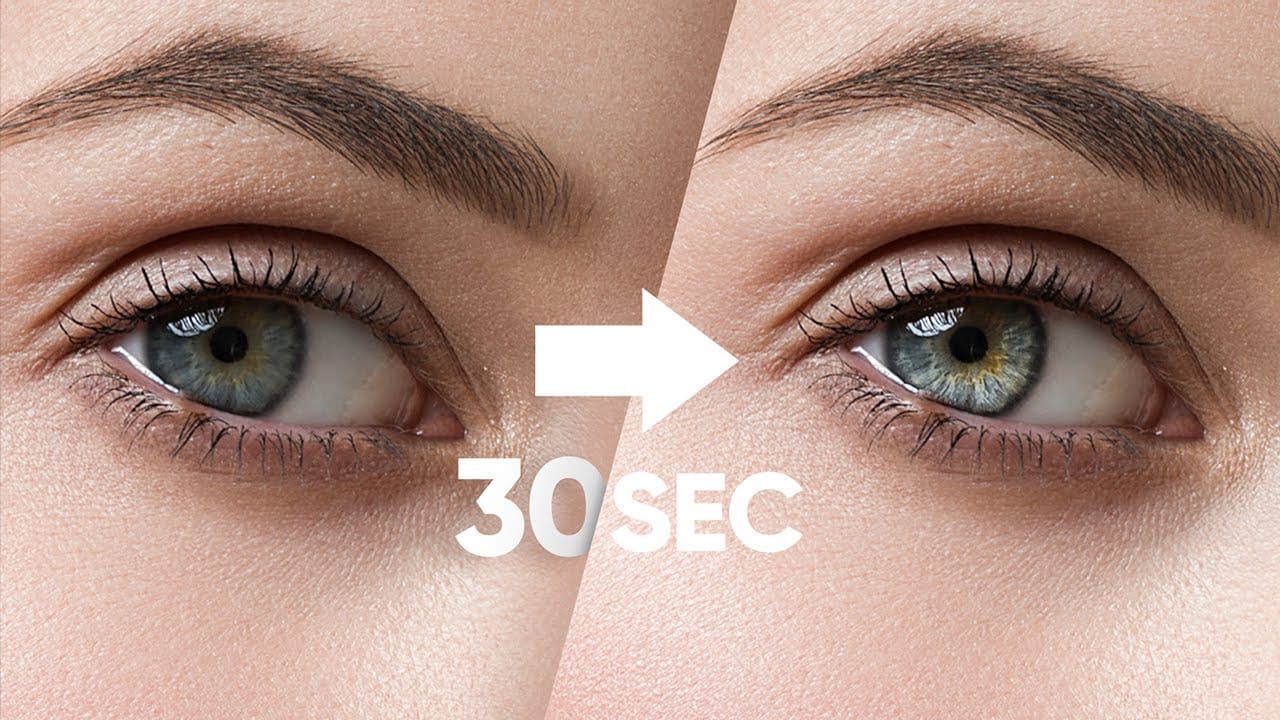
How to Color, Brighten and Sharpen Eyes in Photoshop
In this tutorial by Aaron Nace from Phlearn, learn how to enhance eyes in Photoshop to make them captivating and sharp.
Techniques include coloring the eyes by sampling natural hues and adjusting lightness and saturation, using blending modes like "Soft Light" or "Overlay" for a natural look, and softening edges with Gaussian Blur. Dodge and Burn techniques are used to enhance depth and light in the pupils, while selective sharpening draws attention to the eyes, making them stand out in portrai