How to Create a Porcelain Doll Effect in Photoshop

How to Create a Porcelain Doll Effect in Photoshop

This video demonstrates how to transform a subject's face into a distinctive porcelain doll appearance using Adobe Photoshop. The process involves a series of steps that refine and stylize facial features to achieve an ethereal, doll-like quality.

Viewers will learn practical techniques for isolating subjects, adjusting skin texture, enhancing eyes and lips, and subtly exaggerating proportions. This tutorial emphasizes the creative potential of Photoshop to achieve a unique artistic style, transforming ordinary portraits into striking works.

Watch the Full Tutorial

Video by Blue Lightning. Any links or downloads mentioned by the creator are available only on YouTube

Artistic Considerations for Porcelain Doll Effects

The porcelain doll aesthetic in digital art aims to emulate the delicate, often idealized features characteristic of traditional dolls. This includes achieving a smooth, flawless skin texture that appears almost ceramic, distinct from natural human skin. Key elements often involve enhancing the eyes to appear larger and more expressive, refining the lips for a subtle yet defined pout, and sculpting other facial contours to create a more symmetrical and stylized look.

Achieving this effect in Photoshop involves a blend of precise selection, texture manipulation, and subtle distortion. Tools like surface blurring help create the characteristic smooth skin, while color adjustments can achieve the pale, even complexion. Exaggerating features, such as enlarging eyes with the Bloat Tool or subtly refining the nose and chin with the Pucker Tool, contributes significantly to the doll-like illusion, transforming a realistic portrait into an ethereal representation.

Practical Tips for Creating a Porcelain Doll Effect

  • Isolate your subject using the Quick Selection Tool and refine the edges with Refine Edge for a clean cutout.
  • Thin and straighten eyebrows by cutting them to a new layer, then using the Patch Tool on the original layer to remove them before reapplying the thinned version.
  • Apply Surface Blur and Diffuse Glow filters to the subject layer to achieve a smooth, porcelain-like skin texture.
  • Adjust Hue/Saturation to reduce overall color, then use a brush with an inverted mask to restore saturation to specific areas like the lips and hair.
  • Exaggerate facial features using the Liquify filter's Bloat Tool for eyes and Pucker Tool for the nose, mouth, and chin to enhance the doll-like appearance.

Explore more tutorials to enhance your digital artistry and master various Photoshop effects.

Learn How to Create a Watercolor Photo Effect in Photoshop
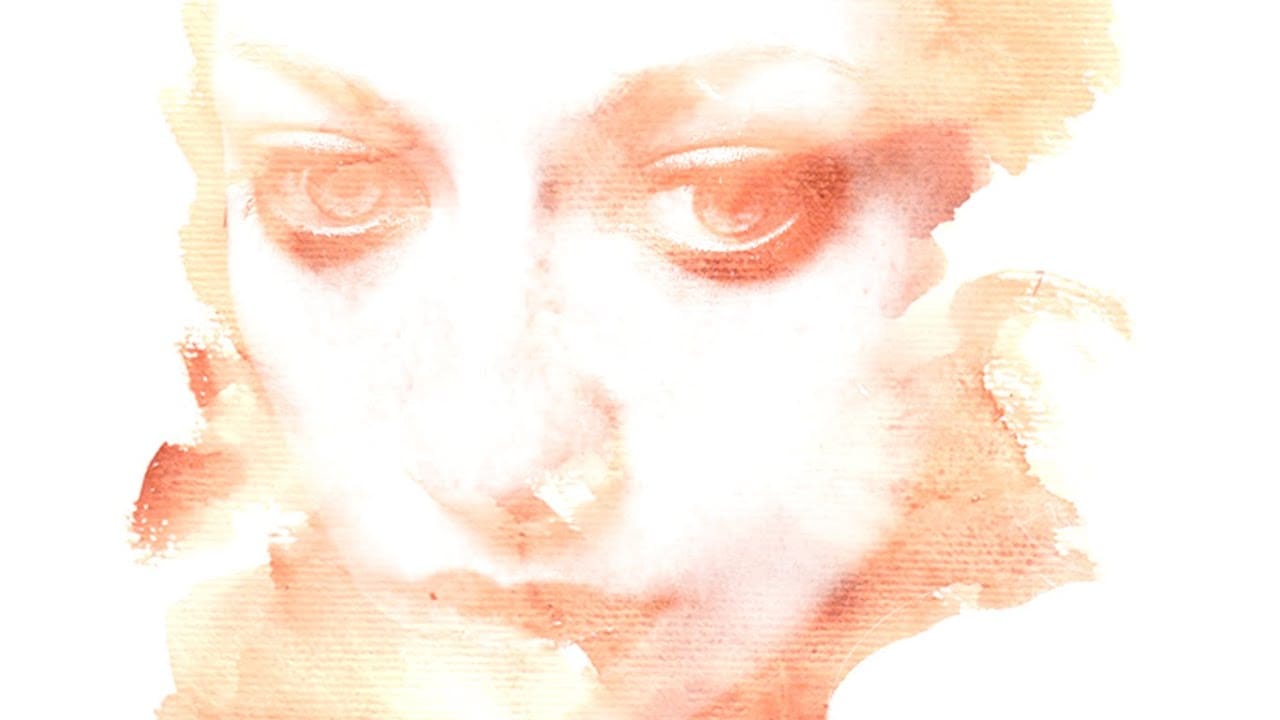
In this tutorial by Blue Lightning TV, Marty demonstrates how to transform an ordinary photograph into a stunning hand-painted watercolor painting using Photoshop. This method surpasses the built-in watercolor filter in Photoshop by allowing users to hand paint the image, offering greater nuance and control. The process begins with setting up the document at 1280 by 720 pixels with a resolution of 72 pixels per inch, then renaming the initial layer to “base” and creating a copy named “smart blur
Photoshop Watercolor Photo Effect Tutorial
In this comprehensive tutorial by Arunz Creations, you'll discover how to transform a portrait into a beautiful watercolor painting using Photoshop. The process begins by organizing your layers into a group and temporarily hiding it. Next, you'll select specific colors from the portrait using the Color Range tool to create a precise selection. After applying the selection as a mask on the group and inverting it, you'll create a new empty layer beneath the group and fill it with white to serve a
Beautiful Illustration Effects and Techniques Photoshop Tutorials
This collection of Photoshop tutorials focuses on various illustration effects and techniques, perfect for those interested in enhancing their artistic skills. You will discover how to create striking images through a variety of methods, including pencil sketches, mixed media, and watercolor styles. By following these tutorials, you can learn to produce unique artistic pieces that stand out. Each lesson offers clear step-by-step instructions, making it easy to grasp new concepts and apply them
Learn How to Create Beauty Makeup and Face Painting Effects in Photoshop
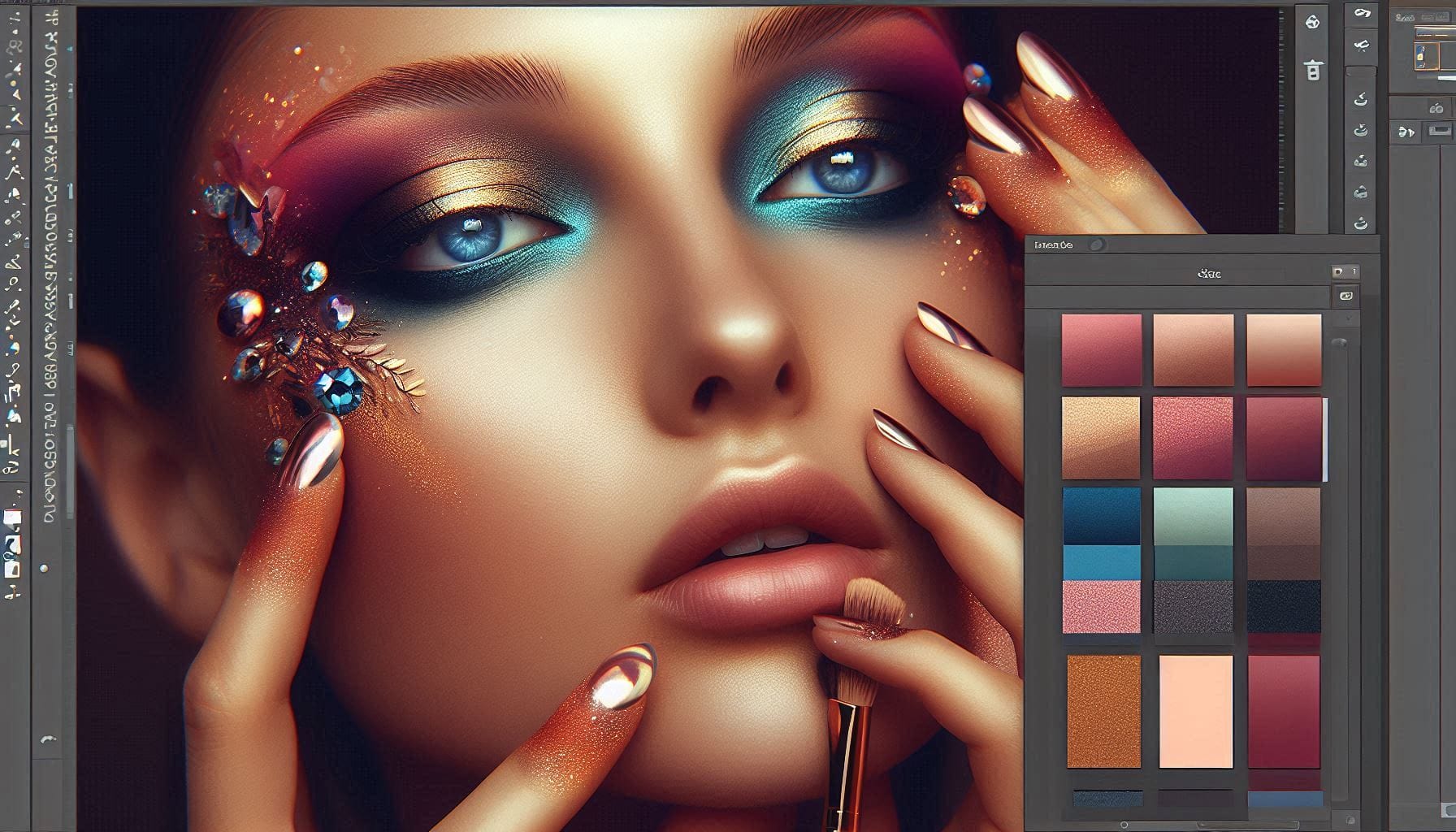
This guide is designed to help you learn how to create beauty makeup and face painting effects using Photoshop. With clear instructions, you'll discover how to apply makeup digitally, utilizing techniques that professional makeup artists rely on in their work. The focus is not limited to beauty makeup alone. You will also explore various effects, including horror themes, bruises, and scars. The content is suitable for anyone interested in enhancing their portrait skills, whether for personal pr

Get tutorials & freebies delivered to you.

Subscribe to the Photoshop Roadmap newsletter, a weekly roundup of new tutorials, insights and quality downloads, trusted by 6500+ readers.

You might also like

Basic Photoshop techniques you really need to learn

Photoshop hasn’t changed as much as it looks. New features come and go, but the same core techniques keep showing up in real work. If you skip them, everything feels harder than it should. This post focuses on those basics, not as isolated tricks, but as skills you’ll...

How to Use Select Subject for Background Removal and Edge Refinement

Background removal becomes effortless when you know how to use the right tools. AI-powered selection can instantly isolate subjects from their backgrounds, but the real skill lies in refining those selections to create professional results. This guide covers the complete workflow from initial selection to edge refinement, plus creative techniques...

How to Wrap Text Around Any Shape in Photoshop

Creating text that flows naturally around irregular shapes transforms static layouts into dynamic, professional designs. This technique works particularly well for posters, magazine layouts, and editorial designs where text needs to integrate seamlessly with complex subjects rather than simply sitting in rigid rectangular boxes. The process combines selection tools, path...

How to Edit Text in Images Using Generative Fill

Changing text within existing images has traditionally required complex masking and reconstruction techniques. Modern AI-powered tools now make it possible to seamlessly replace words and phrases in photographs while maintaining realistic typography, lighting, and perspective that matches the original scene. This technique works particularly well for signs, storefronts, billboards, and...

How to Remove Dust and Sensor Spots Using Photoshop Tools

Dust spots and sensor particles are inevitable challenges in digital photography, appearing as dark specks that distract from otherwise clean images. Camera sensors collect dust over time, creating consistent spots that show up across multiple photos, particularly in bright sky areas or uniform backgrounds. Both Lightroom and Photoshop offer specialized...

Photoshop vs Affinity Photo: Feature Comparison and Professional Analysis

When choosing professional photo editing software, the decision often comes down to comparing features, performance, and value. This detailed comparison examines the core capabilities of both applications across noise reduction, smart selections, object removal, masking, and AI-powered tools. The analysis covers real-world scenarios that professionals encounter daily, from complex background...

You’ve successfully subscribed to Photoshop Roadmap
Welcome back! You’ve successfully signed in.
Great! You’ve successfully signed up.
Success! Your email is updated.
Your link has expired
Success! Check your email for magic link to sign-in.