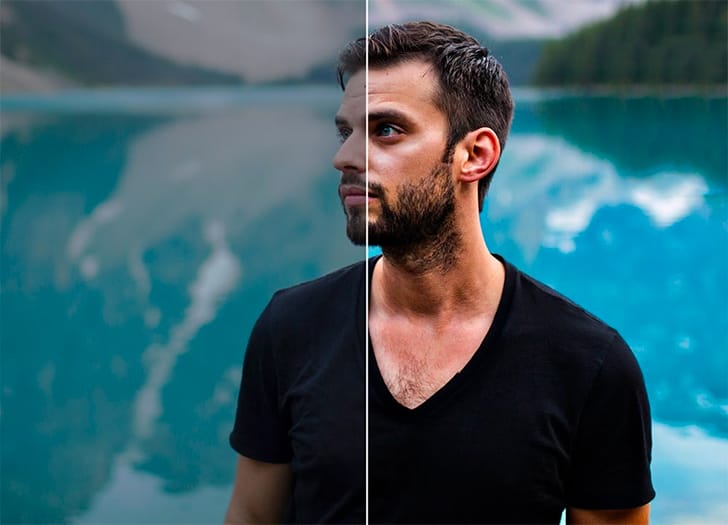
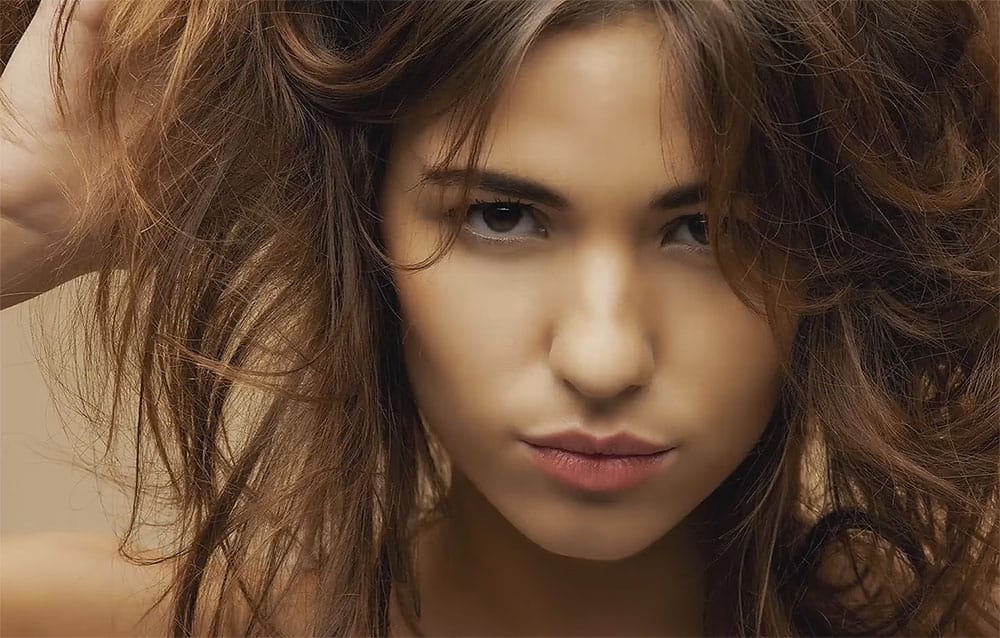
Turn your photos into beautiful romantic images

Turn your photos into beautiful romantic images

Digital photography offers endless possibilities for transforming ordinary images into captivating visual stories. Sometimes, a photograph needs a touch of artistry to convey a specific mood or emotion, such as a romantic or dreamy atmosphere.

This tutorial explores techniques to imbue your photographs with a dreamy, romantic ambiance, perfect for portraits or personal memories. You will learn how to apply color adjustments, add soft light, incorporate bokeh effects, and personalize your images with custom text.

Watch the Full Tutorial

Video by Blue Lightning. Any links or downloads mentioned by the creator are available only on YouTube

Understanding the Elements of Romantic Photo Enhancement

Achieving a romantic aesthetic in photography often relies on manipulating light and color to evoke specific emotions. Key elements include soft, diffused lighting, warm color palettes, and a gentle blurring of backgrounds to draw focus to the subject. These visual cues collectively contribute to a sense of intimacy and warmth within the image.

In Photoshop, tools such as Gradient Maps and Levels adjustments are instrumental in shaping these visual characteristics. A gradient map can infuse an image with a custom color overlay, while levels control the tonal range, allowing for subtle enhancements to highlights and shadows. These adjustments can transform the overall mood of a photograph by shifting its color temperature and contrast.

The addition of elements like bokeh lights further contributes to this dreamy atmosphere, creating luminous, out-of-focus highlights that mimic natural lens effects. These combined techniques transform standard photos into compositions that convey warmth, intimacy, and a sense of timeless beauty.

Practical Tips for Romantic Photo Effects

  • Utilize a Gradient Map with Screen blend mode to introduce a soft, color-shifted overlay, enhancing the overall mood.
  • Adjust Levels by slightly darkening blacks and lightening midtones to refine contrast and brighten the image selectively.
  • Add a warm, soft light source using a large, soft brush on a new layer set to Screen blend mode, strategically placed near your subject.
  • Incorporate Bokeh lights by pasting them onto your document and setting their blend mode to Screen, adding luminous depth.
  • Apply an Outer Glow effect to text, using a white color and Screen blend mode, to make it stand out against the romantic background.

More Tutorials about Romantic Photo Effects

Explore additional resources to deepen your understanding of photo manipulation and creative editing techniques.
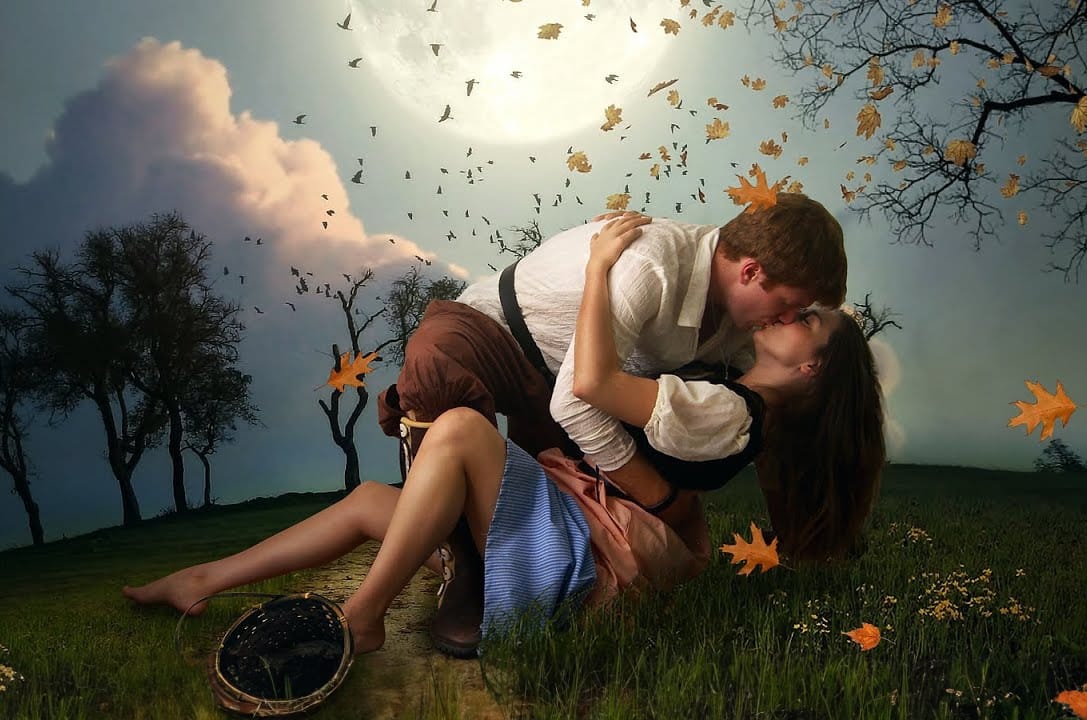

Create a Beautiful Romantic Scene With a Dreamy Surreal Style in Photoshop
In this Photoshop tutorial presented by Andrei Oprinca from PSD Box, you will learn to create a stunning romantic scene featuring a couple in a greenfield surrounded by flowers and birds. This project is designed to inspire creativity and improve your photo manipulation skills. The tutorial is accessible to both beginners and advanced users, making it a great resource for anyone looking to enhance their Photoshop techniques. Oprinca guides you through each step, ensuring that you can follow alo
Create a Romantic Sunrise Effect in Photoshop
In this tutorial, you will explore how to create a beautiful romantic sunrise effect in Photoshop. Suitable for those with intermediate skills, this guide provides clear steps to achieve a stunning image of a couple embracing while watching a sunrise. You will learn to manipulate lighting conditions to perfectly capture the essence of the moment. By using layer styles and adjustment layers, you’ll be able to transform your image into a captivating scene. This process not only enhances your edi
How to make your photos look better FAST in Photoshop
Peter McKinnon, a talented photographer and instructor, shares his expertise on how to make your photos look better quickly in Photoshop. In this tutorial, he guides viewers through various techniques to help their images pop, stand out, and generally improve in a short amount of time. The author explains that if you're looking to elevate your editing skills and dive into the world of Photoshop, this video is a must-watch. He provides valuable insights and practical tips that can help viewers t
How to make any photo look better in seconds in Photoshop
Many photographs, despite good composition, can often lack that captivating polish or depth. Achieving a professional and visually appealing aesthetic often seems like a complex or time-consuming endeavor for photographers and digital artists. This tutorial introduces a simple yet powerful Photoshop technique, sometimes referred to as the "euro glow" or "euro tint," designed to quickly elevate the quality of any image. Readers will learn how a few clicks can add contrast, vibrance, and a subtle

Get tutorials & freebies delivered to you.

Subscribe to the Photoshop Roadmap newsletter, a weekly roundup of new tutorials, insights and quality downloads, trusted by 6500+ readers.

You might also like

How to Expand Photos Beyond Their Edges Using AI Generative Expand in Photoshop

Sometimes your best photos need more breathing room or a different aspect ratio. Generative Expand in Photoshop lets you extend your canvas beyond the original image boundaries, using AI to intelligently fill in missing areas with content that matches your scene. This technique works for changing portrait photos to landscape...

How to Create Digital Scrapbook Carousels in Photoshop

Digital scrapbook pages capture memories beautifully, but a single page limits your storytelling. Creating a carousel format lets you design multiple connected panels that work together as one cohesive piece while giving viewers more content to explore. This technique uses frames, custom shapes, and smart export settings to build templates...

How to Use Auto Align Layers in Photoshop for Perfect Layer Alignment

When working with multiple layers that need perfect alignment, manual positioning often falls short. Slight camera movement, different crops, or rotated images can make precise alignment seem impossible through visual adjustment alone. Auto Align Layers automatically handles rotation, scaling, and positioning to create perfect layer alignment, even when images have...

How to Use Nano Banana Pro in Adobe Firefly for Advanced AI Image Generation

Adobe Firefly now includes Gemini 3 with Nano Banana Pro, offering sharper 2K image generation with improved text clarity and precision blending. This advanced AI model works seamlessly within Firefly's generative workspace, enabling powerful workflows like multi-image composition and virtual try-on effects. The integration provides access to sophisticated...

Create Colorful Retro Text Compositions in Photoshop

Retro design trends continue to captivate audiences with their bold colors and geometric shapes. This tutorial demonstrates how to build a complete vintage-inspired composition using text, geometric elements, and vibrant color schemes that capture the essence of classic graphic design. You'll learn to combine typography with custom shapes,...

Photoshop's New Color and Temperature Tool for Advanced Color Grading

Photoshop's latest update introduces temperature and tint controls directly into the adjustment layer panel, bringing white balance tools from Camera Raw into the main editing workspace. This addition transforms color grading workflows by enabling precise local adjustments with custom brushes and blend modes. The new Color and Vibrance...

You’ve successfully subscribed to Photoshop Roadmap
Welcome back! You’ve successfully signed in.
Great! You’ve successfully signed up.
Success! Your email is updated.
Your link has expired
Success! Check your email for magic link to sign-in.