Evoke the rugged charm of the Old West with a unique text effect. This Photoshop tutorial shows you how to craft a grungy, textured typeface, combining various layers and blending modes for an authentic old-school look.
Watch the Video
Practical Tips for Western Text Effects
Elevate your Western text effects with these key techniques from the tutorial:
- Plan your text layout early, as changing it later will require redoing subsequent texture layers.
- Apply initial text styling using various layer styles like Bevel & Emboss, Gradient Overlay, and Pattern Overlay to build a solid foundation.
- Layer multiple texture images over your text, using different blending modes such as Soft Light or Overlay to add depth and grunge.
- Utilize the text layer's selection to mask textures, ensuring they conform precisely to your letters (Ctrl/Cmd-click the text layer thumbnail, then Select > Inverse).
- Refine the overall look with Curves adjustment layers, darkening the background and enhancing contrast across the entire composition.
More Tutorials about Text Effects
Explore other creative ways to transform your typography with these additional tutorials.
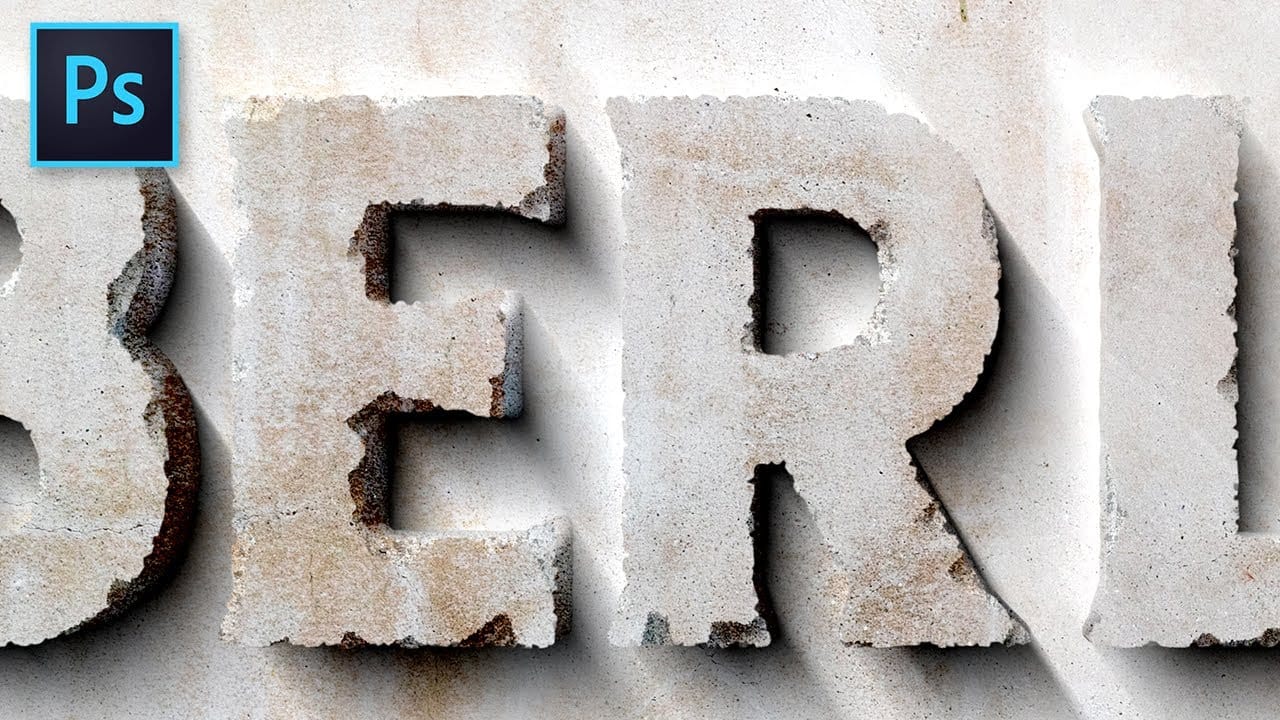
Carved Stone Text Effect in Photoshop
In this tutorial by Texturelabs, you'll learn how to create a realistic carved stone text effect using Adobe Photoshop.
Using simple yet versatile techniques, the tutorial guides you through the process of achieving a cracked and weathered concrete stone appearance for text. Additionally, Texturelab provides high-resolution textures of weathered stucco and concrete walls, available for download.
This tutorial is ideal for adding a rugged and aged aesthetic to your designs, allowing you to effo
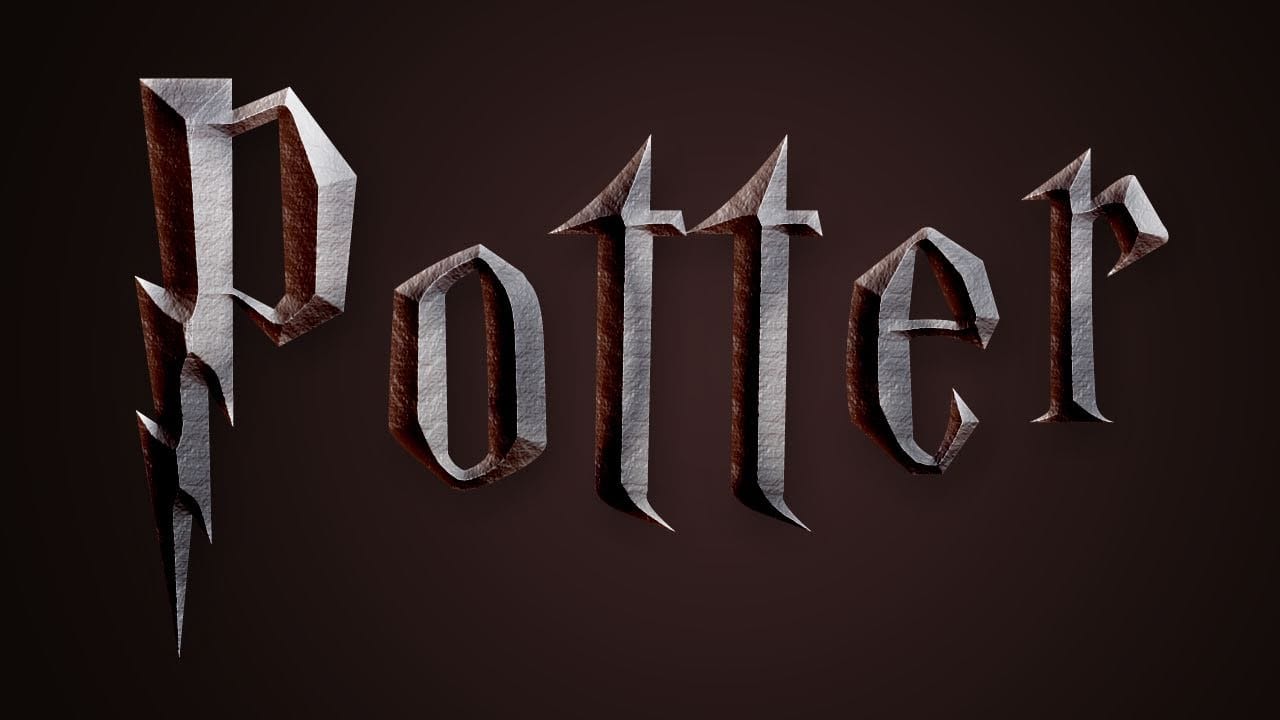
Harry Potter Style Text Effect in Photoshop
Learn how to create an awesome Harry Potter style text effect in a few easy steps using Adobe Photoshop.
In this tutorial, Howard Pinsky guides you through the process of transforming your text to mimic the iconic, magical look of the Harry Potter series. By using various layer styles, including gradients, bevels, and embossing, you'll be able to achieve a spellbinding effect that captures the essence of the beloved franchise.
Perfect for fans and designers alike, this tutorial will help you a
Leaves Text Effect in Photoshop
In this tutorial by 2-Minute Design, discover how to create a captivating text effect in Photoshop where leaves emerge from letters.
This concise video tutorial walks you through the process step-by-step, utilizing layer masks, the pen tool, and strategically placed drop shadows. By blending these techniques, you'll transform ordinary text into a visually engaging composition that integrates natural elements seamlessly.
Whether you're new to Photoshop or looking to enhance your design skills,

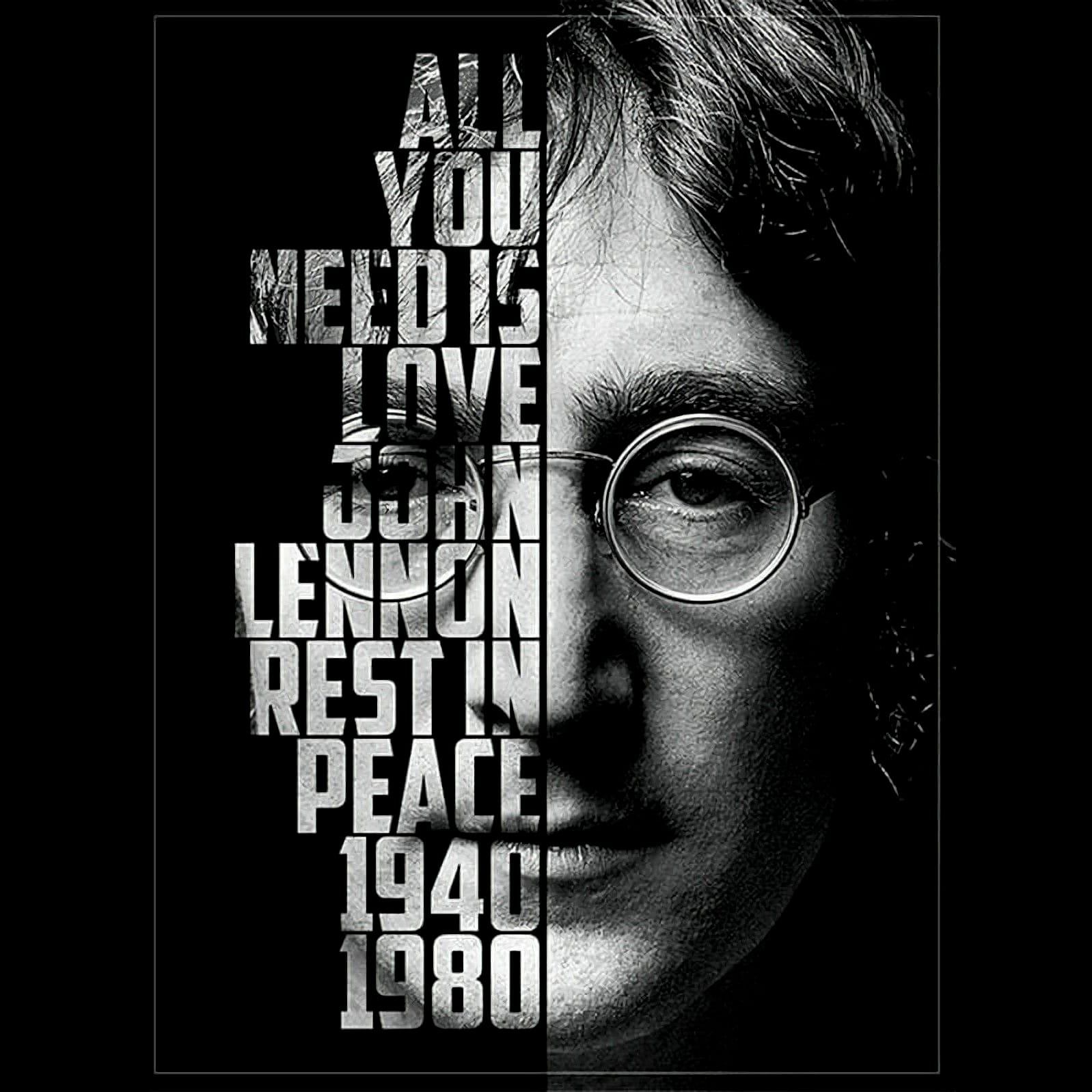
Create a cool text portrait in Photoshop
This tutorial explores the process of creating a powerful typographic portrait poster using Adobe Photoshop. It transforms a standard photo into a visually striking artwork where text forms the contours of a subject's face.
Viewers will learn essential Photoshop techniques, from precise subject selection and background preparation to the artful integration of text and subtle refinements that enhance legibility and visual impact.
Watch the Video
The Art of Typographic Portraiture
Typographi