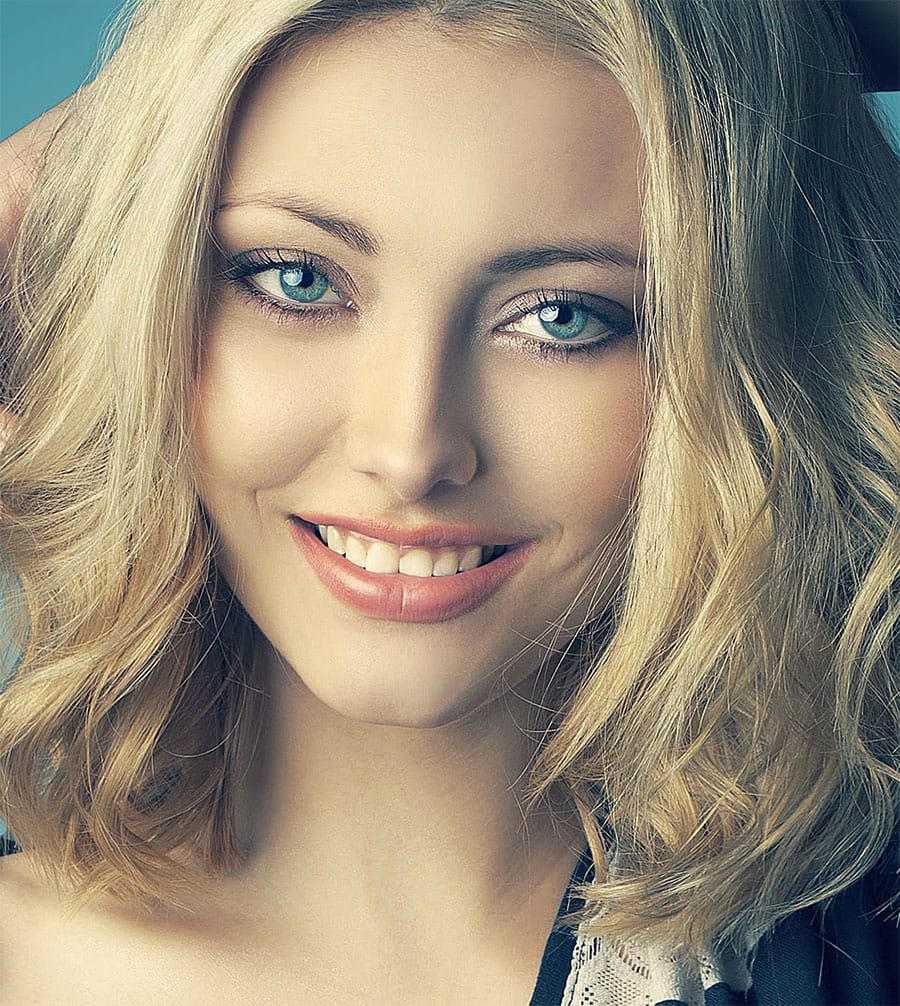
Transform flat, lifeless hair into vibrant, voluminous locks using three powerful techniques. By combining the Liquify tool for volume, gradient maps for rich color, and dodge-and-burn methods for depth, you can create dramatic hair enhancements that look naturally stunning.
These methods work on any hair type and style, giving you complete control over shadows, midtones, and highlights to achieve professional-quality results.
Watch the Video
Practical Tips
Master these essential techniques for natural-looking hair enhancement:
- Use the freeze mask tool to protect the subject's face when applying the Liquify tool for volume
- Choose a large brush size in Liquify to ensure the background moves naturally with the hair
- Set gradient maps to overlay blend mode and adjust shadows with reds, highlights with yellows
- Apply dodge and burn with low flow brushes to build up highlights and shadows gradually
- Lower opacity on all adjustment layers to maintain realistic, subtle enhancements
Related Articles and Tutorials
Explore more portrait enhancement techniques to complement your hair editing skills:
How to make colors pop in Photoshop
Selective color enhancement transforms dull photographs into vibrant, dramatic images by targeting specific areas like hair, skin, eyes, and clothing. This non-destructive approach uses precise selections and adjustment layers to boost colors naturally.
The technique creates professional results by treating each element separately, allowing you to enhance blue sweaters, brighten eyes, warm skin tones, and intensify hair colors without affecting the entire image.
Watch the Tutorial
Practical
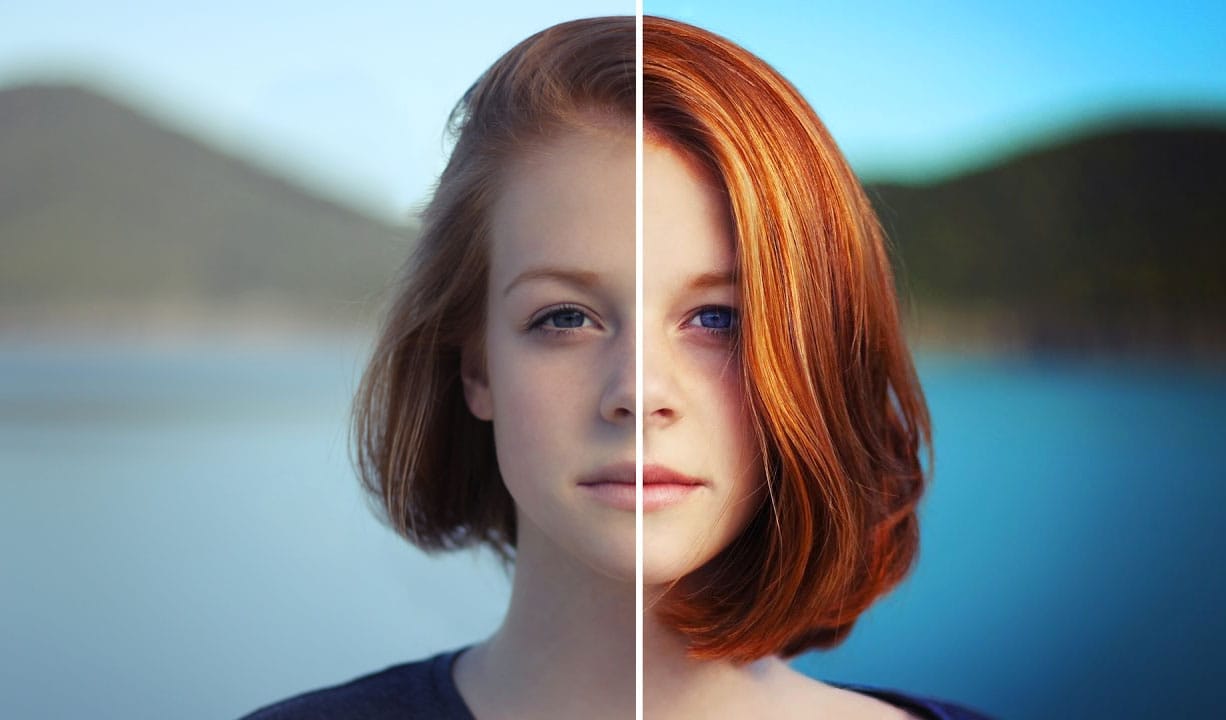
Advanced hair retouching
In this advanced Photoshop tutorial by FX-Ray, learn professional techniques for hair retouching.
The video highlights the importance of a good hair stylist and makeup artist to minimize post-production work. Key steps include using the clone stamp tool for flyaway hairs, hue/saturation adjustment layers for color correction, and the healing brush tool for adjusting hair density. Advanced techniques like frequency separation help edit hair texture without altering color. Additional tools like t
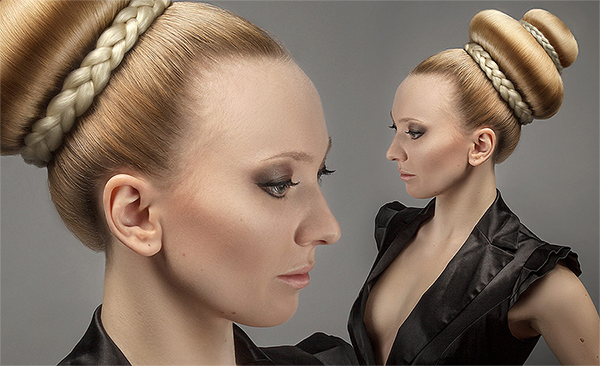
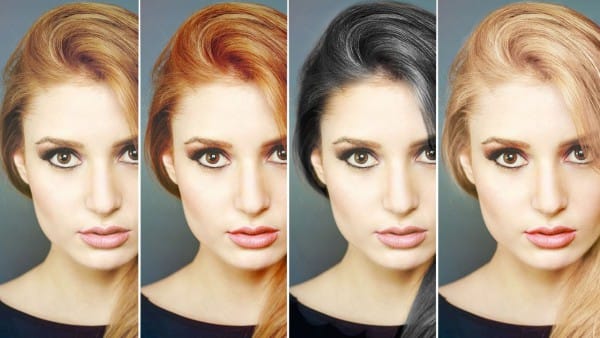
How to Change Hair Color in Photoshop
There are many reasons why you may want to change hair color in Photoshop. Perhaps your subject has recently dyed their hair and it doesn't look natural. Perhaps you want to see what you would look like with dark hair.
Changing Hair color in Photoshop is much easier than doing it in real life and by the time this tutorial is over you will be on your way to color city!
It is much easier to make hair dark than light. If you are starting out with a blonde and want to make her a brunette, not too
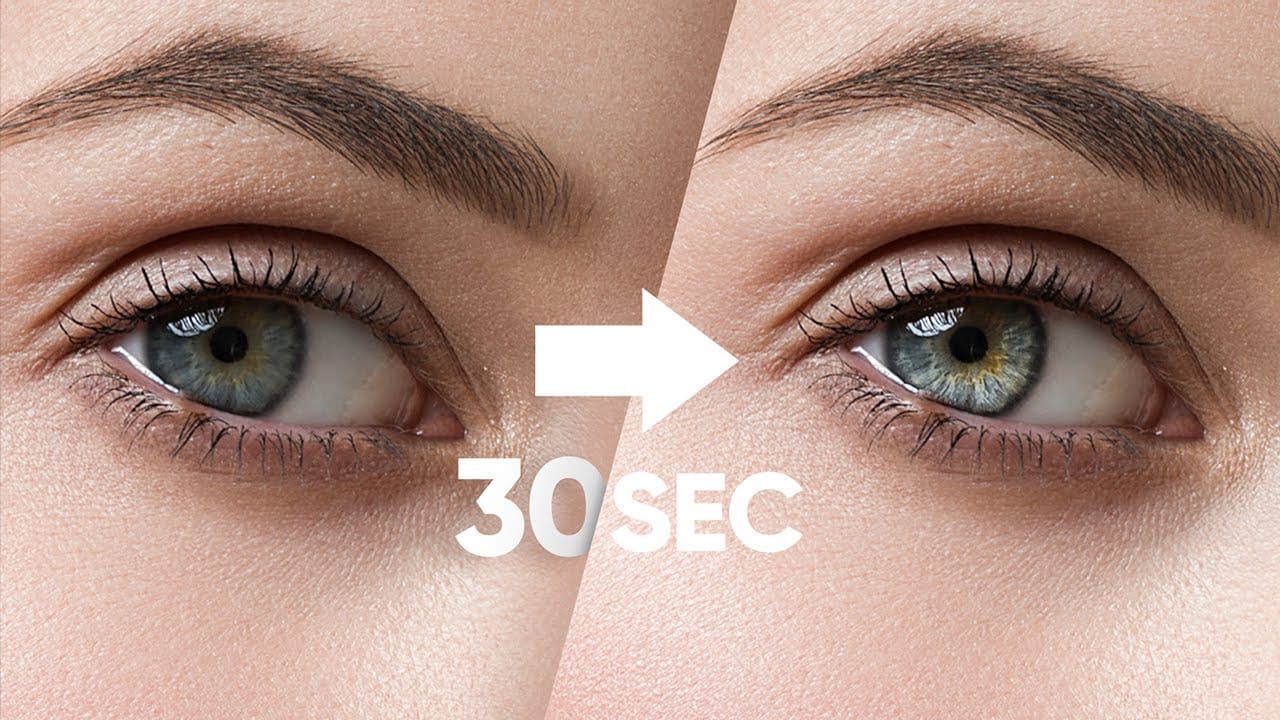
Make Eyes Dramatic in 30 Seconds with Photoshop
In this tutorial, PiXimperfect reveals a fast and effective technique to make eyes more dramatic and engaging in just 30 seconds using Photoshop. The focus is on enhancing the eyes by adding shine and depth, which can significantly elevate the overall impact of a portrait. The method involves using blend modes in combination with simple selections to introduce eye-catching highlights and contrasts.
The tutorial starts by demonstrating how to select the eye areas accurately, ensuring that the ad
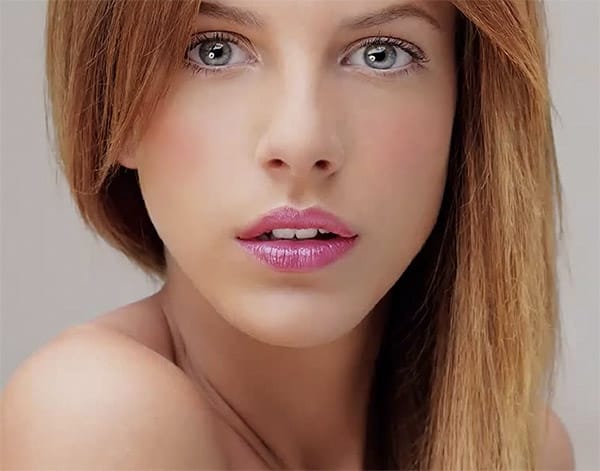
How to enhance lips in Photoshop
In this beginner-friendly Photoshop tutorial, you'll learn effective techniques to enhance the color and contrast of lips, giving them a shiny and vibrant appearance in your images. Follow simple methods to achieve beautifully enhanced lips, perfect for creating impactful portraits with striking lip colors.
Ideal for photographers and hobbyists looking to improve their photo editing skills and create polished, professional-looking images.
Watch tutorial
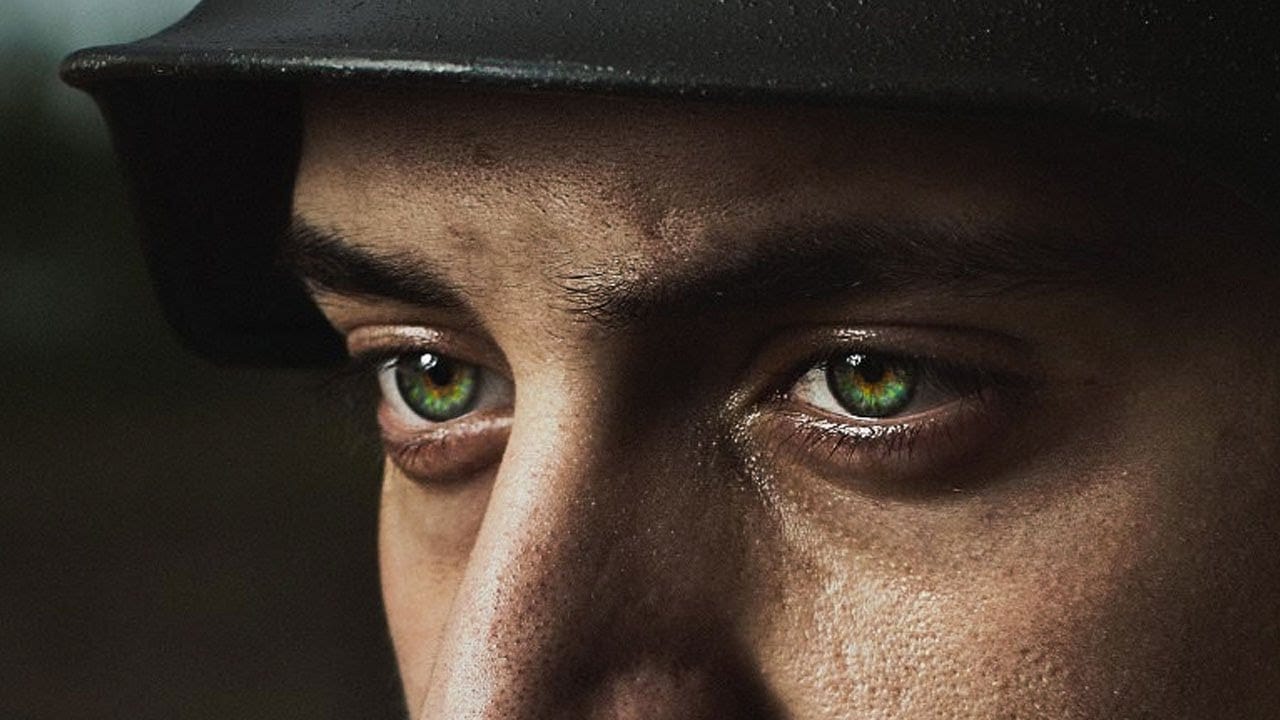
How to Color, Brighten and Sharpen Eyes in Photoshop
In this tutorial by Aaron Nace from Phlearn, learn how to enhance eyes in Photoshop to make them captivating and sharp.
Techniques include coloring the eyes by sampling natural hues and adjusting lightness and saturation, using blending modes like "Soft Light" or "Overlay" for a natural look, and softening edges with Gaussian Blur. Dodge and Burn techniques are used to enhance depth and light in the pupils, while selective sharpening draws attention to the eyes, making them stand out in portrai
Learn how to change eye, hair and lips color in Photoshop
For those of us who aren't professional photographers, or lack the proper equipment, portrait photography is a feat that will inevitably end in an intensive, and sometimes clueless, retouching session.
Luckily Photoshop has some incredible tools to make this process easier. But if you aren't an intermediate or advanced user, you will need some help.
The following tutorials will explain the basics of hair, eye and lips retouching process for beginners.
How to Change Hair Color in Photoshop
T
Precisely Cut Out Hair Using Color Range in Photoshop!
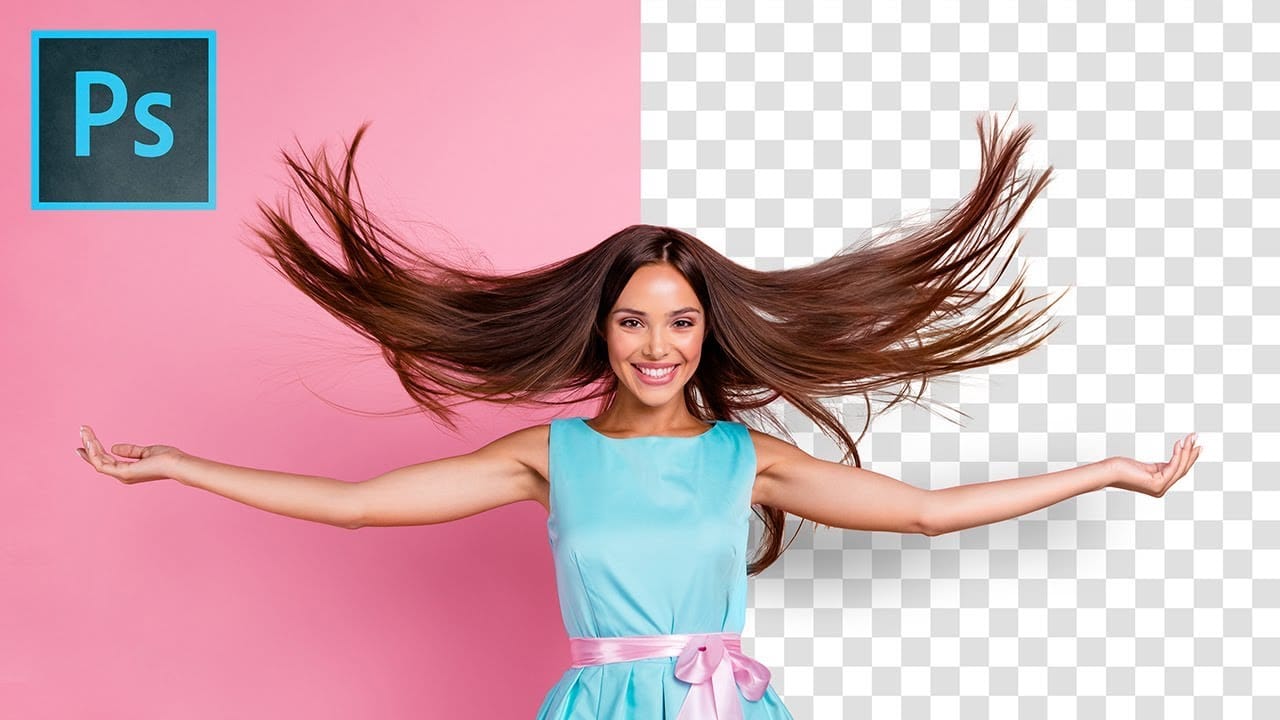
Mastering the Right Way to Use Color Range for Hair Masking in Photoshop! In this comprehensive guide, you'll discover how to accurately select and eliminate the background, even around challenging hair textures and styles. We will delve into crucial tips and techniques to enhance the quality of the mask so that it seamlessly blends with your new background.
Throughout this tutorial, we will also focus on effectively removing any unsightly edge fringes or halos that may occur, ensuring you achi
Easy Beauty Retouching in Photoshop
In this comprehensive Photoshop tutorial by PSD Box, you'll explore various fashion retouching techniques.
Learn how to paint realistic hair, retouch skin, and much more. This tutorial is ideal for photographers looking to enhance their studio or fashion portraits, as well as anyone interested in mastering retouching skills in Photoshop. Whether you're a professional or a hobbyist, these techniques will help you create stunning, polished images.
Enhance your retouching expertise and elevate th