7 Signs You're a Photoshop Pro - Skill Assessment Guide

7 Signs You're a Photoshop Pro - Skill Assessment Guide

Professional Photoshop mastery isn't about memorizing every menu or filter. It's about developing efficient workflows, understanding core concepts, and building muscle memory for essential techniques. Real pros focus on the right tools for their specific needs rather than trying to learn everything.

This comprehensive assessment covers seven key indicators of professional-level skills, from advanced shortcuts and non-destructive editing to blend mode mastery and workspace customization. Score yourself honestly on each category to discover your current skill level and identify areas for improvement.

Watch the Video

Video by PiXimperfect. Any links or downloads mentioned by the creator are available only on YouTube

Practical Tips

Essential techniques that separate professional workflows from amateur approaches:

  • Master the stamp visible layer shortcut (Ctrl+Alt+Shift+E) to merge layers non-destructively before applying smart filters
  • Use masks instead of the eraser tool to maintain flexibility and allow corrections throughout your editing process
  • Convert layers to smart objects before resizing to preserve image quality and enable non-destructive filter applications
  • Customize keyboard shortcuts for frequently used tools, placing them on the left side of the keyboard for efficient workflow
  • Learn to identify masking problems like halos and harsh edges, then fix them using techniques like the minimum filter or smudge tool

Explore these guides to continue developing your professional skills and workflow efficiency.

12 Visually Striking Photoshop Effects You'll Want to Add to Your Portfolio Right Now
Most people learning Photoshop quit way too early. Here's why: You start with excitement. Finally getting your hands on the world's most powerful image editing software. 'You'll create amazing things with just one click', they said. You eagerly dive into generative fill, experiment with artistic brushes, play with those magical one-click filters. Then reality hits. Your creations look like amateur hour. The kind of work you'd be embarrassed to show your friends, let alone a potential client
100+ Brilliant Photoshop Text Effects: The Ultimate 2025 Roundup
You won't admit this: You spend hours making text look like liquid gold. Not for clients. Not for your portfolio. Just because. Here's the thing: Text effects are your guilty pleasure. You tell yourself you're "practicing." You say you're "building skills." But really? You just love watching letters transform into chrome, fire, or glass. And you have that folder. Hidden three levels deep on your hard drive. Named something innocent like "Typography Practice." Filled with 47 versions of your
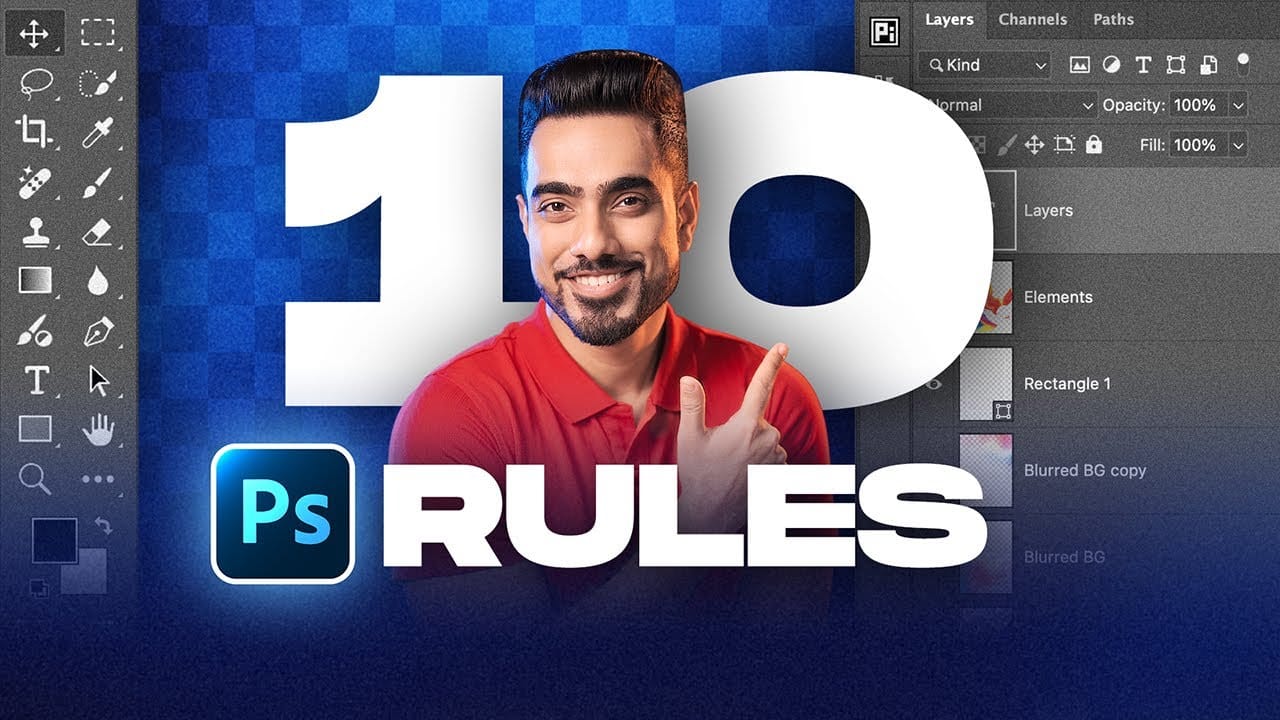
10 Essential Photoshop Rules Every Beginner Should Know
Photoshop's vast toolkit can overwhelm newcomers, leading to common pitfalls that affect image quality and workflow efficiency. Understanding the fundamental rules of professional editing prevents costly mistakes and builds a foundation for advanced techniques. These ten essential practices cover everything from color management and file formats to smart workflows and data protection. Each rule addresses specific problems that trip up beginners and provides practical solutions used by professio
10 little-known Photoshop features you should really learn
Photoshop's true power isn't just in its headline features—it's in the hidden gems that can transform your workflow overnight. While everyone knows about layers and the healing brush, these lesser-known capabilities can save you hours and open up creative possibilities you never knew existed. If you're a seasoned professional or an ambitious beginner, these 10 features will give you that unfair advantage that separates efficient creators from those still clicking through endless menus. 1. Ble
21 Photoshop Tips – From Basic to Advanced!
Photoshop's extensive toolkit means there's always something new to learn or a more efficient way to approach a task, whether you are just starting or have years of experience. Mastering its nuances can significantly enhance both your creative output and workflow efficiency. This video offers a comprehensive collection of 21 tips, guiding viewers from foundational techniques to more sophisticated methods for image manipulation, compositing, and graphic design. Each tip is designed to provide pr
10 Critical Photoshop Mistakes You Must Stop Making.
We all love to laugh at other people's mistakes, especially while looking at those hilarious Photoshop Fails. But when are you going to fix your own mistakes? Even those so-called experts make mistakes sometimes. So, before you call yourself a Photoshop master, see if you make any of these amateur mistakes when using Photoshop. 1) Forgetting To Use History Snapshots The History window is one of the best features in Photoshop that allow you to turn back time whenever you mess up an image. Alt
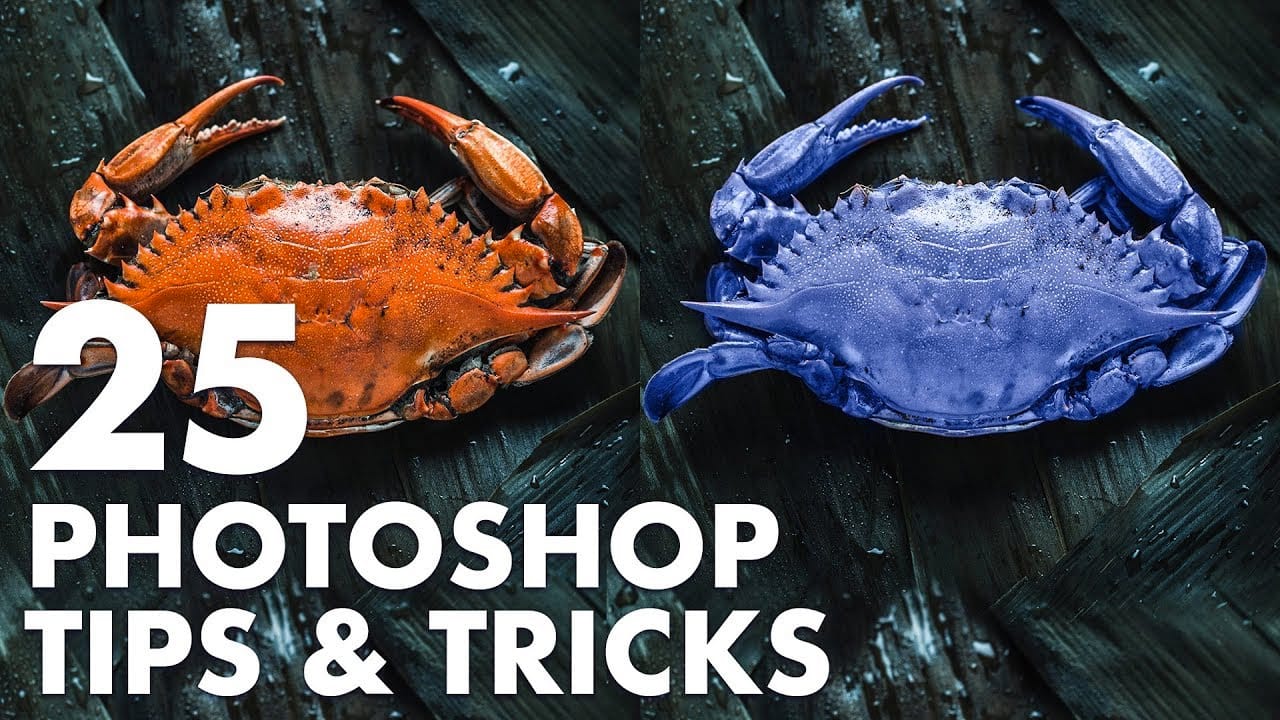
25 Photoshop tips and tricks you must know
Nathaniel Dodson, a renowned Photoshop expert, has crafted a comprehensive tutorial that guides you through the depths of the software's capabilities. In this 120-word exploration, readers will uncover a treasure trove of 25 invaluable tips and tricks that can significantly enhance their Photoshop experience. From mastering the art of brush smoothing to unlocking the hidden potential of sliders and views, Dodson's tutorial promises to elevate one's Photoshop prowess. Rubberband tricks, seamless
5 Hidden Photoshop Features You Probably Didn't Know
Many Photoshop users tend to rely on a familiar set of tools and workflows, often overlooking powerful but less obvious functionalities. This can lead to inefficient processes and missed creative opportunities, making certain tasks feel more cumbersome than they need to be. This guide and accompanying video demonstrate five underutilized features within Photoshop that can significantly enhance your efficiency and expand your creative toolkit. Learning these capabilities transforms how you appro
15 Fantastic Photoshop Portrait Effects You'll Want to Slap on Every Selfie Right Now
Sure, the title says you'll want to slap these effects on every selfie (that was me trying to grab your attention 😅) — but let's be honest: these aren't one-tap filters. Every tutorial here is built on real Photoshop craftsmanship — lighting, masking, blending, and a good dose of creative intuition. What makes these effects worth your time is how they walk that fine line between eye-catching and professional. They grab attention without looking cheap, they feel bold without going overboard, an

Get tutorials & freebies delivered to you.

Subscribe to the Photoshop Roadmap newsletter, a weekly roundup of new tutorials, insights and quality downloads, trusted by 6500+ readers.

You might also like

How to Create Digital Collages Using Layers and Blend Modes in Photoshop

Digital collages combine multiple images through strategic layering and blending techniques to create compelling visual stories. This beginner-friendly approach demonstrates how to build complex compositions by layering textures, portraits, and objects while using blend modes to seamlessly integrate each element. The process focuses on practical workflow techniques including smart object...

Building Complex Composites Using Generative Fill and Layer Blending

Complex surreal composites require more than just combining random images. The key to professional results lies in systematic layering, consistent masking techniques, and building a reusable library of generated elements. This approach transforms scattered AI-generated content into cohesive artistic visions. The tutorial demonstrates how to deconstruct an existing composite to...

How to Add Any Face to Mount Rushmore Using Photoshop and AI

Adding faces to Mount Rushmore creates striking digital art that combines portrait photography with AI-powered stone carving effects. This technique uses generative AI to transform any portrait into a realistic granite sculpture that matches the lighting, texture, and monumental style of the famous presidential memorial. The process combines traditional selection...

Creating Floral Wreath Overlays in Photoshop

Floral overlays transform ordinary portraits into magical compositions perfect for pet photography, baby portraits, and creative projects. This technique shows you how to build custom floral wreaths using AI-generated base elements and real floral PNG files, creating frames that can hold any subject in the center. The process combines symmetry...

Concept Development and Mood Boarding with Firefly Boards for Fashion Design

Fashion design concept development traditionally requires gathering inspiration from multiple sources, creating mood boards, and iterating through ideas before presenting to clients. Firefly Boards streamlines this entire workflow into a single workspace where you can source inspiration, generate new variations through AI remixing, and organize final concepts into professional presentations....

How to Use Dynamic Text Shapes in Photoshop

The Dynamic Text tool introduced in 2025 was revolutionary for automatic text sizing and layout, but 2026 brings an exciting update that adds shape options to this powerful feature. You can now create circular text, arches, and bow configurations with the same intelligent resizing capabilities that made the original tool...

You’ve successfully subscribed to Photoshop Roadmap
Welcome back! You’ve successfully signed in.
Great! You’ve successfully signed up.
Success! Your email is updated.
Your link has expired
Success! Check your email for magic link to sign-in.