Creating professional background blur no longer requires expensive camera lenses or complex manual techniques. Photoshop's Depth Blur Neural Filter uses artificial intelligence to automatically detect subjects and apply realistic depth of field effects to any photo.
This AI-powered approach analyzes your image to create natural-looking background separation, making portraits and product photos stand out with convincing bokeh effects that rival professional photography equipment.
Watch the Video
Practical Tips
Apply these techniques to get the best results from the Depth Blur Neural Filter:
- Use high-resolution images with clear subject-background separation for more accurate AI detection
- Adjust the focus distance slider to control which parts of your image remain sharp
- Fine-tune the blur amount gradually to maintain realistic depth of field effects
- Review and refine the automatically generated depth map using brush tools for precise control
- Combine with traditional masking techniques when the AI needs help identifying complex subjects
Related Articles and Tutorials
Explore more background blur techniques and advanced photo editing methods:
Magically change focus of photos in Photoshop
In this Photoshop tutorial, Colin Smith demonstrates the most powerful way to change the depth of field or background blur in your photos. This technique leverages depth maps, neural filters, and lens blur to achieve professional results.
Colin starts by explaining how to create and use depth maps, which are essential for controlling the focus and blur levels in specific areas of your photo. Depth maps allow you to simulate a shallow depth of field, making your subject stand out against a blurr
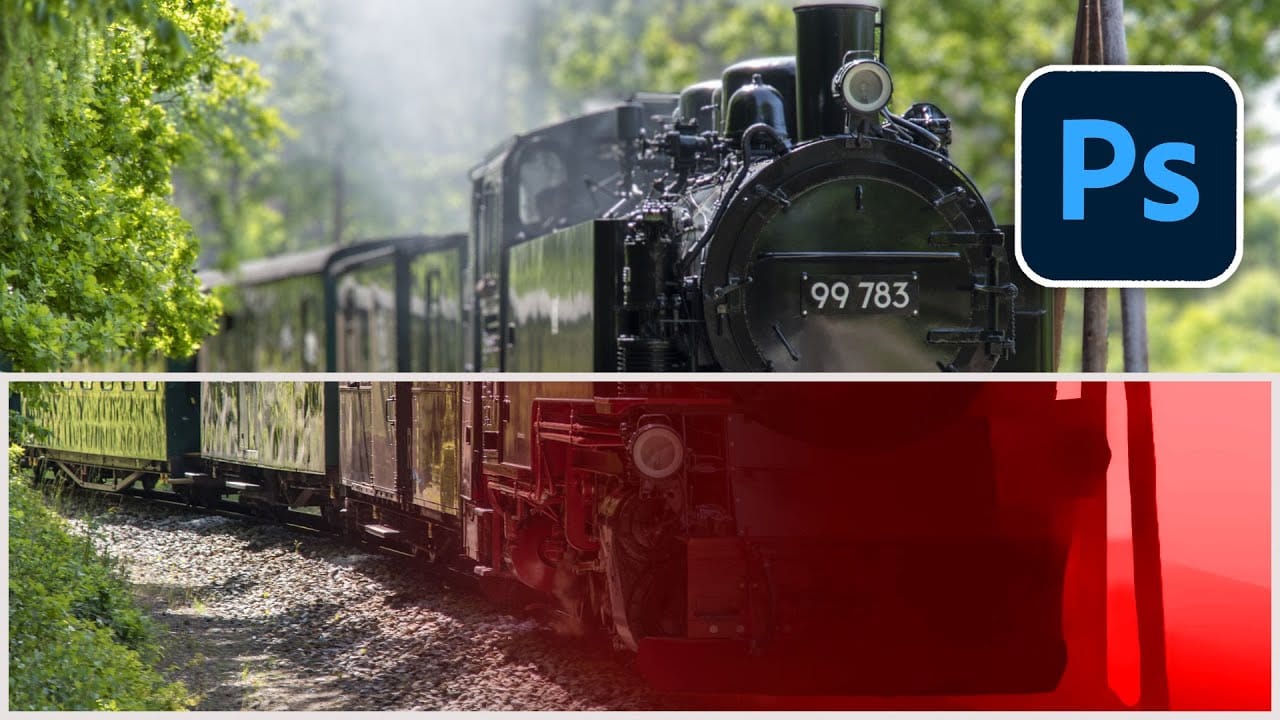
How to Blur Backgrounds in Photoshop with Precision and Speed
Creating professional-looking background blur can transform ordinary photos into stunning portraits with proper depth of field. The key lies in combining the right selection techniques with blur filters to achieve natural-looking results that rival expensive camera lenses.
This approach focuses on precision and speed, ensuring your subject remains sharp while the background gradually transitions into a smooth, pleasing blur that draws attention to your main focal point.
Watch the Video
Prac
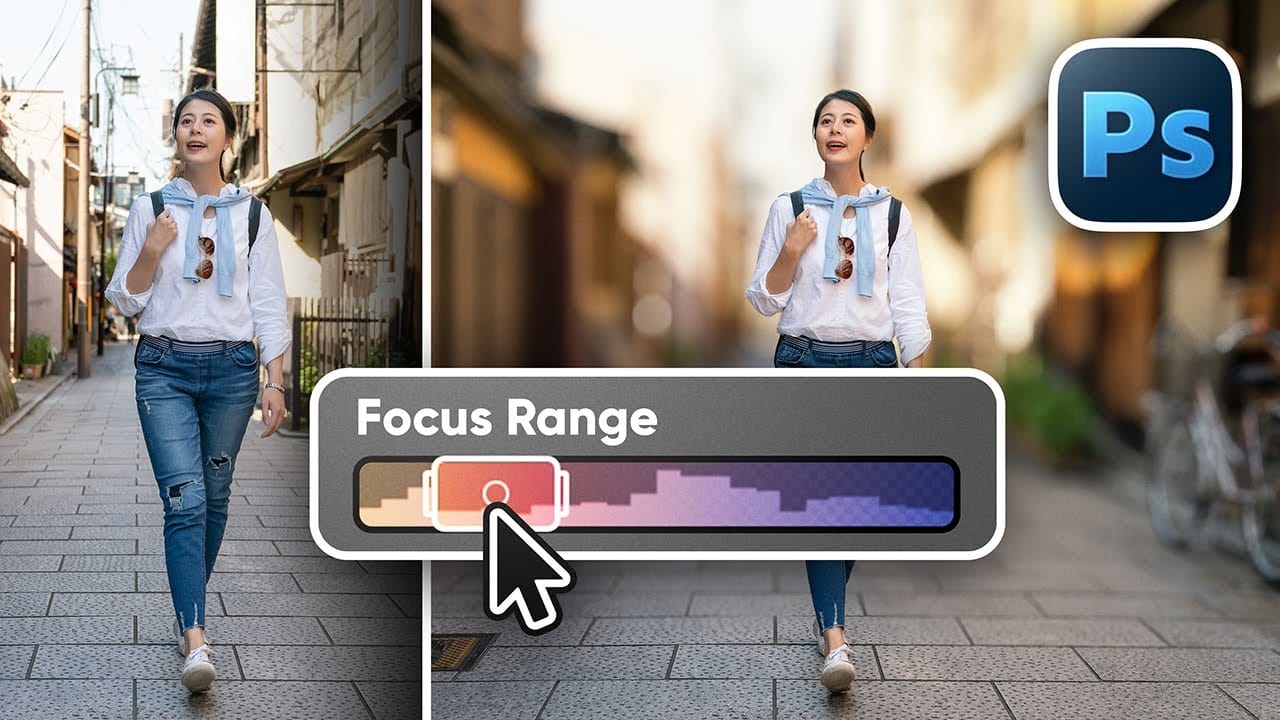
How to Use Photoshop's New Harmonize Feature to Blend Images Automatically
Photoshop's latest AI feature promises to solve one of compositing's biggest challenges: making cut-out objects look naturally integrated into new backgrounds. The new Harmonize tool automatically matches lighting, creates shadows, and adds reflections with a single click.
This breakthrough technology eliminates hours of manual work that traditionally required advanced knowledge of color theory, lighting principles, and complex adjustment layers. While still in beta, Harmonize represents a sign

Beautiful Photo Blur Effect in Photoshop
Applying a beautiful blur effect to your photos in Photoshop has never been easier. Jessica Kobeissi's tutorial guides you through the process, showing you how to achieve a stunning, professional-looking result.
With just a few simple steps, you can transform your images and add a touch of elegance. The blur effect creates a soft, dreamy look that draws the viewer's attention to the focal point of your photograph. Whether you're looking to enhance a portrait or add a creative flair to a landsca
How to Change Background Using AI in Photoshop
In this engaging Photoshop tutorial by Aaron Nace from Phlearn, you will explore the art of blending graphics with portrait photography. One of the key techniques highlighted is the Super Zoom feature, which allows you to upscale graphics without sacrificing quality. This ensures that your images maintain sharpness and clarity, even when enlarged.
The tutorial also introduces the use of Gradient Maps for effective color matching. This tool helps create a consistent color palette that ties the e
Did you know Photoshop has new Quick Actions?
Discover how to speed up your workflow with Photoshop's new Quick Actions, presented by Colin Smith from Photoshop Cafe. This tutorial reveals the ease and efficiency of using Quick Actions to perform common tasks with just one click. Colin walks you through locating these Quick Actions and demonstrates how to use them to blur backgrounds, apply duotones, remove backgrounds, and more.
While some features, like the Blur Background action, might not always produce perfect results, Colin shares a

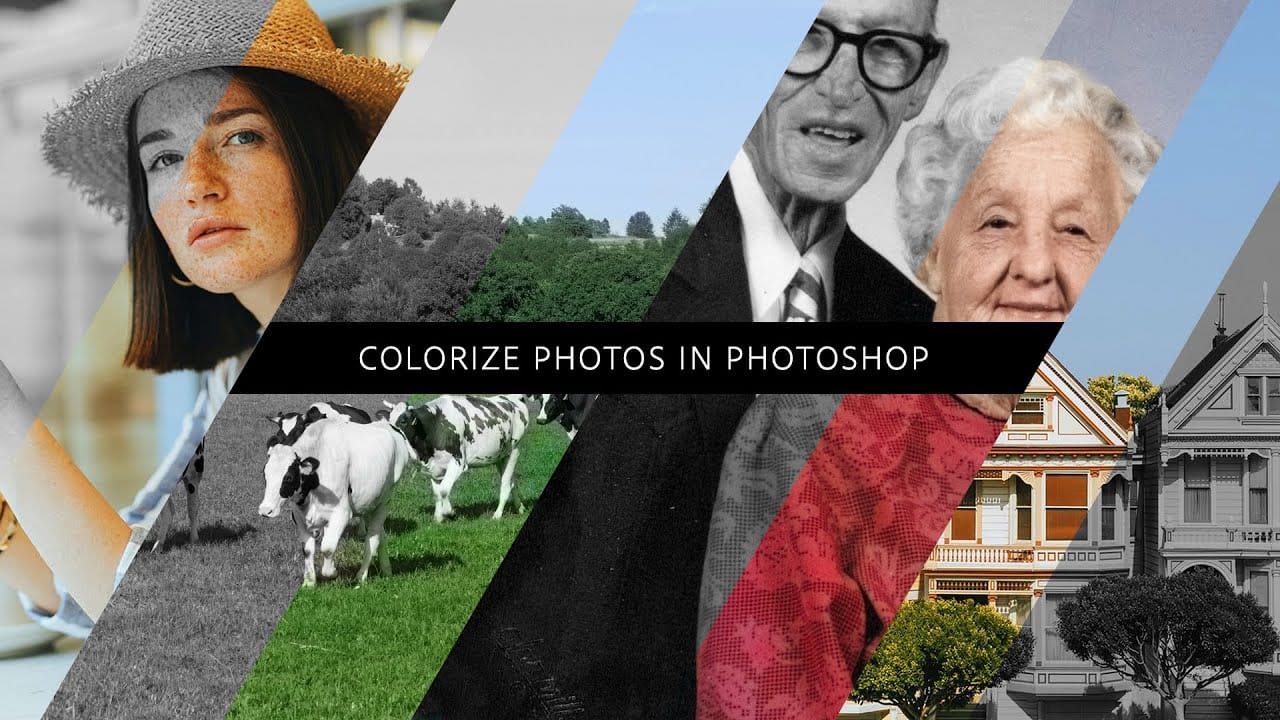
How to colorize photos in Photoshop
In this episode, Adobe Evangelist Paul Trani demonstrates how to instantly colorize photos in Photoshop using the new Neural Filters. This feature allows you to bring new life to black-and-white images, from landscapes to your old family photos, with just a few clicks.
Paul walks you through the process of accessing and applying the Neural Filters to your photos. You'll learn how these advanced filters use artificial intelligence to analyze your image and apply realistic colorization based on t
Create painterly backgrounds in Photoshop FAST!
Painting in Photoshop doesn't have to be flat and lifeless. In this quick 1-minute video tutorial, Kyle T Webster shows you how to create vibrant painterly backgrounds with ease. By taking advantage of color dynamics, you can add depth and life to your backgrounds, transforming them from flat to fabulous in no time.
Kyle demonstrates how simple adjustments and techniques can significantly enhance the overall look and feel of your digital paintings. Whether you're a beginner or an experienced ar
How to Use Photoshop's Smudge and Blur Tools for Perfect Masking
Professional photo composites often fall apart at the edges. Sharp selection lines and harsh transitions make even the best cutouts look artificial and fake. The solution lies in two overlooked Photoshop tools that most editors dismiss as destructive and useless. The smudge and blur tools become powerful allies when applied to layer masks instead of image pixels. This approach creates natural, realistic edges that match the original photo's depth of field and lighting conditions.
Watch the Tut