Create Stunning Retro Travel Tourism Posters in Photoshop

Create Stunning Retro Travel Tourism Posters in Photoshop

The allure of vintage travel posters lies in their distinctive artistic style, often characterized by simplified forms, vibrant colors, and a nostalgic charm that evokes a sense of adventure and discovery. Recreating this classic aesthetic in a digital medium presents a unique creative opportunity, allowing designers to transform ordinary photographs into captivating works of art.

This tutorial guides you through a comprehensive process in Photoshop, demonstrating how to convert any scenic photograph into a stunning retro travel poster. You will learn to apply specific filters, refine image details, and integrate stylized elements like clouds and custom typography to achieve an authentic vintage look.

Watch the Video

Video by Blue Lightning. Any links or downloads mentioned by the creator are available only on YouTube

The Enduring Appeal of Retro Poster Aesthetics

Retro travel posters captured the imagination of travelers in the early to mid-20th century, using graphic design to promote destinations with an idealistic and often romanticized vision. These posters were not merely advertisements; they were artistic statements, employing techniques that simplified complex scenes into their most striking elements. This simplification often involved reducing photographic detail to more graphic, illustrative forms, emphasizing strong lines and bold color blocks.

Key aesthetic choices contributed to their iconic look, including the use of:

  • Simplified color palettes
  • Stylized or illustrative representations of landscapes
  • Distinctive, often hand-drawn, typography
  • Subtle textures mimicking print processes

This approach allowed for a powerful visual impact, conveying the essence of a location with clarity and charm. Modern designers often draw inspiration from these historical artifacts to infuse contemporary projects with a sense of nostalgia and timeless appeal, bridging the gap between classic artistry and digital innovation.

Practical Tips for Retro Poster Design

  • Convert your base image to a Smart Object early in the process to allow for non-destructive editing and filter adjustments.
  • Utilize the Cutout filter to reduce the number of colors and simplify image details, giving a more illustrative appearance.
  • Employ the Smart Blur filter with an Overlay blending mode to smooth out transitions while maintaining edge definition, contributing to a painterly effect.
  • Increase color vibrancy using an Adjustment Layer, specifically Vibrance or Saturation, to achieve the bold color typical of retro posters.
  • Use the Curvature Pen Tool for creating smooth, stylized elements like clouds, and fill paths with solid colors for a graphic look.
  • Group text layers into a folder to keep your Layers panel organized, especially when working with multiple lines and styles of typography.
  • Apply a texture filter like Texturizer (Sandstone) to the final composite image to simulate the tactile feel of printed paper, enhancing the vintage aesthetic.

Explore more creative techniques to design compelling posters and enhance your Photoshop skills.
Create a retro ’50s Sci-Fi poster in Photoshop
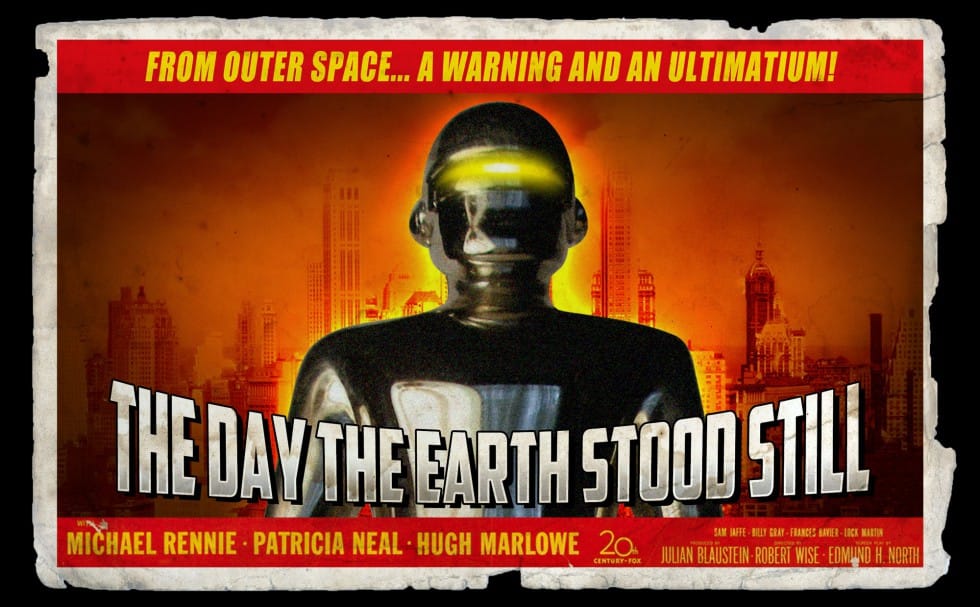
In this engaging tutorial by Marty Geller from Blue Lightning TV, you will learn to create a nostalgic 1950s sci-fi poster using Photoshop. The tutorial focuses on transforming a classic movie poster into your own retro design. Throughout the lesson, you will explore techniques that capture the essence of mid-century science fiction art. The example presented is a redesign of the iconic 1951 poster for "The Day The Earth Stood Still." By the end of the tutorial, you'll have a better understand
Create a Wonderful 3D Typographic Poster in Photoshop
Photoshop's 3D tools have reached impressive new heights, and the Repoussé tool stands out as a notable feature. This tutorial focuses on how to extrude text, providing results akin to those achieved in full 3D applications. By utilizing this innovative feature, one can easily enhance designs with depth and dimension. In addition to the Repoussé tool, the tutorial examines traditional 3D settings, allowing you to fully harness the various material and rendering options available. This explorati
Turn Your Average Vacation Shots Into Beautiful Photos in Photoshop
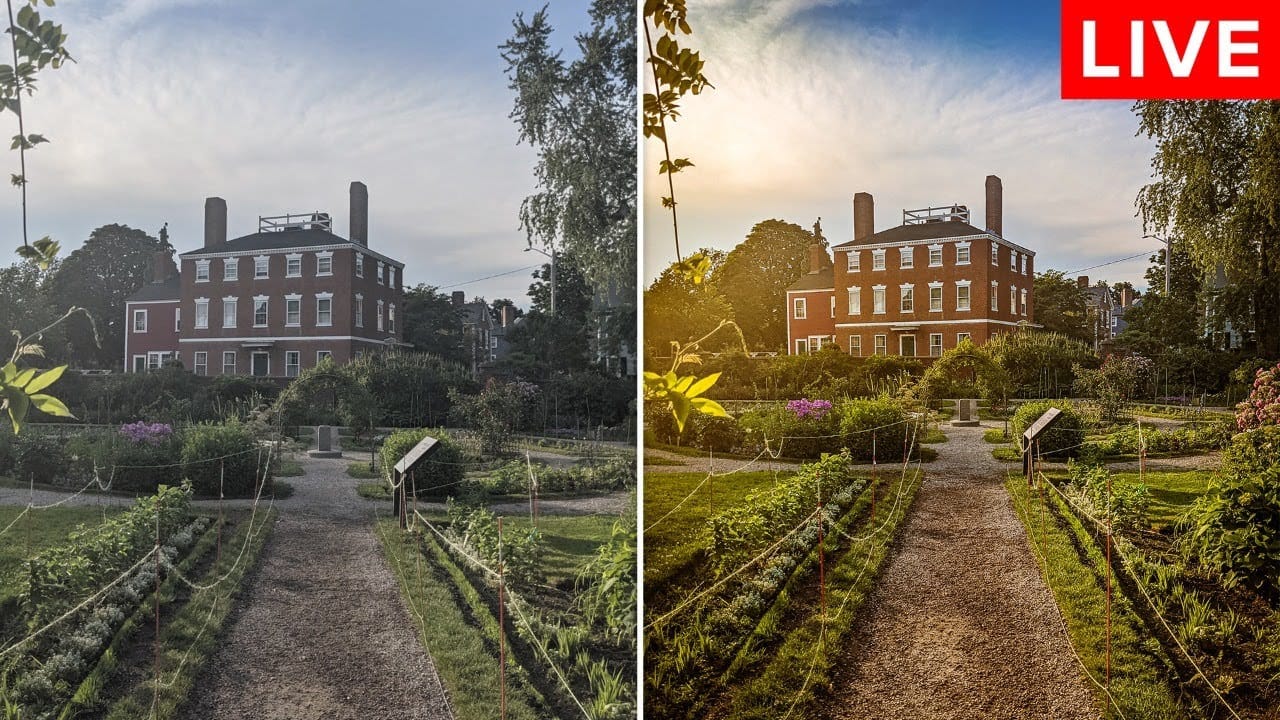
In this episode of the Photoshop Training Hour, Jesus Ramirez guides you through transforming your ordinary vacation photos into stunning visuals using Photoshop. The tutorial focuses on harnessing the power of Camera Raw to enhance your images. You'll learn how to correct lighting issues, adjust colors for better vibrancy, and fix perspective distortions to make your photos look professional. Beyond the basic corrections, Jesus also introduces creative effects that can add flair to your shots.
Create a Striking Text Portrait Poster in Photoshop
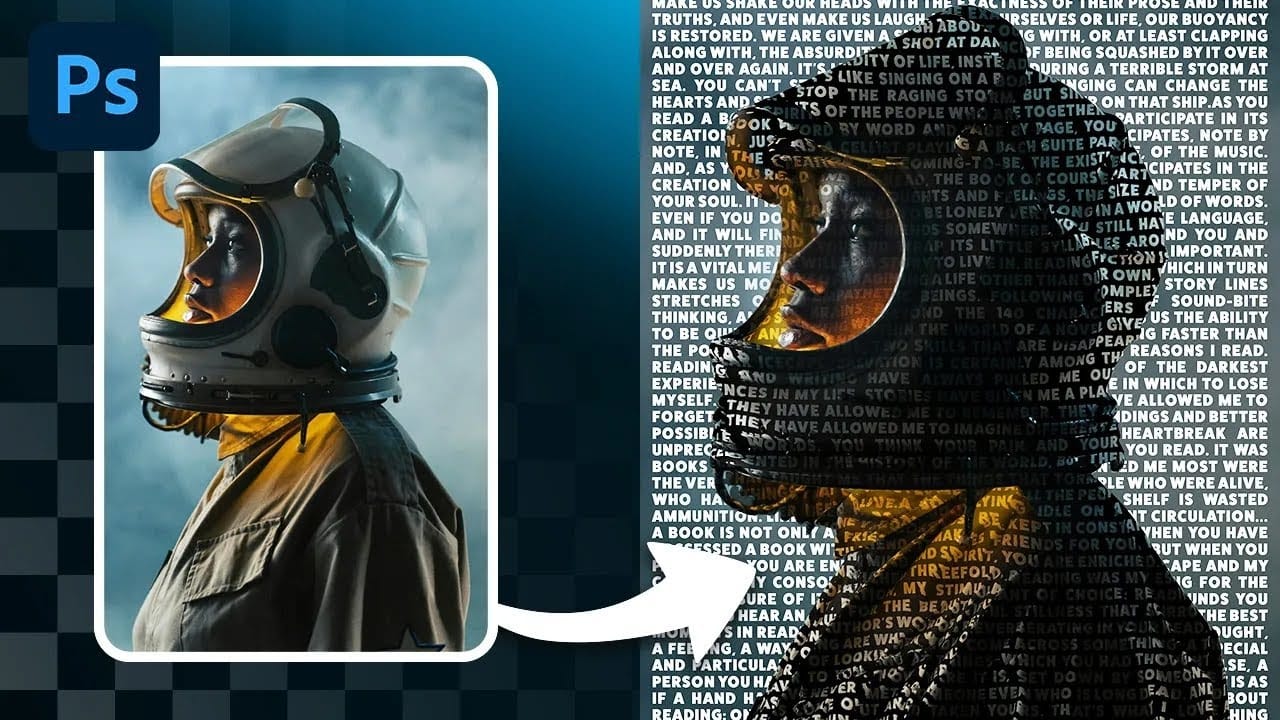
Transforming an ordinary portrait into a captivating text-based artwork presents a unique creative challenge in Photoshop. Often, the frustration lies in making text appear to organically wrap around a subject’s contours rather than just sitting flat over the image. Achieving this seamless integration, especially when dealing with complex shapes, can feel like navigating an intricate technical puzzle. This tutorial offers a clear pathway to mastering text portrait effects using advanced masking

Get tutorials & freebies delivered to you.

Subscribe to the Photoshop Roadmap newsletter, a weekly roundup of new tutorials, insights and quality downloads, trusted by 6500+ readers.

You might also like

How to Use Select Subject for Background Removal and Edge Refinement

Background removal becomes effortless when you know how to use the right tools. AI-powered selection can instantly isolate subjects from their backgrounds, but the real skill lies in refining those selections to create professional results. This guide covers the complete workflow from initial selection to edge refinement, plus creative techniques...

How to Wrap Text Around Any Shape in Photoshop

Creating text that flows naturally around irregular shapes transforms static layouts into dynamic, professional designs. This technique works particularly well for posters, magazine layouts, and editorial designs where text needs to integrate seamlessly with complex subjects rather than simply sitting in rigid rectangular boxes. The process combines selection tools, path...

How to Edit Text in Images Using Generative Fill

Changing text within existing images has traditionally required complex masking and reconstruction techniques. Modern AI-powered tools now make it possible to seamlessly replace words and phrases in photographs while maintaining realistic typography, lighting, and perspective that matches the original scene. This technique works particularly well for signs, storefronts, billboards, and...

How to Remove Dust and Sensor Spots Using Photoshop Tools

Dust spots and sensor particles are inevitable challenges in digital photography, appearing as dark specks that distract from otherwise clean images. Camera sensors collect dust over time, creating consistent spots that show up across multiple photos, particularly in bright sky areas or uniform backgrounds. Both Lightroom and Photoshop offer specialized...

Photoshop vs Affinity Photo: Feature Comparison and Professional Analysis

When choosing professional photo editing software, the decision often comes down to comparing features, performance, and value. This detailed comparison examines the core capabilities of both applications across noise reduction, smart selections, object removal, masking, and AI-powered tools. The analysis covers real-world scenarios that professionals encounter daily, from complex background...

Create Realistic Water Reflections Using Generative Fill in Photoshop

Traditional reflection techniques in photo editing often produce unrealistic results because they simply flip and copy existing image elements. Real reflections show different viewing angles and reveal surfaces not visible in the original photograph—like the underside of vehicles or objects viewed from below water level. Generative fill technology solves...

You’ve successfully subscribed to Photoshop Roadmap
Welcome back! You’ve successfully signed in.
Great! You’ve successfully signed up.
Success! Your email is updated.
Your link has expired
Success! Check your email for magic link to sign-in.