Creating AI-Enhanced Autumn Fantasy Images in Photoshop

Creating AI-Enhanced Autumn Fantasy Images in Photoshop

Fantasy imagery comes alive when artificial intelligence meets traditional photo manipulation techniques. AI-generated backgrounds provide the perfect foundation for creating moody, atmospheric scenes that would be difficult or impossible to capture with a camera alone.

This approach combines the creative potential of AI image generation with Photoshop's precise editing tools to craft compelling visual narratives. The result is a seamless blend of imagination and technical skill that transforms simple AI outputs into polished artistic compositions.

Watch the Complete Tutorial

Video by SandraD Imagery. Any links or downloads mentioned by the creator are available only on YouTube

Building Artistic Compositions with AI Elements

Working with AI-generated imagery requires a different mindset than traditional photography. The base elements serve as starting points rather than finished products, offering unlimited creative possibilities when combined thoughtfully.

The key lies in understanding how to enhance and integrate these AI elements seamlessly. Canvas expansion, color matching, and atmospheric adjustments transform disconnected pieces into cohesive artistic statements.

  • AI backgrounds provide atmospheric foundations that save hours of manual creation
  • Neural filters automatically handle complex color matching between different elements
  • Generative expand tools allow flexible composition adjustments throughout the workflow
  • Vintage effects and grain add character that bridges the gap between digital and traditional art
  • Layered adjustments maintain non-destructive editing flexibility for future revisions

Practical Tips for AI-Enhanced Fantasy Scenes

  • Use generative expand early in your workflow to establish proper composition before adding elements
  • Apply neural filter harmonization first, then fine-tune with hue/saturation adjustments using clipping masks
  • Group related elements together to make simultaneous adjustments more efficient
  • Balance warm and cool tones by adding cyan photo filters to counteract overly warm AI-generated colors
  • Add finishing touches through Camera Raw filters for grain, highlight recovery, and final tonal adjustments

More Tutorials About Fantasy Photo Manipulation

Explore these additional resources for advanced compositing and surreal image creation techniques.
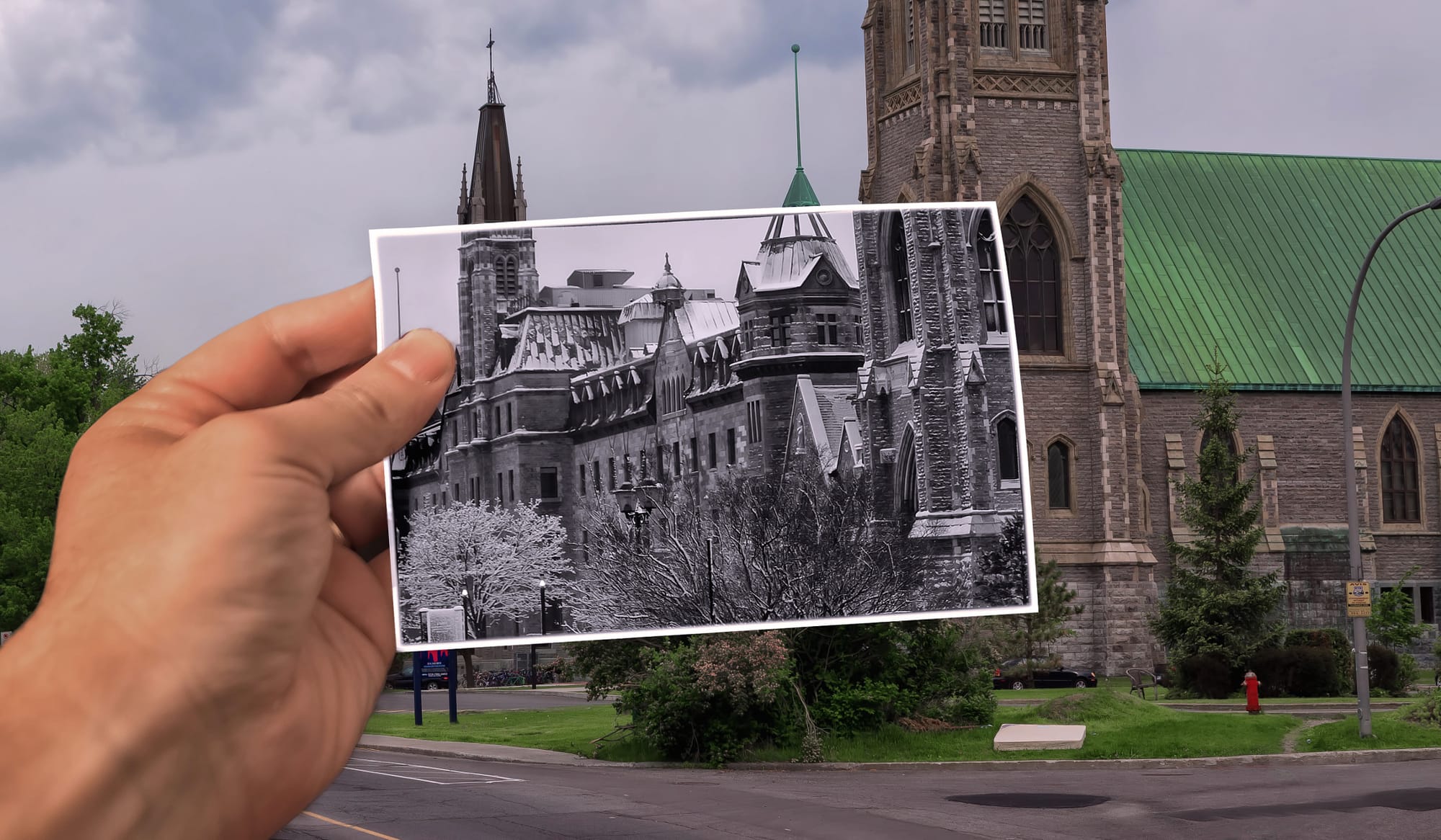
Create a Fake Past vs Present Photoshop Effect in Photoshop
This tutorial from 500px ISO guides you through creating a unique photo effect that merges a past and present photo into one using Photoshop. Begin by selecting two images: one as the present-day background and another, possibly converted to black and white, representing the past. Enhance the past image with a frame or border for aesthetic appeal. The crucial step involves seamlessly integrating the past image into the present scene using Photoshop's layer mask techniques. Finally, refine your
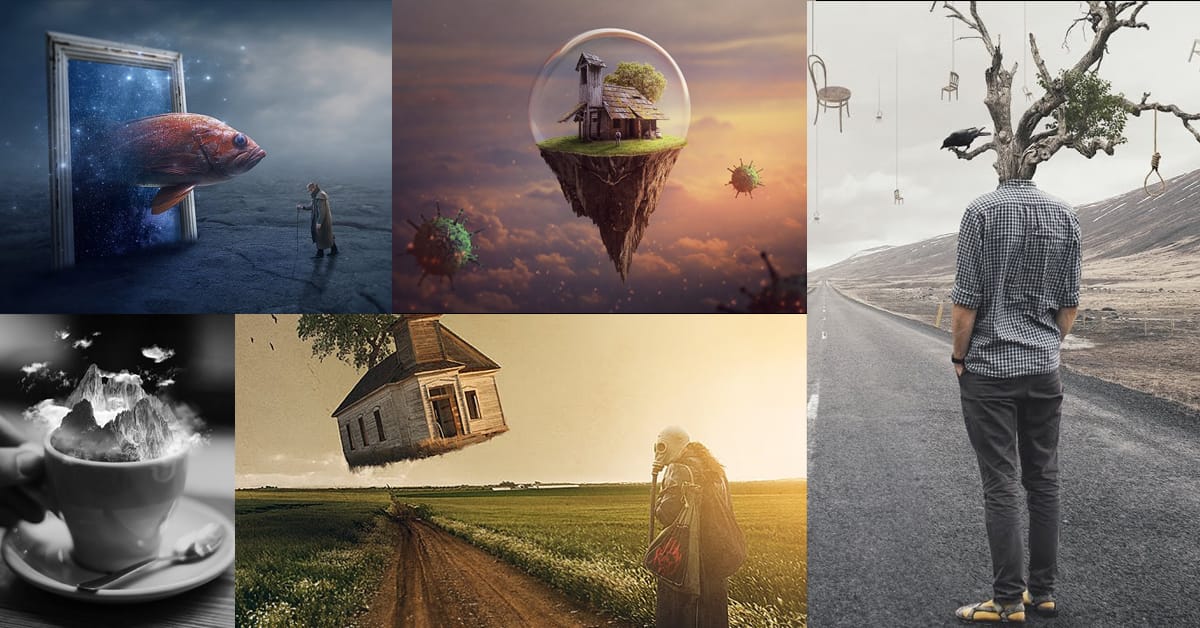
Create amazing surreal photo manipulations in Photoshop
Have you ever seen images online that seem to defy reality? Professional retouchers have mastered techniques to seamlessly combine different elements into surreal composite images. However, their methods have largely remained secrets known only to a select few experts. Now, in these unique Photoshop tutorials, some of the world's best retouchers are finally revealing their processes. Across multiple in-depth videos, the pro retouchers deconstruct their entire workflows step by step. You'll lear
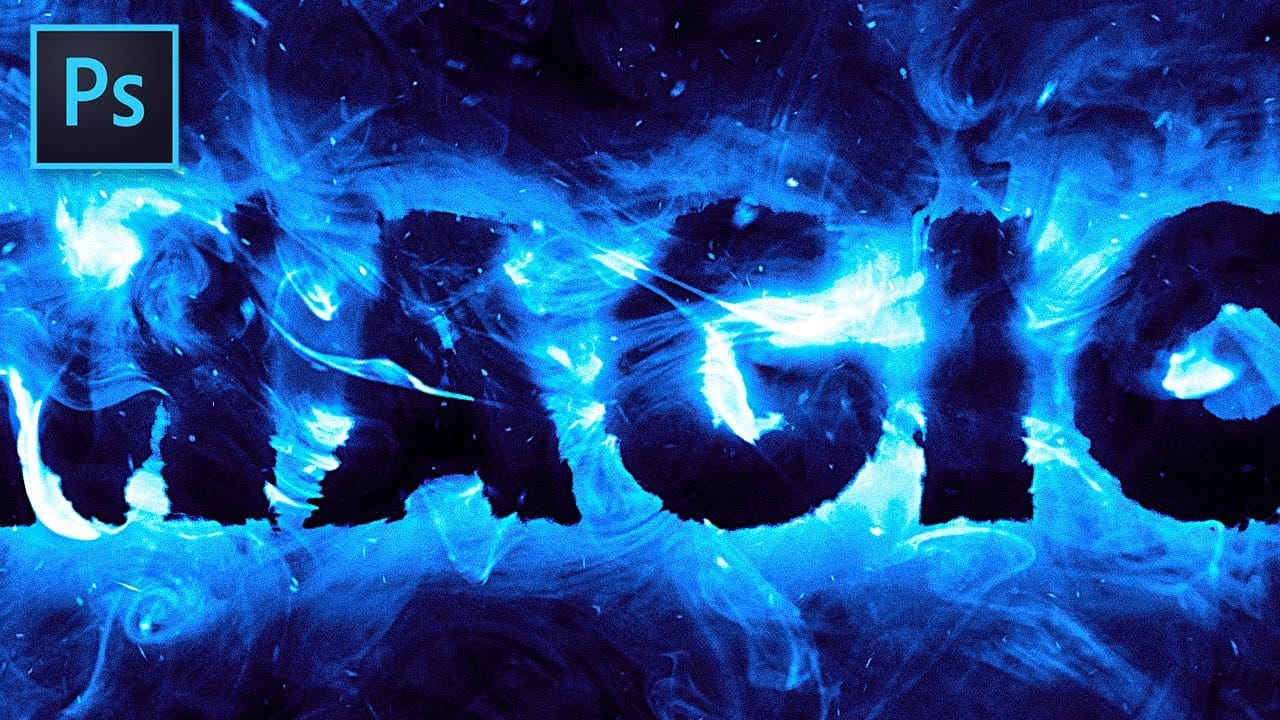
Magic Smoke Text Effect in Photoshop
Brady from Texturelabs introduces a unique tutorial on creating a magical smoke text effect in Photoshop. Inspired by work on the movie "Pan" Brady shares a technique that didn't make it into the film's marketing but remains a captivating method worth sharing. Despite its intricate appearance, this effect doesn't involve any painting. Instead, Brady reveals a clever approach using layer styles and blending modes to achieve the mesmerizing smoke text effect. This tutorial promises to unlock cre
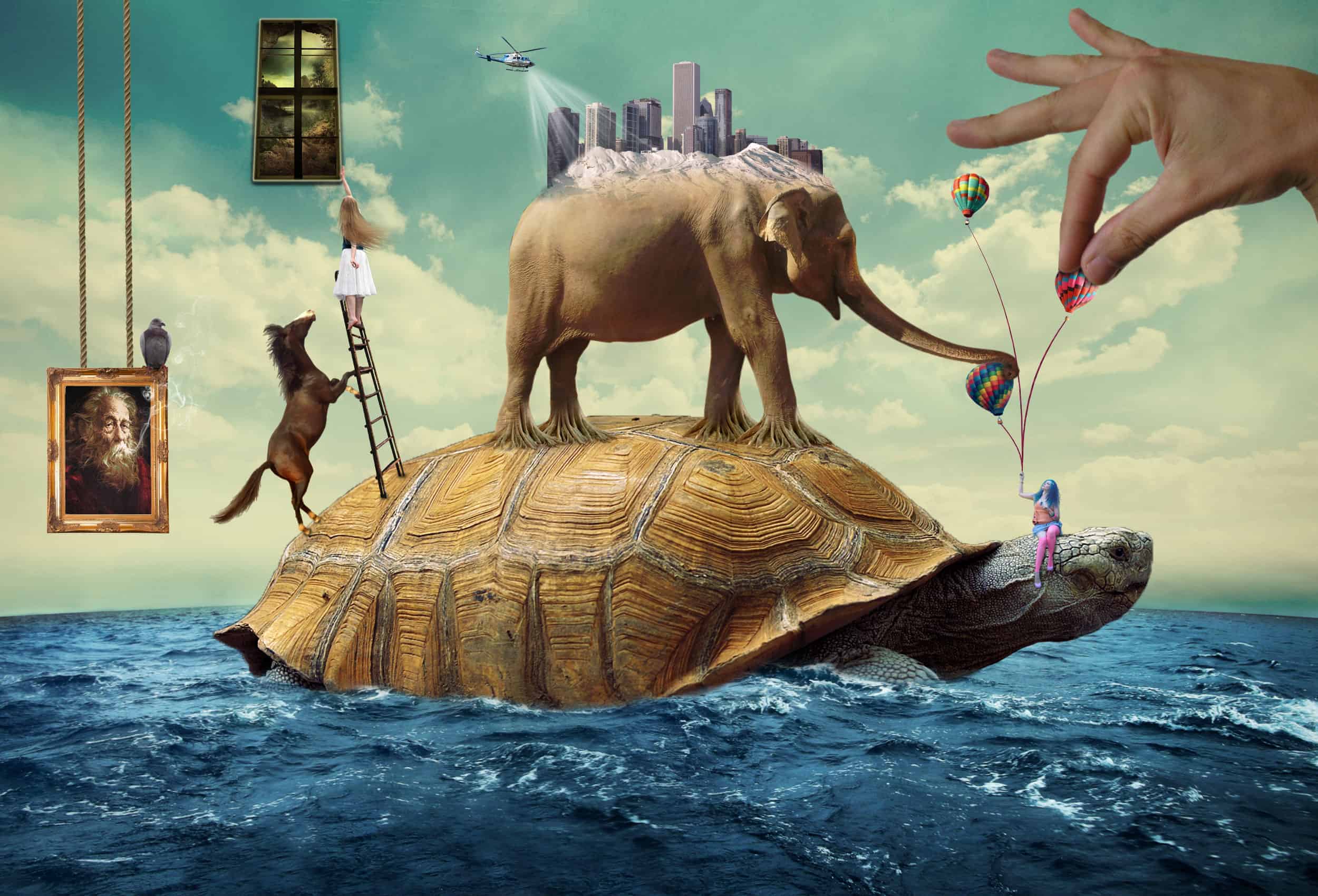
Create a Beautiful Surreal Scene Full of Life in Photoshop
Guilherme Pejon's tutorial offers an exciting opportunity to delve into the world of surreal photo manipulation. You will learn to craft an imaginative scene featuring a turtle swimming alongside diverse animals and children. The step-by-step guidance makes it easy for artists of all skill levels to follow along. Not only will you create a captivating image, but you'll also acquire valuable non-destructive photo manipulation techniques that can be applied to future projects. Additionally, all

Get tutorials & freebies delivered to you.

Subscribe to the Photoshop Roadmap newsletter, a weekly roundup of new tutorials, insights and quality downloads, trusted by 6500+ readers.

You might also like

Basic Photoshop techniques you really need to learn

Photoshop hasn’t changed as much as it looks. New features come and go, but the same core techniques keep showing up in real work. If you skip them, everything feels harder than it should. This post focuses on those basics, not as isolated tricks, but as skills you’ll...

How to Use Select Subject for Background Removal and Edge Refinement

Background removal becomes effortless when you know how to use the right tools. AI-powered selection can instantly isolate subjects from their backgrounds, but the real skill lies in refining those selections to create professional results. This guide covers the complete workflow from initial selection to edge refinement, plus creative techniques...

How to Wrap Text Around Any Shape in Photoshop

Creating text that flows naturally around irregular shapes transforms static layouts into dynamic, professional designs. This technique works particularly well for posters, magazine layouts, and editorial designs where text needs to integrate seamlessly with complex subjects rather than simply sitting in rigid rectangular boxes. The process combines selection tools, path...

How to Edit Text in Images Using Generative Fill

Changing text within existing images has traditionally required complex masking and reconstruction techniques. Modern AI-powered tools now make it possible to seamlessly replace words and phrases in photographs while maintaining realistic typography, lighting, and perspective that matches the original scene. This technique works particularly well for signs, storefronts, billboards, and...

How to Remove Dust and Sensor Spots Using Photoshop Tools

Dust spots and sensor particles are inevitable challenges in digital photography, appearing as dark specks that distract from otherwise clean images. Camera sensors collect dust over time, creating consistent spots that show up across multiple photos, particularly in bright sky areas or uniform backgrounds. Both Lightroom and Photoshop offer specialized...

Photoshop vs Affinity Photo: Feature Comparison and Professional Analysis

When choosing professional photo editing software, the decision often comes down to comparing features, performance, and value. This detailed comparison examines the core capabilities of both applications across noise reduction, smart selections, object removal, masking, and AI-powered tools. The analysis covers real-world scenarios that professionals encounter daily, from complex background...

You’ve successfully subscribed to Photoshop Roadmap
Welcome back! You’ve successfully signed in.
Great! You’ve successfully signed up.
Success! Your email is updated.
Your link has expired
Success! Check your email for magic link to sign-in.