Designing a Magazine Cover in Photoshop

Designing a Magazine Cover in Photoshop

Magazine cover design combines typography, visual hierarchy, and image composition to create compelling editorial layouts that grab attention on crowded shelves. Modern magazine designs often feature bold typography that interacts dynamically with the cover subject, creating depth and visual interest through layering techniques.

This tutorial demonstrates the complete process of designing a professional magazine cover in Photoshop, from initial setup to final details. You'll learn essential techniques for text masking, color grading, shadow effects, and layout composition that are fundamental to editorial design.

Watch the Tutorial

Any links or downloads mentioned by the creator are available only on YouTube

Understanding Magazine Cover Design Principles

Successful magazine covers follow established design principles that balance visual impact with readability. The masthead typically occupies the top portion, while the main image serves as the focal point. Typography must work harmoniously with imagery, often requiring creative solutions like text masking to maintain both legibility and visual flow.

Visual hierarchy plays a crucial role in guiding reader attention. Cover lines, issue information, and barcodes must be positioned strategically without competing with the main title or overwhelming the design. The challenge lies in incorporating all necessary elements while maintaining clean, professional aesthetics.

Color relationships between text, background, and subject matter significantly impact the cover's effectiveness. Gradient overlays and blending modes can enhance contrast and create mood, while shadows and highlights add dimension to typography and improve readability across varying background tones.

Practical Tips for Magazine Cover Design

  • Set up your document with proper print dimensions (8.5" x 11" or A4) and include bleed areas for professional printing
  • Use layer masks instead of erasing to hide text behind subjects, preserving the original text for future edits
  • Apply gradient overlays with Color Dodge or Overlay blending modes to enhance contrast and create visual interest
  • Create subtle drop shadows behind text using soft brushes on separate layers with clipping masks for better control
  • Maintain consistent font families and establish clear typography hierarchy with varying weights and sizes

Explore more editorial design techniques and creative layout concepts.

Simplicity in Design: 6 Essential Concepts Worth Learning Early On
Great design isn’t about adding more. It’s about knowing what to leave out. With so much visual noise competing for our attention, simplicity has never been more powerful. Yet most creators, especially early in their journey, assume that more complexity equals more value. More filters. More layers. More
Web Typography: Essential Principles for Confident Design
Many designers frequently find themselves searching for “best font pairings,” hoping to stumble upon the ideal typography for their projects. This common struggle highlights a fundamental challenge: while typography appears straightforward, it is, in fact, one of the most significant factors in achieving great design. When executed correctly, good typography
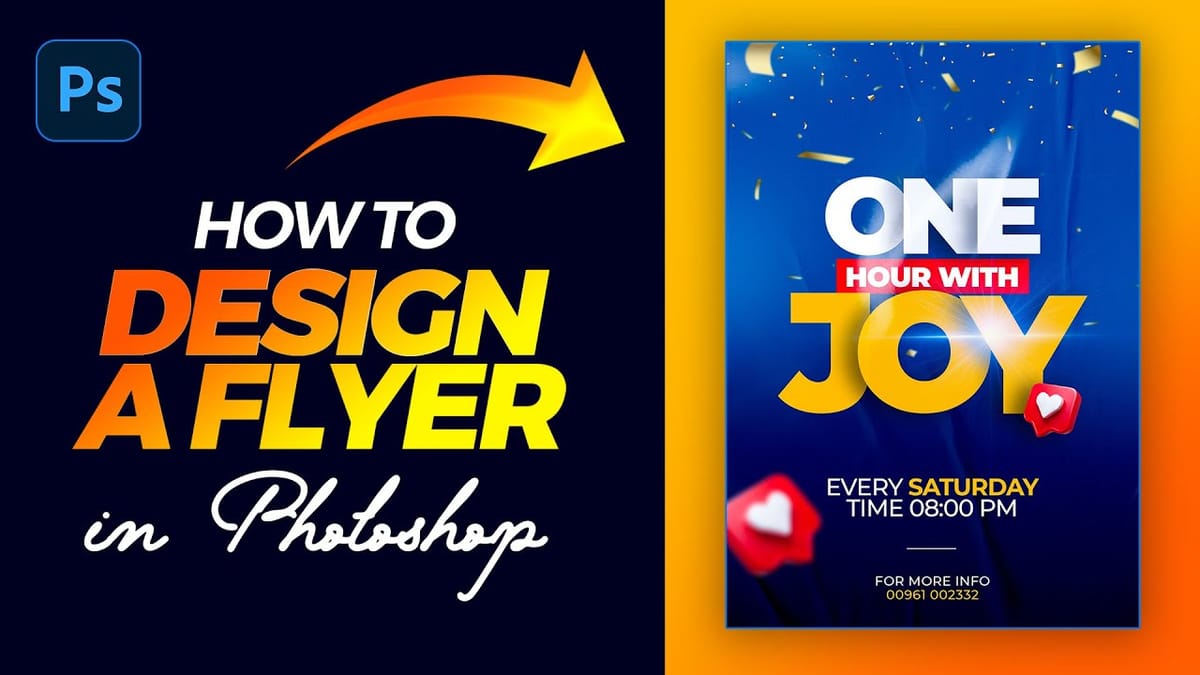
Create a Colorful Flyer Design in Photoshop
This tutorial provides a straightforward guide to designing a flyer using Adobe Photoshop, perfect for both beginners and those with some experience. It starts with an introduction to the type tool, allowing you to add and manipulate text for your flyer. You’ll set the foreground color to white and choose
Crafting a Typographic Poster in Adobe Photoshop
Join Adobe’s UX Growth Designer, Curtis Ying, as he transforms a Swiss Typographic poster through an engaging design process. With the input from the Instagram community, this presentation showcases how he carefully selects a bold red background that sets the tone for the entire piece. Throughout the process, Curtis

Get tutorials & freebies delivered to you.

Subscribe to the Photoshop Roadmap newsletter, a weekly roundup of new tutorials, insights and quality downloads, trusted by 6500+ readers.

You might also like

Basic Photoshop techniques you really need to learn

Photoshop hasn’t changed as much as it looks. New features come and go, but the same core techniques keep showing up in real work. If you skip them, everything feels harder than it should. This post focuses on those basics, not as isolated tricks, but as skills you’ll...

How to Use Select Subject for Background Removal and Edge Refinement

Background removal becomes effortless when you know how to use the right tools. AI-powered selection can instantly isolate subjects from their backgrounds, but the real skill lies in refining those selections to create professional results. This guide covers the complete workflow from initial selection to edge refinement, plus creative techniques...

How to Wrap Text Around Any Shape in Photoshop

Creating text that flows naturally around irregular shapes transforms static layouts into dynamic, professional designs. This technique works particularly well for posters, magazine layouts, and editorial designs where text needs to integrate seamlessly with complex subjects rather than simply sitting in rigid rectangular boxes. The process combines selection tools, path...

How to Edit Text in Images Using Generative Fill

Changing text within existing images has traditionally required complex masking and reconstruction techniques. Modern AI-powered tools now make it possible to seamlessly replace words and phrases in photographs while maintaining realistic typography, lighting, and perspective that matches the original scene. This technique works particularly well for signs, storefronts, billboards, and...

How to Remove Dust and Sensor Spots Using Photoshop Tools

Dust spots and sensor particles are inevitable challenges in digital photography, appearing as dark specks that distract from otherwise clean images. Camera sensors collect dust over time, creating consistent spots that show up across multiple photos, particularly in bright sky areas or uniform backgrounds. Both Lightroom and Photoshop offer specialized...

Photoshop vs Affinity Photo: Feature Comparison and Professional Analysis

When choosing professional photo editing software, the decision often comes down to comparing features, performance, and value. This detailed comparison examines the core capabilities of both applications across noise reduction, smart selections, object removal, masking, and AI-powered tools. The analysis covers real-world scenarios that professionals encounter daily, from complex background...

You’ve successfully subscribed to Photoshop Roadmap
Welcome back! You’ve successfully signed in.
Great! You’ve successfully signed up.
Success! Your email is updated.
Your link has expired
Success! Check your email for magic link to sign-in.