Dramatic Shadow Text Effect in Photoshop

Dramatic Shadow Text Effect in Photoshop

Graphic designers often seek distinctive ways to make text stand out in their compositions. Creating unique text effects can significantly enhance visual appeal, adding depth and intrigue to various designs.

This tutorial demonstrates a method for producing mysterious, overlapping shadow text complete with a realistic reflection. Viewers will explore techniques for precise character manipulation and gradient applications to achieve a powerful visual impact.

Watch the Tutorial: Overlapping Shadow Text

Video by Blue Lightning. Any links or downloads mentioned by the creator are available only on YouTube

Understanding Depth and Dimension in Text Design

Effective text design often transcends simple legibility, aiming instead to evoke a mood or convey a specific aesthetic. Incorporating elements like shadows and reflections adds significant depth and realism, transforming flat text into a three-dimensional visual experience that captures the viewer's attention.

Overlapping characters, combined with gradient shadows, introduce a sense of mystery and sophistication. This technique plays with light and shadow, suggesting form and distance even within a static image, which is crucial for creating impactful digital art.

The strategic use of contrasting fonts, such as a heavy main text and an ultra-thin complementary line, enhances visual hierarchy. This contrast not only guides the eye but also reinforces the layered effect, contributing to the overall powerful and cohesive design.

Practical Tips for Crafting Shadow Text

  • Select a robust font: Choose a thick, heavy font for the main text, as this provides a strong base for the shadow effect and enhances visual impact.
  • Utilize precise alignment: Duplicate your initial character and use the Shift key while dragging to ensure perfect horizontal alignment of all characters.
  • Manage layer organization: Rename character layers in reverse order of the word to streamline the renaming process and maintain clarity as you build your text.
  • Refine character spacing: Adjust the kerning by activating each character layer and subtly shifting it using the Left arrow key for a custom, aesthetically pleasing overlap.
  • Create dynamic reflections: Group all text layers into a folder, duplicate and flip it vertically, then apply a Layer Mask with a Linear Gradient to achieve a fading, realistic reflection.

Explore more creative text effects and shadow techniques with these related Photoshop tutorials.

Add Text Behind a Subject with Realistic Shadows in Photoshop
Creating convincing text-behind-object effects in Photoshop requires more than basic masking techniques. While separating a subject and placing text behind it seems straightforward, achieving realistic results means accounting for proper lighting, shadow behavior, and environmental effects that make the composition believable. This tutorial demonstrates advanced techniques for creating text-behind-subject effects with authentic shadows and lighting. The methods cover subject extraction, shadow
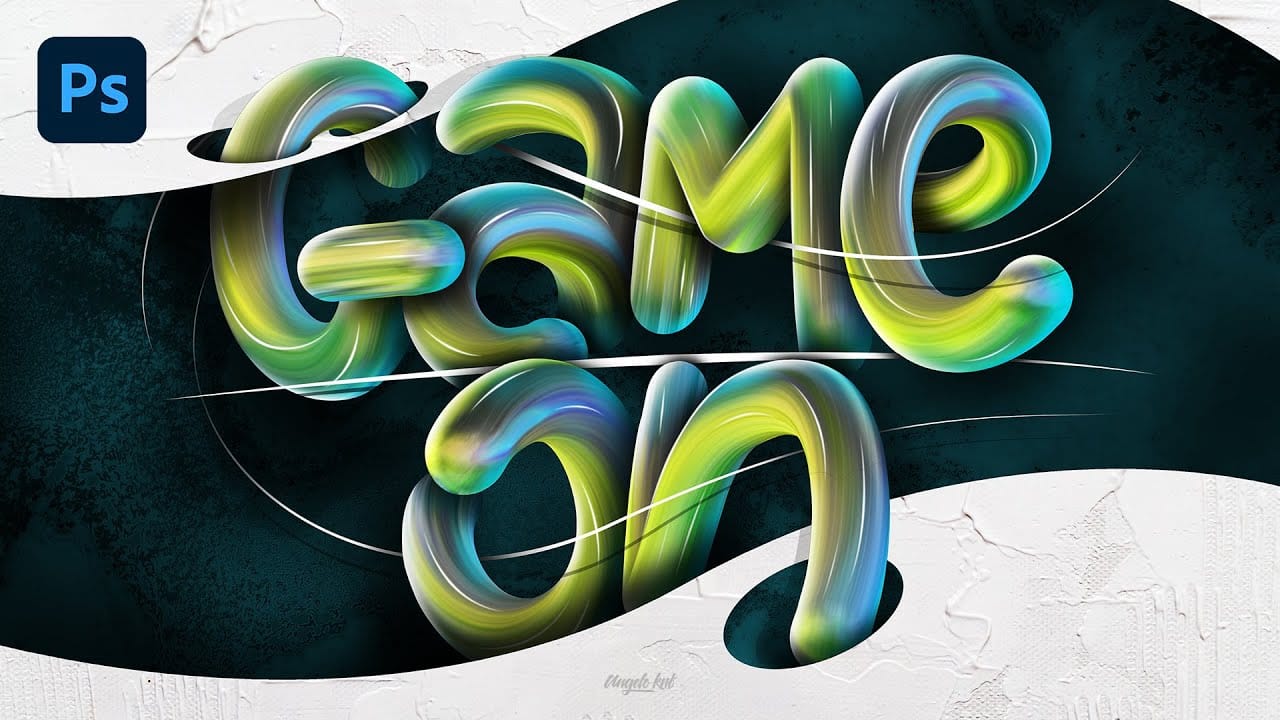
Colorful Painted 3D Text Effect Tutorial in Photoshop
In this tutorial by Angelo Konofaos, you'll explore how to create a 3D-style text effect in Photoshop, alongside techniques like adding shadows, highlights, shines, and colors. Utilizing a variety of Photoshop tools such as the Mixer Brush, Pen Tool, clipping masks, and adjustment layers, the tutorial demonstrates the process of refining text to achieve a polished and dimensional look. For optimal results, Konofaos recommends using a pen tablet like the Wacom Intuos to enhance precision and fl
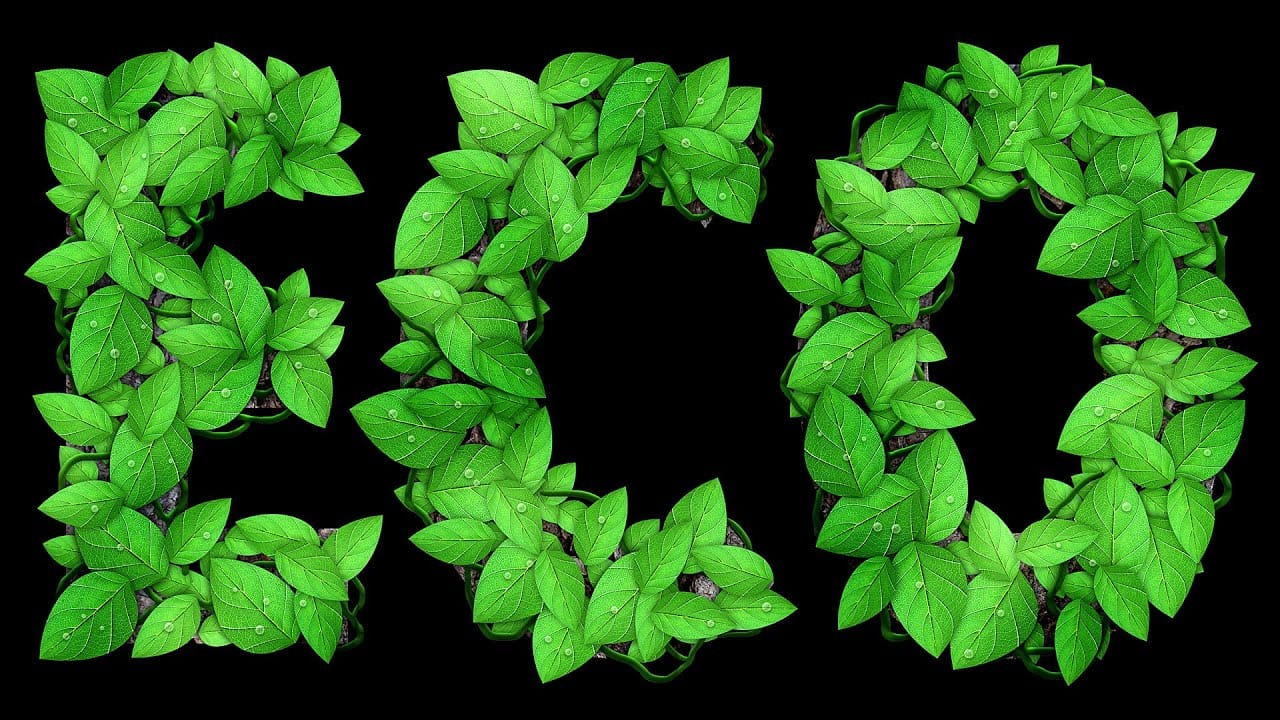
Leafy Text Effect Photoshop Tutorial
In this tutorial by Spoon Graphics, you'll learn how to create a text covered with leaves in Adobe Photoshop. The tutorial guides you through the process of designing text made up of tiny leaves, vines, and water droplets. While the tools and techniques used are straightforward, the tutorial emphasizes the importance of patience in achieving a complex and detailed final result. The outcome is a stunning and intricate piece of eco-themed artwork that showcases the beauty of nature. Watch tutor
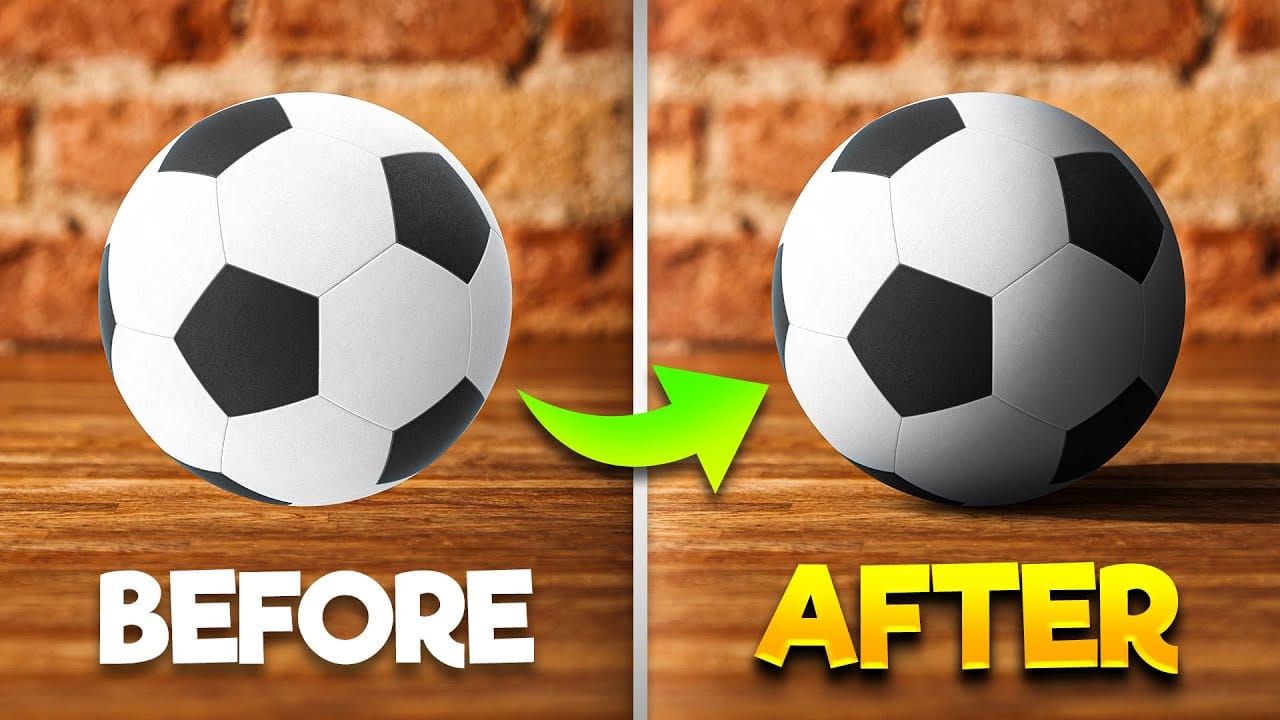
How To Add Realistic Shadows in Photoshop
In this video, you will learn how to add realistic shadows in Photoshop, a skill that can significantly enhance your digital artwork. The tutorial is presented by BennyProductions, who breaks down the process into easy-to-follow steps. You will discover techniques for creating projected shadows for various objects, including a ball, a car, and glasses. By following along, you’ll gain insight into how shadows can add depth and dimension to your images, making them look more lifelike. Whether yo

Get tutorials & freebies delivered to you.

Subscribe to the Photoshop Roadmap newsletter, a weekly roundup of new tutorials, insights and quality downloads, trusted by 6500+ readers.

You might also like

How to Create Custom Keyboard Shortcuts in Photoshop

Many essential Photoshop functions surprisingly lack default keyboard shortcuts, forcing you to navigate through menus repeatedly for common tasks like creating smart objects or layer masks. Learning to create custom shortcuts transforms your workflow by giving you instant access to the tools you use most. This comprehensive guide walks you...

How to Convert a Portrait Photo into a Black and White Logo Design

Portrait photos can be transformed into bold, graphic logos with the right combination of filters and adjustments. This technique uses Gaussian blur and threshold adjustments to convert photographs into high-contrast black and white designs suitable for branding, badges, or stamps. The process involves subject isolation, smart filtering, and precise path...

How to Create Sharp Halftone Effects in Photoshop

Traditional halftone effects in print media created depth through visible dot patterns that gave images character and texture. While Photoshop's built-in Filter Gallery offers a quick halftone option, it produces blurry results that lack the crisp definition of professional halftone work. This technique uses the Color Halftone filter...

Create a Sci-Fi Hologram Effect in Photoshop

Transform ordinary portraits into futuristic holographic projections with this sci-fi effect technique. The process combines motion blur, gradient mapping, and scan line patterns to create the distinctive translucent appearance of holographic displays. This method keeps your subject vibrant and colorful while converting the background to black and white, emphasizing the...

How to Use Reference Images with Generative Fill in Photoshop

Generative Fill transforms when you replace text prompts with actual images. Instead of describing what you want, you show the AI exactly what to create using reference photos. This feature works for adding objects like toys and electronics, or swapping clothing items with precise visual control. The AI automatically matches...

Photoshop's Generative Fill Gets Major Upgrade: New Model Comparison and Quality Test

Adobe's latest Generative Fill update brings the new Firefly Fill and Expand model with double the resolution and dramatically improved quality for generating people, hands, and complex objects. The upgrade moves from 1024x1024 to 2048x2048 pixel output, allowing for larger selections without quality loss. This comprehensive comparison tests...

You’ve successfully subscribed to Photoshop Roadmap
Welcome back! You’ve successfully signed in.
Great! You’ve successfully signed up.
Success! Your email is updated.
Your link has expired
Success! Check your email for magic link to sign-in.