Duotone effects transform ordinary photographs into striking two-color compositions by separately coloring highlights and shadows. This technique creates a stylized, vintage aesthetic that works particularly well for portraits, landscapes, and artistic photography projects.
The method uses channel selections to isolate highlights, then applies solid color fill layers with layer masks to achieve precise control over the final result. This non-destructive workflow allows you to experiment with different color combinations and adjust them at any time.
Watch the Video
Practical Tips
These key techniques will help you create professional duotone effects quickly and consistently:
- Choose the channel with the best contrast by examining red, green, and blue channels individually before making your selection
- Use Ctrl/Command + click on the channel thumbnail to convert it into a selection for your highlight mask
- Apply light colors to the masked solid color layer and dark colors to the background layer for proper contrast
- Double-click solid color layer thumbnails to experiment with different color combinations without starting over
- Press F4 for full-screen mode to better evaluate your color choices and overall composition
Related Articles and Tutorials
Explore more advanced color grading and photo effect techniques to expand your creative toolkit.
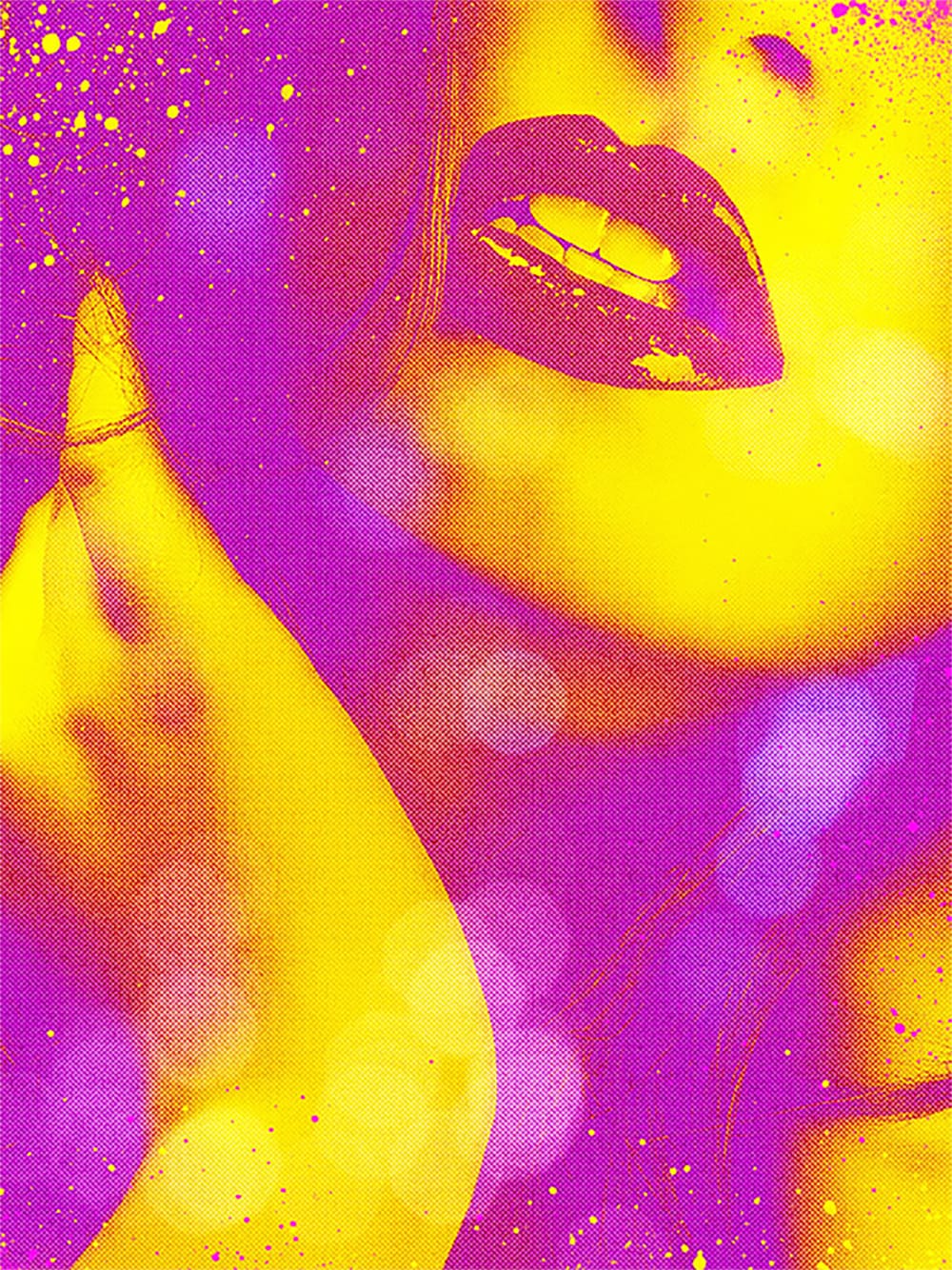
Create a colorful Pop duotone in Photoshop
In this Photoshop tutorial, you are heading straight back to the 80s to play with fluoro colors, a trend that transforms modern-day photos into intense, oversaturated images with a retro twist.
You'll learn how to effortlessly recreate this duotone effect, allowing you to infuse your photos with a bold and sensual visual style. Whether you're looking to evoke nostalgia, add vibrancy to portraits, or simply experiment with striking color palettes, mastering this technique empowers you to create
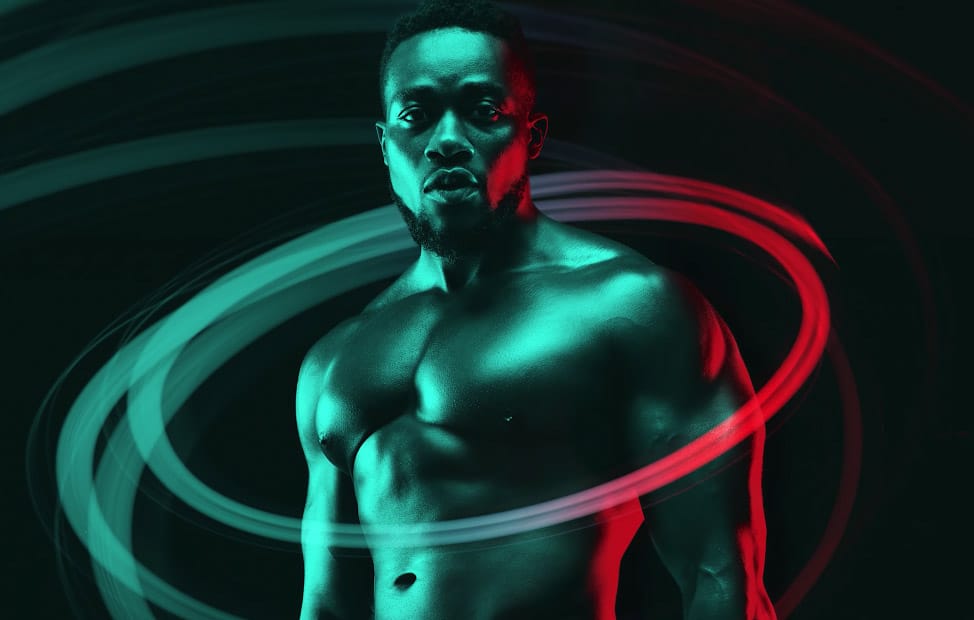
Create a dual lighting effect with just 2 layers in Photoshop
The author, PixImperfect, presents a straightforward technique to create the dual color lighting effect in Photoshop. Using the power of Gradient Maps, this tutorial demonstrates how to color multiple lights from different directions. Viewers also learn to utilize the "Blend If" feature to make the light more realistic. Optionally, the video explores techniques to add and modify interesting light elements to the image.
This concise yet informative tutorial guides viewers through the process ste
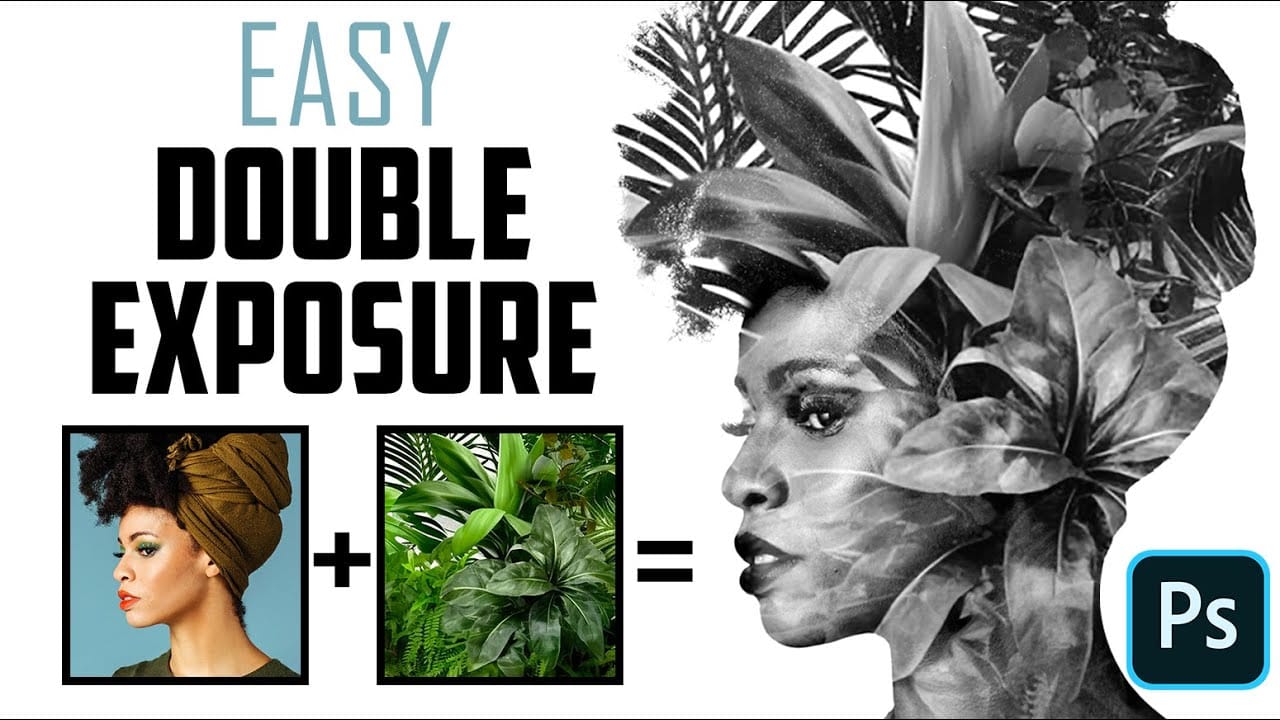
How to Quickly Create a Monochrome Double-Exposure Photo Portrait in Photoshop
The double exposure effect, a classic technique originating from film photography, allows for the striking fusion of two distinct images into a single, cohesive composition. This method is particularly effective for creating surreal and evocative portraits, blending a subject with landscapes, textures, or abstract elements to convey deeper meaning or artistic vision.
This video tutorial provides a practical guide to achieving a powerful monochrome double-exposure photo portrait using Adobe Phot
Generate unlimited one-click color filters in Photoshop
In this tutorial, PiXimperfect shows viewers how to create one-click color filters in Photoshop. The process involves combining the concepts of Gradient Fill, Gradient Maps, Blend Modes, and Blend If. By following these steps, users can generate unlimited unique filters with ease.
PiXimperfect takes the viewer through each technique, providing clear instructions and demonstrations. The tutorial promises to help users create "the most awesome filters automatically in Photoshop." With this knowle

Turn day to night in 2 minutes with Photoshop
In this Photoshop tutorial, the author PiXimperfect shares a simple and effective technique to transform a daytime image into a moonlit night scene. The process only takes about 2 minutes and involves using a few adjustment layers in Photoshop.
The author guides viewers through the steps, explaining how to create the desired night-time effect. By adjusting the levels, curves, and color balance, the daytime lighting is replaced with a soft, moonlit glow. The tutorial is straightforward and easy
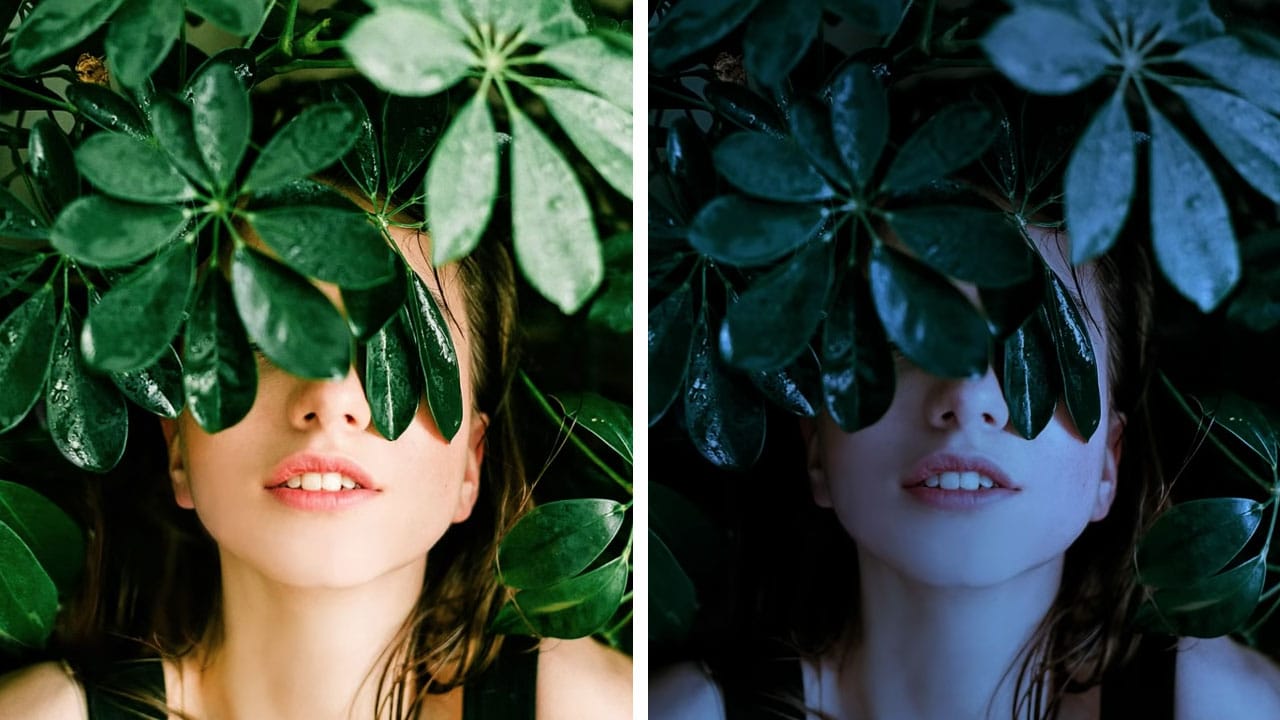
One click instantly fixes color in Photoshop
In this tutorial by Colin Smith from Photoshop Cafe, you'll learn how to instantly fix the color of your photos in a single click using Photoshop and Lightroom. Colin introduces a powerful tool that can correct color issues effortlessly, making your images look more natural and vibrant.
This quick tutorial focuses on achieving perfect color balance with minimal effort. Whether you're a beginner or a seasoned Photoshop user, Colin's method is straightforward and effective, allowing you to enhanc
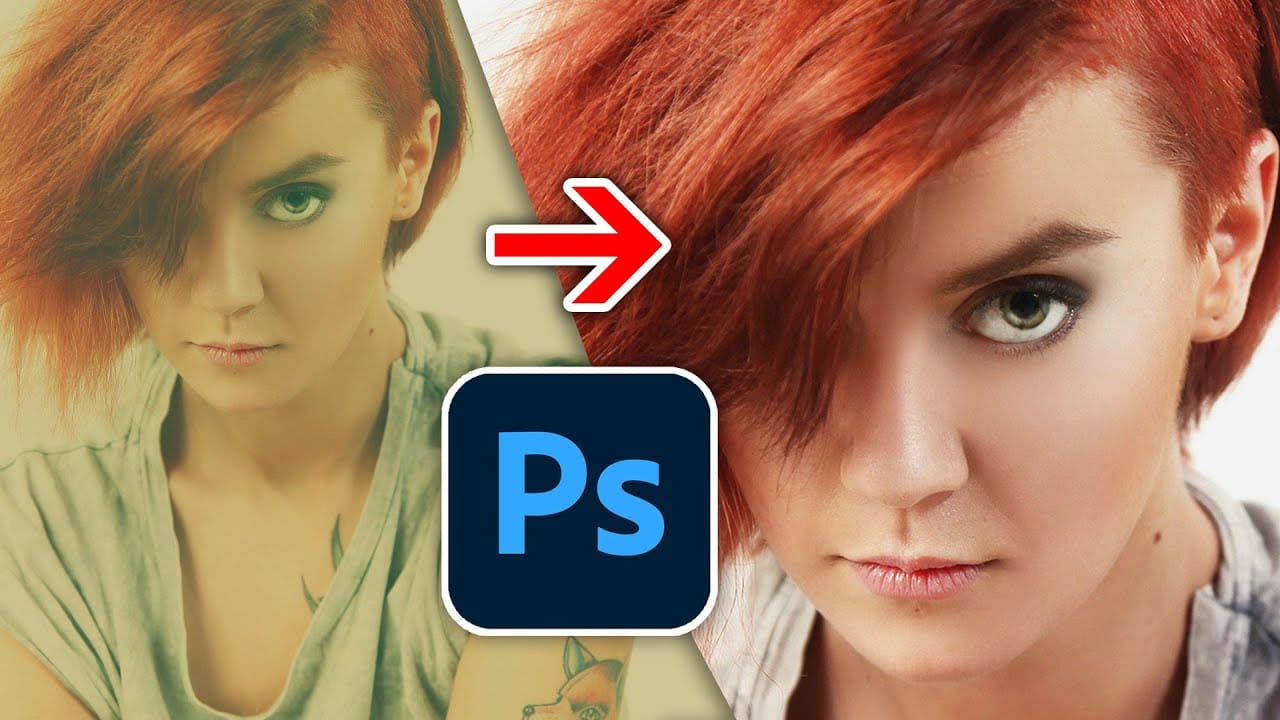
Create painterly backgrounds in Photoshop FAST!
Painting in Photoshop doesn't have to be flat and lifeless. In this quick 1-minute video tutorial, Kyle T Webster shows you how to create vibrant painterly backgrounds with ease. By taking advantage of color dynamics, you can add depth and life to your backgrounds, transforming them from flat to fabulous in no time.
Kyle demonstrates how simple adjustments and techniques can significantly enhance the overall look and feel of your digital paintings. Whether you're a beginner or an experienced ar
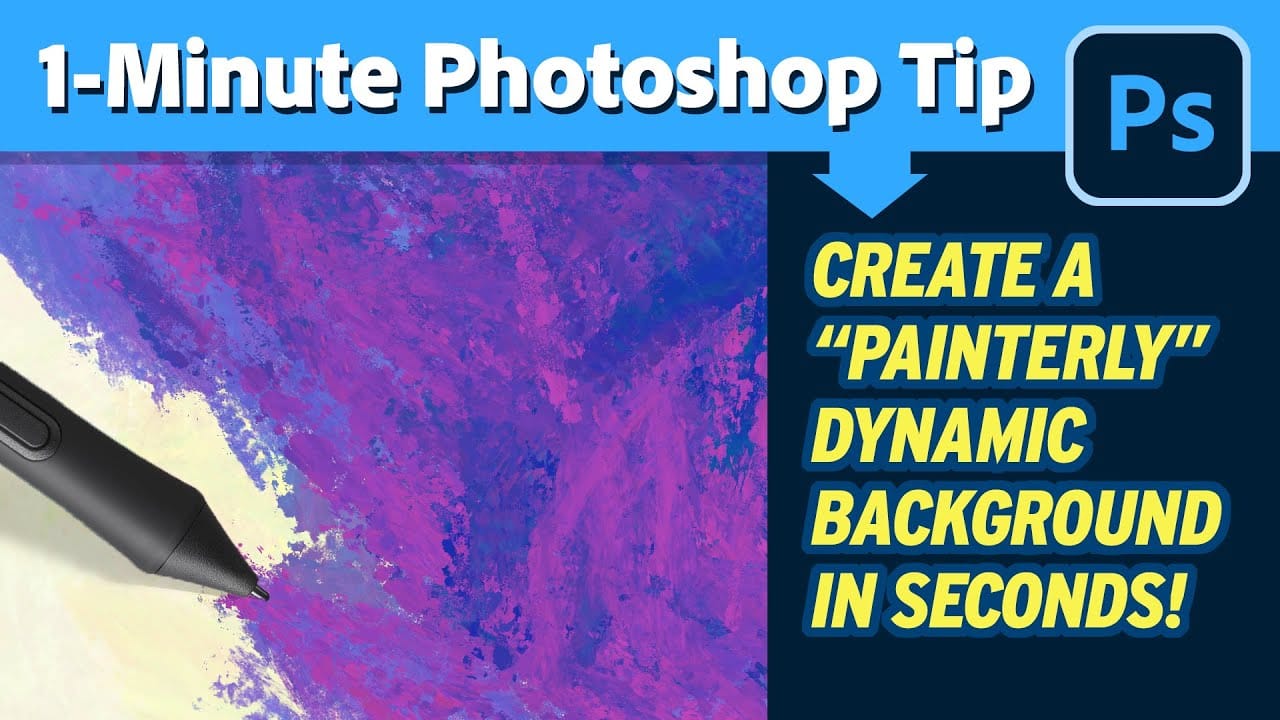
Ultimate Halftone Effect in Photoshop
Halftone effects can transform ordinary photos into striking graphic designs, but many designers struggle with creating patterns that blend naturally with their images. The traditional approach often results in rigid, uniform dots that don't adapt to the underlying image tones and details.
This tutorial demonstrates how to create flexible halftone effects using multiple pattern types and blending techniques. You'll learn to build reusable workflows that can be applied to any image instantly, pl
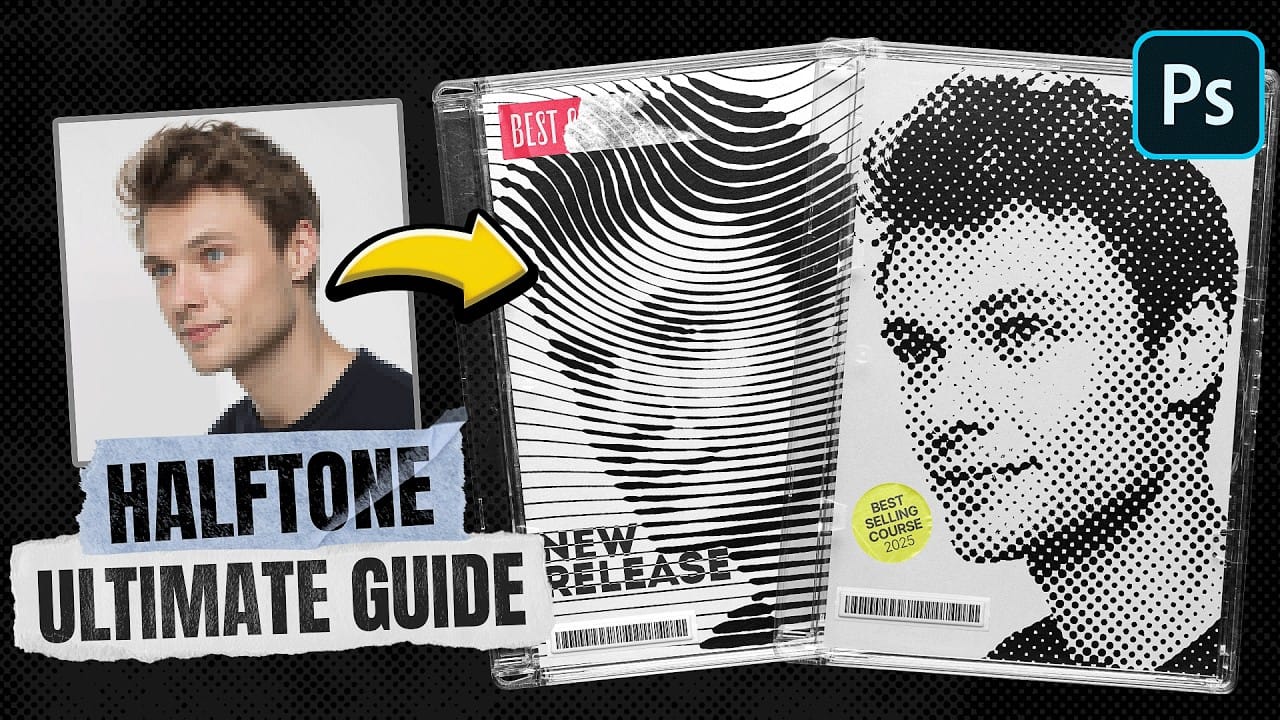
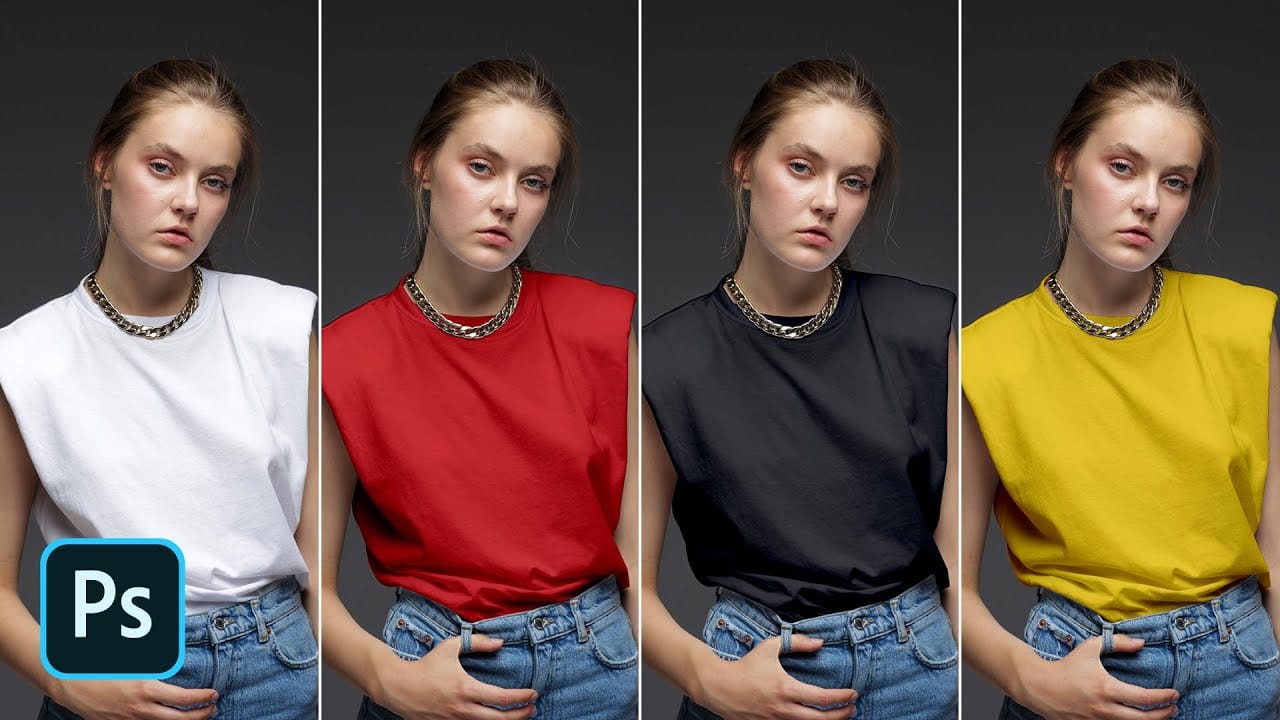
Turn White into Any Color in Photoshop
In this tutorial, WebFlippy demonstrates how to effortlessly transform white areas into any color using blending modes in Photoshop. This technique is especially useful for photo retouching and product photography, allowing for versatile color adjustments without affecting the overall image quality.
The tutorial provides a straightforward approach to applying this method, ensuring that you can quickly adapt white elements in your photos to match your desired color scheme. With clear instruction