How to Change Lip Color in Photoshop - 5 Methods with Exact Color Matching

How to Change Lip Color in Photoshop - 5 Methods with Exact Color Matching

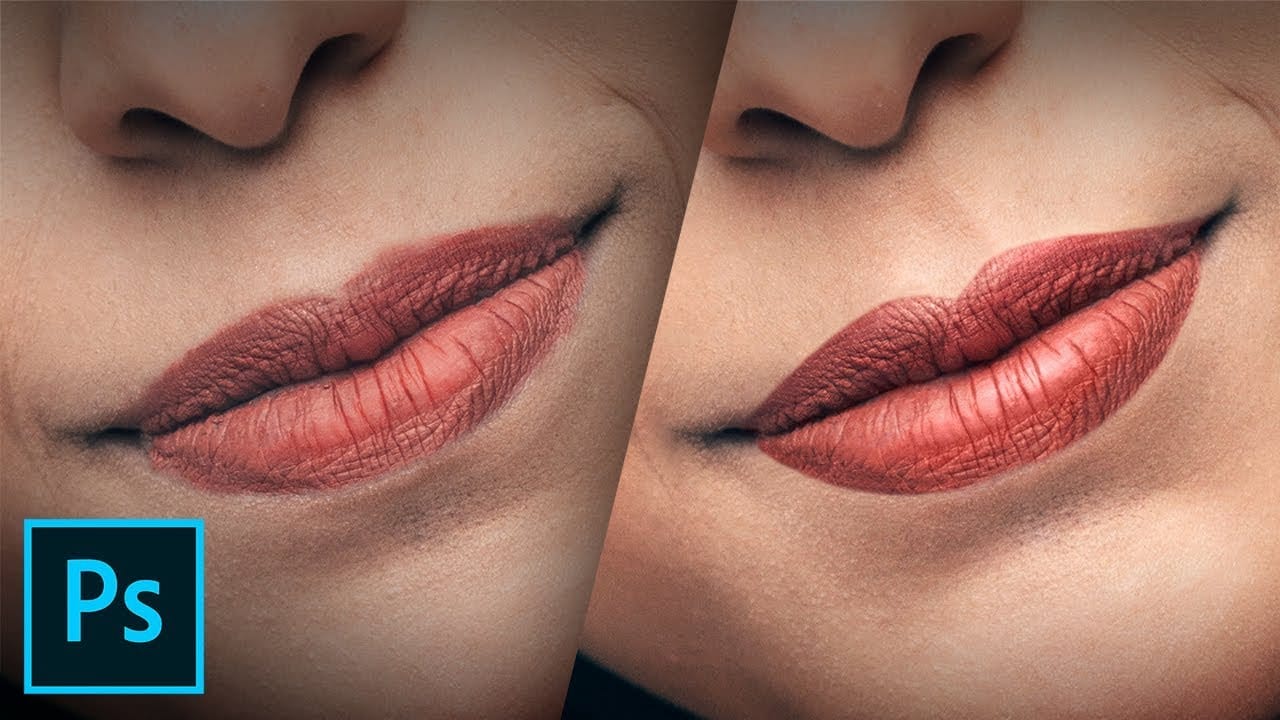
Changing lip color in portrait photography often requires matching specific lipstick shades or experimenting with different looks. Whether you need to match client requests or fix color inconsistencies, having multiple techniques ensures you can achieve natural-looking results.

The key to realistic lip color changes lies in preserving the original highlights and shadows while applying new colors. This approach maintains the natural texture and dimensionality that makes lips look convincing rather than artificially painted.

Watch the Video

Video by Vera Change. Any links or downloads mentioned by the creator are available only on YouTube

Practical Tips

These essential techniques will help you achieve professional lip color changes:

  • Use Quick Mask mode (Q key) to create precise lip selections, painting with 85% hardness brush at 100% flow for clean edges
  • Always feather selections by 1 pixel to avoid harsh transitions between the lip color and surrounding skin
  • For exact color matching, sample lipstick colors with the eyedropper set to 11x11 or 30x30 average, then copy the hex code
  • Use gradient maps for the most natural results when transferring specific colors, as they preserve highlights and shadows
  • Save your lip selections in channels for future use rather than recreating the mask for each adjustment layer

Explore more portrait retouching techniques to enhance your beauty photography workflow.
How to enhance lips in Photoshop
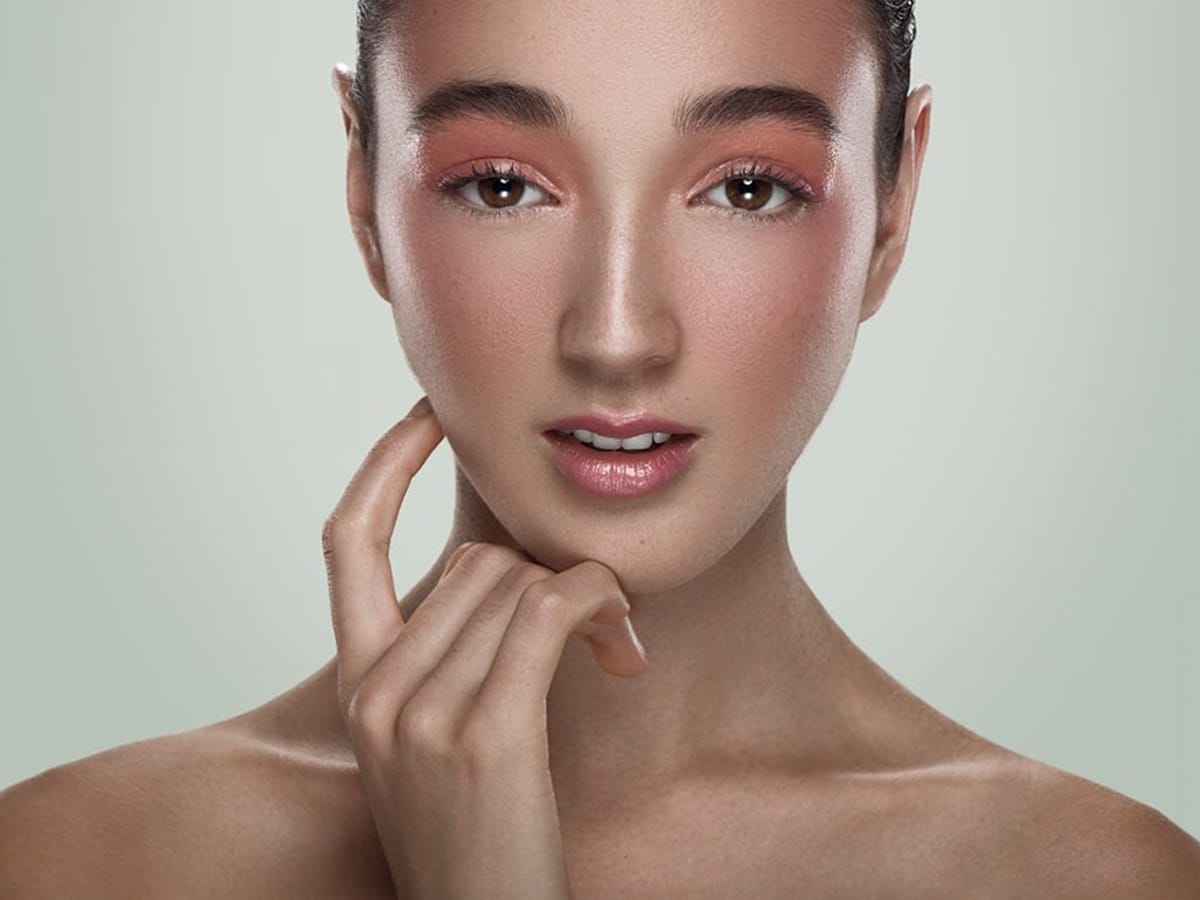
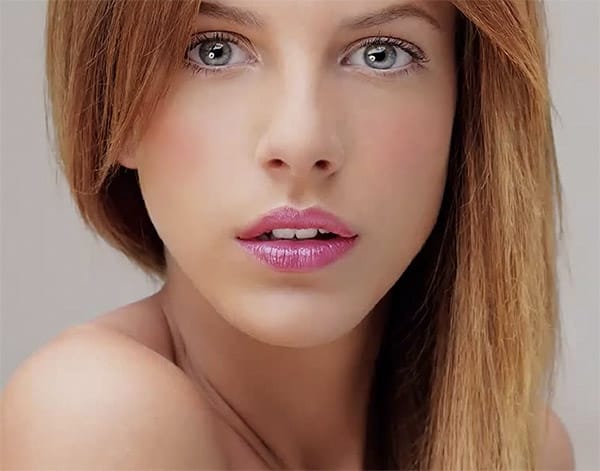
In this beginner-friendly Photoshop tutorial, you'll learn effective techniques to enhance the color and contrast of lips, giving them a shiny and vibrant appearance in your images. Follow simple methods to achieve beautifully enhanced lips, perfect for creating impactful portraits with striking lip colors. Ideal for photographers and hobbyists looking to improve their photo editing skills and create polished, professional-looking images. Watch tutorial
How to Create Beautiful Lips in Photoshop with Professional Techniques
Transform ordinary lip photos into stunning, polished portraits using a proven four-step method that combines cleaning, shaping, dodging and burning, and adding strategic shine. This comprehensive approach removes distractions while enhancing natural beauty, creating lips that look clean, dimensional, and professionally retouched. The technique uses curves adjustment layers and masking to build up brightness and shadows gradually, giving you complete control over the final result while maintain
How to Color Nail Polish in Photoshop
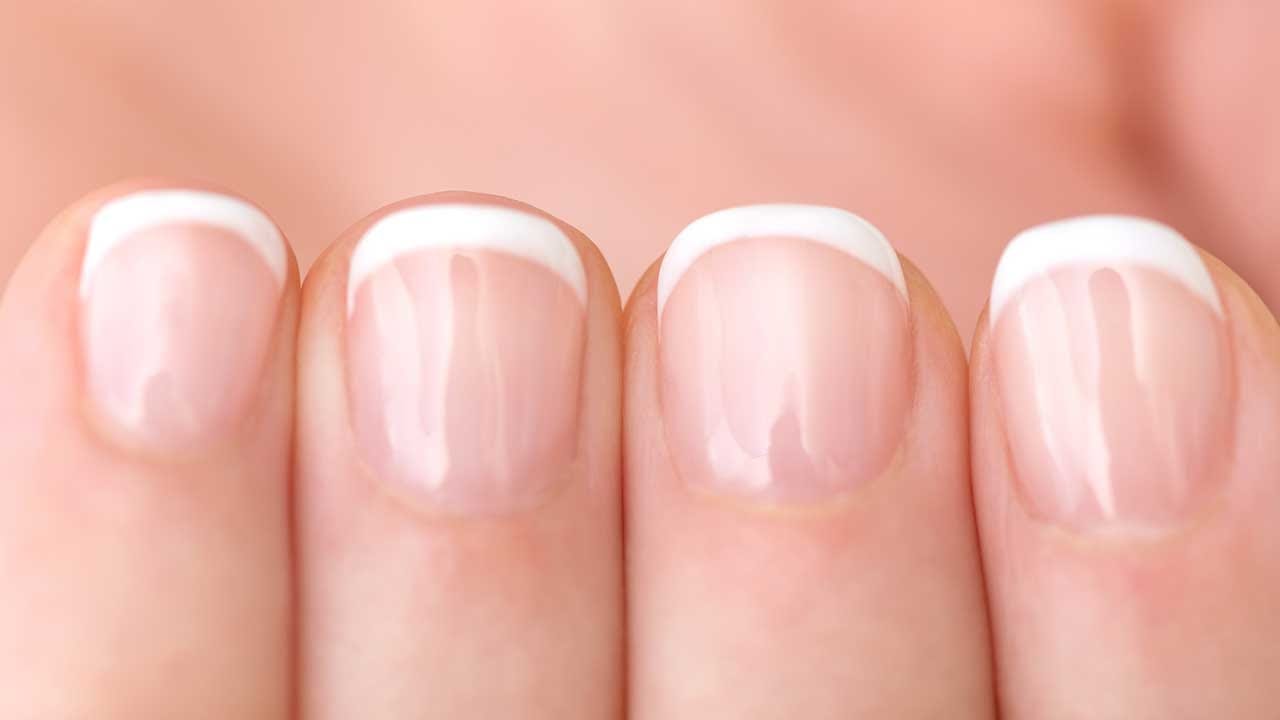
Portrait photographers often encounter models with chipped nail polish or bare nails that detract from an otherwise polished look. Adding realistic nail color in post-processing can elevate your images without requiring a makeup touch-up session. This technique combines solid color adjustment layers with channel-based highlight extraction to create convincing nail polish effects. The key is preserving the natural highlights and reflections that make nail polish appear glossy and three-dimension
How to Retouch Lips in Photoshop
This video tutorial by Michael Woloszynowicz explains advanced techniques for retouching lips in Photoshop, ideal for portraits and beauty shots. It covers fixing cracked lips using an inverted high pass technique, adding shine, and defining the lip line. Tools available by default in Photoshop since version C3, such as Frequency Separation, Healing Brush, Clone Stamp Tool, Texture Grafting, Blending, Pen Tool, and Blend-if, are utilized. This tutorial is designed for users already proficient w
Complete Makeup Retouching in Photoshop
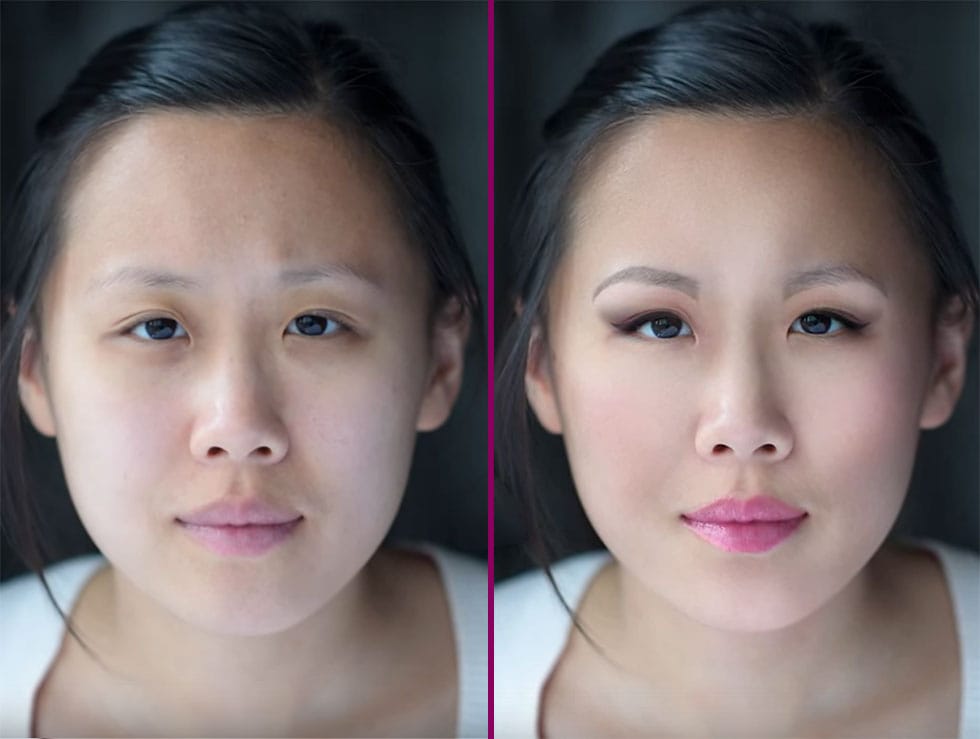
In the four-video tutorial series by Impossible Color, viewers can learn the basics of applying digital makeup to their photos in Photoshop. The first video teaches how to smooth out the skin without creating a fake, blurry, or plastic look, keeping the natural pores and details of the skin while removing blemishes and other imperfections. The second video in the series focuses on shaping the face with natural-looking contours and highlights without losing any of the detail. This technique is
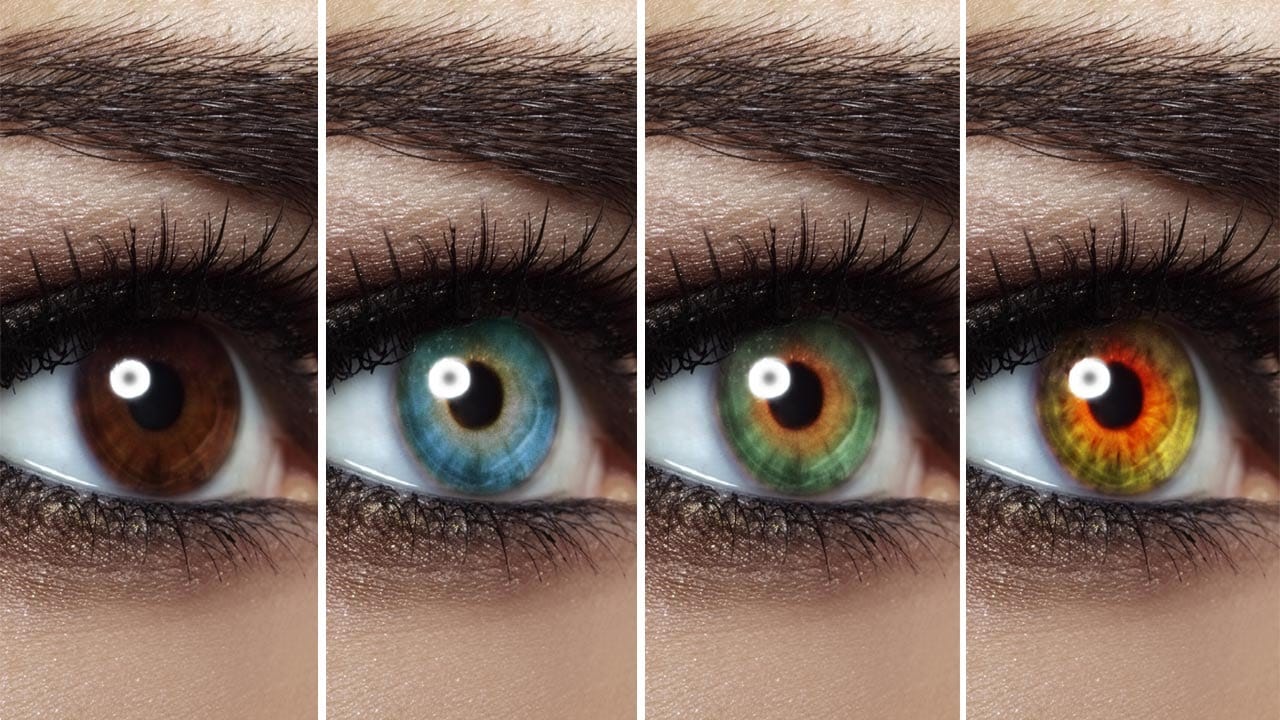
Change Eye Color in Photoshop
Changing eye color digitally opens up creative possibilities for portrait retouching, whether you want to transform dark eyes to lighter shades or experiment with fantasy colors. This technique works especially well when starting with darker eyes, as they provide a solid base for dramatic color transformations. The key to realistic results lies in using multiple adjustment layers within a properly masked group, allowing you to build up color, brightness, and detail gradually while maintaining n
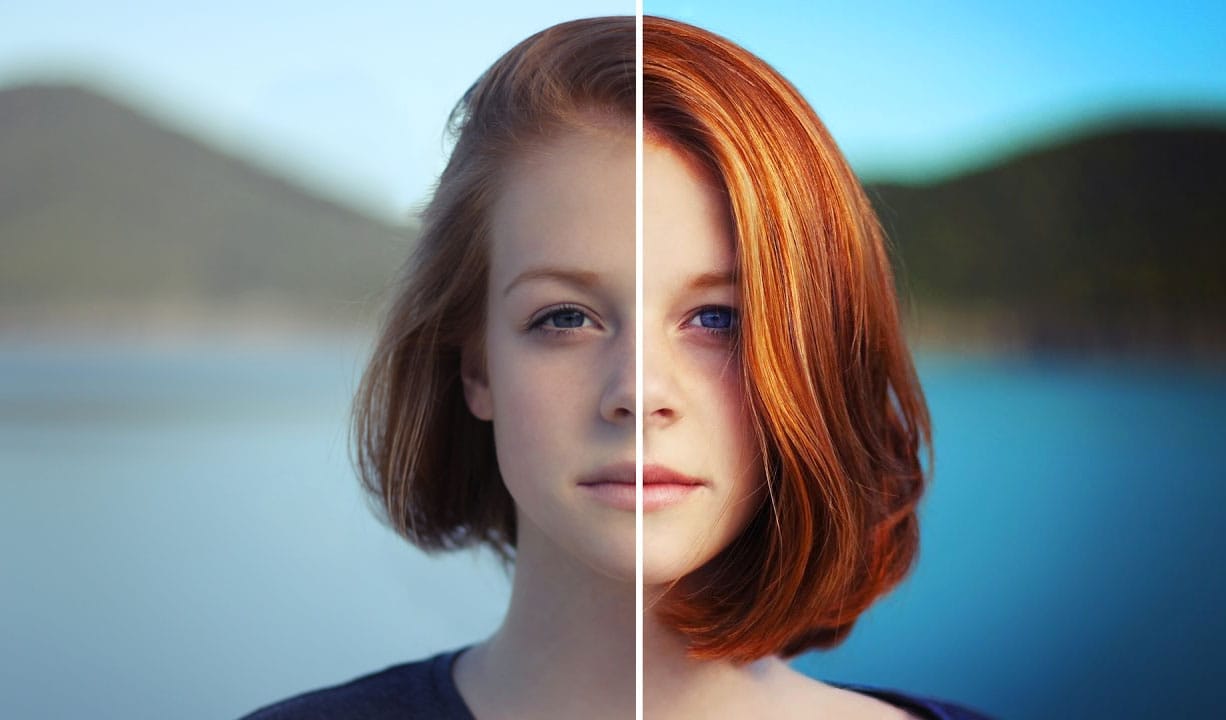
How to make colors pop in Photoshop
Selective color enhancement transforms dull photographs into vibrant, dramatic images by targeting specific areas like hair, skin, eyes, and clothing. This non-destructive approach uses precise selections and adjustment layers to boost colors naturally. The technique creates professional results by treating each element separately, allowing you to enhance blue sweaters, brighten eyes, warm skin tones, and intensify hair colors without affecting the entire image. Watch the Tutorial Practical
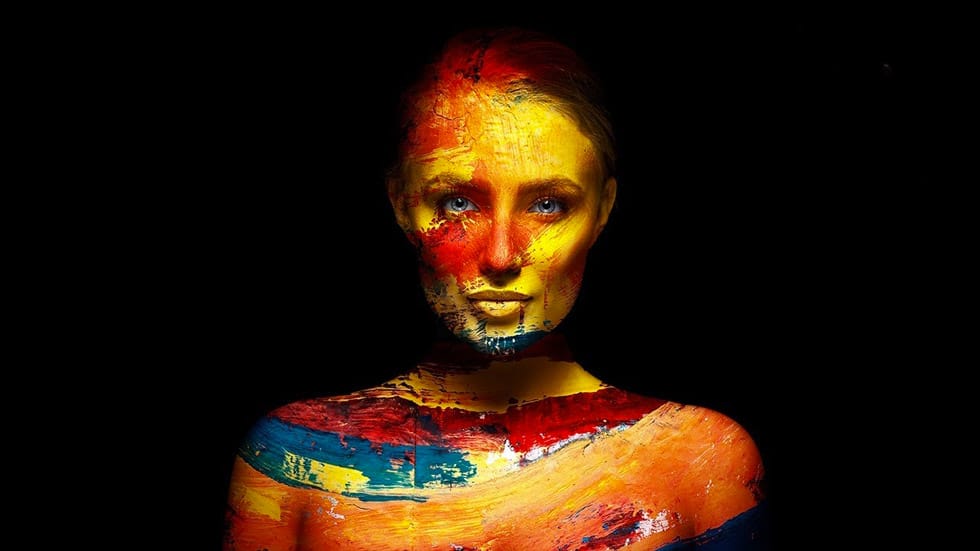
Add Creative Color and Texture to Portraits in Photoshop
In this tutorial by PiXimperfect you will learn how to apply highly realistic paints and textures to portraits in Photoshop. Learn how to manually mold the texture according to the shape of the portrait and use advanced blend modes and blend-if to blend in the colors in the most natural fashion. In this tutorial, we will also learn how to dodge and burn to add more dimension and make your creative portrait really pop. Watch tutorial
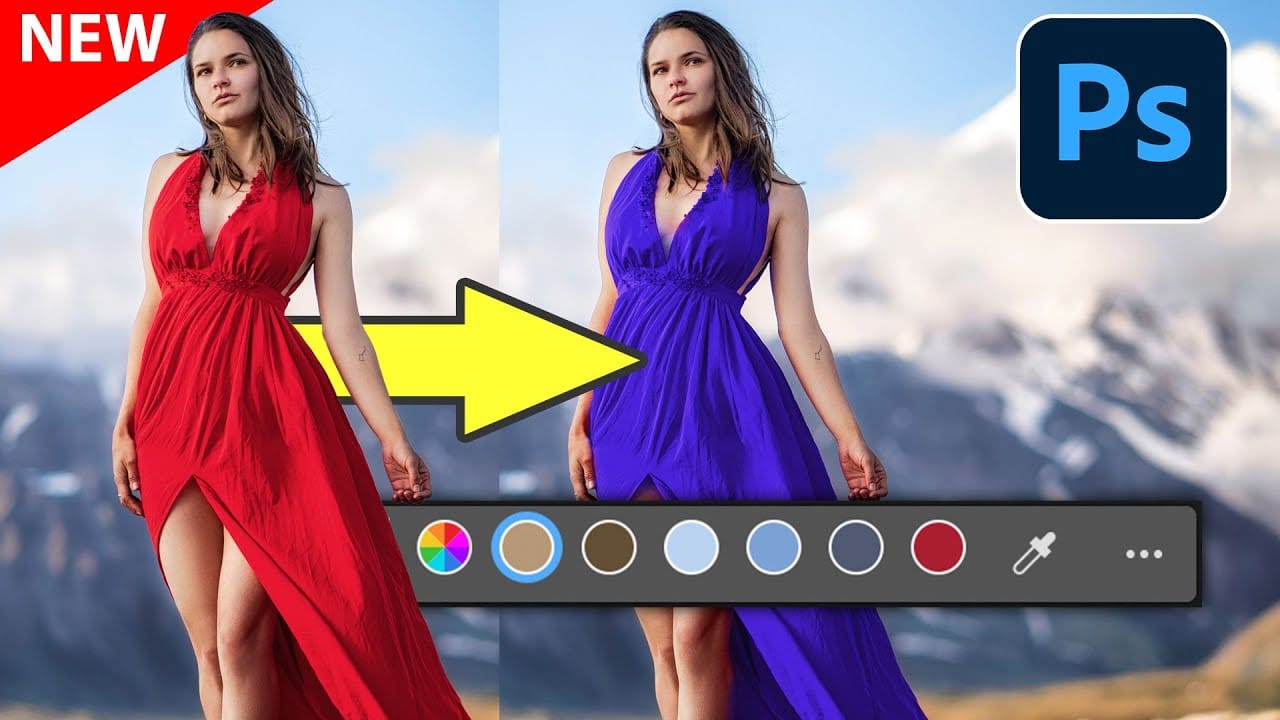
New Photoshop Feature for Changing Colors
Working on the color palette of an image is a fundamental task in photo editing, enabling designers and photographers to evoke different moods, correct imbalances, or simply reimagine visual elements. While Photoshop has long offered robust tools for color manipulation, achieving precise and natural-looking changes often required a multi-step workflow and a deep understanding of complex adjustments. This video introduces a groundbreaking new feature in Photoshop's beta version, designed to stre
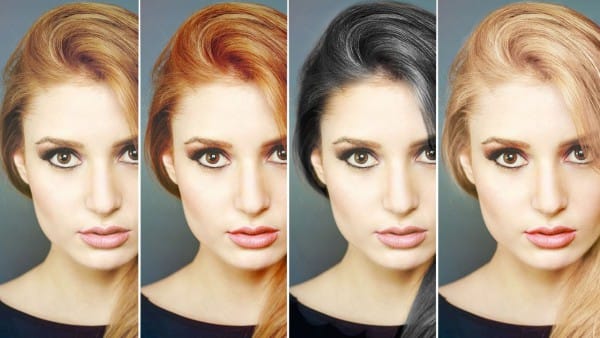
How to Change Hair Color in Photoshop
Changing hair color in Photoshop requires more than simple color adjustments. Hair contains multiple tones in highlights and shadows, and successful color changes must maintain natural-looking variations while staying within realistic color ranges. The process becomes more complex when going from dark to light colors, as transforming black hair to blonde is nearly impossible to achieve convincingly. However, changing from light to dark or adjusting within similar tonal ranges produces excellent

Get tutorials & freebies delivered to you.

Subscribe to the Photoshop Roadmap newsletter, a weekly roundup of new tutorials, insights and quality downloads, trusted by 6500+ readers.

You might also like

How to Create Digital Collages Using Layers and Blend Modes in Photoshop

Digital collages combine multiple images through strategic layering and blending techniques to create compelling visual stories. This beginner-friendly approach demonstrates how to build complex compositions by layering textures, portraits, and objects while using blend modes to seamlessly integrate each element. The process focuses on practical workflow techniques including smart object...

Building Complex Composites Using Generative Fill and Layer Blending

Complex surreal composites require more than just combining random images. The key to professional results lies in systematic layering, consistent masking techniques, and building a reusable library of generated elements. This approach transforms scattered AI-generated content into cohesive artistic visions. The tutorial demonstrates how to deconstruct an existing composite to...

How to Add Any Face to Mount Rushmore Using Photoshop and AI

Adding faces to Mount Rushmore creates striking digital art that combines portrait photography with AI-powered stone carving effects. This technique uses generative AI to transform any portrait into a realistic granite sculpture that matches the lighting, texture, and monumental style of the famous presidential memorial. The process combines traditional selection...

Creating Floral Wreath Overlays in Photoshop

Floral overlays transform ordinary portraits into magical compositions perfect for pet photography, baby portraits, and creative projects. This technique shows you how to build custom floral wreaths using AI-generated base elements and real floral PNG files, creating frames that can hold any subject in the center. The process combines symmetry...

Concept Development and Mood Boarding with Firefly Boards for Fashion Design

Fashion design concept development traditionally requires gathering inspiration from multiple sources, creating mood boards, and iterating through ideas before presenting to clients. Firefly Boards streamlines this entire workflow into a single workspace where you can source inspiration, generate new variations through AI remixing, and organize final concepts into professional presentations....

How to Use Dynamic Text Shapes in Photoshop

The Dynamic Text tool introduced in 2025 was revolutionary for automatic text sizing and layout, but 2026 brings an exciting update that adds shape options to this powerful feature. You can now create circular text, arches, and bow configurations with the same intelligent resizing capabilities that made the original tool...

You’ve successfully subscribed to Photoshop Roadmap
Welcome back! You’ve successfully signed in.
Great! You’ve successfully signed up.
Success! Your email is updated.
Your link has expired
Success! Check your email for magic link to sign-in.