Converting large folders of WebP images to JPEG format can be time-consuming when done manually. Image Processor provides an efficient solution for batch conversion, automatically handling multiple files while maintaining quality settings and organization.
This method works with any image format conversion and creates organized output folders, making it ideal for web developers and photographers managing large image collections.
Watch the Video
Video by Pixovert. Any links or downloads mentioned by the creator are available only on YouTube
Practical Tips
Key strategies for efficient batch image conversion:
- Use Image Processor instead of batch processing for format conversions - it handles different file types more reliably
- Set JPEG quality to 10 instead of the default 5 for better image quality in your converted files
- Include ICC color profiles to maintain accurate color reproduction across different devices
- Shorten extremely long filenames before processing to avoid conversion errors
- Let the process continue through errors - it will convert successfully readable files and skip problematic ones
Related Articles and Tutorials
Explore these guides for more batch processing and workflow optimization techniques.
How to combine multiple images in Photoshop instantly
Working with multiple image files often means juggling numerous open windows, a common challenge when compiling visual research, mood boards, or design layouts. Manually combining these images into a single document can quickly become tedious and inefficient.
This guide presents a powerful method for consolidating all open images into one layered Photoshop document. It demonstrates how to automate this process and offers an essential tip for quickly closing the original individual files, transf

Unleash the Beast: Optimizing Photoshop Performance for a Smoother Workflow
Photoshop is the undisputed king of digital image manipulation. A powerful tool capable of bringing even the most ambitious creative visions to life. However, as our projects grow and files get larger, even the most powerful computers can struggle. Slow loading times, laggy brushes, and the spinning beach ball can kill our creativity and halt our workflow. But fear not. Many ways exist to optimize Photoshop's performance and unleash its full potential.
Immediate Performance Boosters:
Before w
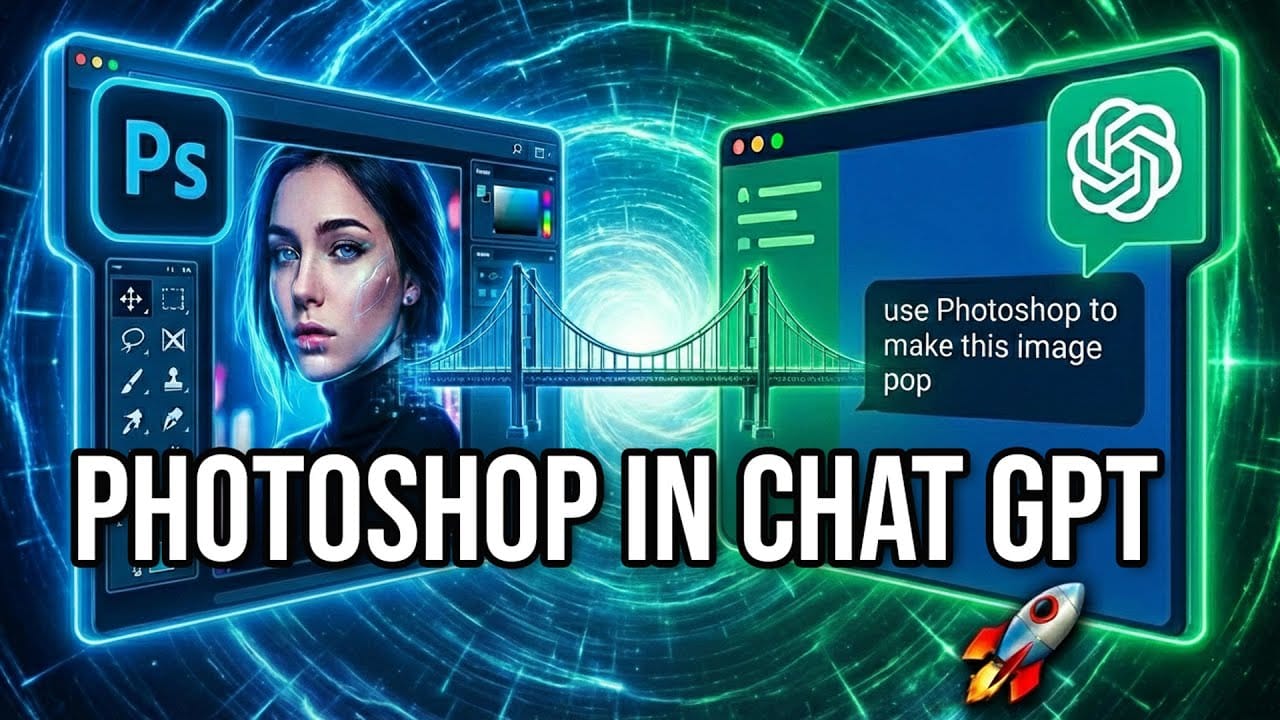
Photoshop Integration with ChatGPT: Real-World Performance Test
Adobe's new integration brings Photoshop functionality directly into ChatGPT, promising to streamline photo editing through conversational commands. This hands-on evaluation reveals how well the AI-powered interface actually performs compared to traditional Photoshop workflows.
Understanding the real capabilities and limitations of this integration helps determine when it's genuinely useful versus when conventional editing methods remain superior.
Watch the Video
Practical Tips
Key insight
Photoshop Beta: Exploring the New Generative Workspace
This Photoshop tutorial focuses on blending graphics with portrait photography to create striking visuals. You will learn how to use the Super Zoom feature, which allows you to upscale graphics while maintaining their resolution. This is particularly useful for achieving high-quality results in your projects.
Another key component of the tutorial is the application of Gradient Maps for effective color matching. This technique helps to ensure that both the graphics and portraits harmonize well w

Transform Photos into Jigsaw Puzzles in Photoshop
This video demonstrates a creative method for transforming ordinary photographs into engaging jigsaw puzzles using Adobe Photoshop CC and later versions. It showcases how to achieve a realistic puzzle effect, complete with individual pieces, bevels, and shadows.
Viewers will learn to leverage a free Adobe plugin to automatically generate puzzle pieces, define custom background patterns, and artfully reposition individual elements. The tutorial emphasizes practical steps to achieve a dynamic vis

How to Use Harmonize and Generative Upscale Tools in Photoshop
Creating realistic photo composites requires matching lighting and color between different images—a traditionally time-consuming process. Two new AI-powered tools in Photoshop solve these challenges: Harmonize automatically adjusts lighting and shadows to blend subjects seamlessly into backgrounds, while Generative Upscale enlarges small images without losing detail.
These tools work together to streamline complex editing workflows, from cutting out subjects and matching environmental lighting
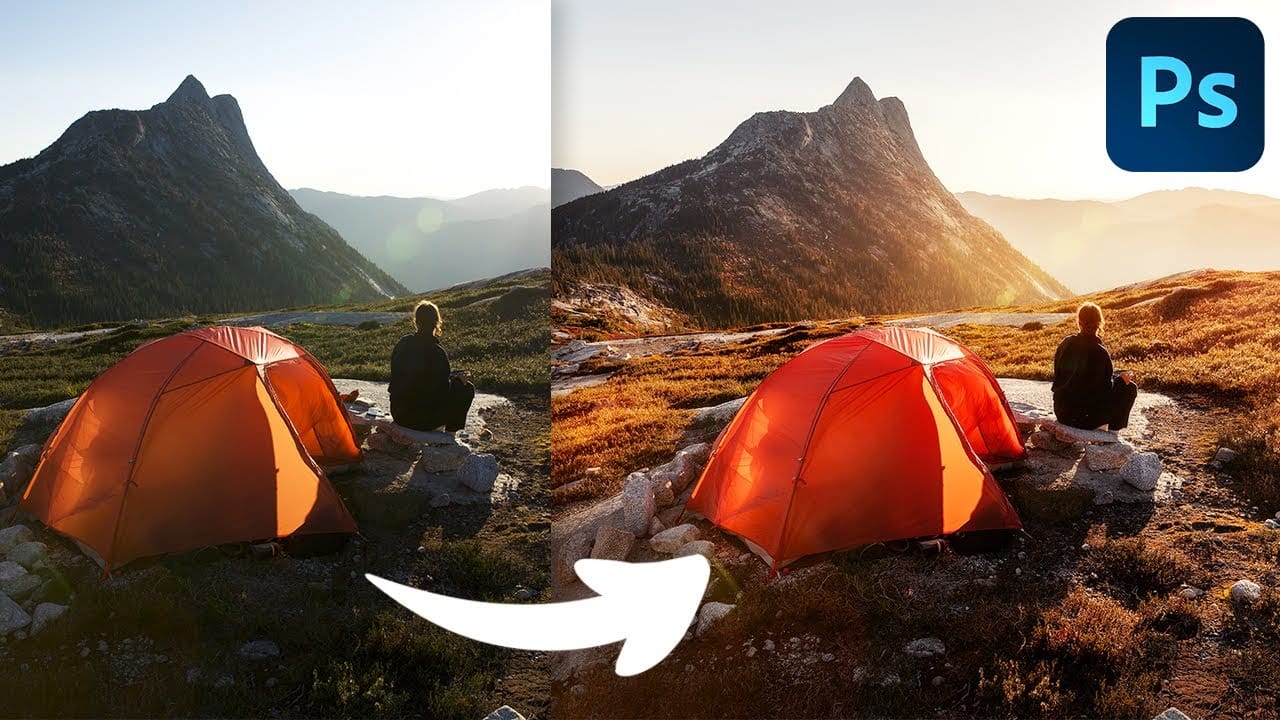
Complete Photoshop Editing Workflow: 5 Steps from Raw to Polished
Photoshop offers endless possibilities for photo enhancement, but many photographers never move beyond basic adjustments because the software feels overwhelming. This comprehensive workflow breaks down photo editing into five manageable stages that work consistently across different photography styles.
The systematic approach covers everything from initial raw processing to advanced lighting techniques, providing a reliable framework for transforming any photograph into a polished final image.
Testing Photoshop's New Generative Upscale Against Topaz Photo AI and AIT Image Enhancer
Photoshop's new generative upscale feature promises to compete with established AI upscaling tools like Topaz Photo AI and AIT Image Enhancer. This comparison reveals significant performance differences between these popular upscaling solutions.
The test results show clear winners and losers when upscaling small 640x480 pixel images to four times their original size.
Watch the Comparison Test
Key Findings About AI Upscaling Performance
* Photoshop's generative upscale requires the beta ve
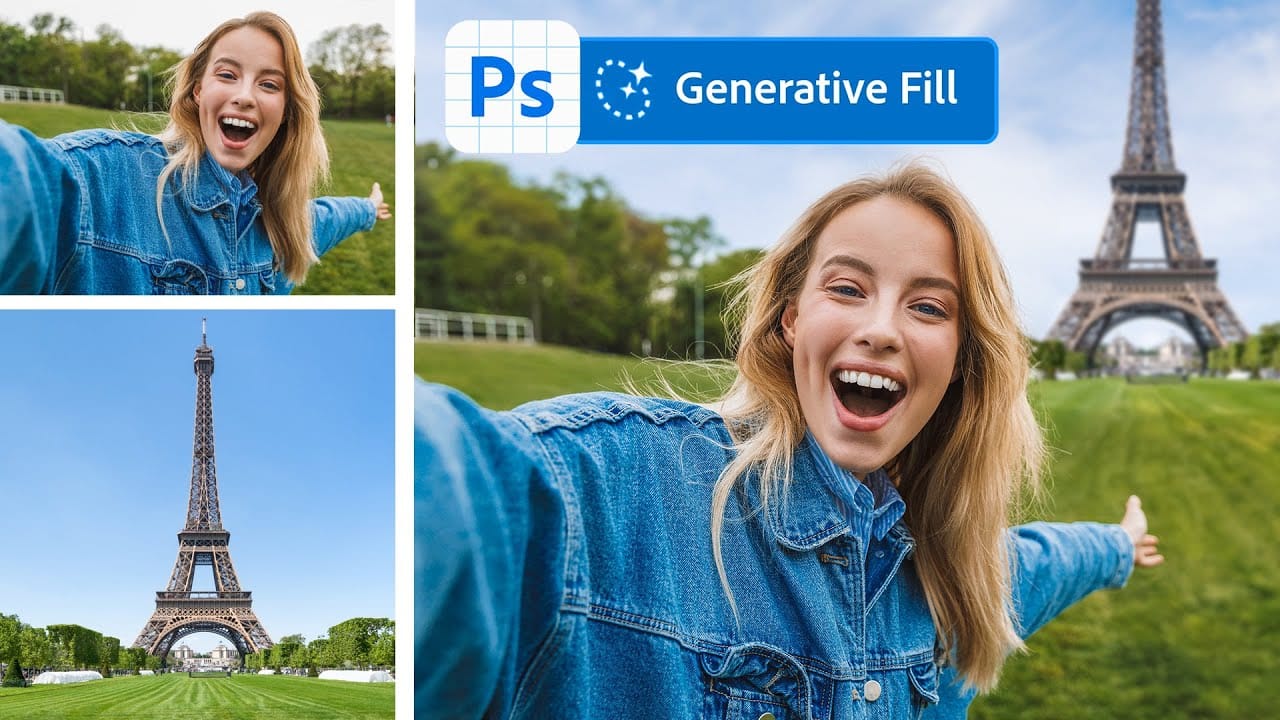
Merge two photos in just a few clicks using Photoshop's Generative Fill
Photoshop Training Channel presents a helpful guide for blending multiple images together with ease. Generative Fill is one of Photoshop's most powerful but underutilized tools, and in this video PTC shows users how they can take advantage of its full capabilities. Through a simple step-by-step process, viewers will learn how to use Generative Fill to automatically composite numerous photos into a single cohesive image.
Presented in PTC's clear training style, photographers and image editors of