How to Create a Cinematic UFO Scene in Photoshop

How to Create a Cinematic UFO Scene in Photoshop

Science fiction imagery has always captured our imagination, and UFO scenes represent one of the most compelling subjects in digital art. Creating a believable extraterrestrial encounter requires careful attention to lighting, atmosphere, and composition to achieve that cinematic quality seen in professional films and concept art.

This tutorial demonstrates how to transform an ordinary street photograph into a dramatic sci-fi scene featuring a massive UFO hovering overhead. You'll explore essential techniques including sky replacement, object masking, atmospheric blending, and color grading to create a convincing and visually striking final image.

Watch the Tutorial

Video by Photoshop Arthouse. Any links or downloads mentioned by the creator are available only on YouTube

Building Atmosphere in Sci-Fi Compositions

Successful sci-fi photo manipulations rely heavily on atmospheric consistency between all elements in the scene. The key lies in creating a unified lighting environment where the UFO appears to naturally belong within the existing photograph. This involves matching the directional lighting, color temperature, and overall mood of the original image.

Sky replacement plays a crucial role in establishing the dramatic tone needed for extraterrestrial encounters. Storm skies and overcast conditions work particularly well because they provide natural drama while offering softer, more diffused lighting that helps blend artificial elements seamlessly. The turbulent cloud formations also create visual interest and can partially obscure parts of the UFO, adding depth and realism to the composition.

Layer masking becomes essential when integrating multiple elements, allowing you to control exactly which portions of each layer remain visible. This technique enables you to create the illusion that the UFO exists behind certain foreground elements while remaining prominent in the overall scene. The subtle interplay between revealed and concealed areas helps establish proper depth relationships throughout the image.

Practical Tips for UFO Scene Creation

  • Convert all major elements to Smart Objects before applying filters to maintain non-destructive editing capabilities
  • Use Alt/Option + drag to duplicate layer masks between elements for consistent masking effects
  • Apply subtle Gaussian Blur to distant objects like UFOs to simulate atmospheric perspective
  • Brush at 50% opacity when blending objects into clouds for natural, gradual transitions
  • Apply cinematic color grading as the final step to unify all elements and enhance the dramatic mood

Explore more techniques for creating compelling science fiction imagery and space scenes.
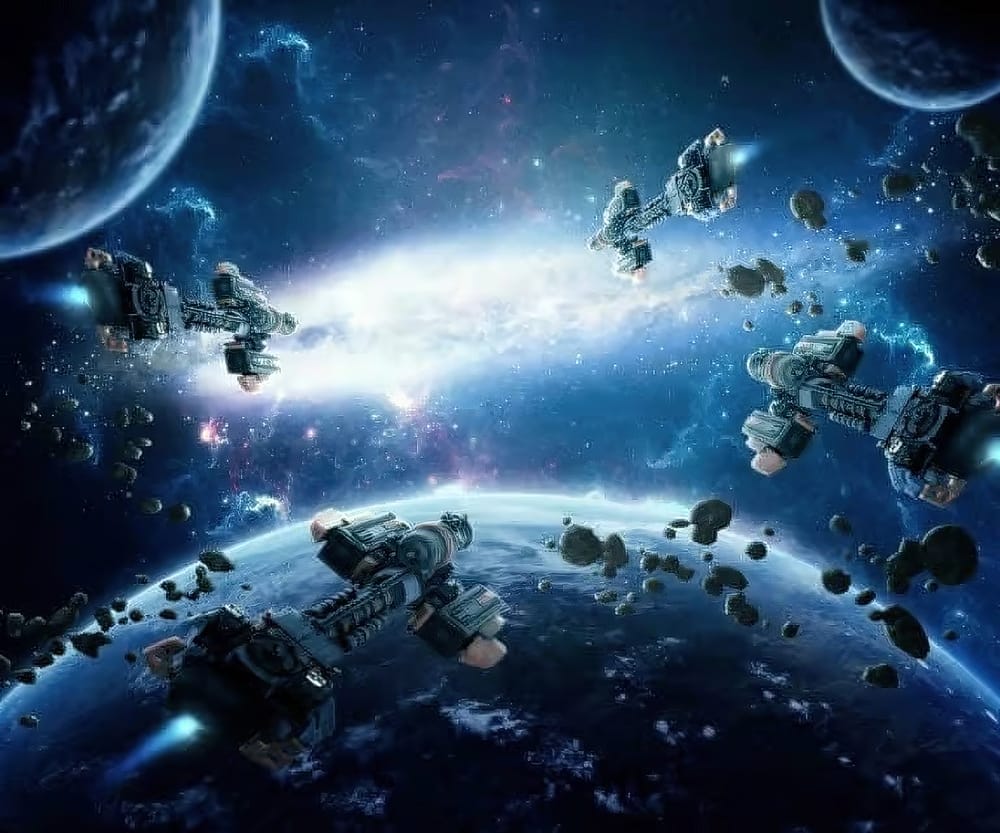
How to Create an Amazing Space Battle Sci-Fi Scene in Photoshop
In this tutorial by Jenny Le, you will discover how to create stunning sci-fi artwork featuring spaceships, planets, and a galaxy backdrop. The step-by-step guidance provided makes it accessible for artists of all skill levels. You will gain insights on how to compose various space elements effectively. This includes techniques for manipulating and blending these elements to achieve a cohesive and appealing final piece. Jenny Le shares practical tips that simplify the process and enhance your
Create a Classic Blurry UFO Sighting Photo Effect
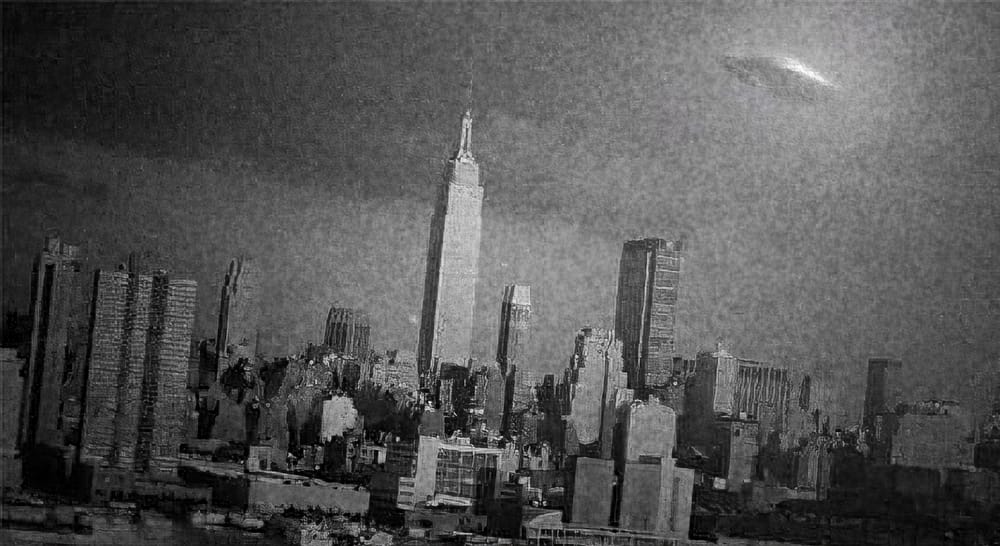
In this quick tutorial, you will discover how to create a classic blurry UFO sighting photo effect using Photoshop. Marty Geller from Blue Lightning TV guides you through the process step by step. You will start with an ordinary photo and transform it into a unique depiction of a UFO encounter. This tutorial focuses on applying a black and white effect that captures the vintage look of UFO sightings from the past. Techniques include creating a soft blur and introducing noise to mimic the imperf
Create an Alien Invasion Photo Manipulation in Photoshop
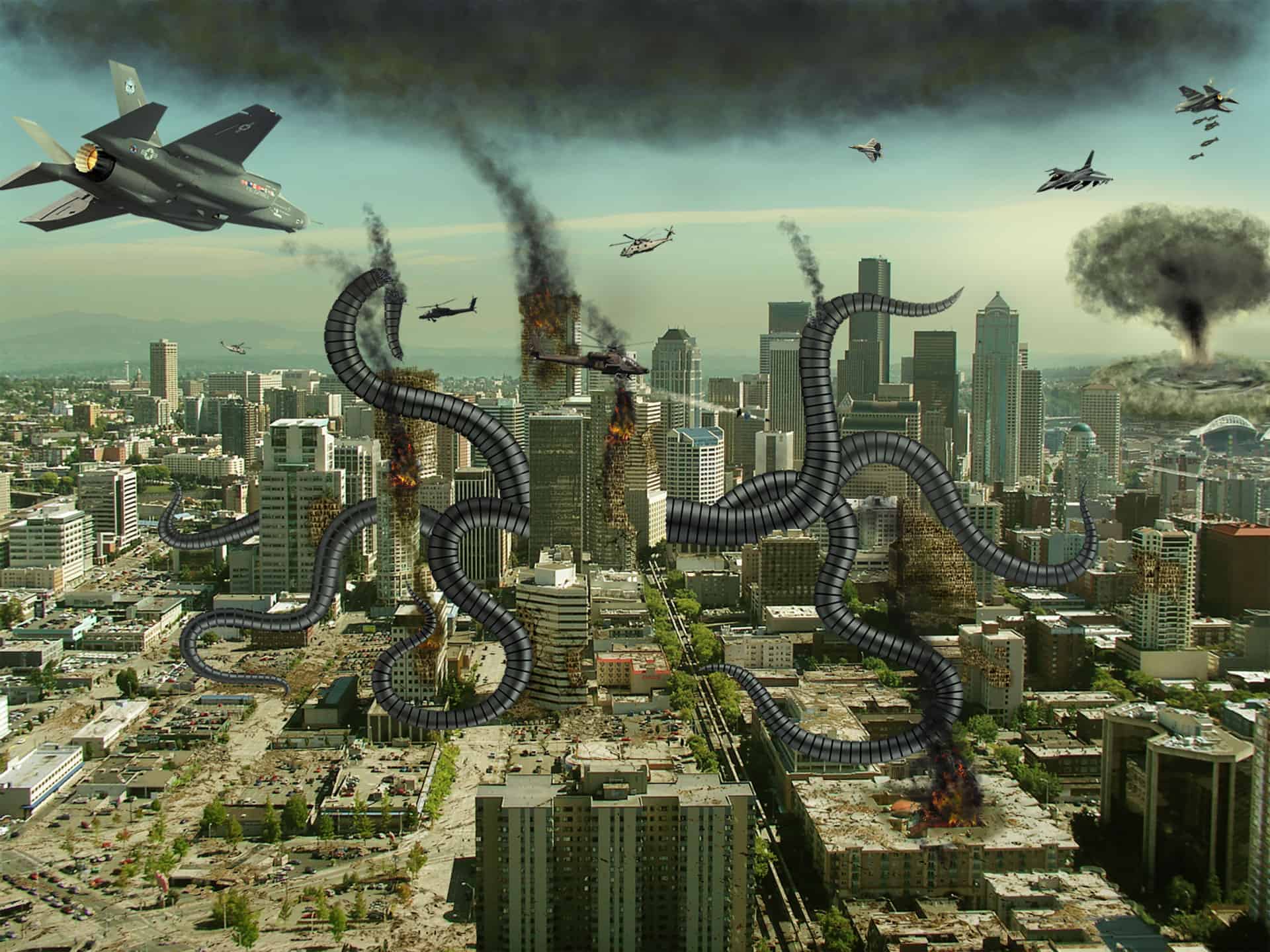
In this tutorial, you'll learn how to create an alien invasion photo manipulation in Photoshop. The focus is on building a convincing destruction scene, which is often one of the most challenging aspects of this type of work. The guide walks you through the process step-by-step, covering essential techniques to achieve a realistic result. You'll explore color correction methods to ensure your composite elements blend seamlessly. The tutorial also explains effective masking techniques to integra
Create a retro '50s Sci-Fi poster in Photoshop
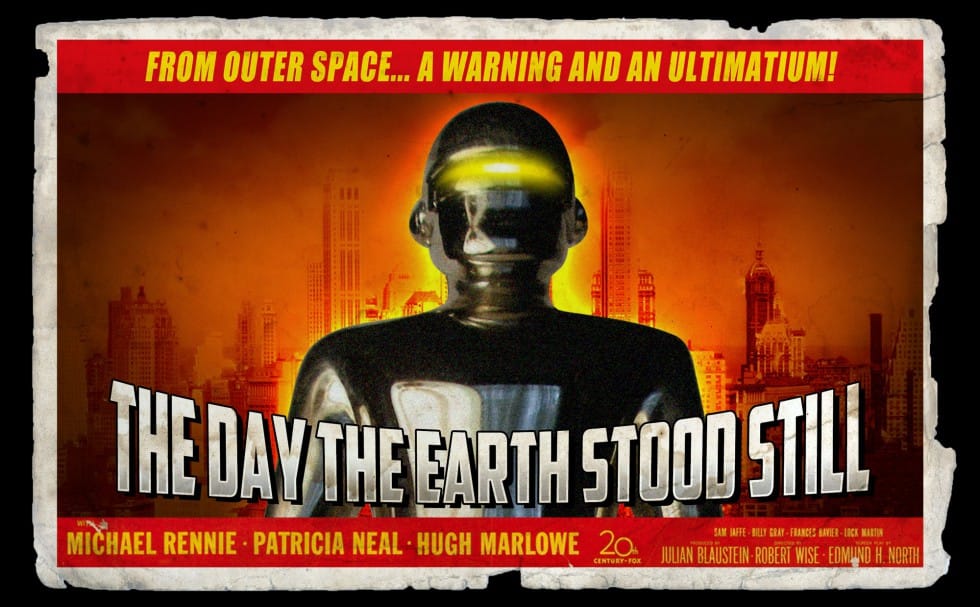
In this engaging tutorial by Marty Geller from Blue Lightning TV, you will learn to create a nostalgic 1950s sci-fi poster using Photoshop. The tutorial focuses on transforming a classic movie poster into your own retro design. Throughout the lesson, you will explore techniques that capture the essence of mid-century science fiction art. The example presented is a redesign of the iconic 1951 poster for "The Day The Earth Stood Still." By the end of the tutorial, you'll have a better understand

Get tutorials & freebies delivered to you.

Subscribe to the Photoshop Roadmap newsletter, a weekly roundup of new tutorials, insights and quality downloads, trusted by 6500+ readers.

You might also like

How to Create Collage Text Effects in Photoshop

Collage text transforms simple typography into visually striking artwork by combining wrapped paper textures, strategic warping, and careful masking techniques. This creative approach gives letters dimension and character, perfect for artistic projects and unique design elements. The technique involves layering textured materials within letter shapes, then using Photoshop's...

How to Convert Low-Resolution Graphics to Vector Shapes in Photoshop

Pixelated logos and graphics lose their impact when scaled up for print or web projects. Photoshop's Creative Cloud Libraries feature offers a built-in solution for transforming low-resolution black and white images into crisp, scalable vector shapes. This technique works particularly well for simple graphics, logos, and icons that...

How to Use Photoshop's Select Subject Tool for One-Click Selections

Complex selections in Photoshop just became effortless. The Select Subject tool uses advanced AI to automatically identify and select main subjects in images, even those with intricate details like bicycle spokes or hair. This tutorial demonstrates how to achieve professional-quality selections with a single click, saving hours of manual masking...

Understanding Photoshop Blending Modes: A Complete Guide to Layer Blending

Blending modes transform how layers interact in Photoshop, letting you seamlessly combine images without complex masking. This technique reveals only light areas, dark areas, or specific colors from each layer. Master these essential blending groups to create professional composites and artistic effects with just a few clicks. Watch the Tutorial...

Photoshop 2026 New Features: AI Tools and Credit System Overview

Photoshop 2026 introduces powerful AI-driven features including advanced generative fill models, sophisticated upscaling tools, and seamless harmonization effects. These updates promise to streamline complex editing tasks while delivering professional-quality results. The software now operates on a credit-based system that divides features into standard and premium tiers, fundamentally changing how users...

How to Add Objects to Photos Using Photoshop's Generative Fill

Photoshop's Generative Fill transforms photo editing by letting you add realistic objects using simple text descriptions. This AI-powered feature creates seamless additions that match your image's lighting, perspective, and style. The process requires just a basic selection and a descriptive prompt to generate professional-looking results in...

You’ve successfully subscribed to Photoshop Roadmap
Welcome back! You’ve successfully signed in.
Great! You’ve successfully signed up.
Success! Your email is updated.
Your link has expired
Success! Check your email for magic link to sign-in.