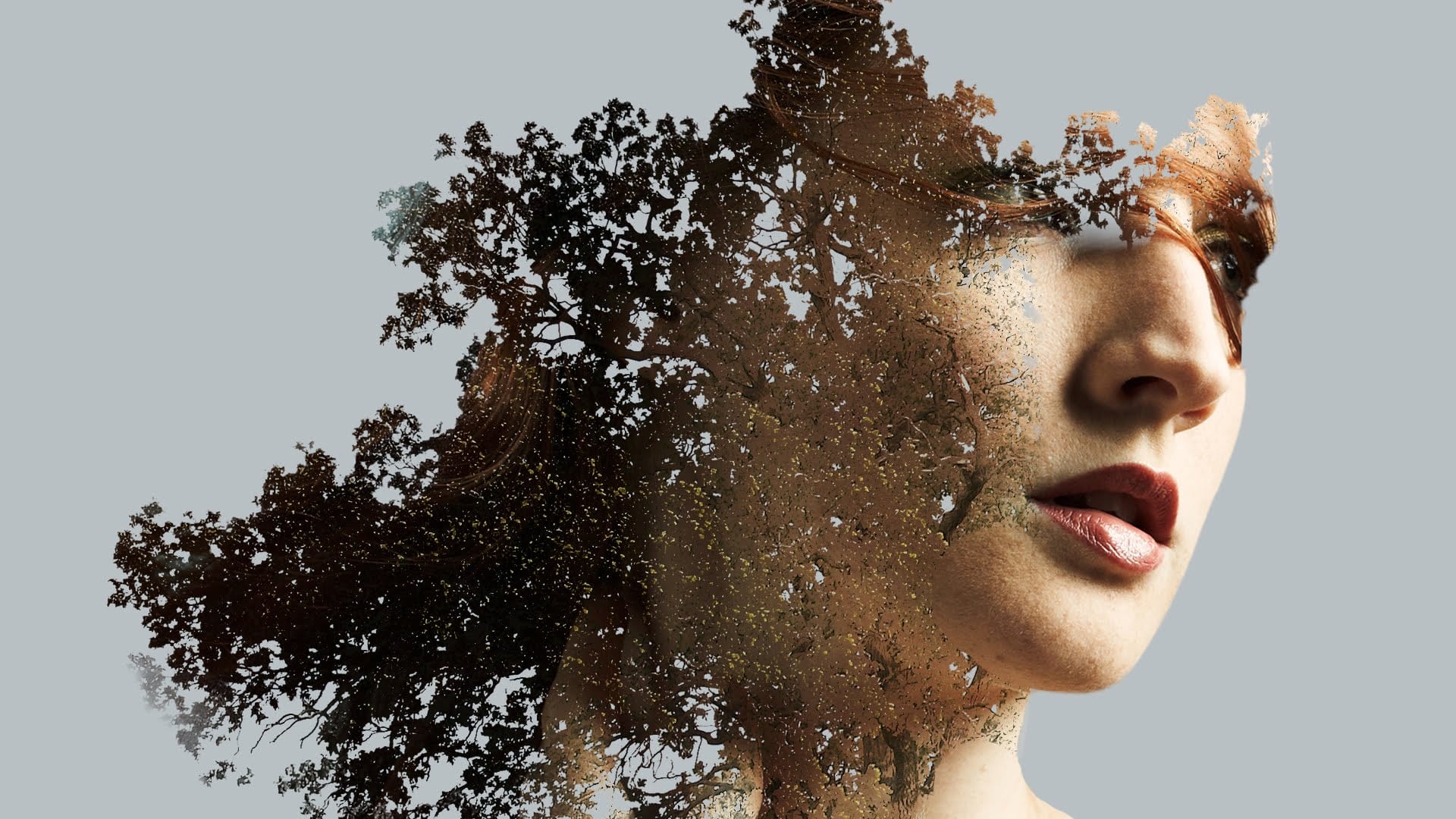
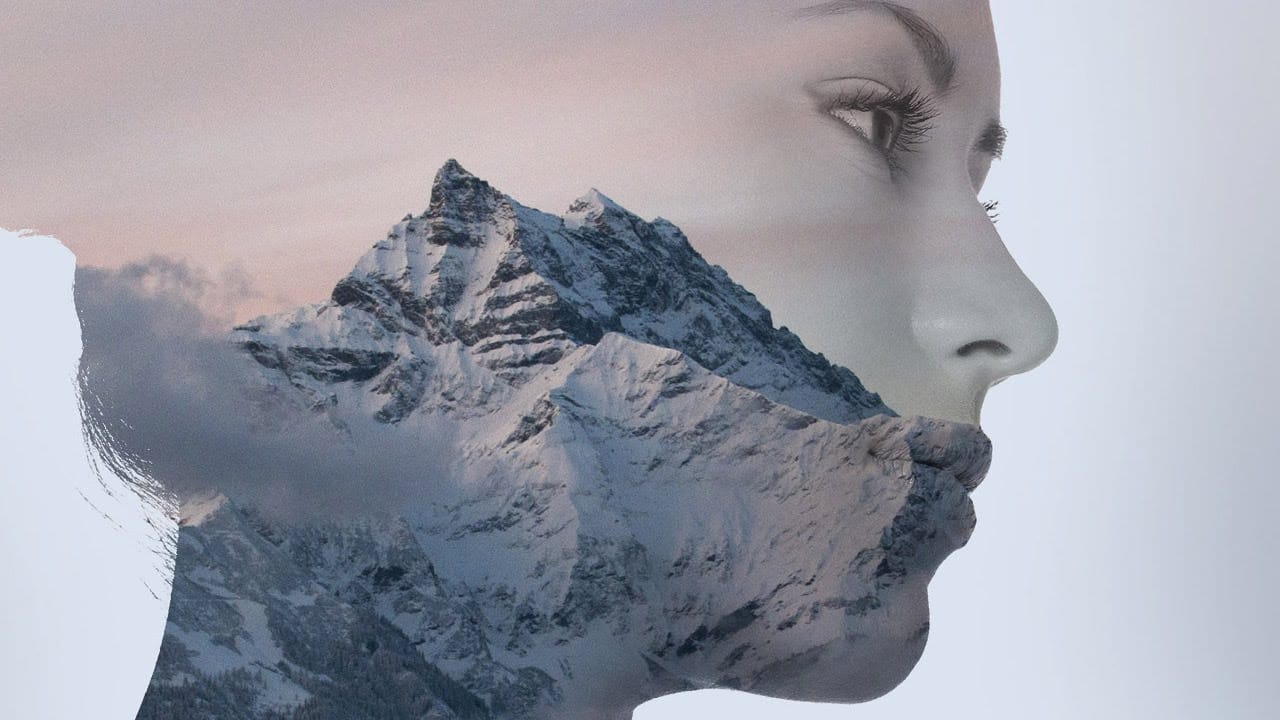
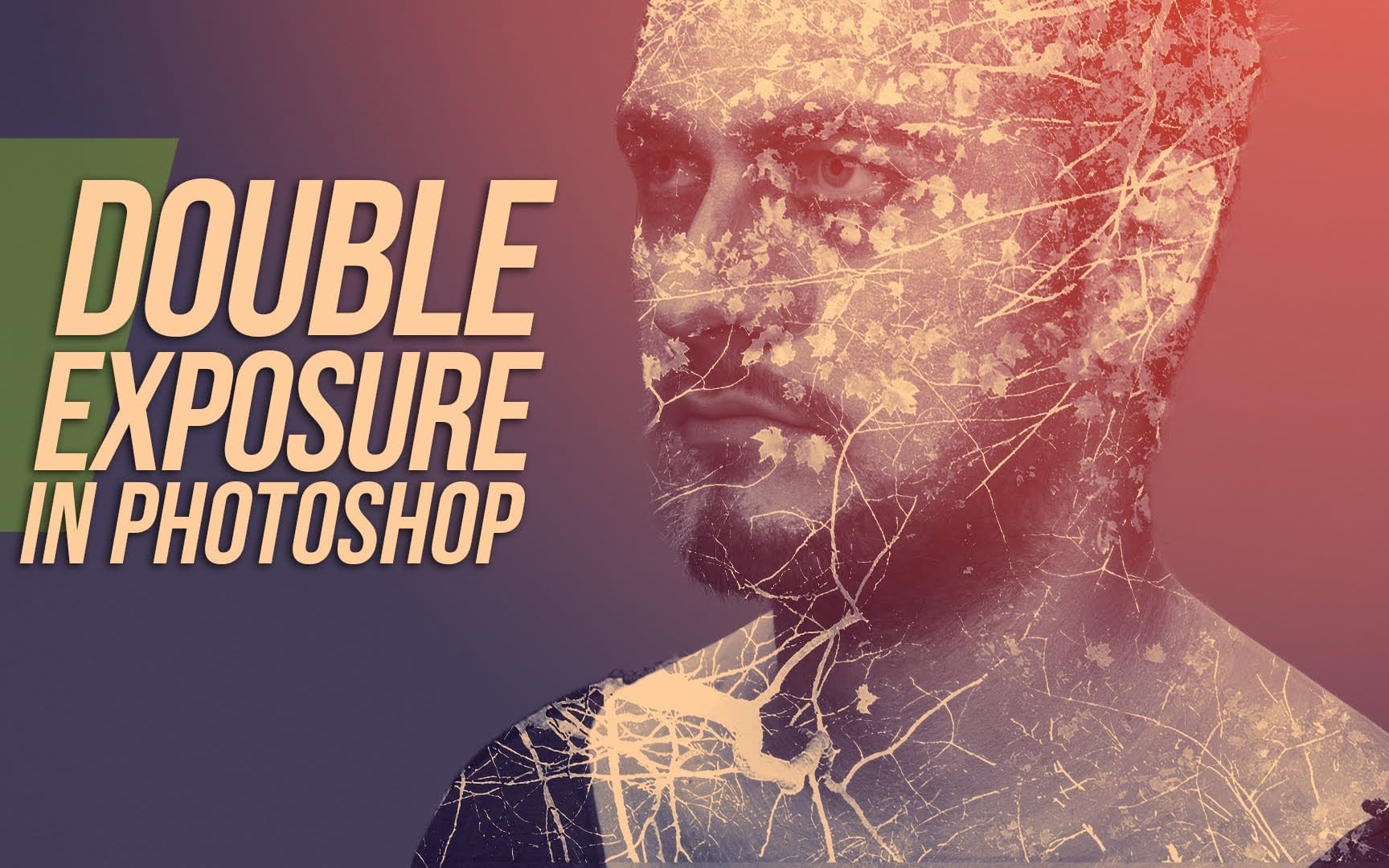
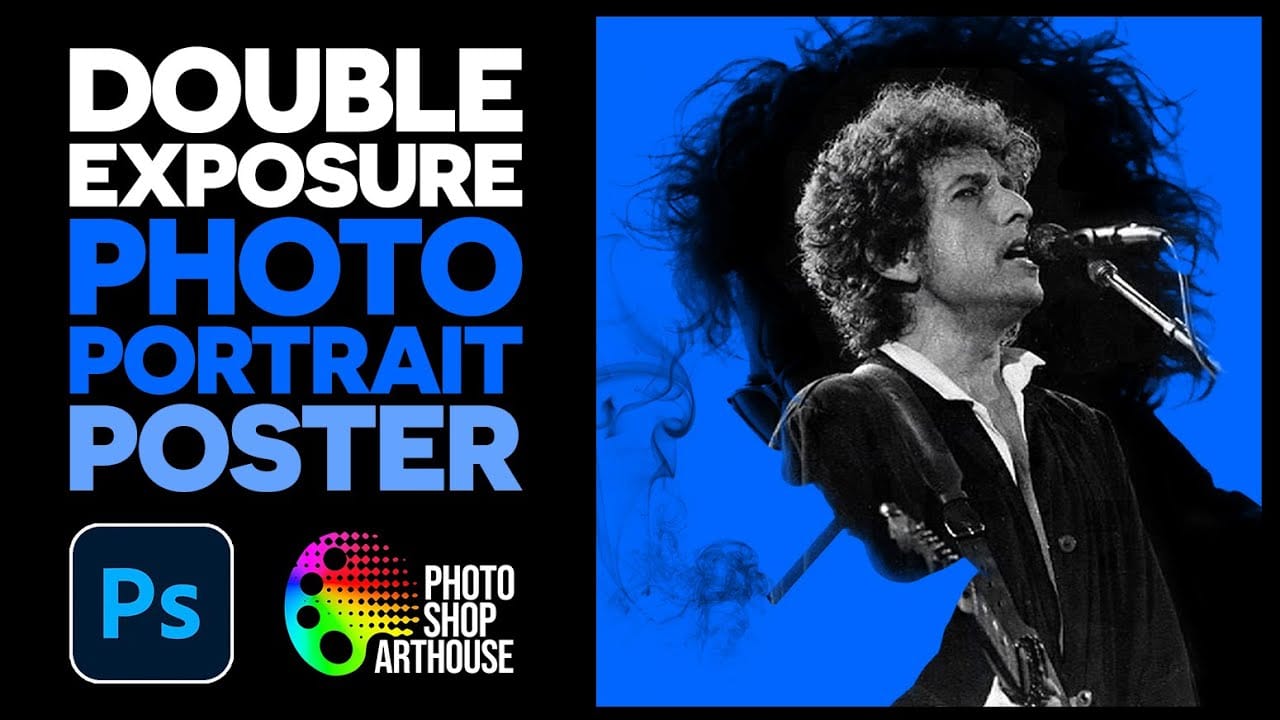
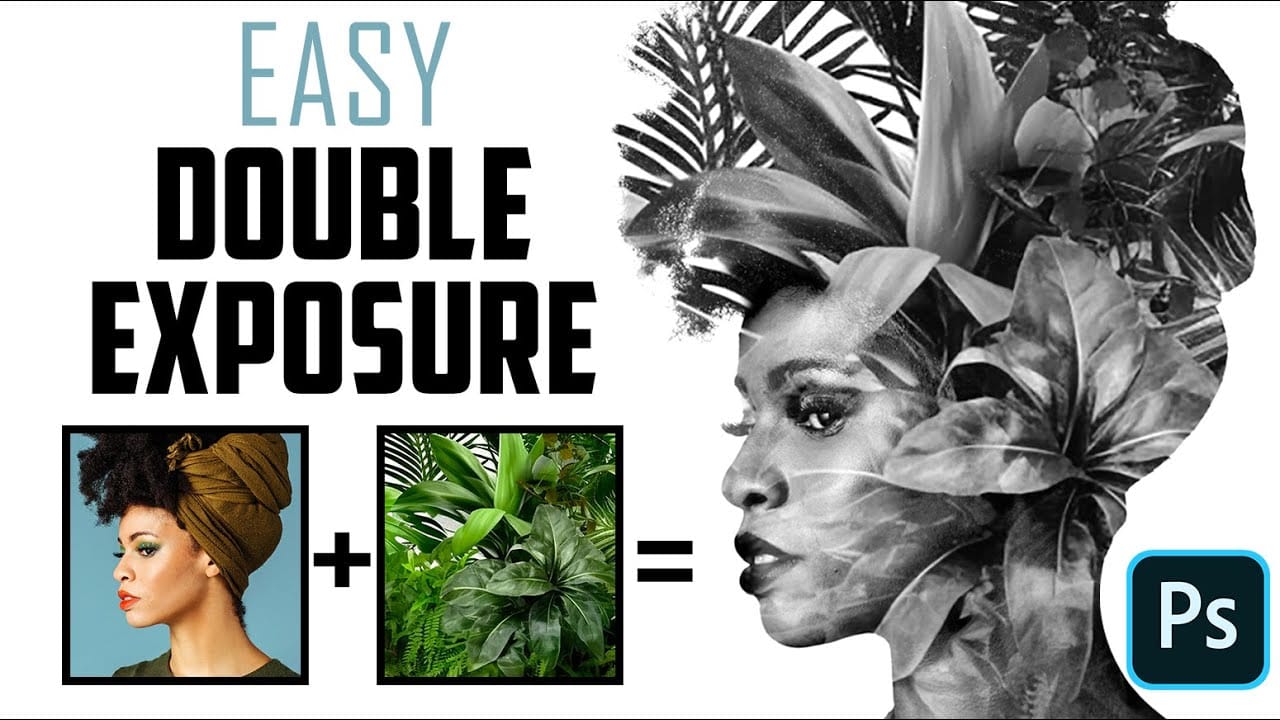
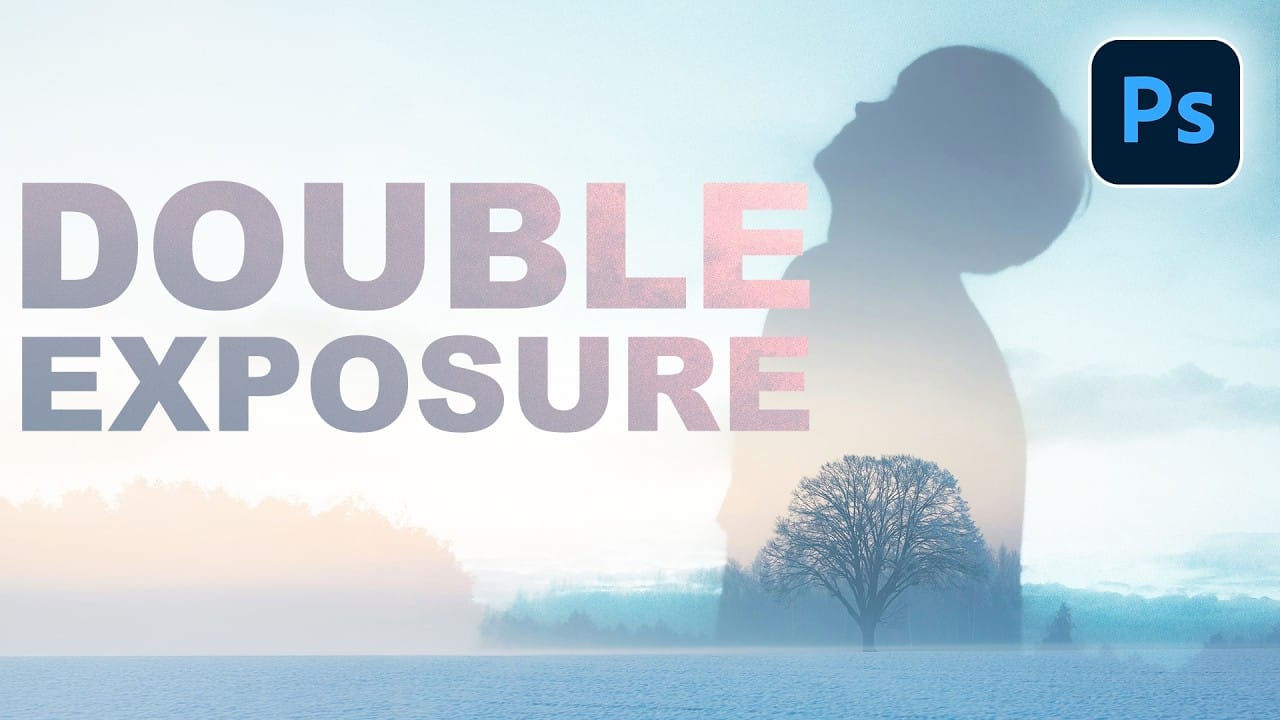
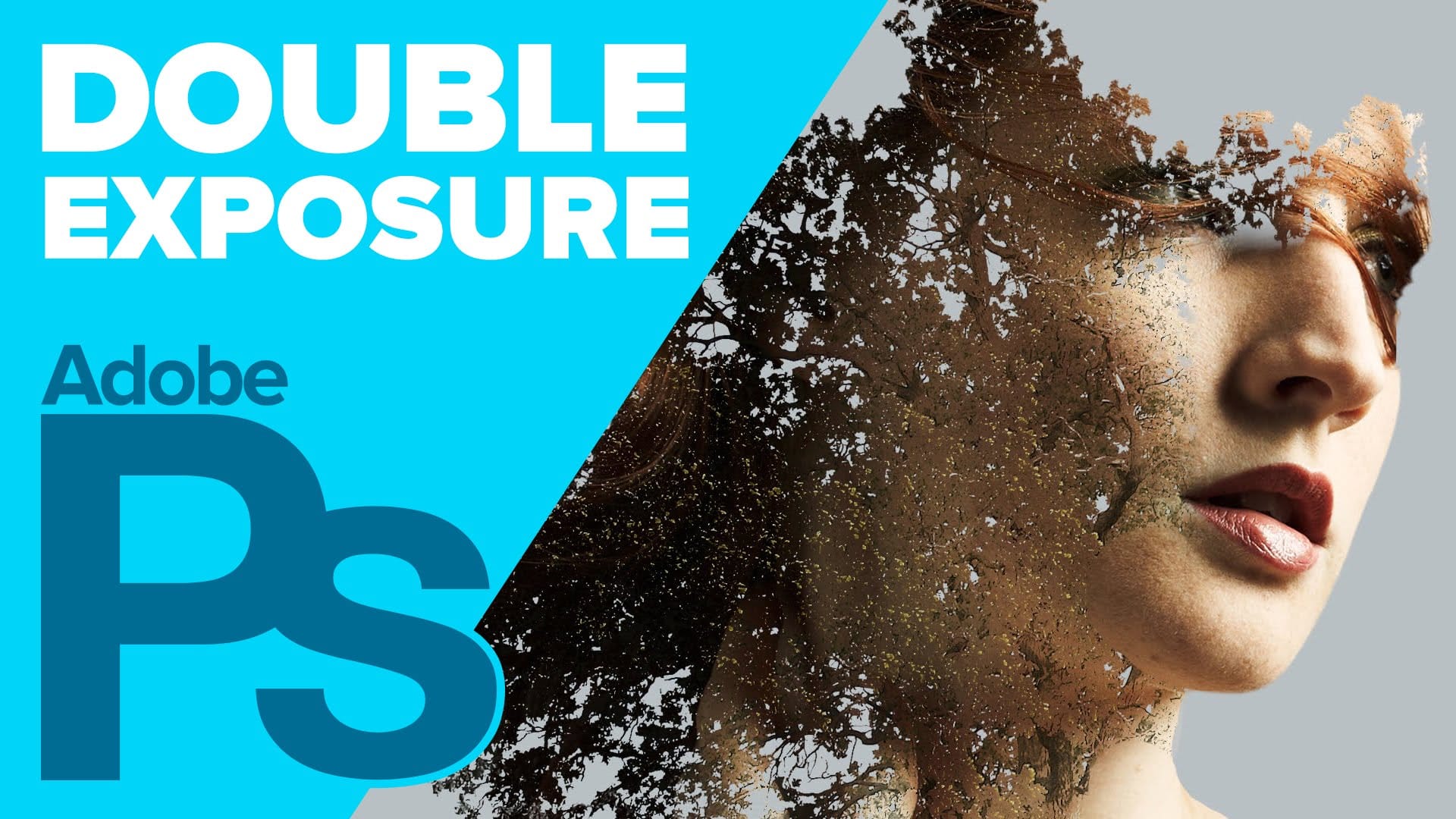
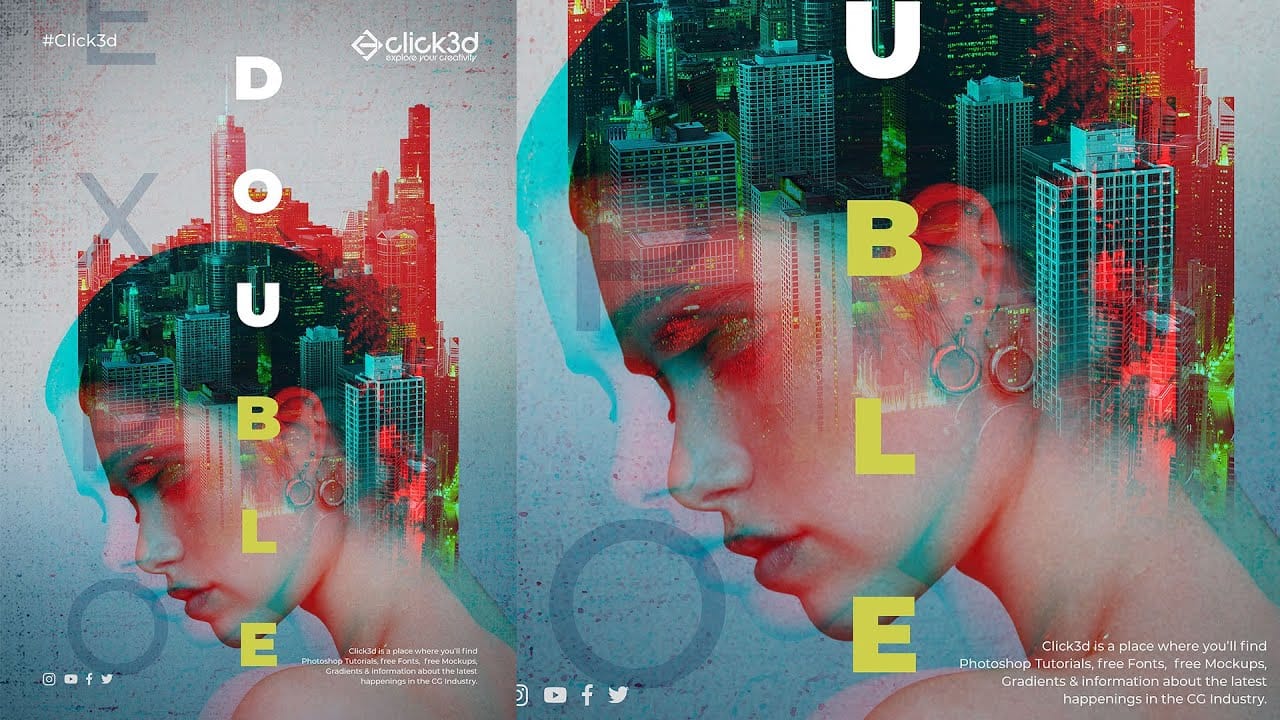
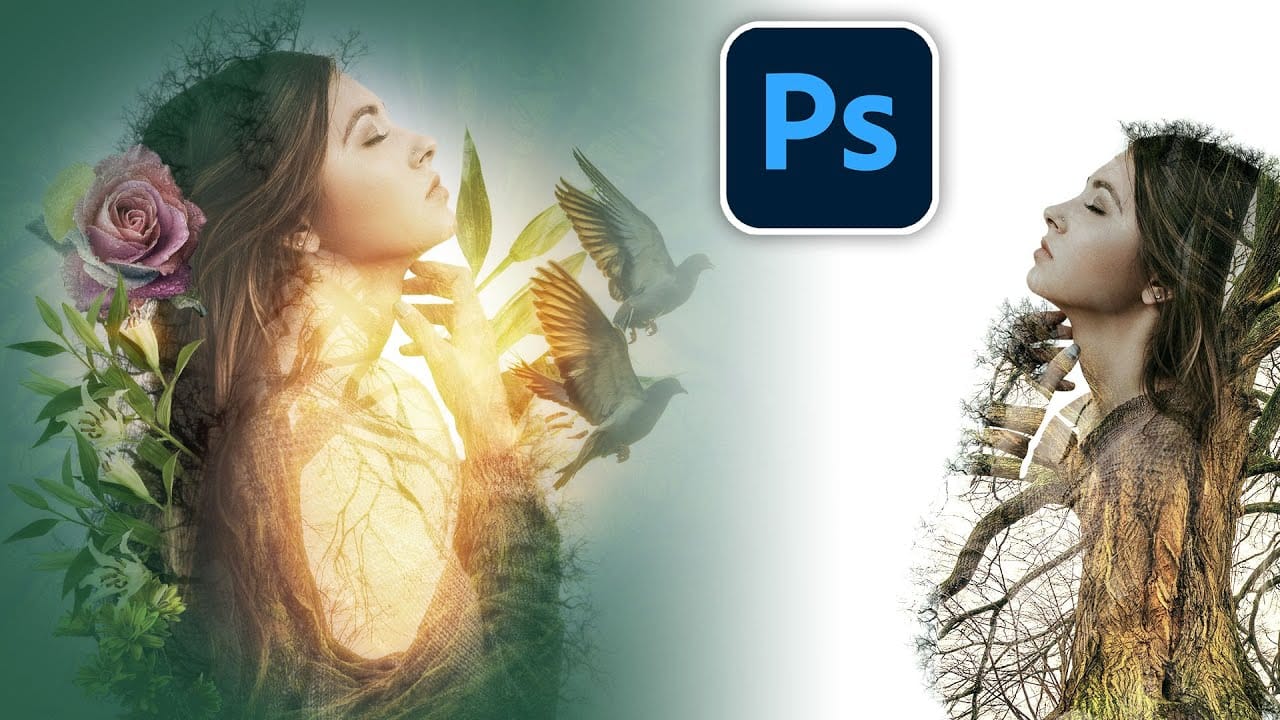
Double exposure portraits blend two images into one artistic composition, creating striking visuals where a silhouette merges with landscapes, textures, or abstract elements. This technique transforms ordinary portraits into compelling artwork by layering the second image inside the dark areas of your subject.
The process relies on high contrast between your subject and background, using the Screen blend mode to reveal the secondary image through the darker portions of your portrait.
Watch the Video
Video by Photoshop Arthouse. Any links or downloads mentioned by the creator are available only on YouTube
Practical Tips
These essential techniques will help you achieve professional double exposure results:
- Choose subjects that are mostly in shadow or silhouetted against bright backgrounds for optimal contrast
- Replace backgrounds with white using Select Subject and layer masks to create clean separation
- Convert your portrait to black and white, then increase contrast using Levels adjustments with input black at 98 and midtones at 3.8
- Set your second image to Screen blend mode before positioning and resizing to see the effect in real time
- Adjust the size and position of your overlay image using Transform tools to place key elements within the silhouette
Related Articles and Tutorials
Explore more double exposure techniques and creative portrait effects with these tutorials.