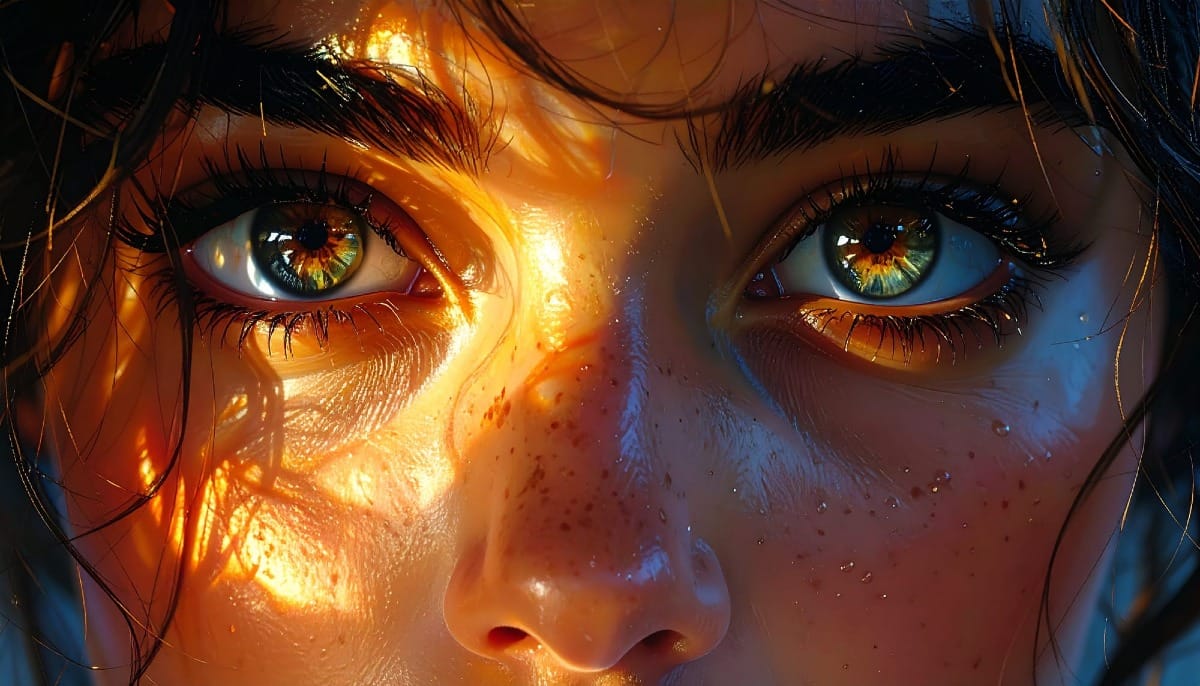
Learn how to easily change eye color in Photoshop

Learn how to easily change eye color in Photoshop

Double exposure effects blend two images into a single artistic composition, creating striking visuals where portraits merge seamlessly with textures like leaves, cityscapes, or abstract patterns. This technique transforms ordinary photos into compelling artwork by layering elements that tell a story or evoke emotion.

The process combines masking, blending modes, and color adjustments to achieve professional results that work well for creative portraits, album covers, or artistic photography projects.

Watch the Video

Video by Retutpro. Any links or downloads mentioned by the creator are available only on YouTube

Practical Tips for Double Exposure Effects

These key techniques will help you create clean, professional double exposure compositions:

  • Use Quick Selection Tool for initial masking — it provides better control than Magic Wand and works faster for selecting portrait subjects
  • Apply masks to the texture layer, not the portrait — drag the portrait mask to your texture layer using Alt to maintain clean edges while keeping the original portrait intact
  • Switch texture layers to Vivid Light blending mode — this creates the signature double exposure look by intensifying the blend between portrait and texture elements
  • Unlink layer and mask before repositioning — this lets you move the texture independently while keeping the mask aligned to your subject
  • Use Blend If sliders for refined contrast — hold Alt while adjusting black sliders in Layer Styles to remove harsh blacks while preserving texture details

Explore more creative Photoshop techniques and artistic effects.
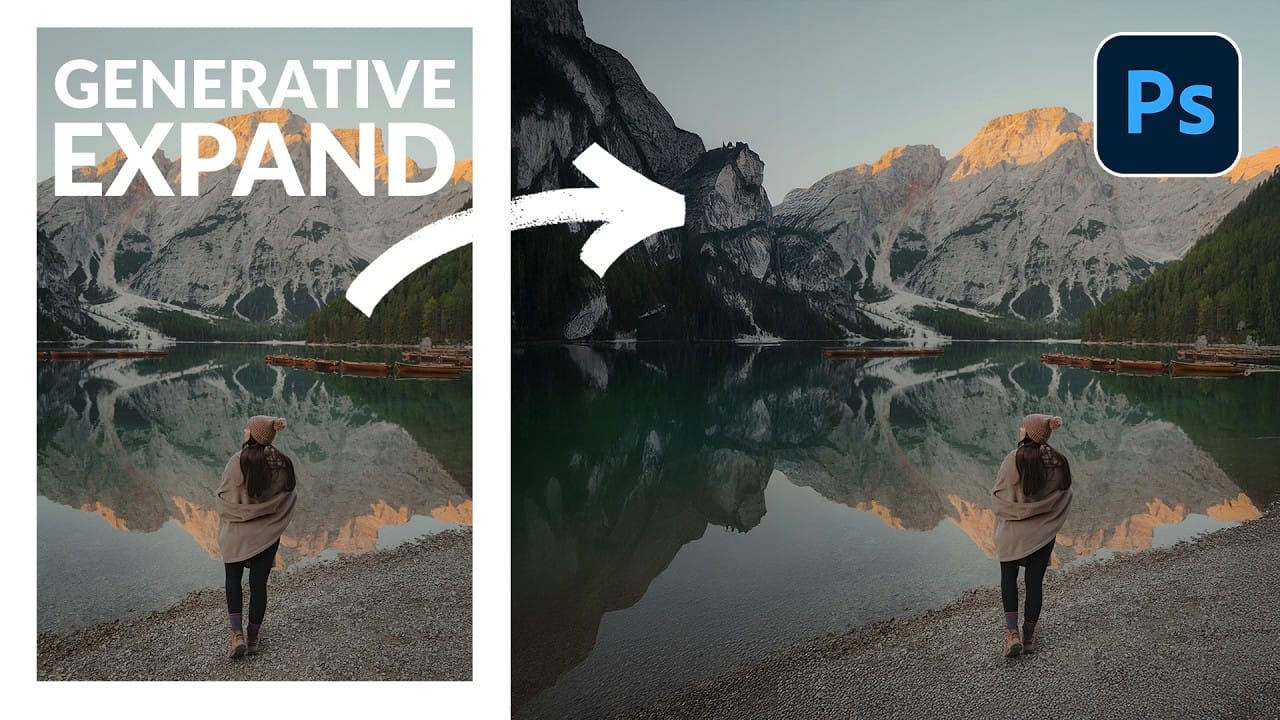
How to Expand Photos Beyond Their Edges Using AI Generative Expand in Photoshop
Sometimes your best photos need more breathing room or a different aspect ratio. Generative Expand in Photoshop lets you extend your canvas beyond the original image boundaries, using AI to intelligently fill in missing areas with content that matches your scene. This technique works for changing portrait photos to landscape orientation, adding more space around subjects, or even changing the camera angle of existing photographs entirely. Watch the Video Practical Tips These key techniques
Artistic Photoshop Actions to Make Photography Fun
Photoshop actions are a simple way to speed up editing and give your photos a consistent look without spending hours on adjustments. From subtle color shifts to bold artistic transforms, actions can help you work faster and keep your style consistent across different projects. They're useful for anyone who wants reliable one-click effects for portraits, landscapes, and creative photography. Why Creative Fabrica? You'll notice that all the actions in this roundup come from Creative Fabrica. T
How to Remove Objects from Photos Using AI Tools in Photoshop
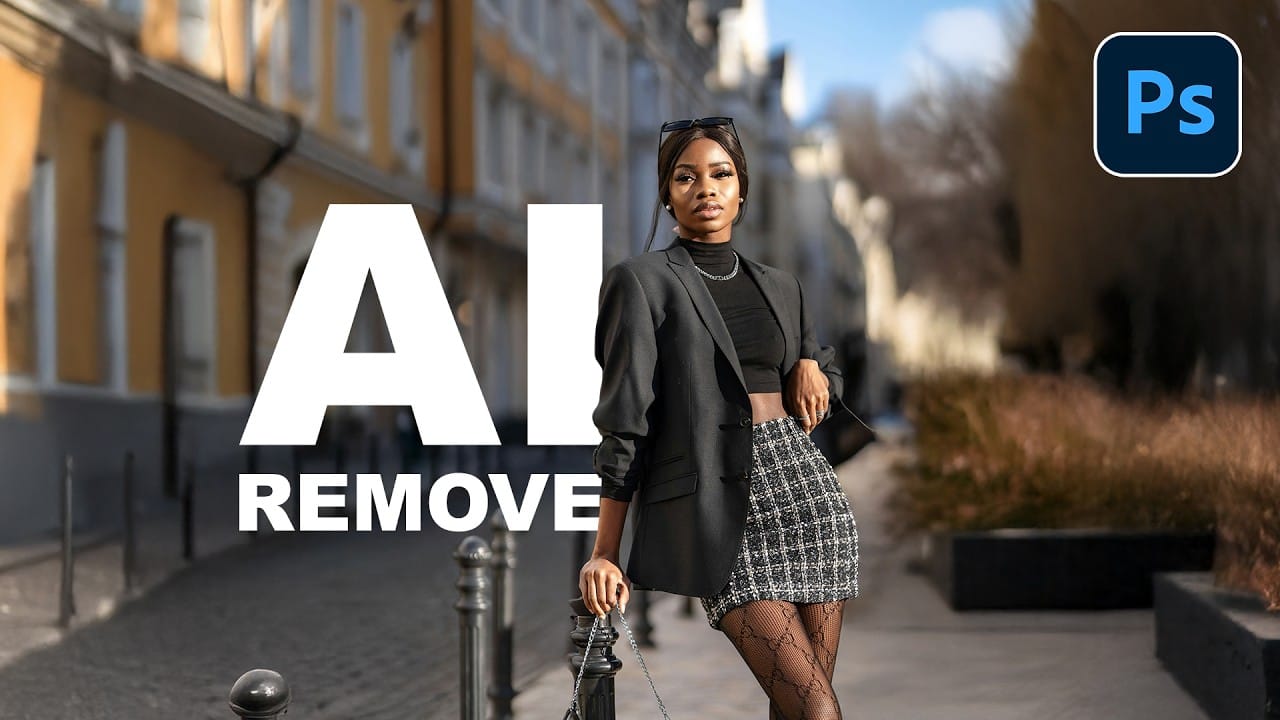
Photoshop's AI-powered object removal tools can eliminate unwanted distractions from your photos with minimal effort. The Remove Tool and Generative Fill feature automated detection for common distractions like people and wires, plus manual painting options for custom removals. These tools work on separate layers, preserving your original image while giving you complete control over what gets removed and how the final result looks. Watch the Video Practical Tips These key techniques will h
Speed Up Your Color Grading Workflow with Photoshop Actions
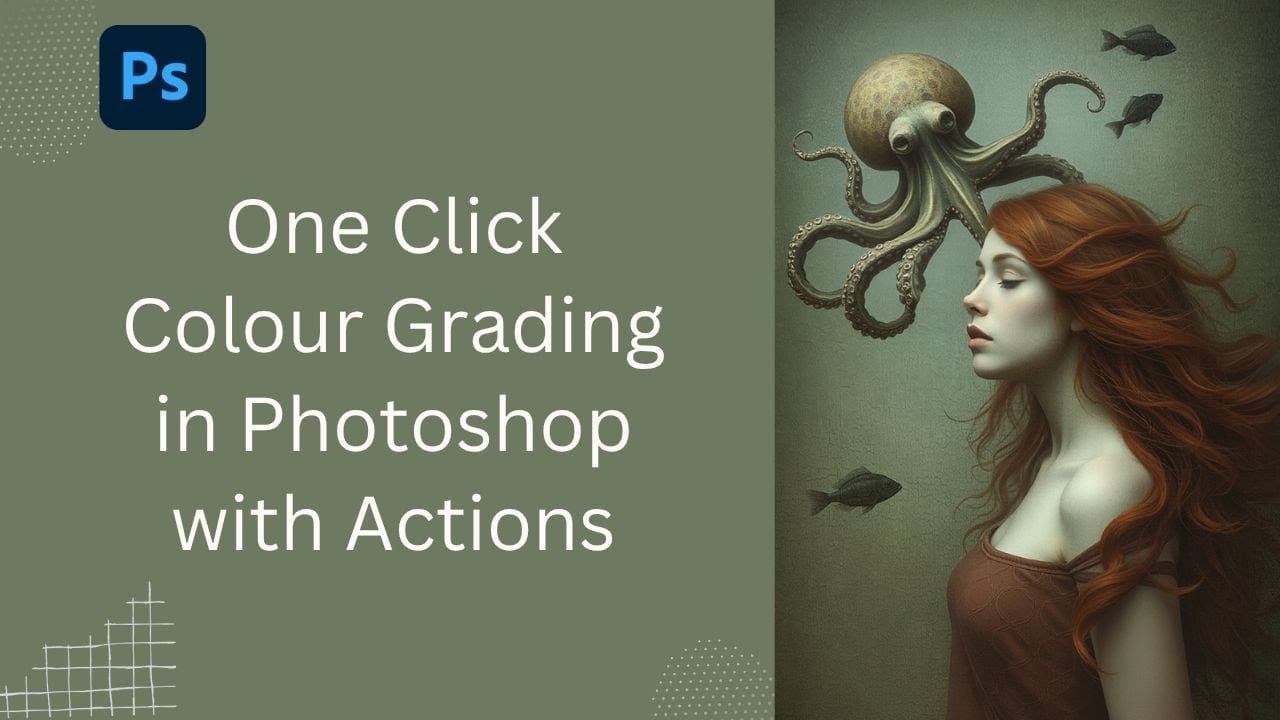
Color grading can transform your images, but manually adjusting curves and levels for every photo takes time. Photoshop actions offer a faster approach by applying professional color treatments with a single click. This workflow uses pre-built actions, tints, and LUTs to achieve various moods and styles instantly, letting you layer multiple effects to build the exact look you want. Watch the Tutorial Practical Tips for One-Click Color Grading * Set your Actions panel to button mode for fa
How to Use Auto Align Layers in Photoshop for Perfect Layer Alignment
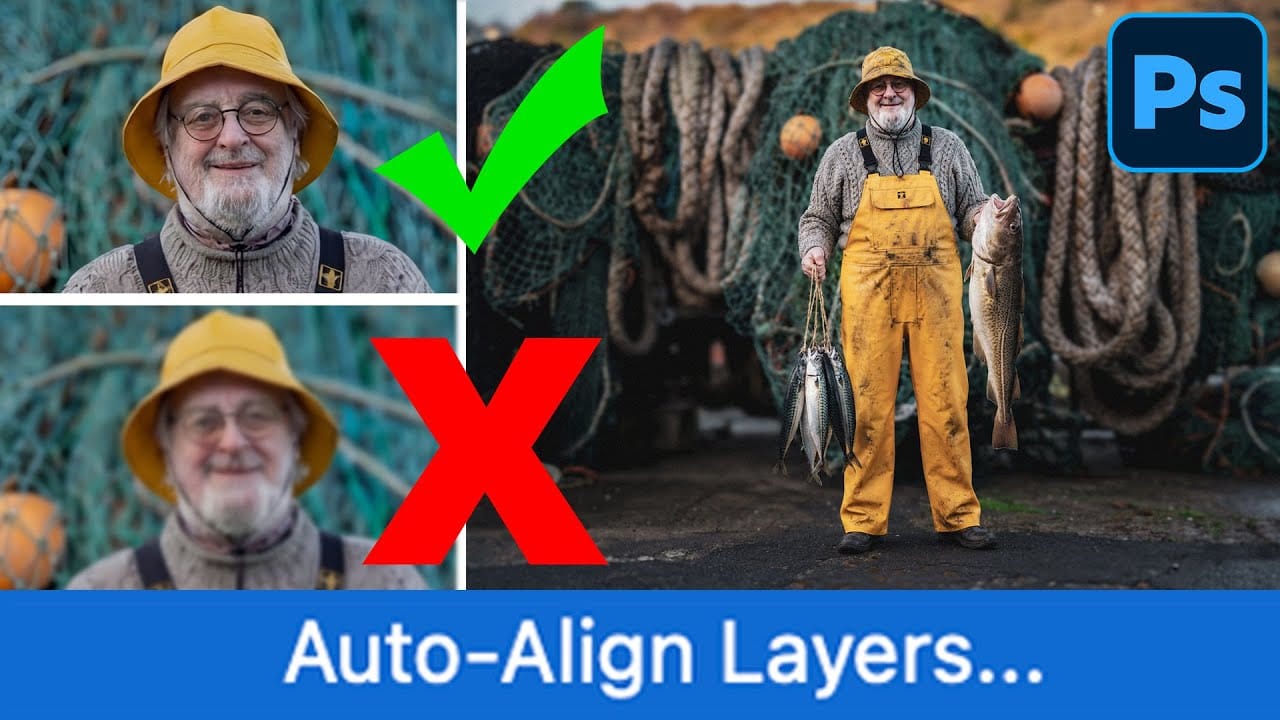
When working with multiple layers that need perfect alignment, manual positioning often falls short. Slight camera movement, different crops, or rotated images can make precise alignment seem impossible through visual adjustment alone. Auto Align Layers automatically handles rotation, scaling, and positioning to create perfect layer alignment, even when images have different dimensions or orientations. Watch the Video Practical Tips These techniques will help you achieve perfect layer alig
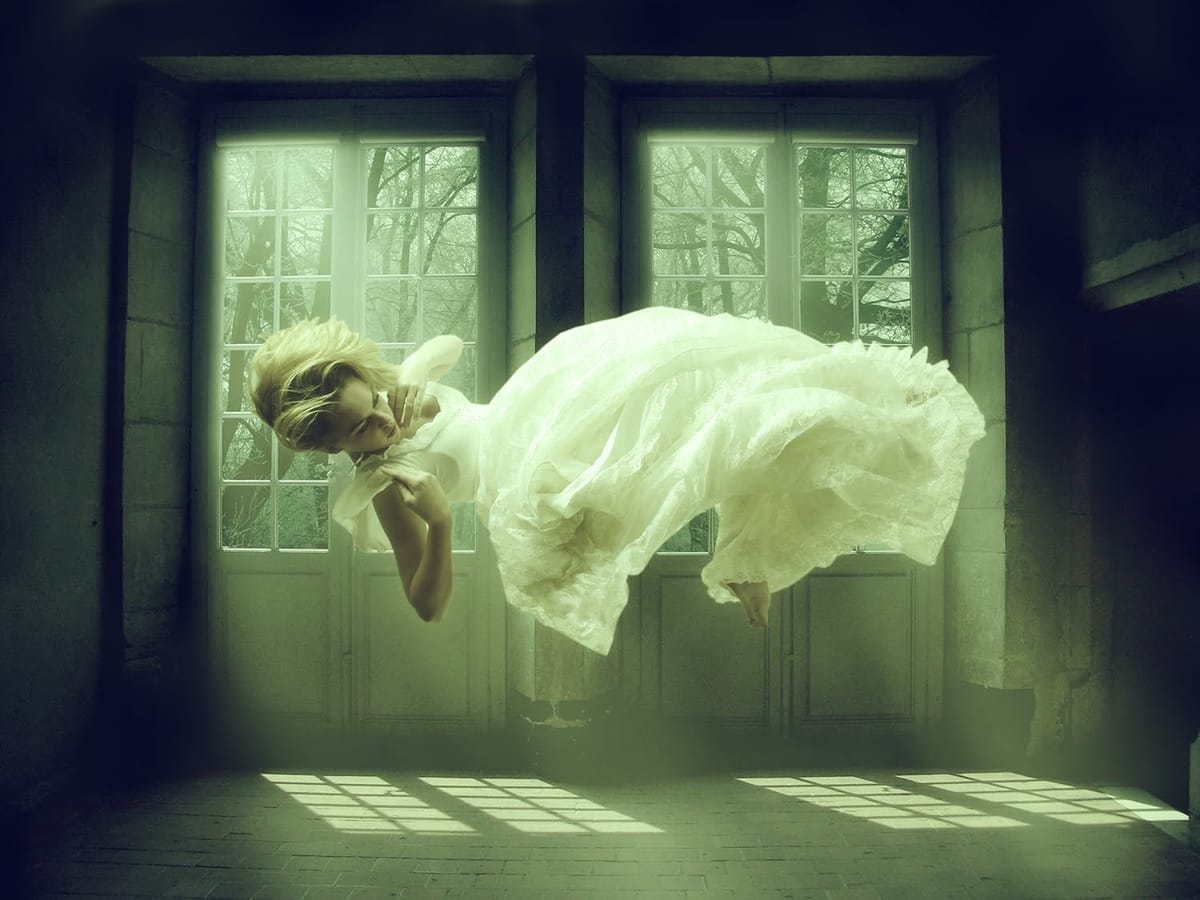
Create a Levitation Effect in Photoshop
In this tutorial you will learn how to create simply levitation effect manipulation with a dreamy effect in Adobe Photoshop. Download the model image and the room image. Video tutorial More

Get tutorials & freebies delivered to you.

Subscribe to the Photoshop Roadmap newsletter, a weekly roundup of new tutorials, insights and quality downloads, trusted by 6500+ readers.

You might also like

Essential Photoshop Tools for Beginners: Brush, Crop, and Move Tool Tutorial

Learning Photoshop tools feels overwhelming when you don't know where to start. This tutorial focuses on three essential tools that form the foundation of most Photoshop work: the brush tool for painting and retouching, the crop tool for resizing and straightening images, and the move tool for positioning...

How to Add Custom Textures to Photos in Photoshop

Adding textures to photographs can transform ordinary images into compelling artistic compositions. This technique uses multiple texture layers combined with strategic blending modes and color adjustments to create depth and visual interest. The process involves layering different texture types—color overlays, surface patterns, and lighting effects—then using masking techniques...

Using AI-Generated Images as Inspiration for Fine Art Portrait Edits

Creative blocks happen to every photographer. When you're struggling to find fresh editing ideas for your portraits, AI-generated images can serve as powerful visual references to spark new artistic directions. This comprehensive tutorial demonstrates how to transform an ordinary child portrait into a painterly masterpiece using an AI...

10 Photoshop Tricks You Probably Forgot Exist

There’s a funny pattern with Photoshop. The longer you use it, the more you rely on the same small set of tools… while some of the most powerful techniques quietly fade into the background. Not because they stopped working — but because they’re just a bit hidden, or not...

Add Floral Patterns to Black Dresses Using Brushes in Photoshop

Transform plain black clothing into vibrant, patterned garments using custom brushes and strategic layer blending. This non-destructive technique combines precise selections with clipping masks to paint realistic floral designs directly onto fabric while preserving the original photograph. The method works particularly well on black materials because the hard light blend...

You’ve successfully subscribed to Photoshop Roadmap
Welcome back! You’ve successfully signed in.
Great! You’ve successfully signed up.
Success! Your email is updated.
Your link has expired
Success! Check your email for magic link to sign-in.